


Setting up a new PC is always exciting but let’s be honest, a fresh system feels incomplete until the right software is installed. Over time, I’ve realized that no matter what I’m using the computer for work, study, or everyday tasks, there are a few essential tools I always end up installing first.
These are simple, practical tools that anyone can benefit from, If you’re a student, professional, or casual PC user. From handling compressed files and managing media to improving search, productivity, and privacy, each tool on this list solves a real, everyday problem.
These 11 software picks have earned a permanent place in my setup because they make the system more efficient, more comfortable to use, and simply better to live with. You don’t need all of them but once you try a few, it’s hard to go back to a stock setup.
Let’s start with the first one I install on every new PC.
1. 7-Zip: File Archiver

If there’s one utility I install on every PC, it’s 7-Zip. If you’re extracting a single ZIP file or handling massive archives, 7-Zip gets the job done easily. What really sets 7-Zip apart is that it doesn’t lock you into a single format. It handles most of the formats you throw at it and does so efficiently, making it useful for everyday users as well as power users.
Features of 7-Zip
- Excellent compression – The 7z format uses modern LZMA/LZMA2 compression, often creating much smaller files than regular ZIP archives.
- Supports tons of formats – Create or extract popular formats like 7z, ZIP, TAR, GZIP, and open almost anything else, including RAR, ISO, DMG, and disk images.
- Smaller ZIP files too – Even standard ZIP files are usually 2–10% smaller compared to tools like WinZip.
- Strong encryption – Secure your archives with AES-256 encryption for peace of mind.
- Right-click convenience – Compress or extract files directly from the Windows context menu.
- Built for power users – Includes a file manager and command-line support for automation and advanced workflows.
- Free & open source – Completely free with support for dozens of languages.
Platform Support: Windows, macOS, Linux
2. CopyQ: Clipboard Manager
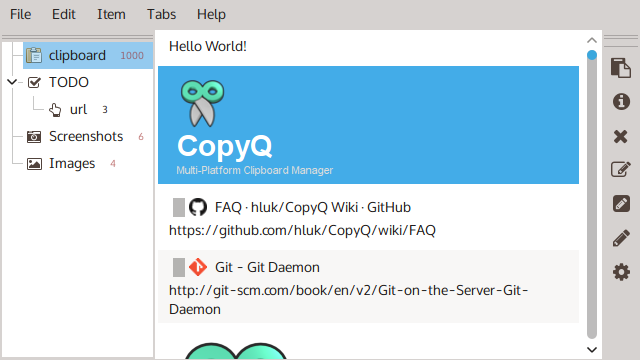
If you copy and paste things regularly like links, code snippets, text, images, then relying on the default clipboard is honestly limiting. The moment you copy something new, whatever you copied earlier is gone. That’s exactly where a clipboard manager becomes a must-have, and CopyQ does this job beautifully.
CopyQ runs in the background and keeps a history of everything you copy. With a single keyboard shortcut, you can instantly see your clipboard history and reuse something you copied minutes, hours, or even days ago. Once you get used to it, CopyQ becomes one of those tools you can’t imagine working without.
Features of CopyQ
- Keeps a searchable history of copied text, links, and images
- Quick access with a global keyboard shortcut to paste previous items
- Organize clipboard items using tabs and notes
- Lightweight, fast, and runs silently in the background
Platform Support: Windows, macOS, Linux
3. VLC Media Player
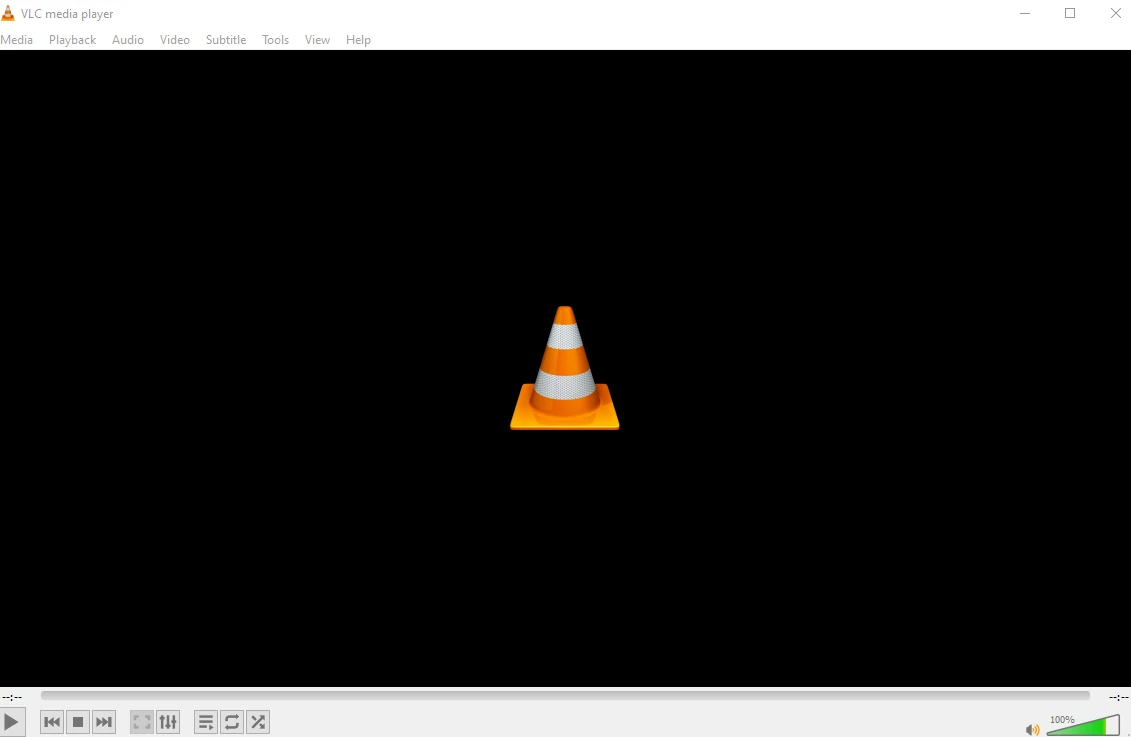
No matter what kind of files you throw at it, VLC just plays them. It support formats like MKV, MP4, AVI, MOV, FLAC, MP3, AAC and more. It handles DVDs and Blu-rays and can stream over networks using HTTP, RTSP, and other protocols. That’s why it’s one of those tools I install without even thinking.
Why VLC is a must-have??
- Plays almost anything – Videos, audio, DVDs, streams, rare formats, no extra codecs needed
- Lightweight & fast – Runs smoothly even on older or low-spec systems
- Streaming & network playback – Play online streams, network media, or local files
- Free, open source & ad-free – No tracking, no nags, no hidden catches
VLC works reliably on Windows, macOS, and Linux, making it a safe choice for literally anyone, casual users and power users alike.
Platform Support: Windows, macOS, Linux
4. FlameShot
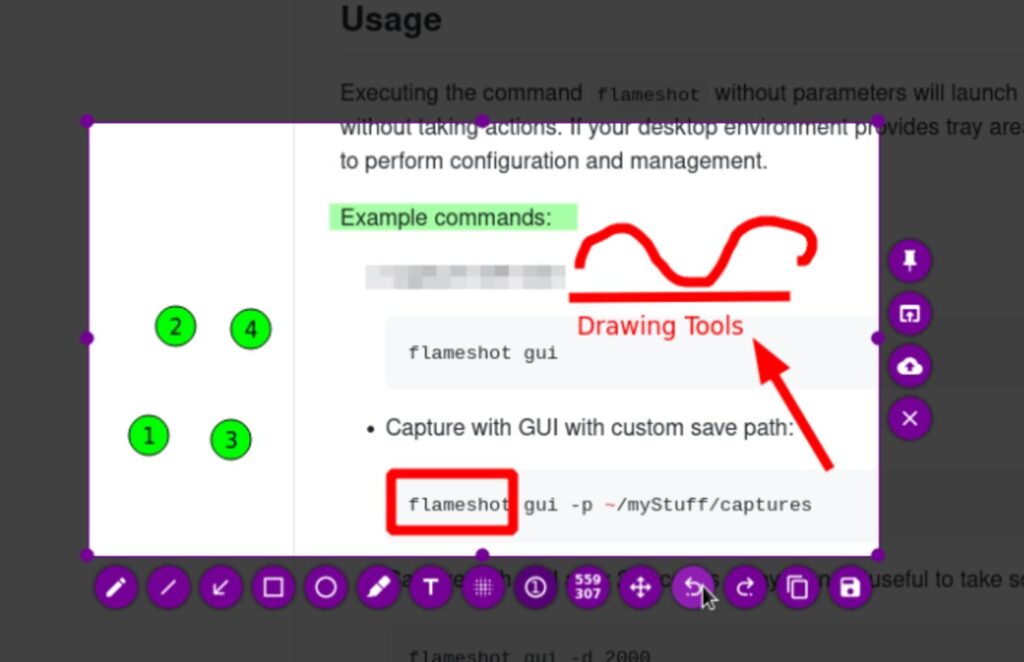
Taking screenshots doesn’t have to be a tedious task. Flameshot makes it effortless, letting you grab exactly what you need and annotate it instantly. If you’re pointing out a bug, highlighting an important section, or just sharing a funny meme, it gives you the tools to do it cleanly and quickly.
Why Flameshot is a must-have??
- Precision editing on the go: Draw arrows, boxes, highlights, and blur areas directly on the screenshot before saving.
- Instant access with shortcuts: Launch captures without opening the app, keeping your workflow smooth.
- Sharing options: Copy to clipboard, save locally, or upload with one click.
- Cross-platform & open source: Works reliably on Windows, macOS, and Linux, completely free, and community-driven.
Flameshot stands out because it doesn’t just take screenshots, it empowers you to communicate visually, fast and effectively, without leaving your workflow.
Platform Support: Windows, macOS, Linux
5. Notepad++
Forget everything you thought you knew about basic text editors. Notepad++ takes simple text editing to a whole new level, offering more than just a place to jot down notes. Whether you’re writing code, tweaking configuration files, or just need a reliable writing tool, it’s surprisingly powerful yet easy to use. Lightweight and fast, Notepad++ packs features that make your digital writing smoother and more efficient, giving you way more than the standard Notepad.
Features of Notepad++
- Powerful text editing: Handle multiple documents at once with tabs, search and replace across files, and syntax highlighting for dozens of languages.
- Customizable & extendable: Use plugins to add features like FTP, spell check, or advanced code formatting.
- Lightweight & fast: Launches instantly and works smoothly on even low-spec machines.
- Free & open source: Maintained by community
Platform Support: Windows
6. Brave Browser: Fast, Private, and Secure Browsing
Brave is a web browser that puts privacy and speed first. It blocks ads and trackers by default, helping pages load faster while protecting your data. Whether you’re browsing casually or working online, Brave gives you a safer experience without constant interruptions.
Why Brave is a must-have??
- Privacy-focused: Blocks ads, trackers, and fingerprinting automatically. Your data stays yours.
- Fast browsing: Websites load significantly faster than in traditional browsers.
- Built-in security features: HTTPS Everywhere, script blocking, and built-in protection against malicious sites.
- Cross-platform & open source: Works on Windows, macOS, Linux, Android, and iOS, with its code fully open for anyone to inspect.
Brave is perfect for anyone who values speed, privacy, and simplicity while surfing the web. If you’re a casual user or someone who handles sensitive work online, Brave keeps your browsing experience fast and secure.
Platform Support: Windows, macOS, Linux
7. Flow Launcher

Flow Launcher is a powerful, open-source launcher for Windows designed to help you find anything instantly. If it’s applications, files, bookmarks, or even web content like YouTube & X (Twitter), Flow makes searching easy and keeps your workflow smooth. Built with the community in mind, it continues to evolve with plugins, hotkeys, and customizations to fit your needs.
Why Flow Launcher is a must-have??
- Search everything fast: Launch apps, find files, or search the web in seconds.
- Powerful plugin system: Extend functionality with community-made plugins for nearly anything.
- Quick system commands: Lock, shutdown, run scripts, jump to folders, or tweak settings without leaving your keyboard.
- Customizable interface: Adjust window size, animations, sounds, and preview panels for a workflow that fits you perfectly.
Flow Launcher works exclusively on Windows 10 and above and is perfect for anyone who wants to move faster, find what they need instantly, and keep their workflow organized.
Platform Support: Windows
Also Read: 12 Free Desktop Apps I Wish I Discovered Sooner: Must-Haves for 2026
8. OBS Studio
OBS Studio is my go-to open-source software for video recording and live streaming. Its a must have if you’re capturing gameplay, tutorials, presentations, or live events, OBS gives you complete control over your streams and recordings. Its powerful tools let you combine multiple video sources, add transitions, and overlay audio and graphics, all in real time.
Features of OBS Studio
- High-quality recording & streaming: Capture video in 1080p or 4K, live stream to Twitch, YouTube, and more.
- Multiple sources & scenes: Combine webcam, display, browser windows, images, and audio effortlessly.
- Powerful audio & video controls: Mix audio, apply filters, and adjust video properties on the fly.
OBS Studio is perfect for creators, educators, and anyone who wants professional-grade recording or streaming capabilities.
Platform Support: Windows, macOS, Linux
9. Ventoy: Effortless Multiboot USB Creation
Ventoy is a game-changer for anyone who frequently works with ISO files or needs a flexible multiboot USB solution. Instead of repeatedly formatting your USB drive, you can simply copy multiple ISO files onto it and boot them directly. Ventoy supports both legacy BIOS and UEFI, making it compatible with nearly any system.
Why Ventoy is a must-have??
- Instant multiboot:Copy as many ISO files as you want, no need to reformat the USB each time.
- Supports multiple OS & formats: Windows, Linux, and other bootable ISOs are all handled seamlessly.
- Secure boot ready: Optional secure boot support for modern systems.
- Free, open source & cross-platform: Works on Windows and Linux, fully open source.
With Ventoy, creating a portable OS library becomes effortless, whether you’re installing, testing, or troubleshooting systems.
Platform Support: Windows & Linux
10. KeePassXC
KeePassXC is a robust, open-source password manager that keeps all your credentials safe in one encrypted database. If you’re juggling dozens of accounts or just want a secure way to store your passwords, KeePassXC makes it simple and reliable. It works across Windows, macOS, and Linux, giving you full control over your data.
Why KeePassXC is a must-have??
- Strong security: AES-256 encryption ensures your passwords are protected.
- Cross-platform: Use it on Windows, macOS, or Linux without compatibility issues.
- Portable & self-hosted: Keep your database on USB drives or cloud storage while staying in control.
- Customizable & feature-rich: Auto-type, password generator, browser integration, and more.
With KeePassXC, you can finally stop relying on weak passwords or repeating them across accounts. It’s perfect for anyone who wants strong security without sacrificing usability.
Platform Support: Windows, macOS, Linux
Also Read: Top 25 Offline AI Tools to Automate Tasks and Boost Productivity
11. Joplin: Take Notes, Organize Ideas, Stay Productive
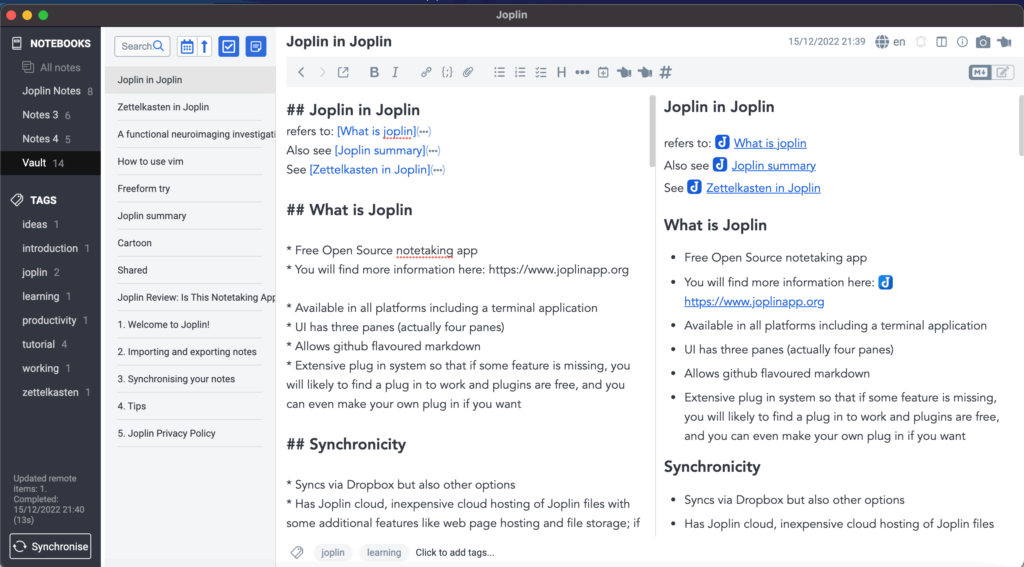
Joplin is an open-source note-taking and to-do application that works across Windows, macOS, Linux, Android, and iOS. It’s designed for people who want a flexible, secure way to capture ideas, manage tasks, and keep everything organized
Why Joplin is a must-have??
- Cross-platform sync: Access your notes on any device via cloud services like OneDrive, Nextcloud, or Dropbox.
- Rich formatting: Supports Markdown, attachments, notebooks, and tags to keep your information structured.
- End-to-end encryption: Protect sensitive notes with strong encryption while syncing across devices.
- Customizable & extendable: Plugins, templates, and themes let you tailor the experience to your workflow.
If it’s taking quick meeting notes, managing research, or keeping personal reminders, Joplin helps you stay organized and productive while keeping your data completely under your control.
Platform Support: Windows, macOS, Linux
Wrapping Up
These 11 tools are the core apps I rely on for every new PC setup. While everyone’s workflow is different, these open-source tools are versatile, reliable, and accessible across multiple platforms. Installing them ensures you have the essentials covered. Whether it’s managing files, capturing screenshots, organizing tasks, or boosting system workflow.
Try them out, explore their features, and see how much smoother your daily workflow can become.