CopyQ is an advanced, open-source clipboard manager packed with editing, scripting, and automation features. It enhances your productivity by letting you manage, search, and reuse clipboard history efficiently, all from a single, customizable interface.
Features of CopyQ
Feature
Description
Cross-Platform Support
Works on Windows, macOS (10.15+), and major Linux distributions.
Clipboard History
Automatically saves clipboard data including text, HTML, and images.
Tabs & Organization
Create tabs, categorize clips, and manage multiple histories.
Edit & Tag Items
Add notes or tags to any clipboard item for easy search.
Global Shortcuts
System-wide customizable keyboard shortcuts.
Scripting & Automation
Advanced command-line and scripting support.
Smart Filtering
Filter and ignore clipboard items based on source or content.
Lightweight & Fast
Low memory footprint and high performance.
Customizable UI
Modify appearance, behavior, and actions to fit your workflow.
Vim-like Editor
Integrated minimal editor with Vim-like shortcuts.
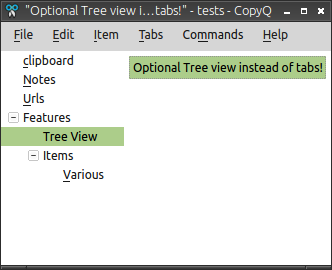
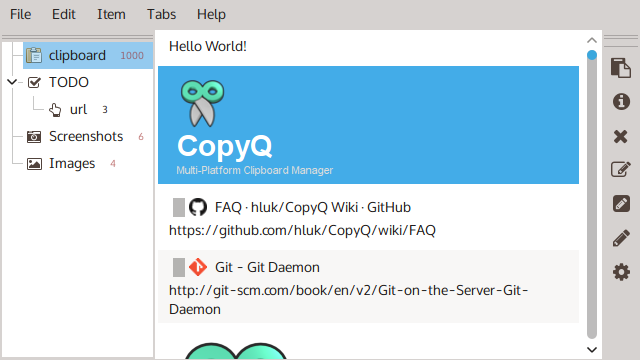
Screenshots
System Requirements
Platform
Minimum OS Version
Architecture
Additional Requirements
Windows
Windows 10 or 11
64-bit
No installation required for portable version; clipboard access permissions needed.
macOS
macOS 12 (Monterey) or newer
64-bit (Intel / Apple Silicon)
Requires Accessibility permission for clipboard monitoring.
Linux
Any modern distro (e.g., Ubuntu 22.04+, Debian 11+, Fedora 35+)
64-bit
Requires Qt 5 or Qt 6 libraries; X11 or Wayland desktop environment.
How to Install CopyQ??
Windows Installation
Download the latest CopyQ Setup (.exe) file.
Double-click the downloaded file.
Follow the on-screen installation wizard.
Once installed, open CopyQ from the Start Menu.
macOS Installation (Intel & Apple Silicon)
Option 1: Install via Homebrew
brew install --cask copyq
Option 2: Direct Download (.dmg.zip)
File
Platform
Size
CopyQ-macos-12-m1.dmg.zip
macOS ARM (Apple Silicon)
38.1 MB
CopyQ-macos-13.dmg.zip
macOS Intel
38 MB
Manual Installation:
Download the appropriate .dmg.zip file for your system.
Double-click to unzip it.
Open the resulting .dmg file.
Drag CopyQ.app into your Applications folder.
Launch CopyQ from Launchpad or Spotlight.
If you see “CopyQ is damaged” or “can’t be opened”:
CopyQ isn’t just another clipboard tool, it’s a powerful productivity booster for developers, writers, and multitaskers. With cross-platform support, scripting capabilities, and advanced automation, CopyQ gives you total control over what you copy, when, and how you use it.
Its lightweight footprint, open-source nature, and community support make it one of the best clipboard managers available in 2025.
Whether you use Windows, macOS, or Linux, CopyQ ensures your clipboard history is organized, searchable, and always at your fingertips.
Want more stories worth your time?
Add us to your Google favorites. We cover the tech stories, AI developments, and open-source projects that are easy to miss in the noise.
AutoClip uses AI to find highlights in long videos, create short clips, generate titles and prepare content for platforms like YouTube Shorts & Bilibili.
Have an old iPhone, iPad or Mac sitting around? OpenDisplay turns it into a proper second display for your Mac, letting you extend your desktop instead of simply mirroring your screen.
Most AI tools can answer questions about your documents.
But there's a problem with the usual approach.
You add a bunch of files, ask a question and the AI searches through them to find an answer. Ask something else later and it does much of the same work again.
LLM Wiki on the other hand, uses an LLM to build a persistent, structured wiki from them.
Add a collection of documents and LLM Wiki analyzes them, creates pages for important entities and concepts, connects related information and keeps the knowledge base updated as you add more sources.
That means your knowledge doesn't just sit inside a folder waiting to be searched.
It gradually becomes an interconnected collection of information that you can browse, search and ask questions about.