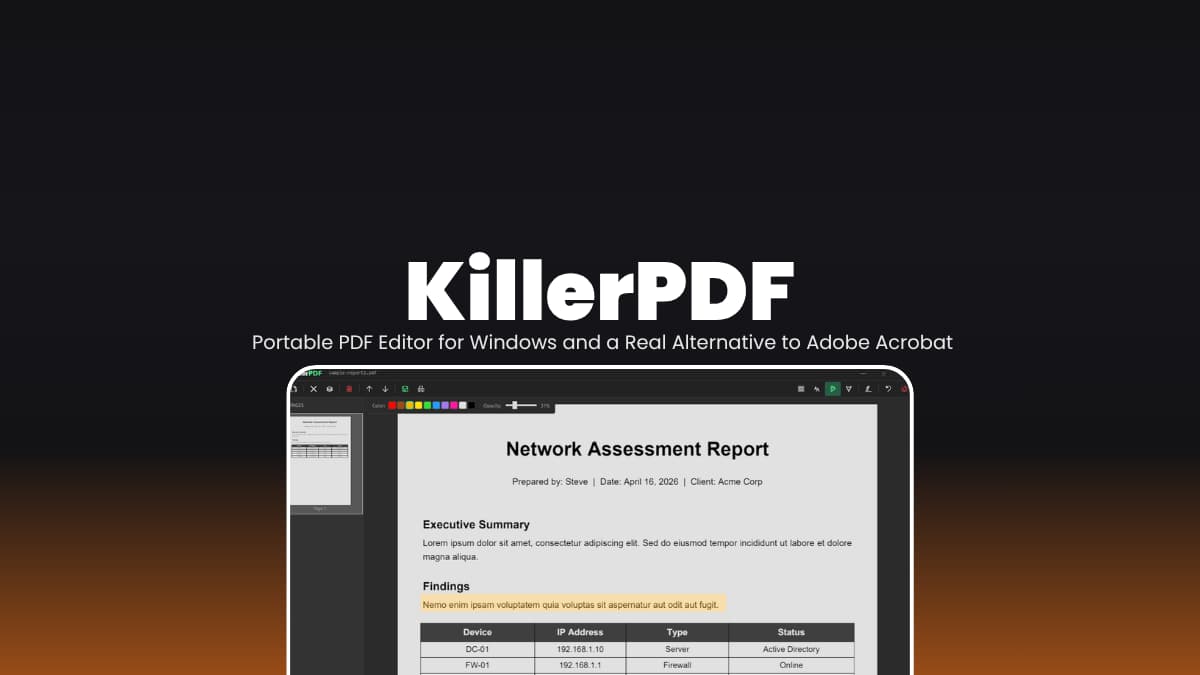

File Info
| File | Details |
|---|---|
| Name | KillerPDF |
| Version | v1.1.1 |
| Type | Portable PDF Editor |
| Developer | SteveTheKiller |
| License | GPLv3 (Open Source) |
| Platforms | Windows |
| Size | 5.8MB |
| File Formats | .zip |
| Primary Use | PDF editing, annotation, merging, signing, and viewing |
| Github Repository | Github/KillerPDF |
Description
Most PDF tools push you to upload your files somewhere which is what not many feel comfortable with. That’s where KillerPDF solves the problem. You download a zip, extract it, run the EXE. That’s it, nothing running in the background.
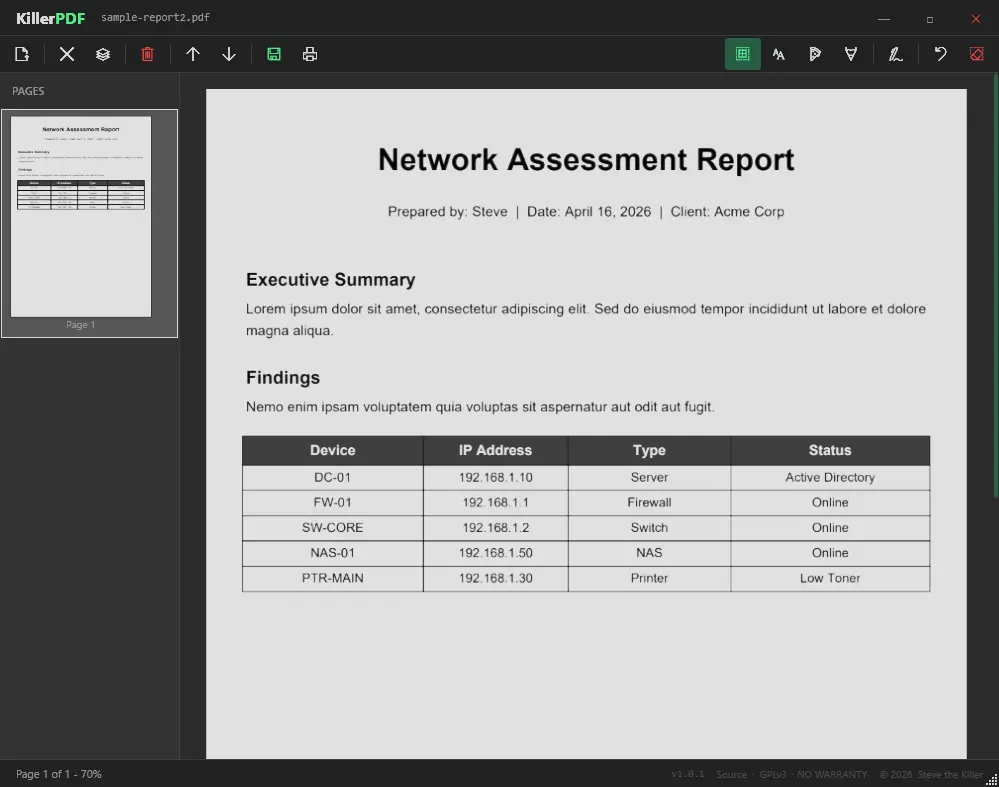
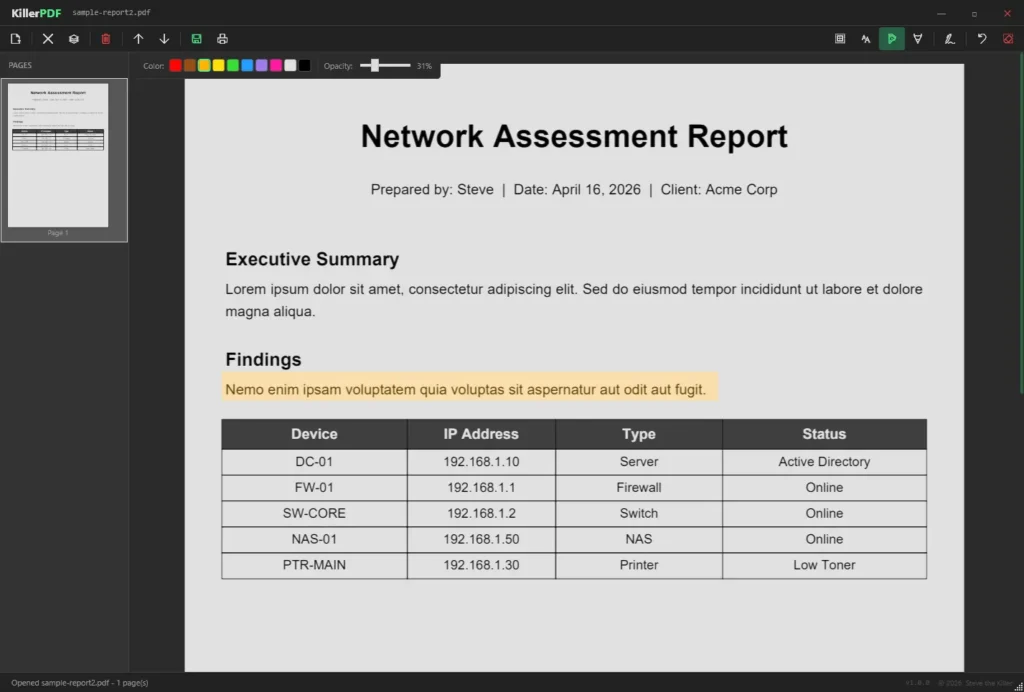
It handles the usual stuff. Open PDFs, edit text, highlight things, merge files, split pages. The text editing part is better than I expected, it tries to match the original font instead of breaking the layout.
There’s search, annotations, signatures, all the basics you’d normally reach for Acrobat to do. And everything stays local.
Use Cases
- Edit PDF text without switching to a heavy editor
- Highlight, annotate, or mark documents quickly
- Merge multiple PDFs into one file
- Split large PDFs into smaller sections
- Add signatures without printing and scanning
- Review documents offline without uploading them anywhere
- Use a portable PDF tool on different machines
Screenshots
Features of KillerPDF
| Feature | Description |
|---|---|
| PDF Viewing | Smooth rendering using PDFium |
| Text Editing | Edit text inline with font matching |
| Merge & Split | Combine PDFs or extract selected pages |
| Page Reordering | Drag and rearrange pages easily |
| Annotations | Highlight, draw, and add text boxes |
| Signature Tool | Draw and reuse signatures |
| Search | Find text across the document with highlights |
| Copy Text | Drag to select and copy content |
| Print Support | Print with annotations included |
| Portable | Single EXE, no install required |
| Offline | Everything stays local |
Related: Xournal++ Open-Source Note-Taking & PDF Annotation App
System Requirements
| Component | Requirement |
|---|---|
| Operating System | Windows 10 or 11 (64-bit) |
| Processor | Any modern CPU |
| RAM | 2 GB minimum |
| Dependencies | None (everything bundled inside the EXE) |
How to Install KillerPDF??
- Download the
.zipfile - Extract it anywhere on your system
- Open the folder and run
.exefile - Start editing your PDFs
Download KillerPDF: A Real Alternative to Adobe Acrobat
A Simple Alternative to Adobe Acrobat
This is the kind of tool you open when you just want to get something done quickly. Acrobat can do more, obviously. But it also comes with installs, prompts, and a subscription sitting in the background. KillerPDF doesn’t.
It starts fast, doesn’t get in your way, and covers most everyday tasks without making a big deal out of it. If you’re looking for a lightweight, open source alternative to Adobe Acrobat, this one’s easy to keep around. Even just as a backup.