
File Info
| File | Details |
|---|---|
| Name | PureMac |
| Version | v2.0.0 |
| Type | macOS App Manager & System Cleaner |
| Developer | momenbasel |
| License | MIT License (Open Source) |
| Size | 2MB |
| Platforms | macOS |
| Format | .dmg |
| Github Repository | Github/PureMac |
Table of Contents
Description
macOS doesn’t really delete apps. It removes the app bundle, sure, but everything else stays behind. Preferences, caches, random support files buried in Library folders.
PureMac goes after that leftover mess. Pick an app and it pulls up everything linked to it. It digs through metadata, bundle IDs, and other hints to figure out what belongs where. You get a list, you decide what goes.
It also checks for leftovers from apps you already removed. That one surprised me a bit. Old files from things I don’t even remember installing. There’s a cleaning section too. Caches, logs, Xcode data, Homebrew downloads, large files sitting around doing nothing. It’s all there, grouped in a way that doesn’t feel random.
Use Cases
- Remove apps completely without leaving behind hidden files
- Find and delete leftover files from previously uninstalled apps
- Clear system junk like caches, logs, and temporary files
- Free up space by removing large or old files
- Clean Xcode data like DerivedData and simulator caches
Screenshots
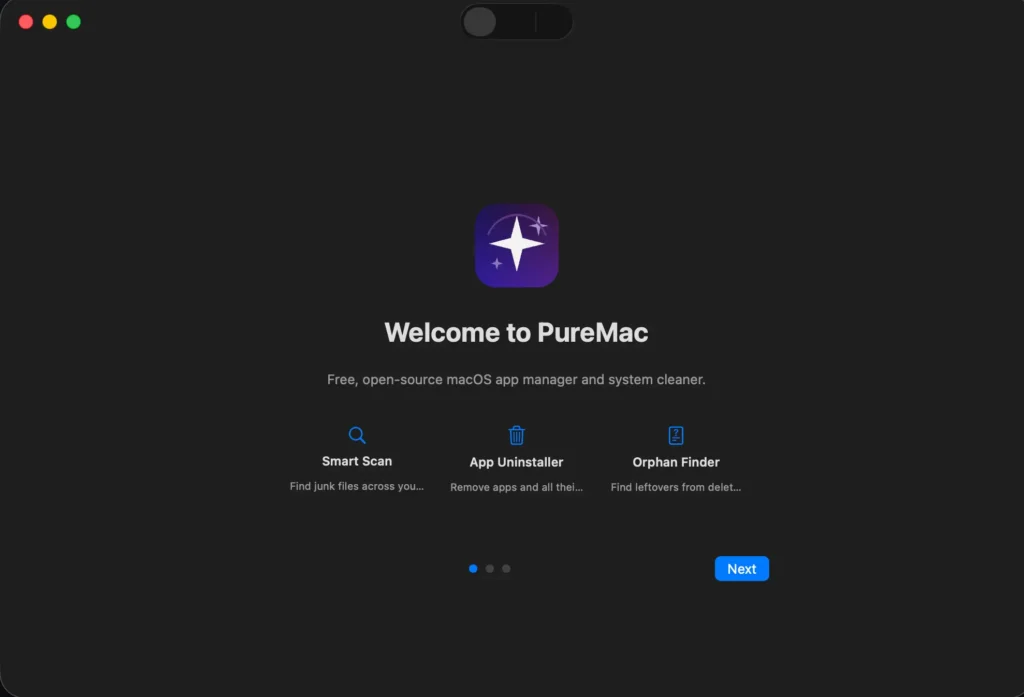
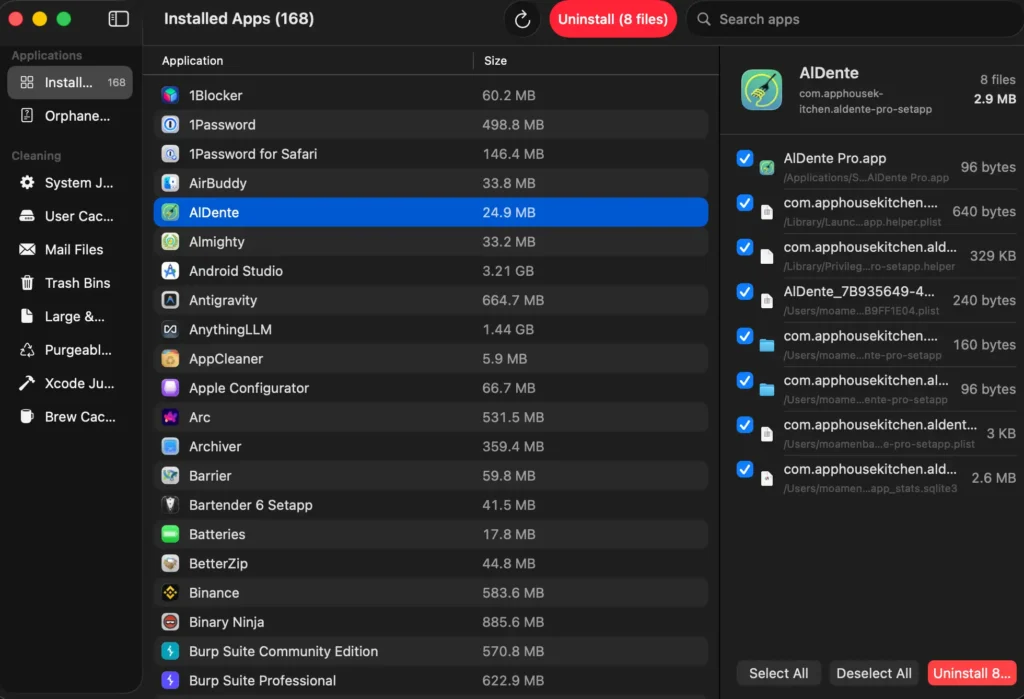
Features of PureMac
| Feature | Description |
|---|---|
| App Uninstaller | Finds apps from system folders and tracks down related files using multiple matching methods |
| Deep File Discovery | Uses bundle ID, metadata, and other signals to locate associated files |
| Sensitivity Levels | Choose between Strict, Enhanced, or Deep scanning |
| Orphaned File Finder | Detects leftover files from already removed apps |
| System Cleaner | Cleans caches, logs, trash, and other junk files |
| Smart Scan | Runs a full system scan across categories in one click |
| Xcode Cleanup | Removes DerivedData, archives, and simulator caches |
| Brew Cache Cleaner | Detects and clears Homebrew cache, even custom paths |
| Large & Old Files | Finds files over 100MB or older than a year |
| Scheduled Cleaning | Automates cleanup at set intervals |
| Native macOS UI | Built with SwiftUI, matches system design and themes |
| Safety Checks | Confirmation dialogs and system app protection |
| Secure Deletion | Validates file paths to avoid unsafe deletions |
System Requirements
| Component | Requirement |
|---|---|
| Operating System | macOS 13.0 or later |
| Processor | Apple Silicon or Intel |
| Storage | Depends on usage |
How to Install PureMac on macOS?
- Download the .dmg file
- Open it to mount the disk image
- Drag PureMac into your Applications folder
- Launch it from Applications
The app is signed and notarized, so it installs without warnings.
You may Like: DockDoor macOS app for window previews and Alt Tab switching
Download PureMac macOS Cleaner for Removing Apps & Junk Files
A Cleaner macOS Without the Guesswork
PureMac feels like something macOS should already have. The uninstaller is the main reason to use it. Being able to see everything tied to an app before removing it just saves time. The orphan file scan is a close second, especially if your system has been around for a while.
The cleaning tools are very useful, Overall its an open source app that helps you clean your system properly.