


File Info
| File | Details |
|---|---|
| Name | Maya |
| Version | v1.0 |
| Type | Screen Recording Video Editor / Device Framing App |
| Developer | Ronaldo Avalos |
| License | MIT License |
| Size | 4.39MB |
| Platforms | macOS |
| Formats | .dmg |
| Export Formats | .mp4 • .mov (HEVC + Alpha) |
| Github Repository | github/maya |
Table of Contents
Description
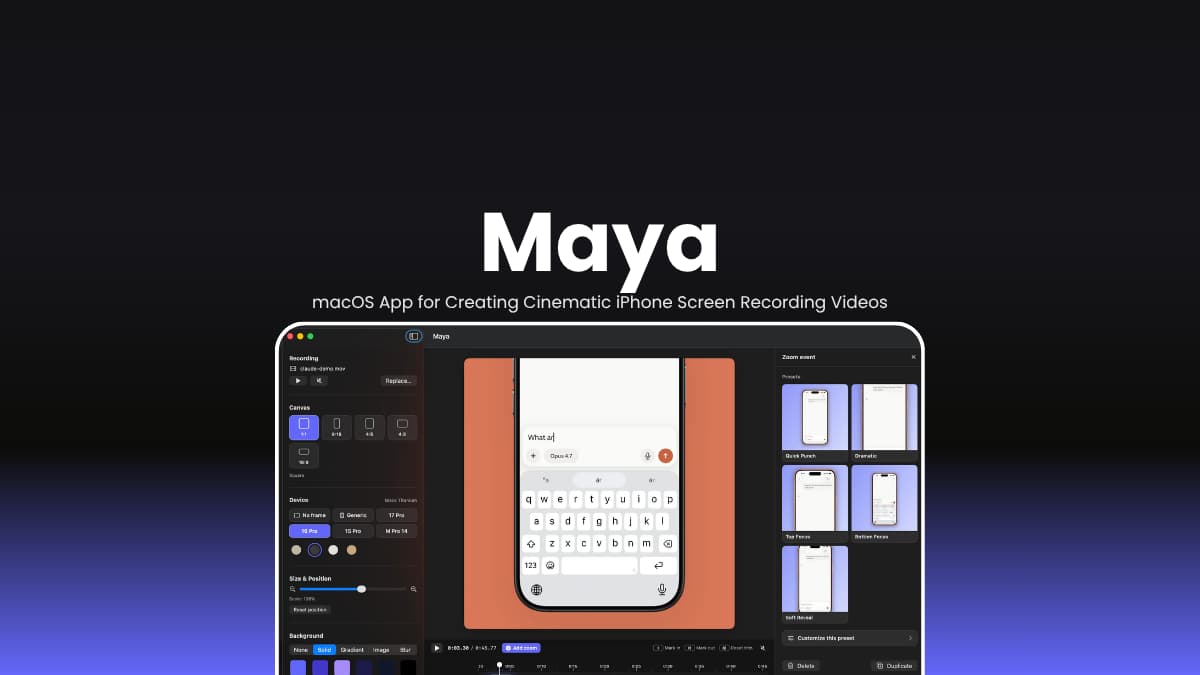
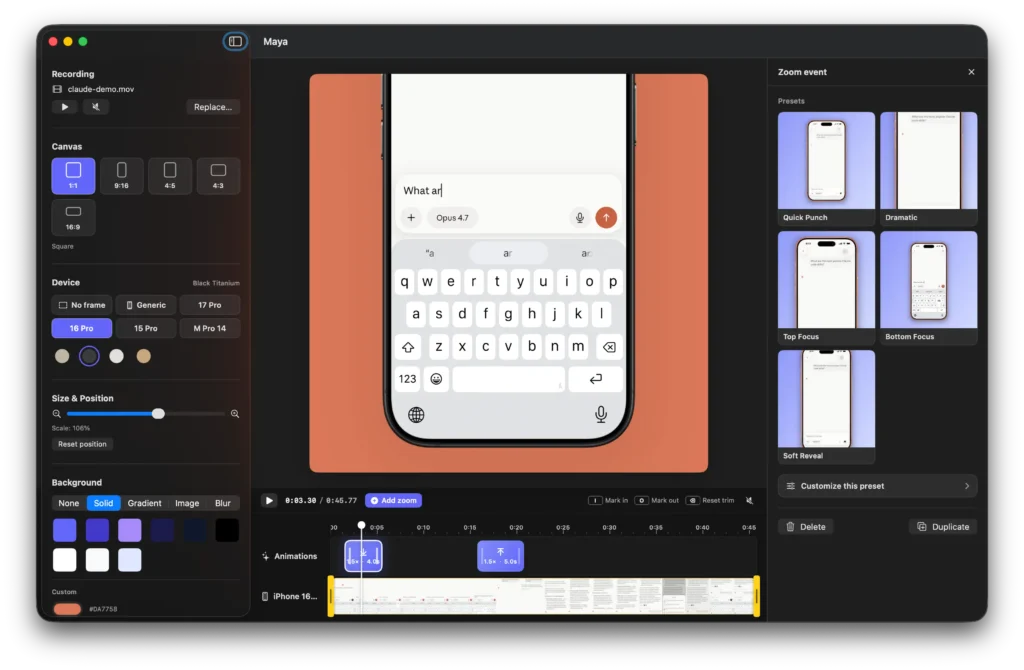
Drop in a .mp4 or .mov screen recording, pick an iPhone frame, add a few zoom moments on the timeline, and export a clean clip for Reels, TikTok, Shorts, product demos, or in-app tutorials. Maya keeps the workflow simple: frame the recording, tweak the motion, hit export. You can render a regular H.264 .mp4 for social platforms or export a transparent HEVC .mov with alpha for overlays inside apps, presentations, or video editors.
The app runs natively on macOS. It ships with iPhone 17, 16, and 15 Pro frames, background presets, animation curves, timeline editing, and one-click zoom presets that make raw screen recordings feel a lot less raw.
Use Cases
- Create iPhone app demo videos
- Make TikTok, Reels, and YouTube Shorts from screen recordings
- Produce cinematic product showcase clips
- Export transparent overlays for app tutorials
- Create onboarding walkthrough videos for mobile apps
Screenshots
Features of Maya
| Feature | Description |
|---|---|
| Device Framing | Add realistic iPhone 15, 16, and 17 Pro frames with official color variants |
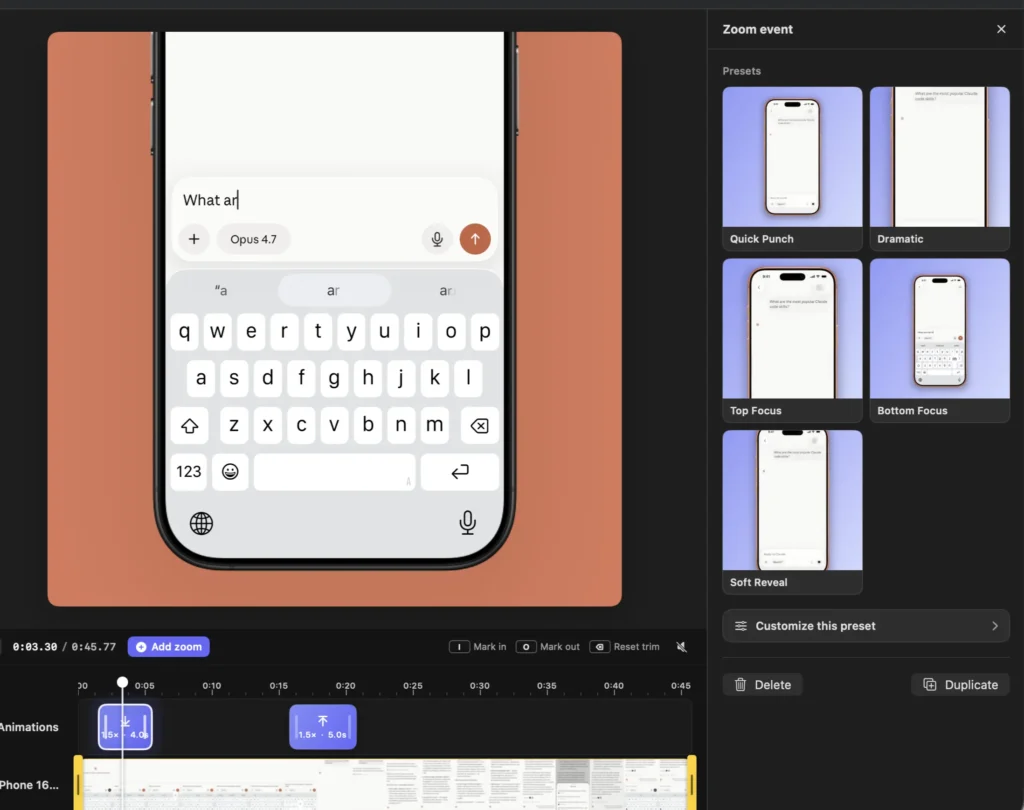
| Timeline Zoom Effects | Create cinematic zoom moments directly on the timeline |
| Animation Curves | Includes Spring, Bouncy, Smooth, Snappy, Gentle, and Linear curves |
| One-Click Presets | Built-in presets like Subtle Pop, Dramatic, Quick Punch, and Long Hold |
| Multiple Background Modes | Solid colors, gradients, images, video blur, or transparent background |
| Transparent Export | Export HEVC .mov files with alpha transparency |
| Social Video Export | Export optimized .mp4 videos for TikTok, Shorts, and Reels |
| Canvas Ratios | 1:1 • 9:16 • 4:5 • 16:9 • 4:3 |
| Live Timeline Editing | Drag, resize, and reposition zoom events with snapping |
| Native macOS Performance | Built using SwiftUI, AVFoundation, Core Image, and Metal |
System Requirements
| Component | Requirement |
|---|---|
| Operating System | macOS 26.3+ (Tahoe) |
| Processor | Apple Silicon Recommended |
| Input Formats | .mp4 • .mov iPhone screen recordings |
How to Install Maya?
- Download the dmg file
- Open the installer
- Drag Maya into the Applications folder
- Launch normally from Applications
You May Like: OBS Studio – Best Open Source Screen Recorder & Live Streaming Software
Download Maya macOS App
Built for people shipping demos, tutorials, and launch videos
There are already plenty of screen recording tools that do the job but Maya is for those who wants a dedicated and straightforward app to create iPhone Screen Recording Videos.
It takes the boring raw capture and makes it presentable enough to ship publicly without dragging you into a heavyweight editing workflow. That’s the appeal.




