



File Information
| File | Details |
|---|---|
| Name | Ventoy – Open Source Multi-Boot USB Creator |
| Version | v1.1.10 (Stable) |
| File Size | 15.9MB (Windows ZIP) , 19.4MB (Linux TAR.GZ) |
| Platforms | Windows • Linux |
| License | Open Source (GPL-3.0 License) |
| Github Repository | Github Ventoy |
| Official Website | ventoy |
| Supported Firmware | Legacy BIOS • UEFI (x86 / x64 / ARM64 / IA32 / MIPS64EL) |
| Partition Style | MBR & GPT |
Table of contents
Description
Ventoy is a powerful open-source tool for creating bootable USB drives that completely changes the traditional ISO-to-USB workflow. Instead of formatting your USB drive every time you want to boot a new operating system, Ventoy allows you to simply copy ISO, WIM, IMG, VHD(x), or EFI files directly to the USB & boot them instantly.
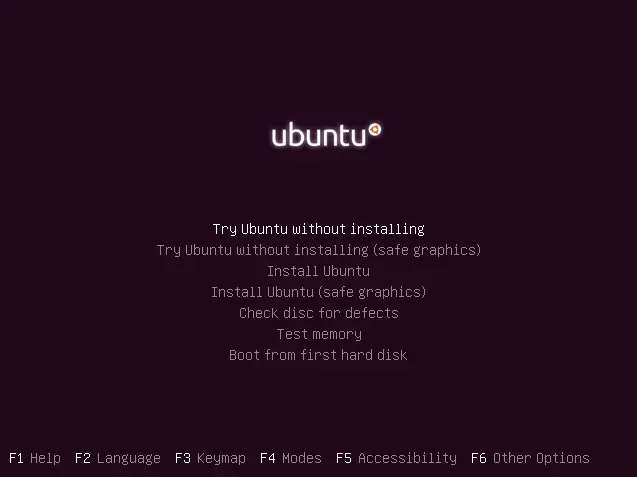
Once Ventoy is installed on a USB drive, it automatically detects all supported image files and presents a dynamic boot menu at startup. You can store multiple operating systems on a single USB drive, update them freely, and even boot images stored on a local disk.
Ventoy supports 1300+ tested ISO images, works across Windows, Linux, Unix, ChromeOS, and hypervisor installers, and supports both Legacy BIOS & modern UEFI systems, including Secure Boot.
Use Cases
Ventoy is ideal for users who frequently work with operating systems and recovery tools:
- System Administrators: Maintain one USB with dozens of OS installers and rescue tools.
- Linux Enthusiasts: Carry multiple Linux distros on a single drive.
- Windows Power Users: Boot Windows, WinPE, and recovery ISOs easily.
- IT Support & Repair Technicians: Use diagnostics, partition tools, and antivirus ISOs.
- Students & Learners: Test and experiment with different operating systems.
- Virtualization & Server Setup: Install VMware ESXi, Proxmox, Xen, and more.
Screenshots
Features of Ventoy
| Feature | Description |
|---|---|
| No Reformatting Needed | Copy ISO files directly, no repeated USB formatting |
| Multi-Boot Support | Boot multiple OS images from one USB |
| Wide Image Support | ISO / WIM / IMG / VHD(x) / EFI |
| BIOS & UEFI Support | Legacy BIOS and modern UEFI (including Secure Boot) |
| MBR & GPT | Both partition styles supported |
| Local Disk Booting | Browse and boot images from internal drives |
| Large ISO Support | Supports files larger than 4GB |
| Linux Persistence | Save changes in live Linux environments |
| Auto Installation | Automated Windows & Linux installations |
| Highly Customizable | Themes, plugins, menu styles |
| Fast & Lightweight | Speed limited only by file copy performance |
| Data-Safe Upgrades | USB data preserved during Ventoy updates |
| 100% Open Source | Transparent and community-driven |
System Requirements
| Requirement | Specification |
|---|---|
| CPU | x86 / x64 / ARM64 supported |
| Firmware | Legacy BIOS or UEFI |
| USB Media | USB Flash Drive, SSD, NVMe, SD Card |
| File Systems | FAT32, exFAT, NTFS, UDF, XFS, Btrfs, Ext2/3/4 |
| Operating Systems | Windows & Linux (for installation) |
How to Install Ventoy??
For Windows
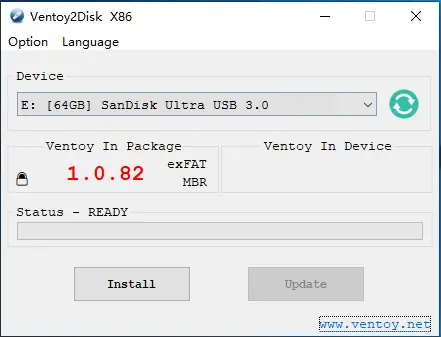
- Download the Ventoy Windows ZIP file.
- Extract the ZIP archive.
- Insert your USB drive.
- Right-click
ventoy2disk.exeand select Run as Administrator. - Select your USB device.
- Click Install Note: This will format the drive & erase all existing data. (or Update if Ventoy already exists)
- Copy ISO/WIM/IMG/VHD(x)/EFI files to the USB.
- Reboot and select the USB to boot.
Linux Installation (.tar.gz)
Below are the steps to install Ventoy in linux, you can also read the README file in the .tar.gz file to learn more.
The following method is based on Ventoy’s official documentation.
Commands may vary slightly depending on your Linux distribution.
- Download the Ventoy
.tar.gzfile. - Extract the archive.
- Open a terminal inside the extracted folder.
- Identify your USB device (for example
/dev/sdb). - Run the install command:
sudo bash Ventoy2Disk.sh -i /dev/sdX
Replace sdX with your actual USB device.
Once completed, copy ISO files directly to the USB drive.
Download Ventoy: Multi-Boot USB Creator
Supported Operating Systems
Ventoy supports most operating systems, including:
- Windows / WinPE
- Linux (90%+ of distros on DistroWatch)
- Unix / BSD
- ChromeOS & derivatives
- Hypervisors (VMware ESXi, Proxmox, Xen)
Over 1300+ ISO images have been officially tested.
How to Use Ventoy??
- Boot your system from the Ventoy USB
- Select the desired ISO from the menu
- Boot & install the operating system
Ventoy allows you to add or remove ISO files anytime without reinstalling.
Support the Ventoy Project
Ventoy is a 100% free and open-source project developed and maintained by independent contributors. If you find Ventoy useful, consider supporting the developer’s work. You can donate directly on Ventoy’s official website. Every contribution, helps sustain this amazing open-source project.
Conclusion
Ventoy is a time-saving bootable USB tool. By eliminating the need to repeatedly format USB drives, it enables a flexible, fast, and modern multi-boot workflow that works across nearly every operating system and firmware type.
If you’re an IT professional, Linux enthusiast, or system repair technician, Ventoy is an essential tool that belongs in every boot toolkit.




