


File Information
File Information
| Attribute | Details |
|---|---|
| Name | KeePassXC – Secure Open-Source Password Manager |
| Version | 2.7.11 (Latest Stable Release) |
| File Size | Windows/Linux: ~36 MB • macOS: ~32.7 MB |
| Platforms | Windows • macOS • Linux |
| License | Open Source (GNU GPL-2) |
| Official Site | keepassxc |
Table of contents
Description
KeePassXC is a powerful, cross-platform password management solution designed for users who demand the highest levels of digital security and privacy. This open-source tool provides a comprehensive approach to protecting your most sensitive digital credentials, offering an unparalleled combination of robust security features and user-friendly design.
Unlike cloud based password managers that potentially expose your data to third-party risks, KeePassXC stores your information in an encrypted, offline database. This approach ensures that your passwords remain completely under your control, giving you ultimate peace of mind in an increasingly vulnerable digital landscape.
Screenshots
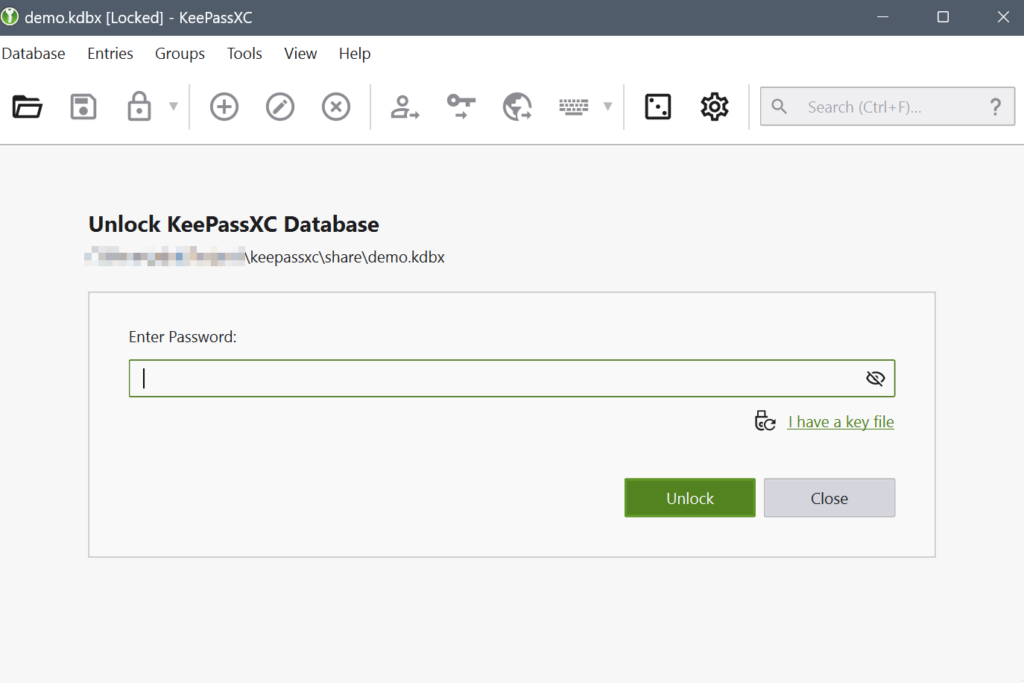
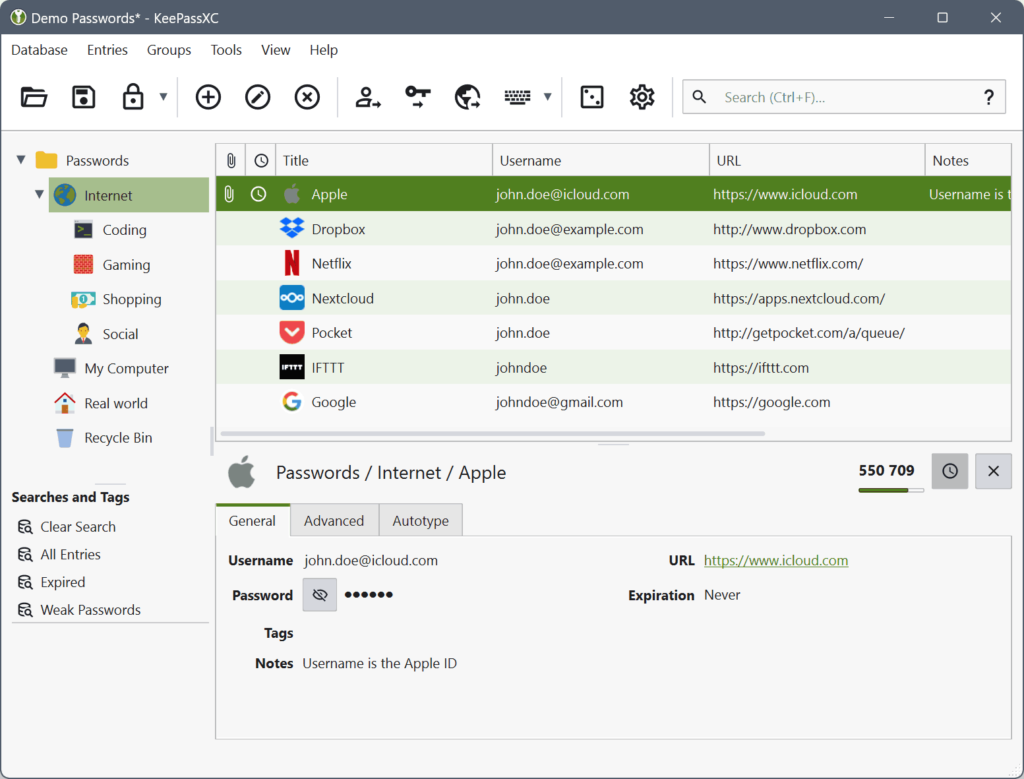
Features of KeePassXC
| Feature | Description |
|---|---|
| Military-Grade Encryption | Uses advanced encryption algorithms including AES, Twofish, and ChaCha20 |
| Cross-Platform Compatibility | Seamless operation across Windows, macOS, and Linux systems |
| Browser Integration | Direct support for Chrome, Firefox, Edge, and other major browsers |
| Advanced Password Generation | Customizable password creator with multiple complexity options |
| Multi-Factor Authentication | YubiKey and OnlyKey challenge-response support |
| Secure File Attachments | Store sensitive documents within your encrypted database |
| TOTP Support | Generate and manage time-based one-time passwords |
System Requirements
| Platform | Minimum Specifications |
|---|---|
| Windows | Windows 10/11, 64-bit processor, 4 GB RAM |
| macOS | macOS 10.14 or newer, 4 GB RAM |
| Linux | 64-bit Linux distribution, 4 GB RAM, modern desktop environment |
How to Install KeePassXC??
KeePassXC is available for Windows, macOS & Linux, and can be installed using standalone executables or through your distribution’s package manager. Follow the steps below to set it up on your system.
Windows Installation (.msi)
- Download the KeePassXC Windows installer (.msi) from the download section.
- Double click the downloaded installer to start setup.
- Select your installation location and proceed with the on screen instructions.
- Complete the installation and launch KeePassXC from the Start Menu.
- Create a new database or open an existing one to begin storing your passwords.
macOS Installation (.dmg)
- Download the macOS (.dmg) package from the official KeePassXC release page.
- Open the downloaded file and drag KeePassXC into your Applications folder.
- Open Launchpad or Finder and run KeePassXC.
- If macOS displays a security prompt, open System Settings > Privacy & Security and allow the application.
- KeePassXC is now ready for use.
Linux Installation
AppImage Installation (Any Linux Distro)
- Download the KeePassXC AppImage file.
- Make it executable using:
chmod +x KeePassXC-*.AppImage - Run it using:
./KeePassXC-*.AppImage - KeePassXC will launch directly without installation.
Download KeePassXC: The Open-Source Password Management Tool
Why Choose KeePassXC?
- Complete Privacy Control: Your data stays entirely offline
- Zero-Cost Professional Security: Fully free open-source solution
- Continuous Community Development: Regular updates and improvements
- Extensive Customization: Tailored to meet individual security needs
Security and Transparency
KeePassXC is built on a foundation of open-source transparency. The entire codebase is publicly available for review, ensuring that security experts worldwide can verify its integrity. The project maintains rigorous standards, with all contributions carefully reviewed and documented.
Conclusion
KeePassXC represents more than just a password manager, it’s a testament to the power of open-source collaboration and user-centric security design. In an era where digital privacy is increasingly compromised, this tool stands as a beacon of hope for individuals seeking genuine control over their sensitive information.
By choosing KeePassXC, you’re not just selecting a password management solution; you’re joining a global community committed to:
- Protecting personal digital identities
- Challenging proprietary security models
- Promoting transparency in software development
- Ensuring individual privacy rights
Your choice to use KeePassXC is a powerful statement: security should be accessible, transparent, and ultimately in the hands of users. Whether you’re a cybersecurity professional, a privacy advocate, or simply someone who values protecting their digital life, KeePassXC offers a robust, reliable, and community-driven approach to password management.




