7-Zip is one of the most popular free & open source file archiving tools in the world. Known for its high compression ratio and lightning-fast performance, 7-Zip gives you the power to compress, encrypt, and extract files in multiple formats without paying for expensive software. If you are working with 7z, ZIP, RAR, TAR, GZ, ISO, or other formats, 7-Zip handles them all with ease.Unlike proprietary tools like WinRAR or WinZip, 7-Zip is completely free to use and open source, which means there are no hidden costs, trials, or ads. It is trusted by millions of users, IT professionals, and organizations across the globe because it is lightweight, secure, and extremely reliable.
One of the standout features of 7-Zip is its own 7z format, which provides significantly better compression than standard ZIP files. This makes it perfect for saving disk space, transferring large files, or securely archiving important documents. With support for AES-256 encryption, 7-Zip ensures your files remain private & protected.If you are looking for the best free alternative to WinRAR, or simply need a universal tool that works across Windows, macOS & Linux, 7-Zip is the answer. Scroll down to the download section, grab the installer for your system, and start compressing & extracting files in seconds.
Features of 7-Zip
Feature
Description
High Compression Ratio
Compress files into the 7z format with superior space-saving efficiency
Multi-Format Support
Works with 7z, ZIP, RAR, TAR, GZ, ISO, WIM & more
Free & Open Source
No fees, no ads, completely transparent development
Strong Encryption
Secure your archives with AES-256 encryption
Lightweight
Small file size with minimal system resource usage
File Manager Integration
Right-click menu options for quick compression & extraction
Cross-Platform
Available for Windows, macOS & Linux
Large File Support
Handles files up to 16 billion gigabytes in size
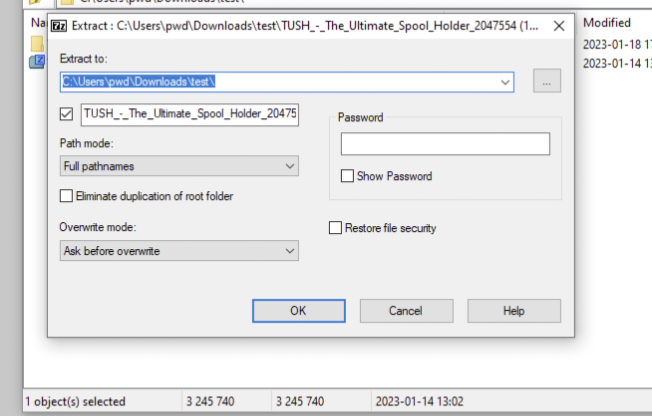
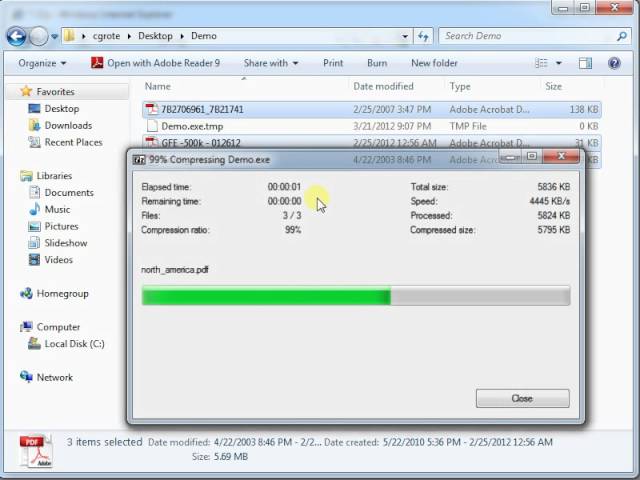
Screenshots
System Requirements
Requirement
Minimum
OS
Windows 7 or later, macOS 10.12 or later, Linux
RAM
512 MB
Disk Space
20 MB
CPU
Any modern processor
How to Install 7-Zip??
Windows using the exe file
Download the 7-Zip exe file and save it to your Downloads folder.
Open File Explorer and double click the downloaded exe file to launch the installer.
If Windows asks for permission, click Yes to allow the installer to run.
Follow the installer prompts. Accept the license, choose the default install location or pick a different folder if you prefer, then click Install.
When installation finishes click Finish to close the installer.
Open the Start menu and type 7-Zip to launch the program.
macOS using the tar.xz console version
Download the macOS tar.xz package and save it to your Downloads folder.
Open Terminal.
Change to the Downloads folder
cd ~/Downloads
Extract the tar.xz archive. Replace the filename below with the actual file name you downloaded
tar -xJf 7zip-macos.tar.xz
Change into the extracted folder and list files to find the 7z or 7za binary
cd 7zip-macos
ls
Make the binary executable if it is not already
chmod +x 7z
Move the binary to a standard location so you can run it from anywhere
sudo mv 7z /usr/local/bin/
Verify installation by running
7z --help
Linux using the tar.xz target package
Download the Linux tar.xz package and save it to your Downloads folder.
Open a terminal window.
Change to your Downloads folder
cd ~/Downloads
Extract the archive. Use the real filename you downloaded
tar -xJf 7zip-linux.tar.xz
Enter the extracted directory and list contents to locate the binary
cd 7zip-linux
ls
Make the executable runnable
chmod +x 7z
Move the binary into a system path so it is available system wide
sudo mv 7z /usr/local/bin/
Confirm the tool is working
7z --help
On Debian or Ubuntu systems if the tar extraction fails because xz is missing install it first
Frappe Books is free, open source accounting software for Windows, macOS and Linux, with invoicing, inventory, POS, financial reports and offline support.
AutoClip uses AI to find highlights in long videos, create short clips, generate titles and prepare content for platforms like YouTube Shorts & Bilibili.