


File Info
| Detail | Information |
|---|---|
| Software | Veyra |
| Version | v2.1.5 |
| Developer | Likely7 |
| Size | 713MB |
| License | GPL-3.0 License |
| File Type | ZIP |
| Platform | Windows 11 (64-bit) |
| Graphics API | DirectX 12 |
| GPU Support | NVIDIA and AMD, with different features depending on the GPU |
| Github Repository | Likely7 Veyra-NRVideo |
Table of Contents
Description
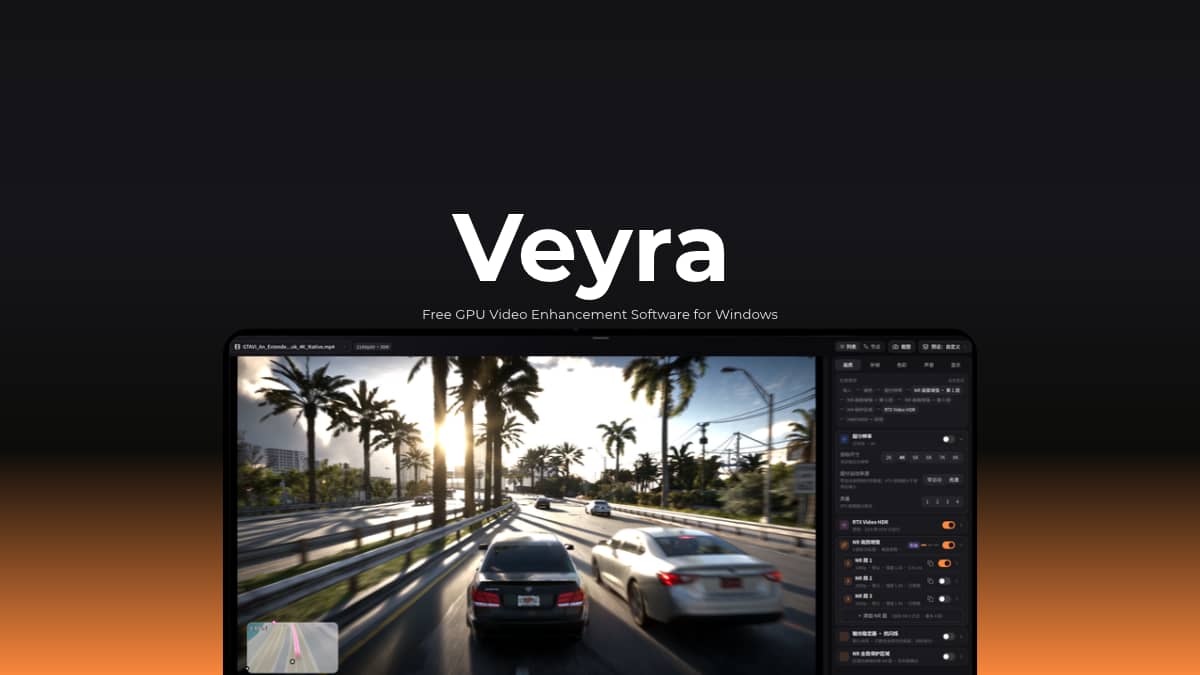
A video doesn’t have to look the way it was originally recorded. With the right processing, you can sharpen details, reduce noise, improve colours and even generate additional frames. Veyra brings these tools together in one Windows application, using your GPU to process video in real time.
It is an open source video enhancement application built for local video playback, capture cards and supported game-streaming sources. It combines technologies such as super resolution, noise reduction, anti-aliasing, HDR processing, and frame generation in a configurable processing pipeline. You can choose which effects to apply and adjust their settings.
This makes it useful in several situations. You can improve the appearance of a video playing on your PC, process footage coming from a capture card, or enhance supported game streams from devices such as a PS5, Xbox, or another computer. If you want to keep the result, you can also export processed video with options for audio and subtitle tracks.
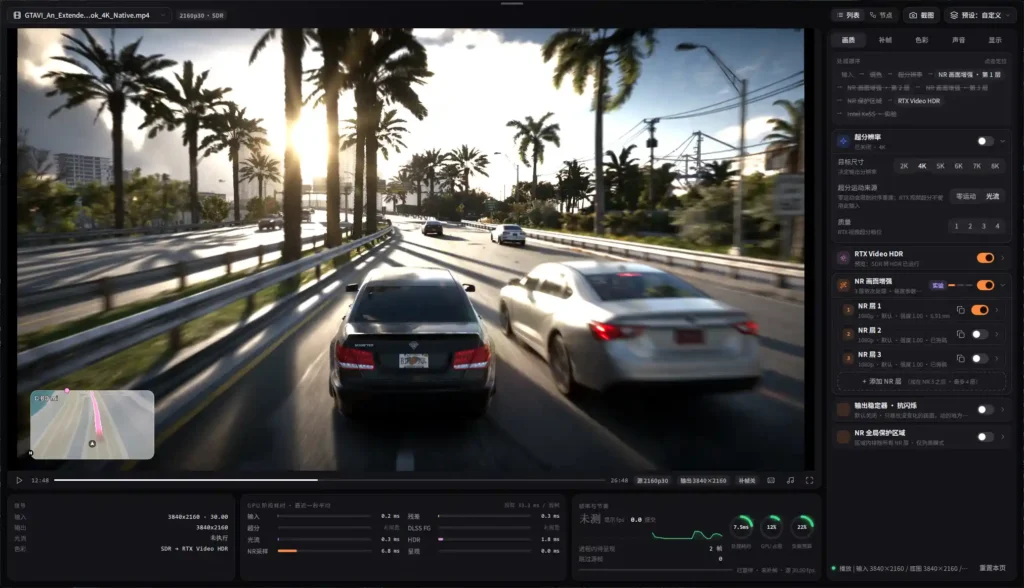
Veyra gives you two ways to build your processing setup. Professional List lets you arrange effects in a straightforward sequence, while the Node editor provides a more visual way to connect processing stages and configure them individually. You can also save configurations as presets for different sources and use cases.
The software supports both NVIDIA and AMD graphics cards, with available features depending on your GPU and its supported technologies. Some processing options are hardware-specific or experimental, so the experience can differ between systems.
Use Cases
- Apply supported upscaling, noise reduction, colour adjustments, and other effects while watching videos stored on your computer.
- Process a PS5 feed through Remote Play or use a supported capture-card setup to bring console footage into Veyra.
- Use a compatible Sunshine setup to receive a PC game stream and apply supported enhancement effects.
- Bring in video from supported capture devices and adjust its appearance before viewing or recording.
- Apply supported effects in Professional List mode and save the processed result as an MP4 or MKV file.
Screenshots

Features of Veyra
| Feature | What It Does |
|---|---|
| Real-Time Video Enhancement | Processes supported video and capture sources through a GPU-powered pipeline while displaying a live preview. |
| Super Resolution | Uses supported upscaling technologies to improve image detail and increase the output resolution. |
| Noise Reduction | Applies AI-based noise reduction, with multiple layers and individual settings available for supported models. |
| Frame Generation | Generates additional frames through supported backends to make compatible playback and streaming sources appear smoother. |
| HDR Processing | Includes HDR-related processing and colour restoration options, depending on the source and GPU support. |
| Anti-Aliasing | Provides FXAA, SMAA, and MLAA options to reduce jagged edges in supported processing workflows. |
| Colour Correction | Offers colour adjustments, curves, colour wheels, mixers, LUTs, and presets. |
| Capture Card Support | Accepts supported capture-card inputs, allowing users to process video from external devices. |
| Game Streaming | Supports PS5 Remote Play and PC streaming through Sunshine. Xbox streaming is available experimentally. |
| Professional List | Provides an ordered effects workflow with separate controls for picture, frame generation, colour, sound, and display. |
| Node Editor | Lets users create a connected processing chain and adjust individual nodes. |
| Video Export | Exports processed videos in MP4 or MKV, with trimming and audio and subtitle track options. |
| Presets and Sessions | Saves processing configurations so users can reuse settings for different sources and projects. |
| OBS Game Capture Compatibility | Includes a setting for OBS Game Capture compatibility, with a restart required when enabling it. |
Feature availability depends on the GPU, driver, processing backend and selected workflow. Some options are experimental. Node mode also has different capabilities from Professional List mode, including limitations around offline export.
You May Like: OpenNOW: Open-Source GeForce NOW Gaming Client for Windows, Mac & Linux
System Requirements
| Requirement | Details |
|---|---|
| Operating System | Windows 11, 64-bit |
| Graphics API | DirectX 12 |
| Graphics Card | Supported NVIDIA or AMD GPU |
| GPU Drivers | Appropriate graphics and capture-card drivers installed separately |
| Storage | Enough free space to extract the portable package and store media files |
| GPU Memory | Depends on resolution, enabled effects, number of noise-reduction layers and frame-generation settings |
| Additional Runtime | Qt and approved application runtimes are included in the portable package |
The developer does not specify one universal minimum GPU or VRAM requirement. Performance and feature availability vary considerably between graphics cards. The project reports that most local testing was performed on an RTX 5070, so users with older or less powerful GPUs should start with fewer effects and lower processing demands.
Installation Process
Veyra is distributed as a portable ZIP package, so you don’t need a traditional Windows installer.
- Download Veyra (Nvidia) zip file if you use a supported NVIDIA GPU, or Veyra (AMD) zip for a supported AMD GPU.
- Use Windows’ built-in extraction tool or 7-Zip to extract the archive into a new folder with write permissions.
- Open the extracted folder and run veyra_qml_ui.exe.
- Start with effects disabled and make sure your selected source displays and plays correctly.
- Turn on the effects you want to use one at a time. Check performance as you add more processing, particularly when working with high-resolution video or multiple noise-reduction layers.
You may need to install or update graphics and capture-card drivers separately. For capture cards and streaming sources, follow the setup instructions in the official Veyra user guide.
Download Veyra
Getting More Out of Your GPU
If you regularly work with local videos, capture cards, or game streams, Veyra is worth a look. It brings several enhancement tools into one application and lets you decide how your GPU processes the image. You can start with basic upscaling or noise reduction, then experiment with more advanced effects as you get familiar with the software.
The main thing to check before downloading is GPU compatibility. NVIDIA and AMD versions have different capabilities, and running several demanding effects can require a powerful graphics card. If your hardware is supported, Veyra offers useful set of tools without requiring a subscription.