


File Information
| Name | Flameshot – Open Source Screenshot & Annotation Tool |
|---|---|
| Version | 13.3.0 |
| File Size | 20MB – 60MB (may vary by OS) |
| Platforms | Windows • macOS • Linux (64-bit) |
| License | Open Source (GPL v3) |
| Official Repository | GitHub – flameshot-org/flameshot |
Table of contents
Description
Flameshot is a free and open-source screenshot utility built for speed, customization, and ease of use. Whether you’re capturing part of your screen, annotating with arrows and text, or sharing instantly, Flameshot makes the process effortless and powerful.
It’s available for Windows, macOS, and Linux (64-bit) platforms and is a top-rated alternative to proprietary screen capture tools thanks to its sleek UI, configurable shortcuts, and built-in Imgur upload feature.
Features of Flameshot
| Feature | Description |
|---|---|
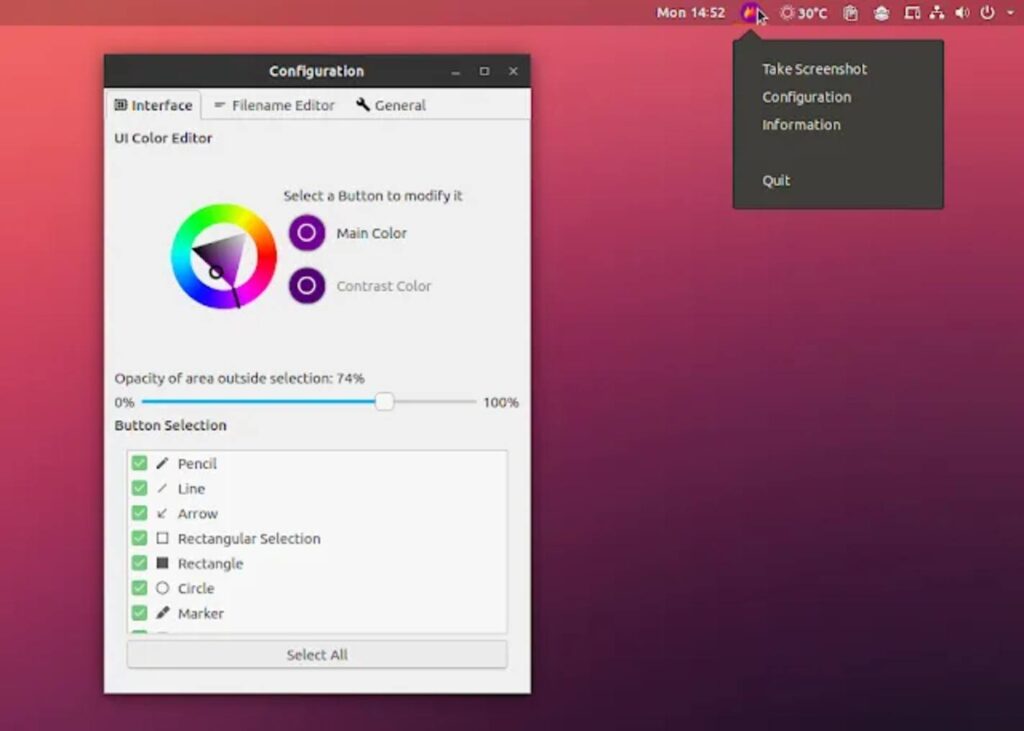
| Customizable Appearance | Modify colors, borders, and UI styles to fit your workflow. |
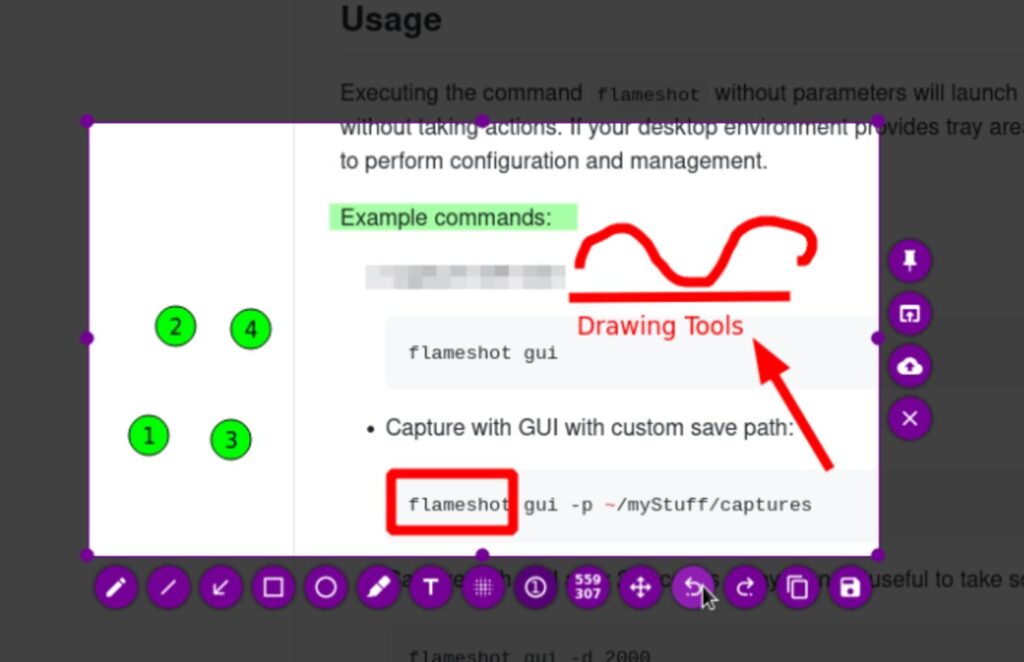
| In-App Editing Tools | Instantly annotate screenshots with arrows, text, blur, and highlights. |
| Quick Access GUI | Launch from system tray or via shortcuts for instant captures. |
| Clipboard & File Save Options | Copy screenshots directly or save automatically to custom directories. |
| Imgur Upload | Upload images directly to Imgur for easy sharing. |
| Command-Line Interface (CLI) | Capture, delay, and automate screenshots through CLI commands. |
| Cross-Platform Support | Native builds for Windows, macOS, and Linux (AppImage for portability). |
| Global Shortcuts | Assign Print Screen or Cmd+Shift+X for instant captures. |
| Open Source & Free | 100% open under GPL v3 license—community-driven and secure. |
Screenshots
System Requirements
| Component | Minimum Requirements |
|---|---|
| RAM | 1 GB |
| CPU | Dual-core processor |
| Storage | 200 MB free space |
| Operating System | Windows 10/11, macOS 11+, or modern Linux distributions |
| Network Connectivity | Required only for Imgur uploads (optional) |
How to Install Flameshot??
Windows (.msi)
- Download the Flameshot.msi installer.
- Run the installer and follow on-screen steps.
- After installation, access Flameshot via the Start Menu or system tray icon.
macOS (.dmg)
- Download Flameshot.dmg.
- Drag Flameshot to the Applications folder.
- If macOS blocks it, go to System Settings → Privacy & Security → Open Anyway.
Linux (.AppImage)
- Download Flameshot.AppImage (64-bit).
- Make it executable:
chmod +x Flameshot.AppImage
Run with:
./Flameshot.AppImage
How to Use FlameShot Tool??
Windows
- Press the Print Screen (PrtSc) key on your keyboard.
- Flameshot instantly opens its screenshot selection mode.
- Drag to select the area of the screen you want to capture.
- Edit the screenshot instantly using arrows, text, blur, or highlights.
- Press Enter to upload, Ctrl + S to save, or Ctrl + C to copy.
macOS
- Press Cmd + Shift + X
- Select the area to capture
- Edit using built-in tools
- Save or copy the screenshot
Linux
- Press Print Screen (after setting Flameshot as the default screenshot tool)
- Select the capture area
- Edit instantly
- Ctrl + S to save or Ctrl + C to copy
Download Flameshot Screenshot Software for Windows macOS & Linux
Conclusion
Flameshot combines simplicity, flexibility, and power in one lightweight package. It’s the go-to open-source tool for developers, designers, and content creators who need fast, customizable screenshots with built-in editing. From documenting bugs to creating polished visuals, Flameshot has you covered.




