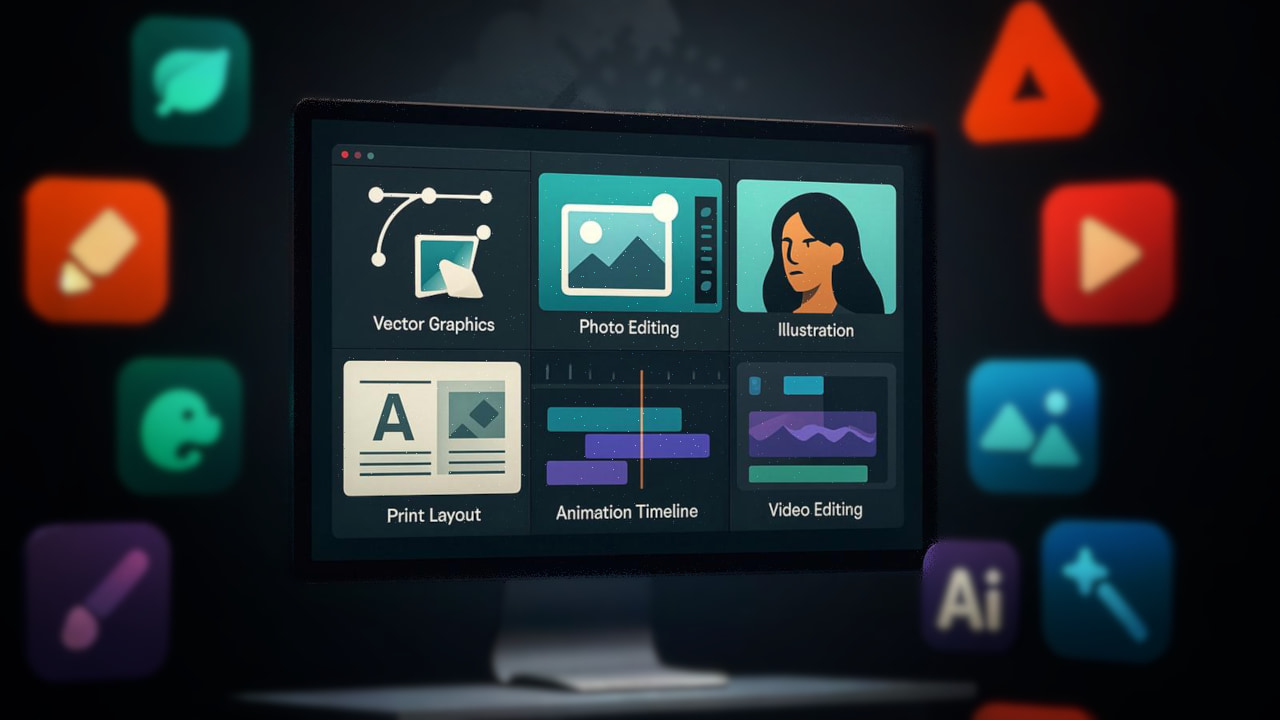

Canva was my go-to design buddy for years. Quick, easy, & perfect, those ready-made templates were a creative lifesaver. But slowly, things started to change. Unexpected slowdowns. Features mysteriously hidden behind premium walls. Designs that wouldn’t export when I needed them most.
That’s when I realized something important, I needed more flexibility in my design toolkit. Because I cannot rely on a single software for my entire creative workflow
My search began with a simple goal: find design tools that offer true creative freedom. Not just copycats, but powerful, versatile alternatives that put me back in control.
What I discovered genuinely surprised me. There’s an entire ecosystem of open-source design tools that do everything Canva does & often do it even better.
Like designing social media posts & thumbnails, editing photos, creating animations & even short videos, these apps completely replaced Canva for me
If you’re someone who wants more control over your designs, fewer limitations, and tools that actually belong to you, I’m confident you’ll find at least one app here that earns a permanent place in your daily design workflow.
Table of contents
1. Penpot
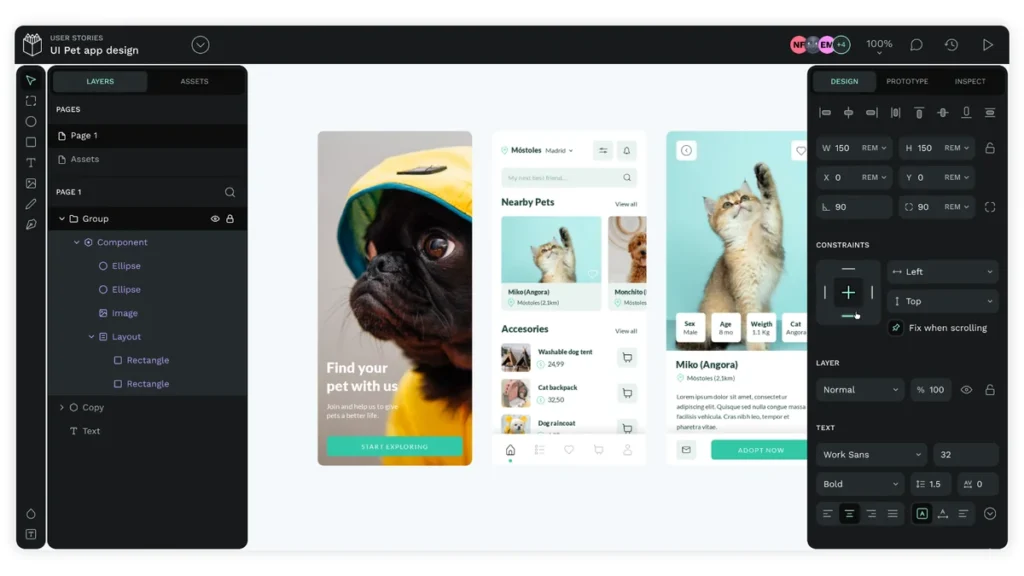
Penpot was my first stop when I started hunting for true creative freedom outside Canva. It gives you full control over your designs & it’s completely open source. If you’re a designer, a developer, or someone who loves tinkering with layouts, Penpot is built to make your workflow smooth, collaborative, and code-friendly. You can create interactive prototypes, scalable design systems, and stunning graphics all in your browser or self-hosted
How Penpot Replaces Canva for Me
| Canva Feature | Penpot Replacement | Why It Works for Me |
|---|---|---|
| Templates & UI/UX | Penpot’s browser-based platform | Offers ready-to-go layouts but lets me customize everything, collaborative and web standards-friendly. |
| Vector Elements | Penpot + SVG support | I can create vector designs without losing quality, perfect for logos or icons. |
| Social Media Posts | Penpot Components | Using reusable components, I can quickly create variations for multiple posts without extra effort. |
| Interactive Prototypes | Penpot Prototyping Tools | Build clickable flows for apps or web designs without leaving the platform. |
| Design & Code Integration | Inspect Mode & Native Design Tokens | Developers get ready-to-use CSS, HTML, and SVG code instantly, no messy handoff. |
| Team Collaboration | Real-time Collaboration | Work with others seamlessly, just like Google Docs but for design. |
Pros & Cons of Penpot
Pros
- Fully open source and free.
- Browser-based or self-hosted for complete control.
- Code integration with HTML, CSS, and SVG for developers.
- Real-time collaboration for teams.
- Advanced design system support with tokens, components, and variants.
Cons
- Setup for self-hosting or Docker can be complex for beginners.
- Performance may depend on server or hardware specs.
- Fewer pre-made templates compared to Canva.
- Some advanced features require learning the platform before mastering.
Overall I can design, prototype, collaborate, and even hand off code without jumping between multiple apps
Github Repository: Penpot
2. Inkspace
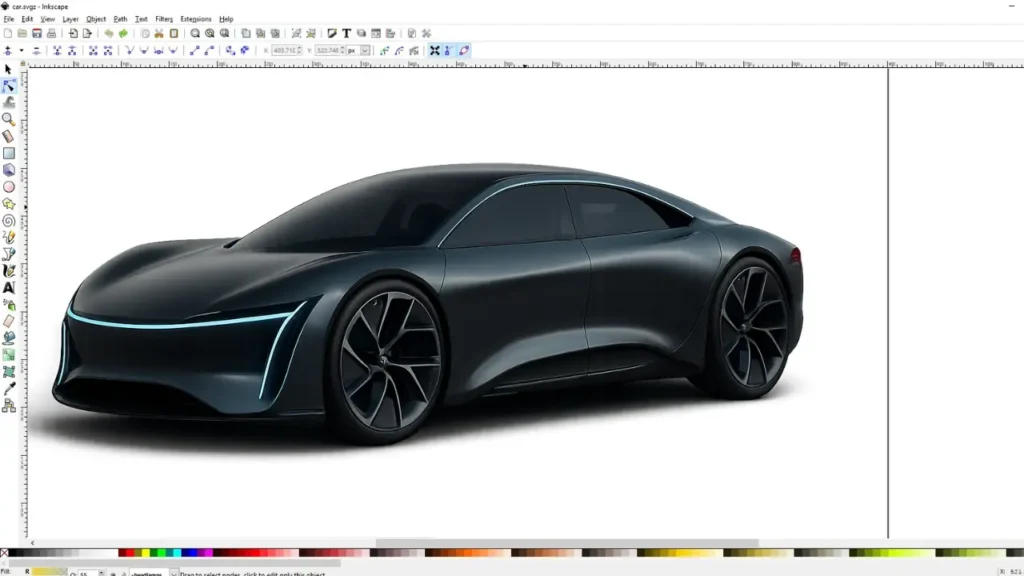
Inkscape has been my go-to for vector graphics ever since I realized I needed more control than Canva offered. Whether it’s logos, illustrations, diagrams, or social media graphics, Inkscape gives me professional-grade tools i needed for my illustrations & designs. It’s fully open-source, works offline, and lets me create infinitely scalable vector designs that never lose quality.
How Inkscape Replaces Canva for Me
| Canva Feature | Inkscape Replacement | Why It Works for Me |
|---|---|---|
| Vector Elements | Full SVG Support | I can design logos, icons, and sharp graphics that never pixelate. |
| Social Media Posts | Templates & Layers | Layers, guides, and reusable templates let me create multiple variations quickly. |
| Photo Editing | Node & Path Editing | Complex edits, masking, and path manipulations give me full control over every element. |
| Typography & Text | Text-on-Path & Variable Fonts | Adjust kerning, spacing, curves, and shape text for professional layouts. |
| Print & Layouts | Page Layout Tools | From booklets to flyers, I can work at any resolution or aspect ratio. |
| Animations & Effects | Filters & Blend Modes | Over 250 filters and 16 blend modes let me create visual effects without extra software. |
| File Export | Multiple Formats | Export as PNG, PDF, EPS, DXF, and more, making my work compatible everywhere. |
| Collaboration | Community & Extensions | Access templates, extensions, and support from a massive open-source community. |
Pros & Cons of Inkscape
Pros
- Fully open-source and free.
- Vector-based, unlimited resolution.
- Powerful path and node editing tools.
- Extensive typography and text features.
- Large library of extensions and templates.
- Active, supportive community.
Cons
- Steeper learning curve compared to Canva.
- Interface can feel overwhelming for beginners.
- Some advanced operations may require patience to master.
- Offline-only unless using external collaboration tools.
Github Repository: Inkspace
3. PhotoDemon
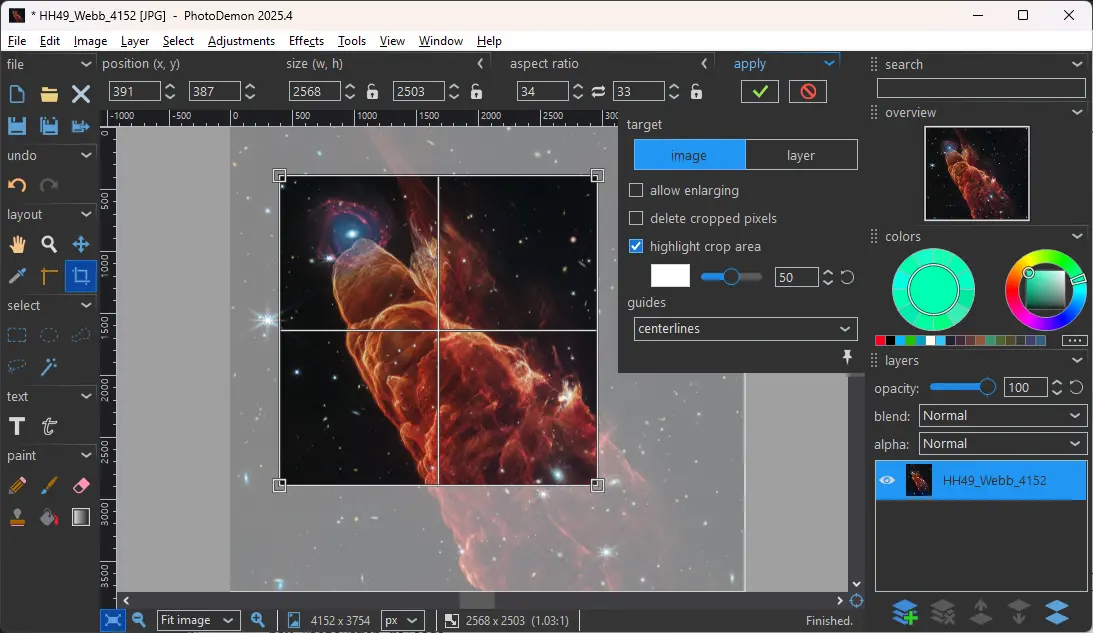
When I just want to edit an image quickly, PhotoDemon is what I open instead of Canva.
PhotoDemon is a free, open-source portable photo editor that runs instantly on Windows — no installation, no account, no internet required. It’s lightweight yet surprisingly powerful, and that’s what makes it special.
You can literally run it from a USB drive, SD card, or external SSD, edit your images, and leave zero trace behind. For quick edits, thumbnails, social graphics, or fixing images before uploading, it feels refreshingly friction-free.
How PhotoDemon Replaces Canva For Me
| Use case / Feature | PhotoDemon | Canva |
|---|---|---|
| Access & setup | Runs instantly, no install, no account | Requires browser, login |
| Works offline | Fully offline | Internet required |
| App size | ~22 MB portable app | Web-based (heavy) |
| Speed | Very fast, opens instantly | Can feel slow on low-end systems |
| Image resizing & cropping | Precise control | Basic, template-focused |
| Text on images | Editable text layers | Easy but limited styling |
| Layers support | Advanced multi-layer editing | Basic layers |
| Non-destructive edits | Yes | Limited |
| Batch editing | Built-in batch processor | Not supported |
| Macro / automation | Record & reuse actions | Not available |
| Advanced adjustments | Levels, curves, HDR, white balance | Basic sliders |
| File format support | PSD, XCF, RAW, PNG, JPG, TIFF | Mostly PNG, JPG, PDF |
| Export limitations | No limits | Free plan limits |
| Privacy | Local editing, no uploads | Files stored in cloud |
| Custom shortcuts | Fully customizable | Not available |
| Best for | Fast, serious photo editing | Template-based design |
Pros & Cons of PhotoDemon
Pros
- Completely free and open source (BSD licensed)
- Extremely lightweight and portable
- No installation, no account, no tracking
- Powerful batch processing and macro recording
- Works fully offline
- Beginner-friendly but still feature-rich
Cons
- Windows-only (no official macOS or Linux support)
- Portable 32-bit app (large images over ~2 GB can be limiting)
- Not template-driven like Canva
- UI looks functional, not “modern” or flashy
PhotoDemon replaces Canva for me when speed, control, offline editing, and batch processing matter more than templates.
Github Repository: PhotoDemon
4. Gimp
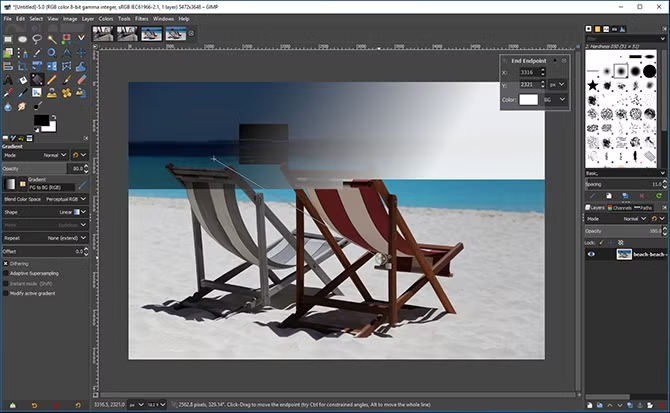
GIMP was the moment I realized Canva isn’t meant for serious photo editing. While Canva focuses on speed and templates, GIMP gives you raw creative power.
If you’ve ever felt limited by Canva’s sliders, locked effects, or export restrictions, GIMP feels like unlocking the full toolbox. It’s open source, completely free, and trusted by photographers, designers, and digital artists worldwide.
How GIMP Replaces Canva for Me
| Use case / Feature | GIMP | Canva |
|---|---|---|
| Photo editing depth | Professional-grade tools | Basic adjustments |
| Layer system | Advanced layers, masks & groups | Very limited |
| Retouching & healing | Clone, heal, content-aware tools | Magic Eraser |
| Text on images | Fully editable text layers | Easy but restrictive |
| Effects & filters | Hundreds + plugins | Limited & locked |
| Custom brushes | Full brush engine | Pre-made brush stroke elements |
| Color correction | Curves, levels, LUTs, ICC profiles | Basic sliders |
| File format support | PSD, PNG, JPG, TIFF, RAW | Mostly PNG, JPG |
| Offline usage | Fully offline | Internet required |
| Export limits | No limits | Free plan limits |
| Privacy | Local files only | Cloud-based |
| Extensibility | Massive plugin ecosystem | Closed system |
| Best for | Pro photo editing & compositing | Quick template designs |
Pros & Cons of GIMP
Pros
- Completely free and open source
- Professional-grade photo editing tools
- Advanced layers, masks, and retouching
- Works offline on Windows, macOS, and Linux
- Huge plugin and community ecosystem
Cons
- Steeper learning curve compared to Canva
- Not template-driven (you start from scratch)
- Interface can feel overwhelming at first
- No built-in social media templates
Canva is great when you want something fast. GIMP is what I open when i need deep photo retouching, complex composites, or pixel-perfect exports, GIMP gives me total control.
Github Repository: Gimp
5. Scribus
When I realized Canva just isn’t built for serious layouts, i switched to Scribus. Posters that need exact margins, brochures that must print correctly, PDFs that must not break at the printer, Canva starts feeling limiting very fast.
Scribus is different. It’s a true desktop publishing tool, completely free and open source, and it gives you full control over layouts, colors, typography, and export quality. This is the tool I reach for when a design isn’t just meant to “look good on screen” but needs to work perfectly in the real world, especially print.
If you’ve ever struggled with Canva exports not matching what the printer expects, Scribus feels like a breath of fresh air.
How Scribus Replaces Canva for Me
| Canva Use Case | Scribus Replacement | Why It Works Better for Me |
|---|---|---|
| Posters & Flyers | Page-based desktop publishing | Precise control over margins, spacing, and layout |
| Brochures | Multi-page document layouts | Master pages, consistent styles, and proper folding layouts |
| PDF Exports | Professional PDF/X export | Print-ready PDFs that printers actually trust |
| Brand Documents | Styles & templates | Consistent fonts, colors, and layouts across pages |
| Color Control | CMYK & color-managed workflow | What I design is what gets printed |
| Typography | Advanced text handling | Better control over long text, alignment, and spacing |
| Print Projects | Bleed, crop marks, color profiles | No more “Canva printed this wrong” moments |
Pros & Cons of Scribus
Pros
- Completely free and open source
- Built for real print workflows, not just screen designs
- Reliable, professional-grade PDF exports
- Excellent control over colors, layouts, and typography
- Ideal for brochures, posters, reports, magazines, and PDFs
Cons
- Not as beginner-friendly as Canva
- Learning curve if you’ve never used DTP software
- Fewer ready-made social media templates
- Focused more on print than quick social graphics
Github Repository: Scribus
Also Read: 11 Must-Have Software I Install on Every New PC
6. Glaxnimate
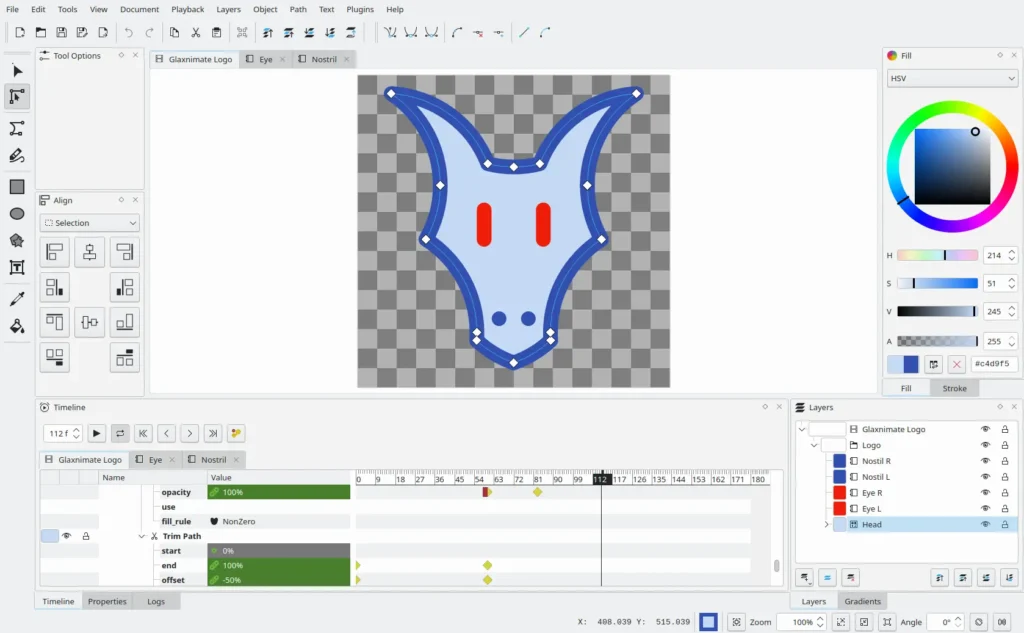
Glaxnimate became part of my workflow when Canva’s animation features started feeling… too basic. A few preset motions, limited control, and exports that didn’t always fit web or app workflows.
Glaxnimate is different. It’s a vector-based animation tool that lets you create smooth, lightweight animations without needing After Effects. It’s especially useful for web animations, micro-interactions, and UI motion where performance actually matters.
How Glaxnimate Replaces Canva for Me
| Canva Feature | Glaxnimate Replacement | Why It Works Better for Me |
|---|---|---|
| Animate Button | Vector-based tweening animations | Full control over timing, easing, and motion |
| Animated Stickers | Custom vector animations | I create exactly what I want instead of picking presets |
| Web Animations | Lottie & Animated SVG export | Lightweight animations that load fast on websites |
| GIF Exports | Animated GIF & WebP | Better quality and smaller file sizes |
| Motion Graphics | Timeline-based animation | Real animation workflow instead of pre-baked effects |
| Simple UI Motion | Shape & transform animations | Perfect for buttons, loaders, and UI elements |
Pros & Cons of Glaxnimate
Pros
- Completely free and open source
- Perfect for web-friendly animations (Lottie, SVG)
- Cross-platform (Windows, Linux, macOS)
- Clean interface with dark & light themes
- Vector-based, so animations stay sharp at any size
Cons
- Not meant for complex video editing
- Learning curve if you’re new to animation timelines
- No pre-made animation templates like Canva
- Focused on motion, not full design layouts
Github Repository: Glaxnimate
7. Krita
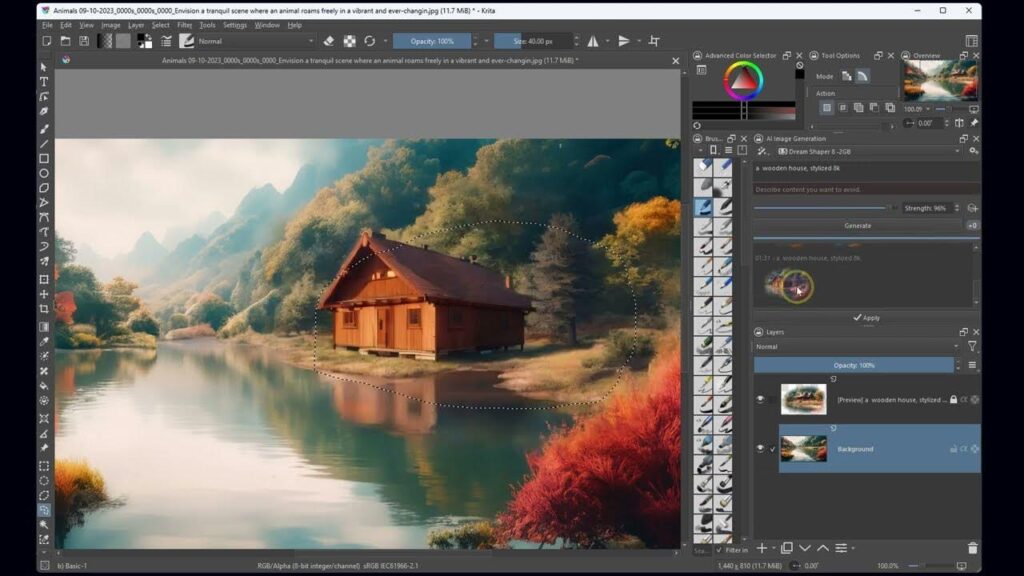
Krita came into my workflow the moment I hit Canva’s limits with drawing and illustration. Canva is great for quick visuals, but the moment you want real brush control, expressive strokes, or illustration that feels hand-made, it starts falling apart.
Krita is built for artists first. Comic creators, illustrators, concept artists, and even VFX professionals use it daily
How Krita Replaces Canva for Me
| Canva Feature | Krita Replacement | Why It Works Better for Me |
|---|---|---|
| Draw Tool | Professional brush engine | Real pressure-sensitive brushes that feel natural |
| Doodles & Stickers | Custom illustrations | I create my own assets instead of reusing stock |
| Text + Graphics | Layer-based workflow | Total control over composition and depth |
| Social Media Graphics | Custom canvas presets | Full freedom with sizes, DPI, and color profiles |
| Stock Illustrations | Hand-drawn artwork | Designs feel original, not “Canva-made” |
| Creative Effects | Non-destructive layers | I can experiment without ruining the artwork |
Pros & Cons of Krita
Pros
- Completely free and open source
- Best-in-class drawing and painting tools
- Used by professional artists and studios
- Cross-platform (Windows, Linux, macOS)
- Strong community, tutorials, and documentation
Cons
- Not template-driven like Canva
- Overkill if you only want drag-and-drop designs
- Learning curve for complete beginners
- Not focused on layout or print publishing
Github Repository: Krita
8. Upscayl
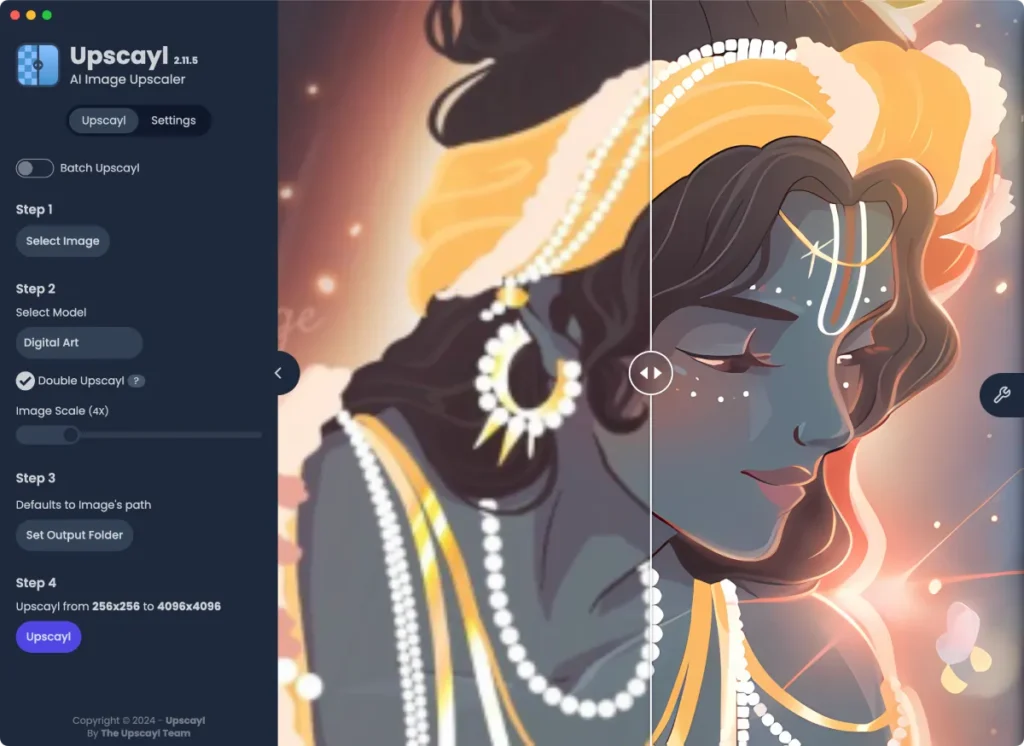
Upscayl is not a photo editing tool & that’s exactly why it’s so important in my workflow.
Every designer hits a moment when you finish a design. Everything looks perfect… until you zoom in.
Text feels soft. Edges lose sharpness. The image just isn’t high quality enough.
This is where most of the designers use Canva’s Pro AI Upscaling which is not available in free tier. Upscayl does that job for me locally, offline, and for free.
It’s a dedicated AI upscaling tool that focuses on one thing only, making images sharper, cleaner, and higher resolution without destroying details.
How Upscayl Replaces Canva Pro Upscaling for Me
| Canva Feature | Upscayl Replacement | Why It Works Better for Me |
|---|---|---|
| AI Image Upscaling | Local AI super-resolution | No subscriptions, no limits |
| Cloud Processing | Offline processing | My designs never leave my PC |
| Pro-only Feature | Fully free & open source | Great results, zero cost |
| One-click enhance | One-click upscale | Simple, fast, no learning curve |
| Privacy trade-off | Full privacy control | No uploads, no servers, no tracking |
Why Upscayl Is a Must-Have for Designers
Most designers don’t want their work uploaded to cloud servers especially original artwork, client designs, or concept pieces.
Upscayl respects that.
- Runs entirely offline
- Uses open-source AI models
- Works on Windows, Linux, and macOS
- Ideal for thumbnails, posters, social graphics, and print assets
- Perfect final step before exporting a design
It’s the tool I open after designing.
Pros & Cons of Upscayl
Pros
- Free and open source
- Offline AI upscaling (no cloud dependency)
- Extremely simple to use
- Great results for illustrations, photos, and graphics
- Replaces Canva Pro’s upscaler completely
Cons
- Not a photo editor
- No manual fine-tuning controls
- Needs a decent GPU for faster processing
- Focused only on upscaling (by design)
Github Repository: Upscayl
Also Read: Top 25 Offline AI Tools to Automate Tasks and Boost Productivity
9. Kdenlive
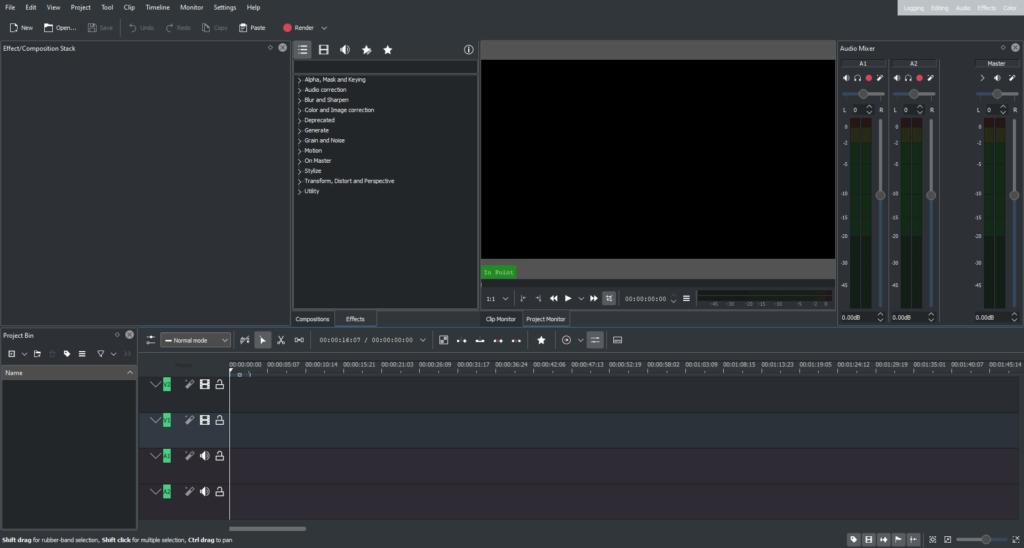
Canva does a decent job when you just want a quick animated clip or a short social video. I used it for that too.
But the moment I wanted more control, better timelines, or professional-looking edits, Canva started feeling limiting. That’s when Kdenlive became part of my workflow.
Kdenlive is an open-source video editor that gives you real control over your videos timelines, layers, effects, audio, transitions everything you’d expect from a professional tool.
How Kdenlive Replaces Canva Video Editing for Me
| Canva Feature | Kdenlive Replacement | Why It Works Better for Me |
|---|---|---|
| Basic video clips | Full multi-track timeline | Professional Video Editing |
| Limited animations | Keyframes & effects | Fine control over motion |
| Simple transitions | Professional transitions & effects | Looks polished, not generic |
| Cloud-based editing | Local offline editing | Faster & more reliable |
| Short social videos | Long-form & short-form videos | One tool for pro editing |
Pros & Cons of Kdenlive
Pros
- Free and open source
- Powerful multi-track timeline
- Professional effects, transitions, and audio tools
- Offline editing (no cloud dependency)
- Active community and frequent updates
- Available on Windows, Linux, and macOS
Cons
- Slight learning curve for beginners
- Interface can feel overwhelming at first
- Needs decent hardware for heavy projects
Github Repository: Kdenlive
Wrapping Up
Let me be clear. Canva is a great tool. I still pull it out when I need something fast and simple. But over time, I realized something important, I can’t rely on a single platform for my entire creative workflow.
Creative freedom isn’t about finding a perfect replacement, it’s about having choices. That’s where these open-source tools shine. They don’t try to replace Canva overnight. Instead, they give you options.
And the best part? Your creative work stays yours without sending your work to any server
This isn’t about replacing one tool. It’s about expanding your creative universe. Once you start mixing these tools into your workflow, it’s hard to go back.