

File Information
| Property | Details |
|---|---|
| Name | Penpot Desktop |
| Version | v1.0.0 |
| File Types | .exe (Windows), .AppImage (Linux), .deb (Linux) |
| Architecture | 64-bit builds (32-bit included but unsupported) |
| License (Desktop App) | Open Source (AGPL-3.0 License) |
| Penpot License | MPL-2.0 |
| Penpot Desktop Repository | penpot-desktop |
| Official Repository | Penpot |
| Contributors | @Belar, Beryesa (Berk Elyesa Yıldırım) |
| Size | 350MB (May Vary By OS) |
| Included Tools | Electron wrapper of Penpot web client with desktop enhancements |
Table of contents
Description
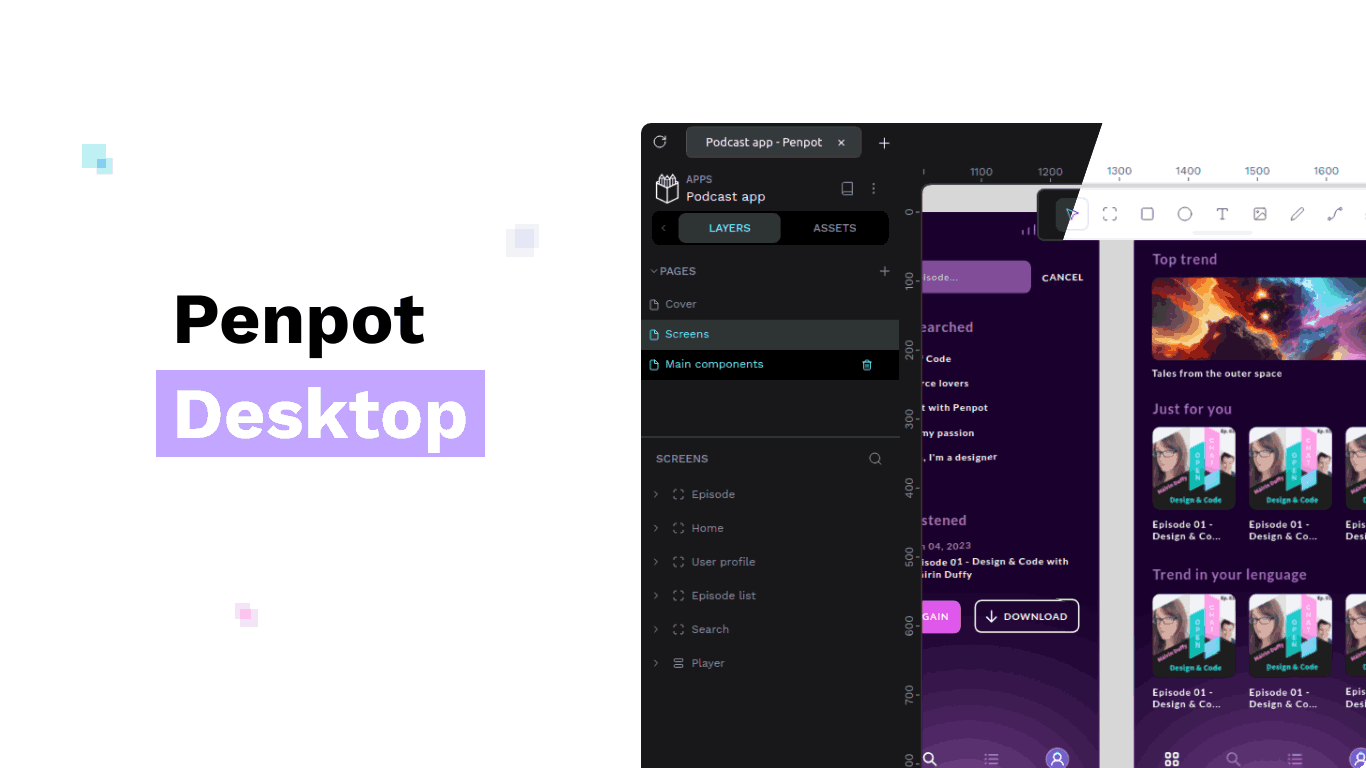
Penpot Desktop is a groundbreaking open-source design & prototyping tool that brings the full Penpot web experience to your desktop. Built using Electron.js, it allows designers, developers, and creative professionals to work offline or online without relying on a browser. It’s the perfect Canva alternative, giving users complete control over design projects, prototypes, and collaboration.
With Penpot Desktop, you can:
- Design vector graphics, interfaces, and prototypes in a full-featured desktop environment
- Collaborate with teams, inspect designs, and hand off projects seamlessly
- Access all Penpot SaaS features offline when self-hosting
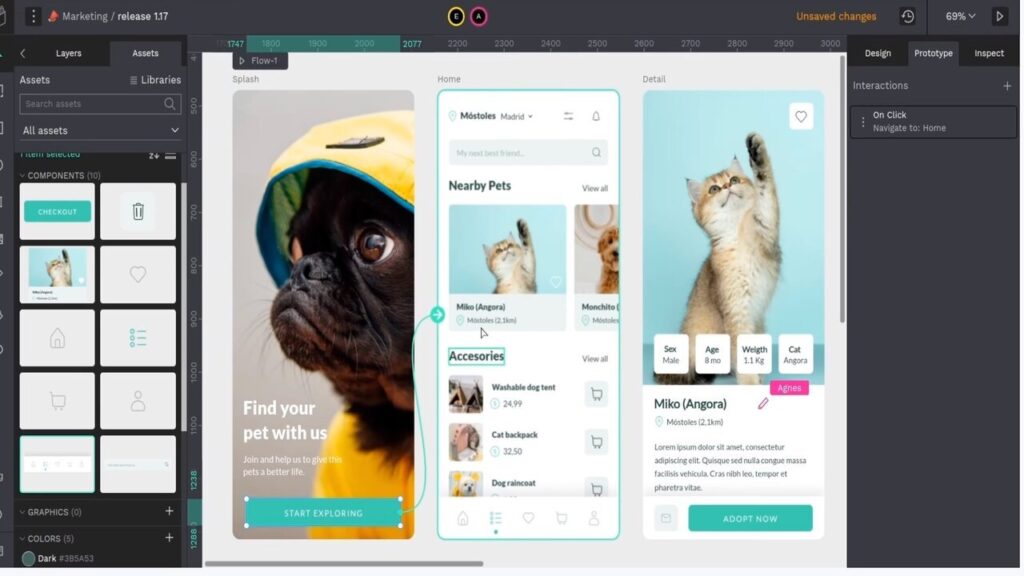
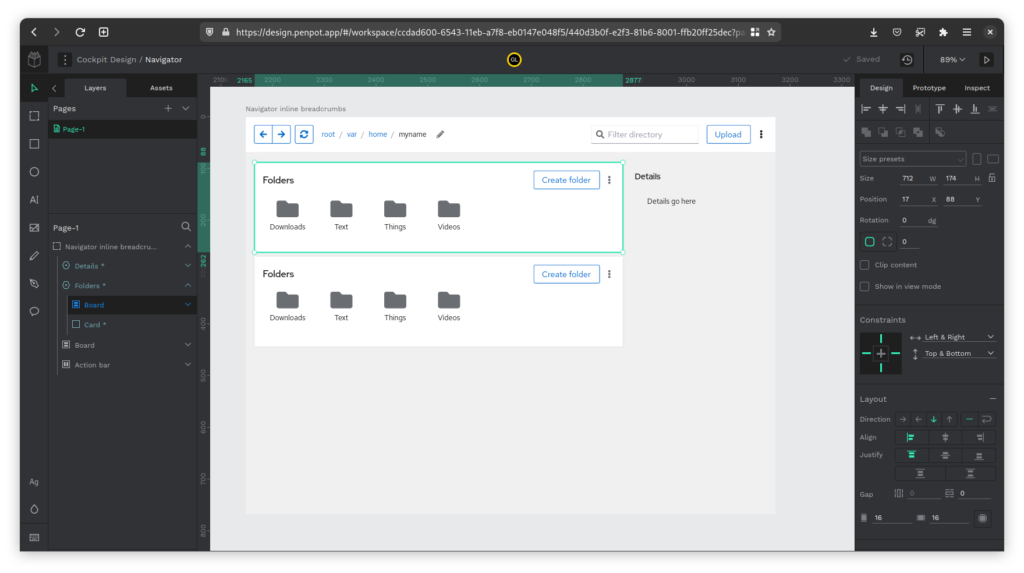
The desktop wrapper improves usability with native window management, tabbed interface, dark/light modes, and integration with your operating system. The contributors @Belar and Beryesa have simplified the installation and usage experience, making it easy to start designing immediately.
Features of Penpot: An Open Source Canva Alternative
| Feature | Description |
|---|---|
| Native Desktop Experience | Run Penpot as a standalone app, no browser required |
| Cross-Platform | Supports Windows & Linux (.exe, .AppImage, .deb) |
| Tabbed Interface | Work on multiple projects in separate tabs |
| Dark & Light Mode | Toggle UI theme to match OS preferences |
| Offline Mode | Connect to a self-hosted Penpot instance without internet |
| Electron.js Base | Lightweight, fast, and stable desktop wrapper |
| Design & Prototype | Full Penpot features, including vector graphics, prototypes, and design systems |
| Multi-instance Support | Connect to official SaaS or local self-hosted instances |
| Collaboration | Share projects with team members, inspect & comment in-app |
Screenshots
System Requirements
| Property | Details |
|---|---|
| OS | Windows 10 or later, Linux (Ubuntu/Debian-based or AppImage-compatible distros), macOS 11+ (Intel & Apple Silicon) |
| Processor | Intel i5 / AMD Ryzen 5 equivalent or better, Apple M1/M2 for macOS |
| RAM | 8 GB minimum, 16 GB recommended for smoother performance |
| Storage | 500 MB for installation, additional space for projects |
| Graphics | Integrated or dedicated GPU, OpenGL 3.3+ compatible |
| Internet | Required for updates & online resources; optional for offline use with self-hosted instance |
| Dependencies | Windows: None (installer includes everything), Linux: FUSE for AppImage or dpkg for .deb, macOS: none |
How to Install Penpot Desktop??
Windows (.exe)
- Download the Penpot Desktop
.exeinstaller. - Double-click the file to start the installation.
- Follow the on-screen prompts to complete installation.
- Launch Penpot Desktop from the Start Menu or desktop shortcut.
Linux (.deb / .AppImage)
- .deb Package
sudo dpkg -i penpot-desktop_0.19.0_amd64.deb sudo apt-get install -f - .AppImage
chmod +x Penpot-Desktop-0.19.0-x86_64.AppImage ./Penpot-Desktop-0.19.0-x86_64.AppImage
No browser required—Penpot Desktop runs as a standalone app.
macOS (.dmg)
- Download Penpot-Desktop-0.19.0.dmg for macOS.
- Open the
.dmgfile to mount the disk image. - Drag the Penpot Desktop application to your
Applicationsfolder. - Launch Penpot Desktop from the
Applicationsfolder or via Spotlight search.
How to Use Penpot Locally??
For a more detailed guide visit Penpot Desktop Offline Use Guide
Manual Setup
- Set up a new Penpot instance using official self-hosting instructions.
- Note your instance URL, e.g.,
http://localhost:9001/. - Open Penpot Desktop → Settings (gear icon) → Add instance.
- Change the label of the new instance (e.g., Local).
- Update the address to your local instance URL.
- Close Settings and open a new tab linked to the local instance.
Instance Creator (Experimental)
The instance creator provides automated local setup:
- Open Penpot Desktop → Settings → Create local instance (magic wand icon).
- Fill in the form: instance label, telemetry preferences, elevated access (optional).
- Click Create. Docker downloads and runs your local Penpot instance.
- After setup, your local instance appears in Penpot Desktop.
⚠️ Experimental feature: For production-critical work, use manual setup. Docker is required. Instance creator does not support sandboxing.
Download Penpot Best Figma & Canva Open Source Alternative
Conclusion
Penpot Desktop gives you the power of Penpot wrapped in a desktop shell, no browser tabs, no distractions, just pure designing. If you want seamless cross-platform design workflows and a free alternative to Canva & Figma, this is one to try. Enjoy!!