

File Information
| File | Details |
|---|---|
| Name | GIMP (GNU Image Manipulation Program) |
| Version | 3.0.6 (Latest Stable) |
| License | Creative Commons 4.0 (Open Source) |
| File Types | .exe, .dmg, .flatpakref |
| Platforms | Windows, macOS, Linux |
| Size | 300MB (May vary by OS) |
| Developer | The GIMP Development Team |
| Official Site | https://www.gimp.org |
Table of contents
- File Information
- Description
- Features
- Advanced Layer & Masking System
- Pro-Level Retouching & Editing Tools
- Customizable Brushes & Dynamic Painting Tools
- Full Support for PSD Files & Wide Format Compatibility
- Powerful Selection & Path Tools
- Filters, Effects & Layer Modes Galore
- Scriptable & Automatable (Python, Scheme, Perl)
- Plugin Support & Endless Expandability
- Non-Destructive Editing with GEGL Backend
- Open Source With Freedom and Trust
- What’s New in Gimp v3.0.6
- Screenshots
- System Requirements
- How to Install GIMP??
- GIMP: Powerful Free Photoshop Alternative Image Editor for Windows, macOS & Linux
Description
GIMP, short for GNU Image Manipulation Program, is one of the most powerful open-source image editors available today. It stands as a true alternative to expensive software like Adobe Photoshop, not just in terms of basic photo editing, but also advanced digital painting, layer management, retouching, batch processing, & plugin support.
Whether you’re a graphic designer, photographer, illustrator, or hobbyist, GIMP equips you with everything you need. It supports a wide range of file formats including PSD, PNG, JPEG, GIF, BMP, TIFF, & even RAW. You can customize its interface, automate tasks with Python, & enhance its features with third-party plugins.
Unlike many free tools, GIMP doesn’t come with ads or limitations, it’s 100% free, maintained by a passionate open-source community, and updated regularly.
Features
Advanced Layer & Masking System
Work non-destructively using layers, layer groups, masks, & blending modes. Whether you’re retouching a photo or crafting digital art, layers give you precise control over every pixel — just like in top-tier commercial software.
Pro-Level Retouching & Editing Tools
From healing brushes to clone stamps, GIMP provides everything you need for high-end photo retouching. Remove blemishes, fix lighting, reshape objects & even manipulate facial features — all with ease.
Customizable Brushes & Dynamic Painting Tools
Artists will fall in love with the pressure-sensitive brush tools, custom brush creation, smudge, airbrush, & ink tools. Whether you’re drawing from scratch or painting over a photo, GIMP adapts to your style.
Full Support for PSD Files & Wide Format Compatibility
GIMP can open, edit, & save Photoshop .psd files without a hitch. It also supports a wide variety of file types including PNG, JPEG, GIF, BMP, TIFF, HEIF, PDF, and even RAW files using third-party plugins.
Powerful Selection & Path Tools
From freehand selections to intelligent scissors, quick masks, & Bezier paths – GIMP makes it simple to isolate objects, cut them out, apply effects selectively, or create complex vector shapes with pixel-perfect accuracy.
Filters, Effects & Layer Modes Galore
GIMP comes loaded with professional-grade filters, artistic effects, noise reduction, lens distortion correction, and over 30+ blend modes to help you achieve any look – from vintage film to futuristic glow.
Scriptable & Automatable (Python, Scheme, Perl)
Feeling technical? GIMP is fully scriptable using Python, Script-Fu, or Perl. Automate repetitive tasks, batch-process images, or build your own creative tools to speed up your workflow.
Plugin Support & Endless Expandability
Want even more? GIMP supports hundreds of plugins made by its active community. From AI upscaling tools to animation & web design helpers, the plugin ecosystem transforms GIMP into anything you want it to be.
Non-Destructive Editing with GEGL Backend
Thanks to the GEGL image processing engine, GIMP now supports non-destructive editing, real-time previews, and high-bit-depth workflows, bringing it closer to the performance of heavyweight software like Photoshop or Affinity.
Open Source With Freedom and Trust
No subscriptions. No locked features. No ads. GIMP is open source, meaning you can modify, redistribute, and improve it. That’s the power of community-driven software.
What’s New in Gimp v3.0.6
- Improved usability of sliders — better cursor behavior and interaction.
- Fixed crashes on Windows systems using certain languages (like Turkish and Norwegian Bokmål) by patching the Exiv2 metadata library.
- Fixed a crash that occurred when editing the text outline color with the Text tool.
- Improved transparency handling for filters and transforms — transparency is now automatically added when required.
- Brush, Font, and Palette dockables now support theme colors (feature back-ported from GIMP 3.1.2).
- Enhanced non-destructive editing (NDE) filters — improved stability, performance, and UI clarity.
- macOS improvements — fixed crashes when dragging colors to fill areas, duplicate dock icons, and window flashing issues.
- Security updates for image import plug-ins — patched multiple vulnerabilities.
- Build and packaging improvements:
- Backported several fixes from the 3.1 branch.
- Restored PS/EPS plug-in support in AppImage builds.
- Fixed Python plug-ins’ internet access on Windows and macOS.
- Enhanced AppImage and Flatpak infrastructure.
- The team has fixed a bug that affected importing Adobe Color Book (.acb) palettes — including CMYK and LAB palettes!
- Plus, the Palette Import dialog just got smarter! You can now filter palettes by format, making it easier to browse and import your favorites.
- Supported formats now include Adobe ASE, standard CSS, and GIMP’s own GPL formats.
Visit official release notes to know more about updates
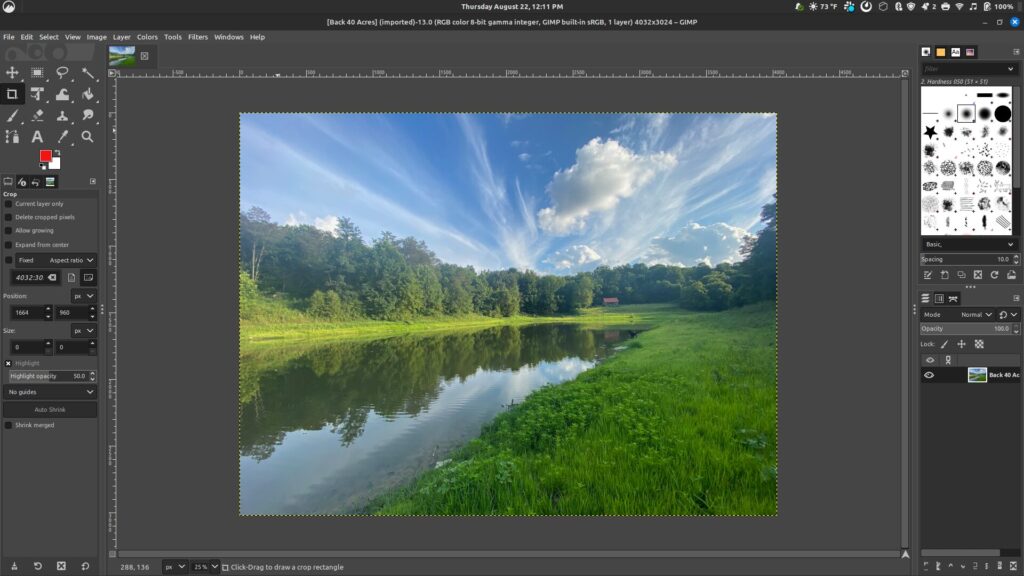
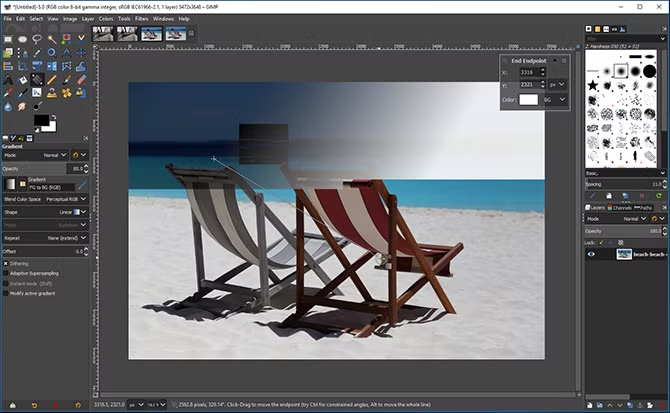
Screenshots
System Requirements
| Platform | Operating System | RAM | Disk Space | Processor (CPU) | Additional Info |
|---|---|---|---|---|---|
| Windows | Windows 7 or later (64-bit) | 4GB (8GB recommended) | 1GB available | Dual-core or higher | Full support for .exe installer |
| macOS | macOS 10.12 or later | 4GB minimum | 1GB free space | 64-bit Intel or Apple Silicon (via Rosetta) | .dmg package; may need permission in Security settings |
| Linux | Any modern 64-bit Linux distro | 4GB | 1GB space | Varies by distro | Flatpak support recommended for easiest setup |
How to Install GIMP??
Before you begin installation, scroll down to the download section & choose the file format according to your OS:
.exefor Windows.dmgfor macOS.flatpakreffor Linux (recommended)
Windows Installation
- Scroll to the download section & download the
.exefile. - Double-click the downloaded file.
- Choose your language & install location.
- Follow the setup wizard & click Finish.
- Launch GIMP from the Start Menu.
macOS Installation
- Scroll to the download section & get the
.dmgfile. - Open the file & drag GIMP into the Applications folder.
- If prompted, allow the app in System Preferences > Security.
- Launch GIMP from Launchpad or Spotlight.
Linux Installation (Flatpak Recommended)
- Scroll to the download section & grab the
.flatpakreffile. - Make sure Flatpak is installed:
sudo apt install flatpak(Ubuntu/Debian)sudo dnf install flatpak(Fedora)
Or use your distro’s package manager. - Install GIMP using:
flatpak install flathub org.gimp.GIMP - Run it using:
flatpak run org.gimp.GIMP
Advantages of using Flatpak:
- Automatic updates
- Sandbox security
- Easy uninstall without clutter
- Works across almost all Linux distros