
Your OS was built for everyone. Which means it was optimized for no one in particular.
The clipboard works the same way it did decades ago. Audio is still one slider for everything. Window management is still a guessing game. And nobody is coming to fix any of it because technically it works. Just not the way you actually want it to.
The open source community noticed. And they got to work. These 8 tools don’t ask you to switch operating systems or learn a new workflow. They just quietly fix the things that slow you down every single day. Some of them will feel so obvious you’ll wonder why your OS never shipped them in the first place.
1. CopyQ
Every time you copy something new, your OS throws away what you copied before. One slot. One item. That’s it. CopyQ throws that limitation out entirely.
It keeps a searchable history of everything you copy including text, HTML, images, all of it. You pull it up with a keyboard shortcut, search for what you need, and paste it. Beyond history it lets you organize clips into tabs, tag items, add notes, and set up automation rules. There is a built-in editor with Vim-style shortcuts if you want to get into it. You can also filter out clipboard items from specific apps if there are things you never want saved.
If you are on Windows only and want something even more lightweight, Ditto does the core job well. Persistent clipboard history, quick search, and almost no resource usage. It does not have CopyQ’s scripting or tabs but if all you need is to stop losing things you copied, Ditto gets it done without any extra complexity.
Platform Support: Windows, macOS & Linux
2. Espanso

Think about how many times you type your email address in a week. Your sign-off. That support response you’ve written a hundred times. That code snippet you paste from notes because you can never remember the exact syntax.
Espanso fixes this at the system level. You define a short keyword, type it anywhere, and it instantly expands into whatever you set. Type :email and get your full address. Type :meet and get your entire meeting link with all the details. Type :date and get today’s date formatted exactly how you want it.
It works system-wide across almost every application. What separates it from basic text expanders is how far it goes when you want it to. It supports shell commands, custom scripts, regex triggers, forms that pop up and ask for input before expanding, and a built-in package manager connected to a hub of community-built expansion packs. A developer and a customer support agent will use it completely differently and both will find it genuinely useful.
If you have never used a text expander before, give it one week. The hours you get back from repetitive typing add up faster than you expect.
Platform Support: Windows, macOS & Linux
3. DockDoor
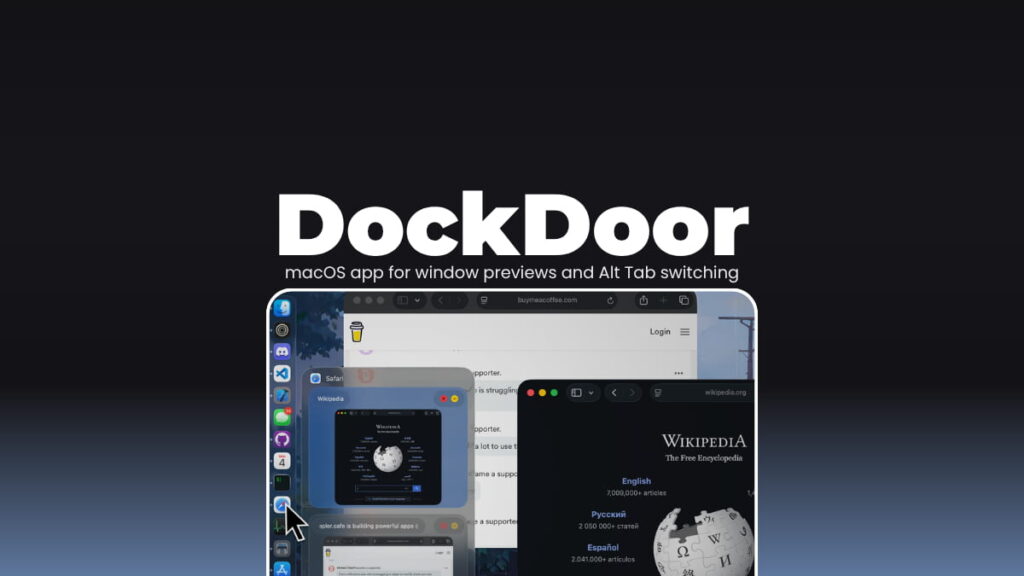
Five Safari windows open and no idea which one has the tab you need. You click the dock icon, wrong window, click again, still wrong. It is a small frustration that happens constantly.
Hover over any app in the dock and DockDoor shows you every open window with a live preview. Click the one you want and you are there. It also fixes Alt+Tab. macOS switches between apps, not windows. DockDoor gives you actual window level switching with previews. If you have ever used Windows you know exactly why this matters.
You can close, minimize or focus any window directly from the preview without switching to it first. Full keyboard navigation if you prefer staying off the mouse.
Platform Support: macOS
4. FineTune
macOS gives you one volume slider. That’s it. Everything goes up or everything goes down together.
So when your video call is too quiet but your music is already loud enough, you’re stuck. When Slack notification sounds interrupt a focused session but you don’t want to mute everything, there’s no clean answer. You just deal with it.
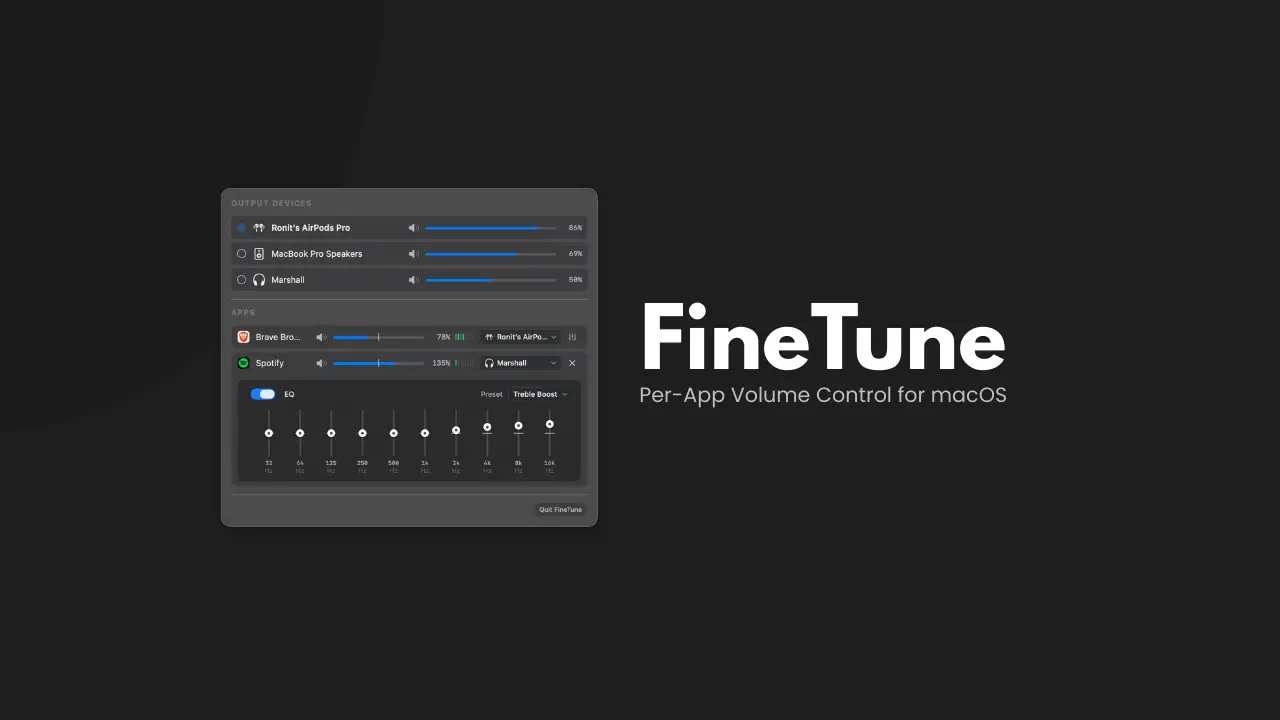
FineTune lives in your menu bar and gives every running app its own volume slider. Turn Slack down without touching Spotify. Route your call audio to headphones while music keeps playing through speakers. There’s also a 10-band equalizer built in if you want to tune the sound beyond just levels.
It’s lightweight, runs locally & feels exactly like something macOS should have included years ago.
Platform Support: macOS
5. KillerPDF
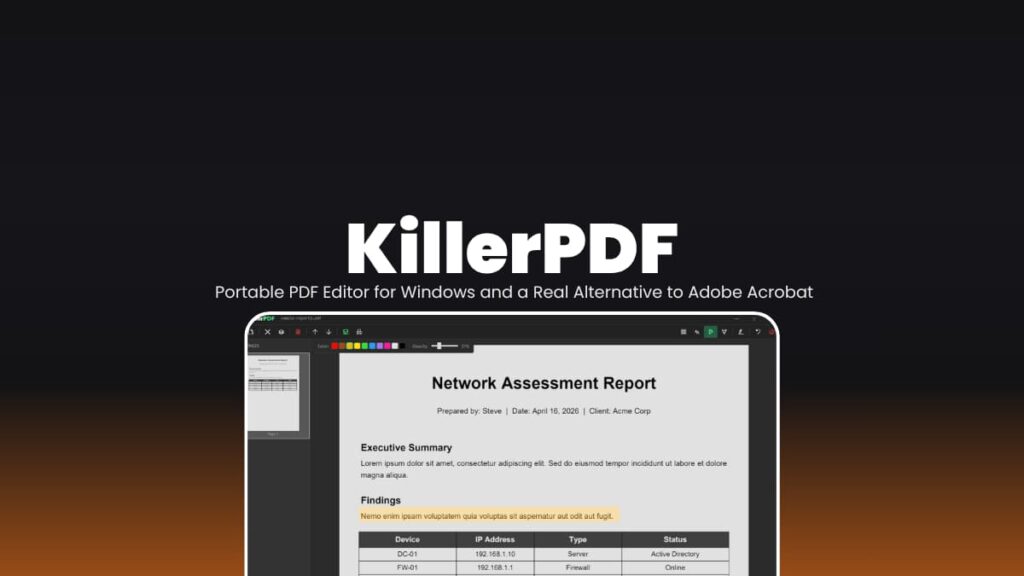
Most PDF tools want you to upload your document to do anything useful. For personal files, contracts, or anything sensitive that feels wrong. KillerPDF is a very good open source and privacy friendly solution.
It covers what most people actually need. Open and view PDFs, edit text inline with font matching so the layout doesn’t break, merge files, split pages, highlight, annotate, add signatures. The text editing part is even better, it reads the original font and tries to preserve it rather than replacing everything with a fallback. Everything stays on your machine. Always.
Platform Support: Windows
You May Like: Open Source Tools That Turn Your PC Into a Full Creator Studio
6. Converseen
Every major image editing tool wants a monthly fee now. For something as simple as resizing a hundred images or converting a folder of PNGs to WebP, that’s hard to justify.
Converseen does the whole job for free. Drop in as many images as you need, set your output format, dimensions, and compression, and let it run. Everything processes in one go without touching each file individually.
It handles over 100 formats through ImageMagick including JPG, PNG, WebP, HEIC, SVG, TIFF and more obscure ones most tools don’t bother with. You can also feed it a PDF and it spits out individual images for each page, which is genuinely useful for document workflows.
Bulk renaming is built in too. Add prefixes, suffixes, or sequential numbers across an entire batch without touching a single filename manually.
Platform Support: Windows, macOS and Linux
7. FxSound
Most people accept that laptop speakers sound thin and streaming audio sounds compressed. That’s just how it is. FxSound disagrees.
It sits between your audio source and your output device, processing sound in real time. The result is noticeably richer bass, cleaner highs, and better overall clarity without buying new hardware. A 9-band equalizer lets you tune it to your taste, and there are presets for music, gaming, movies, and podcasts if you don’t want to fiddle with sliders.
It helps most in two situations. Budget speakers or laptop audio that sounds flat, and streamed music that sounds compressed. Both are problems FxSound actually improves rather than just masking.
There’s a visualizer too if you want it.
Platform Support: Windows
8. Keyviz
Screen recordings have a persistent problem. The viewer watches you work but has no idea what keys you’re pressing. You move fast, something happens, and they missed why.
Keyviz puts your keystrokes on screen in real time. Every shortcut, every key combination and every mouse action shows up as a clean visual overlay your audience can actually follow. It goes beyond basic keystroke display. Complex combinations like Cmd+Click or Alt+Drag show up correctly. Smart filtering means you only show meaningful shortcuts and the visuals are fully customizable like colors, sizes, animation styles, borders so it fits your recording aesthetic.
If you record tutorials, run remote training, or do any kind of live coding demonstration, this is one of those tools you install once and wonder how you presented without it.
Platform Support: Windows
You May Like: The Best Open-Source Alternatives to Adobe Products for Creators
Your OS won’t fix these things. These tools already did.
None of these tools are trying to replace your operating system. They’re just filling the gaps it left behind, quietly, locally, and for free.
The best part is you don’t have to install all eight today. Pick the one that fixes your most annoying daily frustration and start there. Open source means these tools exist because someone got frustrated enough to build a better answer. That’s a good reason to use them.