
File Information
| Name | FxSound – Digital Audio Enhancement Software |
|---|---|
| Version | Latest Release |
| File Size | ~71MB (.exe) |
| Platforms | Windows |
| License | AGPL 3.0 Open Source |
| Official Repository | GitHub / fxsound-app |
| Official Site | fxsound |
Table of contents
Description
FxSound is a free open-source audio enhancement software designed specifically for Windows PCs. It acts as a digital sound card, boosting sound quality, volume, and bass for a rich audio experience. With a high-fidelity audio engine, FxSound brings new life to everything you listen to—whether it’s music, video games, movies, or even podcasts.
Imagine immersing yourself in the deep soundscapes of your favorite video game, or hearing every nuance in a movie’s dialogue. FxSound smooths and enhances audio, correcting limitations of your devices and catering to the compression artifacts common in streamed music.
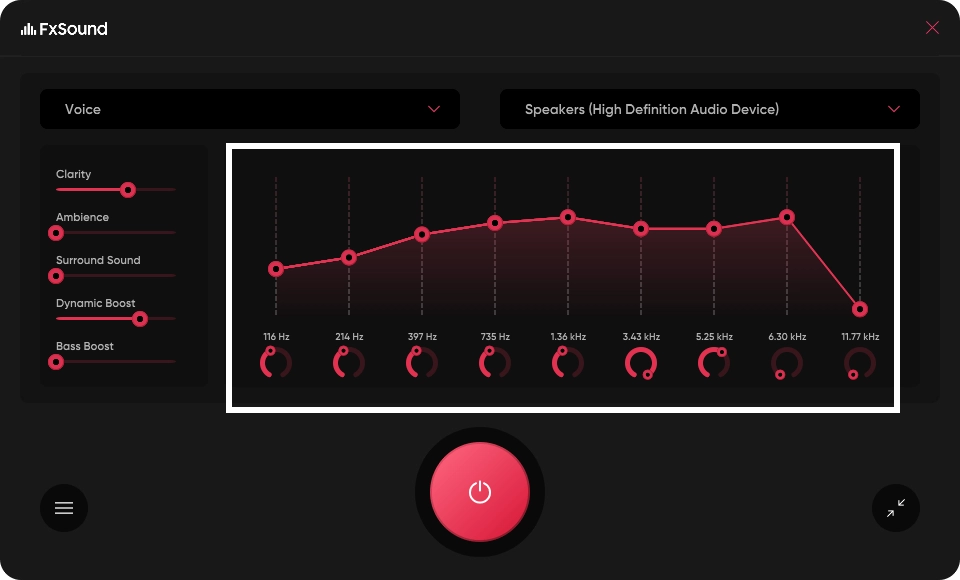
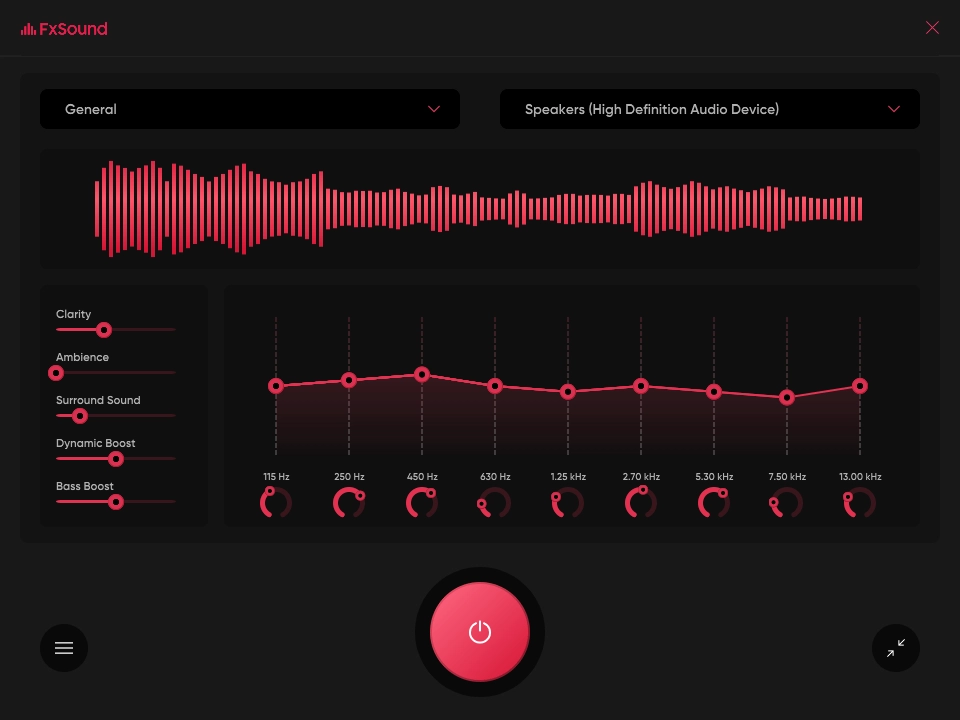
Screenshots
Features of FxSound
| Feature | Description |
|---|---|
| Customizable Equalizer | Balance your sound with a 9-band EQ and adjustable center frequencies tailored to your taste. |
| Dynamic Sound Effects | Experience boosted bass and volume that can make your audio pop. |
| Professionally Designed Presets | Use presets crafted for different listening scenarios—music, gaming, movies, and more. |
| Visualizer | Visualize your music in a way that deepens your connection to the sound. |
| Clarity for Transcription | Enhanced clarity allows you to listen attentively, making your transcription work easier. |
System Requirements
| Attribute | Details |
|---|---|
| Operating System | Windows 10 • Windows 11 (64-bit recommended) |
| Processor | Intel or AMD dual-core processor (2 GHz or higher) |
| RAM | Minimum 4 GB • Recommended 8 GB+ |
| Storage Space | ~50 MB for installation • Additional space required for presets & logs |
| Audio Driver | FxSound Audio Enhancer Virtual Audio Driver (installed automatically with FxSound) |
| Dependencies (for building from source) | Visual Studio 2022 • Windows SDK • JUCE Framework |
| GPU | Not required; any basic Windows-compatible GPU |
| Internet Connection | Required for downloading installer, updates, and optional preset sync |
| Architecture | 64-bit Windows recommended for stable DSP processing |
Recommended For You: Audacity: Open-Source Audio Editor & Recorder for Windows, macOS & Linux
How to Install FxSound??
- Download the FxSound Windows installer
.exefrom the download section. - Locate the file in your Downloads folder.
- Double-click the
.exeto start the installer. - If Windows asks for permission (UAC), click Yes.
- Follow the installation wizard and complete the setup.
- The installer will also install the FxSound Audio Enhancer virtual audio driver — allow it to proceed.
- Click Finish once installation is completed.
- Launch FxSound from the Start Menu or desktop shortcut and enjoy enhanced audio.
Download FxSound Free Audio Enhancer For Windows
Why Choose FxSound?
With over 20 years of expertise in audio processing, FxSound delivers professional-quality sound without requiring a hefty investment. Whether you’re listening through standard speakers or high-end headphones, it adapts to ensure you receive the best possible audio experience.
FxSound proves that you don’t have to break the bank to enjoy audiophile sound. It’s all about enhancing your audio to fit your personal taste and the requirements of whatever you’re engaging with.
Support FxSound Project
If you enjoy using FxSound and want to help us continue improving and maintaining this essential audio enhancement tool, consider donating through our official site. Your contributions directly support software development, bug fixes, and the addition of new features. Every bit helps us create a better experience for users like you, ensuring that FxSound remains free and open-source for everyone. Join our community of supporters who believe in high-quality audio for all!
Visit fxsound donation page to make your contribution today!
Conclusion
FxSound is your gateway to an enriched audio experience, whether you’re listening to music, gaming, or watching movies. With its powerful features, customizable settings, and community support, this software stands out as an invaluable asset for anyone looking to elevate their sound.