



File Information
| File | Details |
|---|---|
| Name | Audacity Audio Editor |
| Version | v3.7.5 (Latest Release) |
| License | Free & Open Source |
| Platforms | Windows, macOS, Linux |
| File Types | EXE, DMG, AppImage |
| Category | Audio Recording & Editing Software |
Table of contents
Description
Audacity is the most popular free & open source audio editing software that allows you to record, mix, edit & enhance sound with ease. Whether you are a music producer, podcaster, voice artist or simply someone who wants to clean up audio files, Audacity is the ultimate choice. Being a completely free & community-powered tool, it has become the best alternative to costly professional audio software like Adobe Audition & other premium tools.
One of the biggest advantages of Audacity is its flexibility. It supports multi-track audio editing, real-time effects, noise reduction, pitch correction, & seamless audio format conversion. The interface is simple yet powerful enough for advanced users who demand professional-level audio manipulation.
Audacity runs smoothly on Windows, macOS & Linux, which makes it a truly cross-platform editor. With features like unlimited undo, spectrogram view, VST plugin support & batch processing, Audacity is trusted by millions worldwide.
If you are looking for the best free open source audio editor that rivals paid software, then Audacity is the perfect solution. Scroll down to the download section, grab the file suitable for your operating system & enjoy professional audio editing at zero cost.
Features of Audacity
- Free & open source with no hidden costs
- Multi-track recording & editing
- Supports plugins including VST, LADSPA & Nyquist
- Noise reduction & sound cleanup tools
- Import & export in WAV, MP3, FLAC, OGG & more formats
- Pitch shifting, tempo adjustment & audio effects
- Unlimited undo & redo options
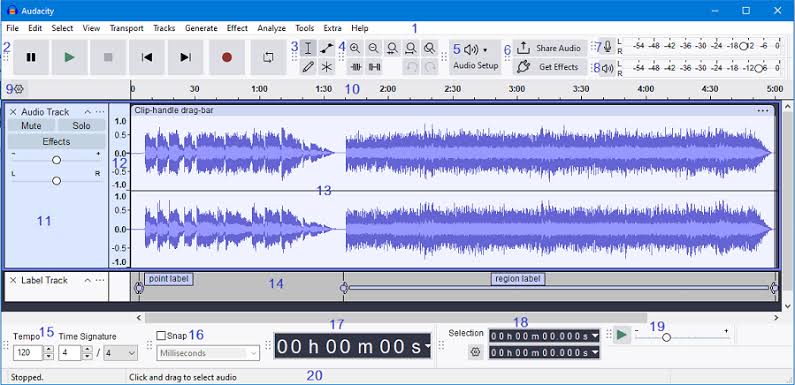
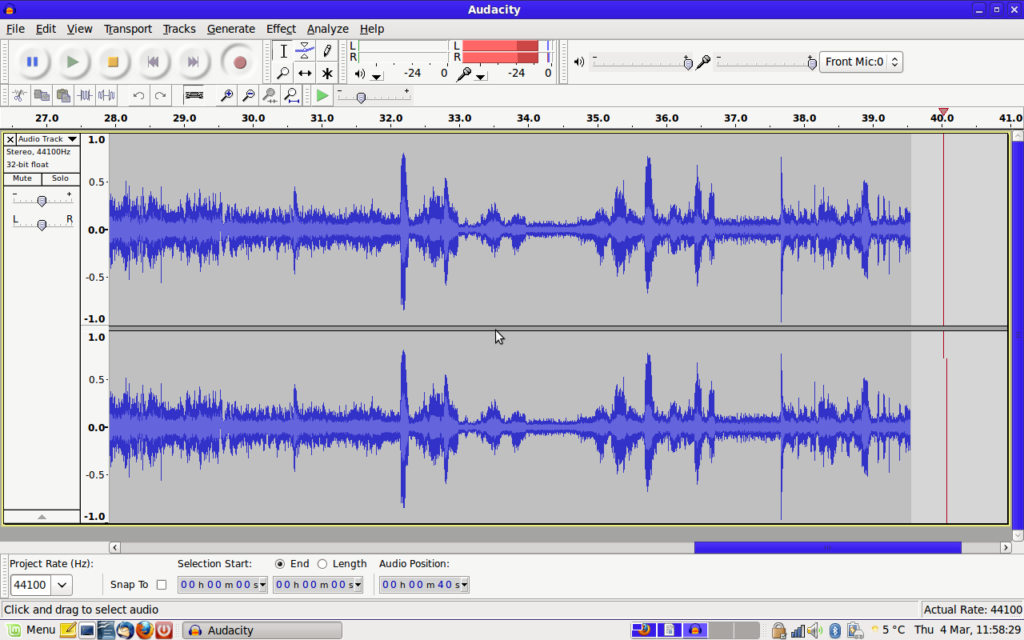
- Spectrogram & detailed waveform visualization
- Works on Windows, macOS & Linux easily
Screenshots
System Requirements
| Operating System | Minimum Requirement |
|---|---|
| Windows | Windows 7 or later, 2GB RAM, 200MB disk space |
| macOS | macOS 10.9 or later, 2GB RAM, 200MB disk space |
| Linux | Modern Linux distro, AppImage supported, 2GB RAM |
How to install Audacity??
Before you start, scroll down to the Download section & grab the correct file for your system
- Windows uses the
.exeinstaller - macOS uses the
.dmgdisk image - Linux uses the
.AppImagefile
Windows Installation Steps
- Locate the downloaded
Audacity-setup.exein your Downloads folder. - Double-click the file to launch the setup wizard. If you see a SmartScreen prompt, choose More info & Run anyway.
- Choose your language & click Next.
- Read the license terms, select I accept, then click Next.
- Keep the default install location or click Browse to choose another folder, then click Next.
- Choose optional components like desktop shortcut if offered, then click Install.
- Launch the app, Enjoy!
macOS Installation Steps
- Double-click the downloaded
Audacity.dmgto open the disk image. - In the window that appears, drag the Audacity app into the Applications folder shortcut.
- Eject the Audacity disk image from Finder when the copy finishes.
- Open Launchpad or Finder > Applications & start Audacity.
- If you get a developer verification message, open System Settings > Privacy & Security & click Open Anyway next to Audacity.
- When prompted, grant Microphone permission so Audacity can record. You can also set this in System Settings > Privacy & Security > Microphone.
- Inside Audacity, open Audacity menu > Settings or Preferences > Devices & select your input mic & output device.
- Record a short test clip to confirm everything is working.
Linux Installation Steps using AppImage
- Right-click the downloaded
Audacity-xxxx.AppImage& choose Properties. - Open the Permissions tab & check Allow executing file as program.
Or use Terminal:chmod +x ~/Downloads/Audacity-*.AppImage - Double-click the AppImage to run Audacity.
- If your desktop asks to integrate the AppImage, you can accept so it shows in your app launcher, or skip to keep it portable.
- In Audacity, open Edit > Preferences > Devices to select your microphone & speakers.
- If you have no audio input, ensure your user is in the appropriate audio groups & your mic is enabled in system sound settings.




