


File Information
| Property | Details |
|---|---|
| Name | Ovi |
| File Type | Git repository (zip available) |
| License | Open Source (Apache 2.0) |
| Repository | GitHub Repository |
| Platform | Windows, Linux, macOS |
| Required Python | 3.10+ |
| Dependencies | PyTorch, torchvision, torchaudio, flash_attn, others |
Table of contents
- File Information
- Description
- Features of Ovi AI Video Generator
- Screenshots
- System Requirements
- How to Install Ovi: An Open Source Alternative to Sora 2 & Veo3 Locally
- Download Ovi: An Open Source Veo3 & Sora2 Alernative to generate AI video with audio for free
- Tips & Advantages of Ovi AI Video + Audio Generator
Description
Ovi is a groundbreaking open-source AI model developed by Character AI that revolutionizes the way creators generate audiovisual content. Ovi can simultaneously produce synchronized video and audio directly from text or a combination of text and images. Inspired by advanced models like Veo 3 and Sora 2, it empowers users to bring their ideas to life with stunning cinematic results, without the need for expensive software or high-end hardware.
With Ovi, creators can produce 5-second high-quality videos with audio at 24 frames per second, supporting multiple aspect ratios including 9:16, 16:9, and 1:1. This makes it perfect for social media clips, marketing content, and even educational short videos. The model’s flexible input system allows you to simply provide a text prompt describing the scene, or enhance it further by adding an image reference, giving you full creative control over the generated content.
One of Ovi’s most impressive features is its ability to generate synchronized audio and video seamlessly. Using special tags like <S> for speech and <AUDCAP> for audio descriptions, users can define exactly what dialogue or sound effects appear in the video. This ensures that every generated clip has perfectly timed narration, effects, or background sounds, opening endless possibilities for storytelling, music videos, or even animated scenes.
Ovi is also designed to be highly accessible. The model is open-source, meaning developers can modify it, integrate it into their own projects, or experiment with custom enhancements. Its performance is optimized for modern GPUs, but it also works with slightly older hardware, making it approachable for both hobbyists and professional creators.
For creators who love experimenting, Ovi supports multiple modes including text-to-video, image-to-video, and hybrid workflows. You can generate clips in bulk, test variations, and even fine-tune the output using configuration files. Multi-GPU setups are supported for faster generation, while single GPU usage is straightforward for beginners.
Usage of Ovi AI Video Generator
Whether you’re a filmmaker, content creator, or AI enthusiast, Ovi provides a powerful, flexible, and fully open-source tool to produce high-quality audiovisual content. With its combination of ease-of-use, creative freedom, and advanced AI capabilities, Ovi truly sets itself apart as one of the most exciting video generation tools available today.
You can easily find some of the video Generations from Sora 2 & veo3 alternative Ovi on their official github repository
How Ovi was Developed??
Ovi is built with contributions and ideas from some of the best open-source video and audio generation projects. Its video branch is initialized from Wan2.2, ensuring cutting-edge capabilities for text-to-video generation. The audio encoder and decoder components are borrowed from MMAudio, which allows Ovi to synchronize audio with video seamlessly.
Features of Ovi AI Video Generator
| Feature | Description |
|---|---|
| Video+Audio Generation | Create synchronized video and audio clips in one go |
| Flexible Input | Supports text-only or text+image prompts |
| Multi-Aspect Ratios | 9:16, 16:9, 1:1 and more |
| High FPS | Generates 5-second clips at 24 FPS |
| Customizable Prompts | Use <S> tags for speech and <AUDCAP> tags for audio descriptions |
| Multi-GPU Support | Accelerated generation with multiple GPUs |
| Open-Source | Fully modifiable and extensible |
| Easy Configuration | YAML files to control generation quality, audio/video balance, and output directory |
| Example Prompts | Ready-to-use CSV examples for quick start |
| Flexible Memory Usage | Supports fp8 quantization and CPU offloading for lower VRAM GPUs |
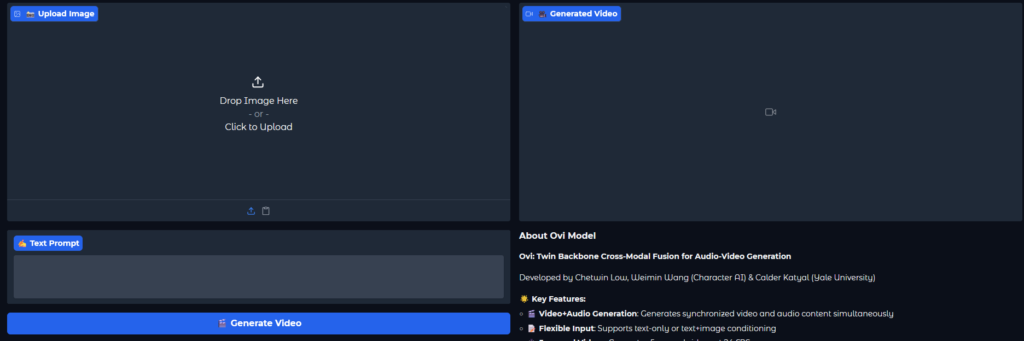
Screenshots

System Requirements
| Component | Minimum | Recommended |
|---|---|---|
| GPU | 32 GB VRAM for standard model, 24 GB for fp8 quantized | RTX 40XX, 30XX, 20XX, GTX 10XX, or equivalent |
| CPU | 8 cores | 12+ cores for multi-GPU setups |
| RAM | 16 GB | 32+ GB |
| Disk Space | 10 GB | 50+ GB for models, videos, and caches |
| OS | Windows, Linux, macOS | Same |
| Python | 3.10+ | Same |
Also Read: Ovi AI Video + Audio Generator in ComfyUI: Best Open-Source Alternative to Veo 3 & Sora 2
How to Install Ovi: An Open Source Alternative to Sora 2 & Veo3 Locally
Step-by-Step Installation
- Clone the repository
You can clone the repository from command below or download it manually from download section of the page.
git clone https://github.com/character-ai/Ovi.git
cd Ovi
- Create and activate a virtual environment
virtualenv ovi-env
source ovi-env/bin/activate
- Install PyTorch
pip install torch==2.5.1 torchvision==0.20.1 torchaudio==2.5.1
- Install dependencies
pip install -r requirements.txt
- Install Flash Attention
pip install flash_attn --no-build-isolation
Alternative method (if needed)
git clone https://github.com/Dao-AILab/flash-attention.git
cd flash-attention/hopper
python setup.py install
cd ../..
- Download pre-trained weights
python3 download_weights.py
# Optional: custom directory
python3 download_weights.py --output-dir <custom_dir>
- Run Ovi
python3 inference.py --config-file ovi/configs/inference/inference_fusion.yaml
For multi-GPU setups:
torchrun --nnodes 1 --nproc_per_node 8 inference.py --config-file ovi/configs/inference/inference_fusion.yaml
You can also launch the Gradio interface:
python3 gradio_app.py
# Optional flags: --cpu_offload, --use_image_gen, --fp8
Download Ovi: An Open Source Veo3 & Sora2 Alernative to generate AI video with audio for free
Tips & Advantages of Ovi AI Video + Audio Generator
- Generate videos directly from text prompts in seconds.
- Include synchronized speech or sound effects using special tags.
- Fine-tune video quality, denoising steps, and audio/video balance via config files.
- Share .lset style prompt files with embedded configurations for collaboration.
- Works efficiently on both older and newer GPUs, with fp8 quantization reducing VRAM usage.
- Open-source and fully modifiable, perfect for research or personal projects.
Ovi is an exceptional choice for anyone exploring AI-driven video creation. It offers the same capabilities as Sora 2 or Veo 3, but with full open-source flexibility, multi-GPU support, and customizable inputs for truly unique results. Whether you are making short clips for social media, experimental AI films, or storytelling videos, Ovi provides unmatched control and efficiency.




