
File Information
| Property | Details |
|---|---|
| Name | ComfyUI-Ovi |
| Version | Latest |
| Platform | Windows, Linux, macOS (via ComfyUI) |
| File Type | Custom Node Workflow |
| License | Open Source (GitHub) |
| Repository | ComfyUI-Ovi |
| Dependencies | PyTorch 2.4+, CUDA 12.x |
| VRAM Requirement | 16–24 GB (FP8) or >32 GB (BF16) |
| Category | AI Video + Audio Generation Workflow |
Table of contents
- File Information
- Description
- Features of Ovi: Open Source Veo 3 & Sora 2 Alternative
- Screenshots
- Generation From Ovi AI Video + Audio Generator
- System Requirements
- Directory Structure
- Available Ovi Nodes
- How to Install Ovi Using ComfyUI
- Why Ovi + ComfyUI is the Best Sora 2 & Veo 3 Alternative
- Download Ovi AI Video Generator ComfyUI Workflow
- Install Ovi AI Video + Audio Generator Best Veo 3 & Sora 2 alternative Directly
Description
Experience next-generation AI video and audio generation locally with Ovi in ComfyUI — the most powerful open-source workflow that rivals Google’s Veo 3 and OpenAI’s Sora 2.
With Ovi’s multimodal fusion engine and seamless integration into ComfyUI, you can create AI-generated videos with synchronized sound, all without depending on cloud services.
It’s inspired by Character.AI’s Ovi and integrates seamlessly into the ComfyUI node environment, offering a fully modular, GPU-accelerated, and privacy-friendly experience.
Think of it as a self-hosted alternative to proprietary systems like Veo 3 or Sora 2, giving you total creative freedom and zero cloud dependency.
Features of Ovi: Open Source Veo 3 & Sora 2 Alternative
| Feature | Description |
|---|---|
| Self-Bootstrapping Loader | Automatically downloads and manages MMAudio assets and Ovi fusion weights. |
| Precision Control | Choose between BF16 (for 32 GB + GPUs) or FP8 (for 16–24 GB cards). |
| Attention Selector | Switch dynamically between FlashAttention, SDPA, Sage, and more. |
| Multi-GPU Optimization | Targets specific GPUs in multi-card setups for faster inference. |
| Component Reuse | Reuses your existing Wan 2.2 VAE and UMT5 text encoder without duplication. |
| CPU Offload Option | Moves larger modules to RAM when VRAM is limited. |
| Automatic Directory Setup | Places all required files (weights, encoders, VAEs) in proper directories automatically. |
| Fully Node-Based | Integrated directly into ComfyUI as custom nodes, accessible under the “Ovi” category. |
| Fast & Flexible Generation | Supports text-to-video, iDirectory Structure mage-to-video, video + audio fusion, and custom first-frame prompts. |
Screenshots
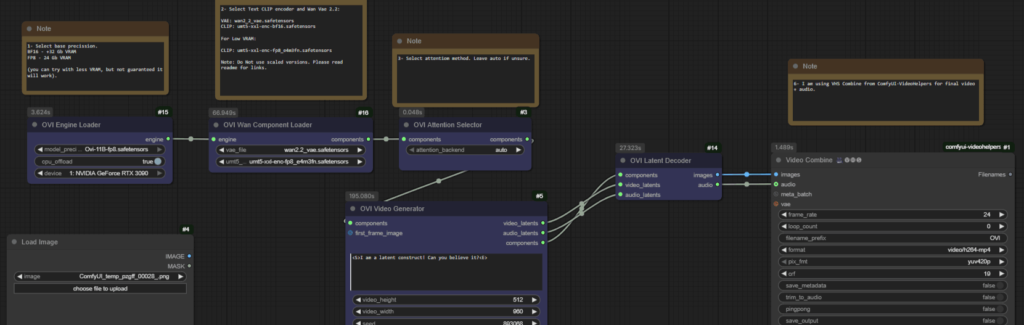
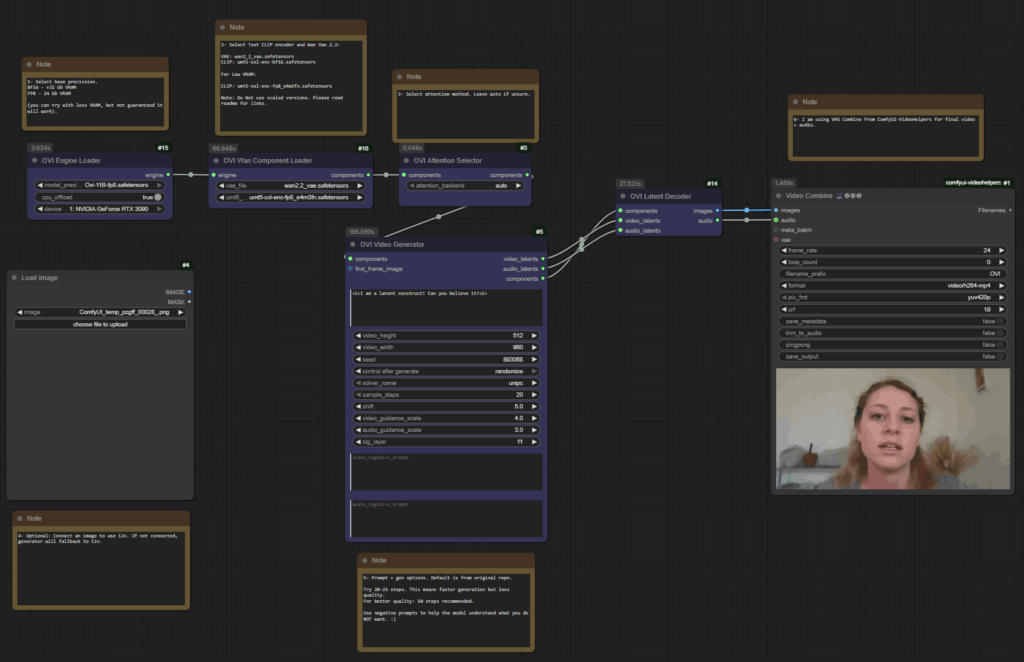
Generation From Ovi AI Video + Audio Generator
System Requirements
| Component | Minimum | Recommended |
|---|---|---|
| GPU | 16 GB (FP8 with offload) | 32 GB + (BF16 without offload) |
| CPU | 8-Core | 12 + Core |
| RAM | 32 GB | 64 GB + for large projects |
| Storage | 30 GB free | SSD preferred |
| CUDA | 12.x | 12.4 + |
| PyTorch | 2.4 + | Latest Stable |
| OS Support | Windows, Linux, macOS (via ComfyUI) | Windows/Linux preferred for CUDA acceleration |
Directory Structure
ComfyUI/
├── models/
│   ├── diffusion_models/
│   │   ├── Ovi-11B-bf16.safetensors
│   │   └── Ovi-11B-fp8.safetensors
│   ├── text_encoders/umt5-xxl-enc-bf16.safetensors
│   └── vae/wan2.2_vae.safetensors
└── custom_nodes/ComfyUI-Ovi/ckpts/MMAudio/ext_weights/...
Available Ovi Nodes
| Node | Description |
|---|---|
| Ovi Engine Loader | Downloads missing weights, builds the fusion engine, and exposes OVI_ENGINE with selectable precision and device. |
| Ovi Wan Component Loader | Connects Ovi to existing Wan 2.2 VAE and UMT5 encoders. |
| Ovi Attention Selector | Dynamically changes attention backend (FlashAttention, SDPA, etc.). |
| Ovi Video Generator | Generates AI-based video + audio latents from text prompts. |
| Ovi Latent Decoder | Converts latents into viewable video + audio output. |
How to Install Ovi Using ComfyUI
- Navigate to your ComfyUI custom nodes folder:
cd ComfyUI/custom_nodes - Clone the Ovi repository:
git clone https://github.com/snicolast/ComfyUI-Ovi.git cd ComfyUI-Ovi - Install dependencies:
pip install -r requirements.txt - Restart ComfyUI
- Ovi nodes will now appear under the “Ovi” category in ComfyUI’s node search.
Workflow Example
- Drop Ovi Engine Loader — select your precision and enable CPU offload if needed.
- (Optional) Connect Ovi Wan Component Loader if your encoder/VAE is stored elsewhere.
- Add Attention Selector — pick FlashAttention, SDPA, or Auto.
- Generate Video — input your prompt (supports
<S>speech and<AUDCAP>audio tags). - Decode Latents — feed results into Ovi Latent Decoder for video + audio output.
- Export & Save — connect the outputs to your preferred save nodes in ComfyUI.
Troubleshooting & Tips
- High VRAM after render: Use ComfyUI’s Unload Models button.
- Missing weights: Place manually in the appropriate folders — loader will skip downloads if found.
- Switching precision: Change in dropdown; no restart needed.
- Backend errors: If FlashAttention/xFormers are missing, Ovi automatically falls back to native.
Why Ovi + ComfyUI is the Best Sora 2 & Veo 3 Alternative
Unlike closed-source AI video systems, ComfyUI-Ovi is:
- 100 % open source and customizable
- Runs completely offline
- Uses existing ComfyUI assets (Wan 2.2, MMAudio)
- Supports multi-GPU rendering
- Lets you fine-tune, control precision, and select backend performance
Download Ovi AI Video Generator ComfyUI Workflow
Install Ovi AI Video + Audio Generator Best Veo 3 & Sora 2 alternative Directly
If you want to download and install Ovi AI Video Editor Diretly and run it using gradio interface then follow this Ovi Installation Guide, Enjoy!