

File Info
| Detail | Information |
|---|---|
| Software | NexQ |
| Version | v3.0 |
| License | MIT License |
| Size | 24MB (may vary by OS) |
| Platforms | Windows 10/11, macOS (Apple Silicon beta) |
| Download Formats | EXE Installer, DMG |
| Category | AI Meeting Assistant |
| Developer | Vahid Alizadeh |
| Github Repository | naxhq/NexQ |
Table of Contents
Description
Most AI meeting assistants work by joining your call as another participant, recording the conversation and turning it into a transcript or summary. NexQ provides a different solution. It runs as a desktop application, captures audio from both sides of a conversation and gives you an AI assistant that can work with your meetings, notes and documents without adding a bot to the call.
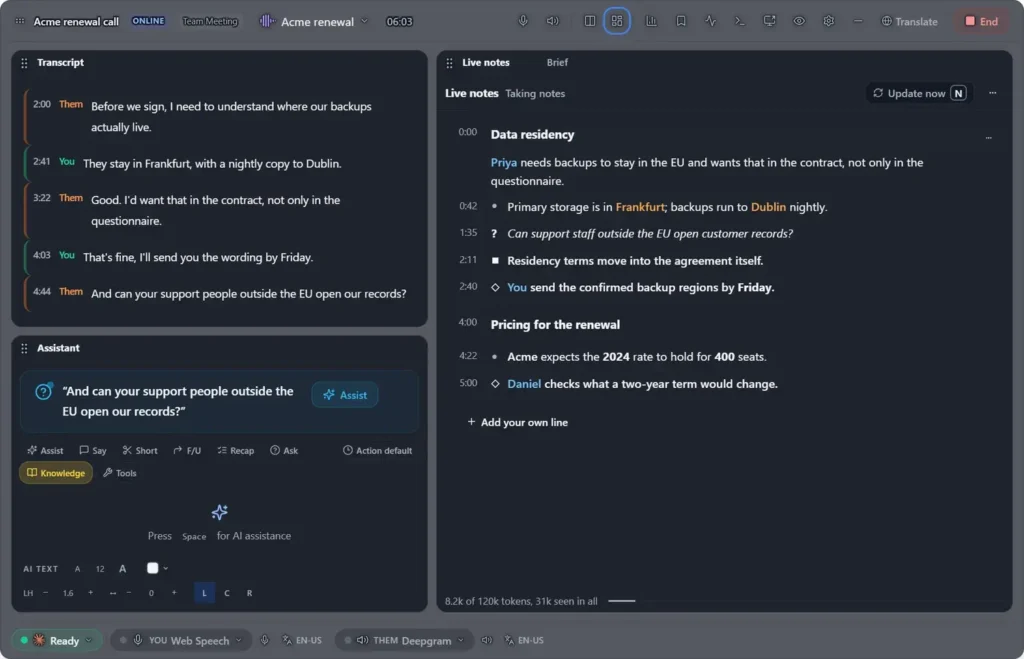
The software goes beyond transcription. You can create separate workspaces for clients, projects or classes, keep their meetings and files organized, and ask questions across that information later. During a live conversation, NexQ can also detect questions and help you respond using relevant notes, presentations and documents.
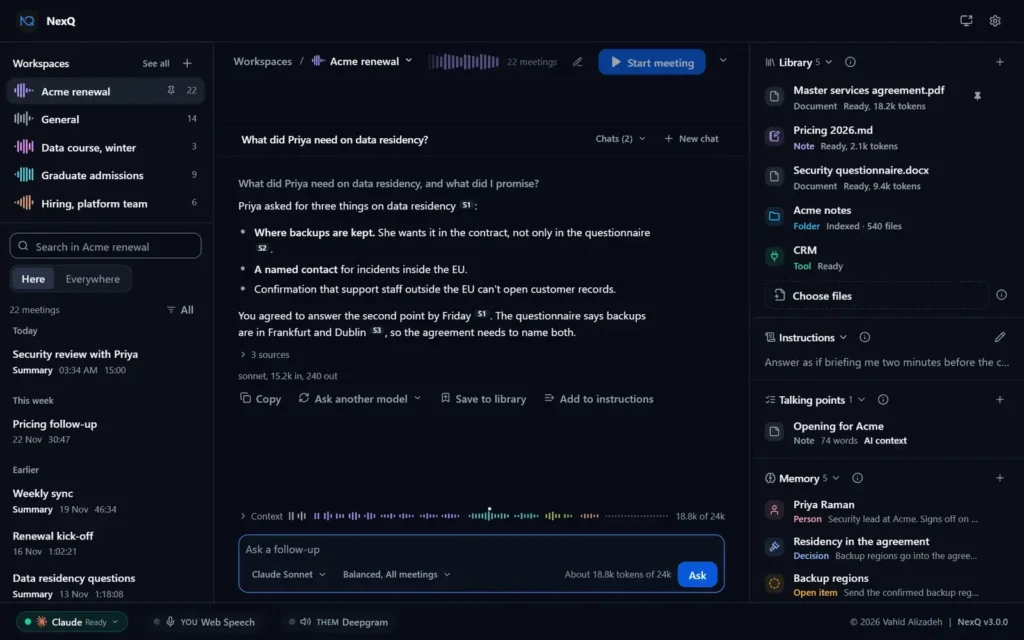
NexQ 3.0 makes these workspaces the centre of the application. Each one can have its own meetings, chats, files, instructions, memory and talking points, helping keep information from different projects separate. Answers can also link back to the documents or specific moments in a meeting they came from.
The application is free and open source under the MIT license. It supports multiple speech-to-text engines and AI providers, including local options such as Ollama and LM Studio. You can configure local speech recognition and a local language model to keep processing on your computer, or choose cloud services depending on your needs. The default setup does use cloud-based speech services, so fully offline operation requires changing the provider settings.
Use Cases
- Transcribe conversations, capture important decisions, prepare meeting summaries and track follow-up tasks.
- Create individual workspaces for clients, keeping their meetings, documents, preferences and project history separate.
- Use the real-time AI assistant to help prepare answers, follow interview conversations and refer to your resume or other documents.
- Transcribe lessons, generate notes, revisit previous discussions and ask questions about recorded sessions.
- Keep project discussions, reference documents, talking points and decisions organized in one workspace.
- Prepare talking points, refer to product information and pricing documents, and identify unanswered customer questions.
- Search across previous meetings, documents and notes to retrieve information with source references.
- Transcribe and translate conversations using supported online or offline translation providers.
Screenshots
Features of NextQ
| Feature | Description |
|---|---|
| Dual-party transcription | Separately transcribes your microphone and incoming call audio, with independent speech engines and language settings. |
| Real-time AI assistant | Ask questions during meetings and receive streaming answers based on the ongoing conversation. |
| Automatic question detection | Detects questions during conversations and can generate answers automatically when Auto-Answer is enabled. |
| Workspace management | Creates separate workspaces for clients, classes and projects, each with its own meetings, documents, instructions and memory. |
| Workspace chat | Ask questions across meetings, documents and folders, with citations that link back to their original sources. |
| Local document search | Indexes PDF, DOCX, TXT and Markdown files for retrieving relevant information. |
| Talking points | Displays presentation notes with manual scrolling, automatic scrolling and voice-following modes. |
| Live notes | Organizes discussions into topics, decisions, tasks and questions while a meeting is happening. |
| AI memory | Suggests important people, decisions, facts and preferences from meetings, saving them only after your approval. |
| Meeting recordings | Records conversations with synchronized transcript playback and searchable meeting history. |
| AI-generated summaries | Generates meeting recaps, action items, bookmarks and topic sections that can be edited and exported as Markdown. |
| Multiple AI providers | Supports OpenAI, Anthropic, Google Gemini, Groq, OpenRouter, Ollama, LM Studio and custom endpoints. |
| Local AI processing | Supports local speech recognition and language models for workflows that can operate without sending data to cloud providers. |
| Live translation | Supports Microsoft, Google, DeepL, OPUS-MT and configured language models for translation. |
| Screen-sharing privacy | Includes an option to hide the assistant overlay from screen sharing and recordings. |
| Keyboard shortcuts | Provides shortcuts to start meetings, request AI assistance, switch workspaces and control the meeting overlay. |
System Requirements
| Requirement | Windows | macOS |
|---|---|---|
| Operating system | Windows 10 / 11 | macOS (Apple Silicon) |
| Architecture | x64 | Apple Silicon |
| RAM | 8 GB minimum; 16 GB recommended for local AI | Depends on selected models |
| Microphone | Required for microphone transcription | Required for microphone transcription |
| Internet | Required for cloud AI providers | Required for cloud AI providers |
| Local AI | Ollama, LM Studio or supported local engines | Supported local engines |
| Additional requirements | WebView2 (included with Windows 11) | macOS 14.2+ for system audio capture |
Related: Meetily: Privacy-First AI Meeting Assistant for Windows, macOS & Linux
Installation Steps For NextQ
For Windows
- Download the NexQ installer from the download section below.
- Double click the downloaded installer to begin installation.
- Follow the installation instructions. NexQ installs for your Windows user account and does not require administrator privileges.
- Windows SmartScreen may display a warning because the installer is not code-signed. If you trust the downloaded file, select More info -> Run anyway.
- Launch NexQ after installation and complete the initial setup.
- Open Settings -> STT Providers and configure your preferred speech-to-text engine.
- Select your preferred AI provider under Settings -> LLM Providers.
- Add your documents to a workspace’s Library and configure your audio devices.
- Press Ctrl + M to start a meeting.
For macOS
- Download the NexQ macOS .dmg installer from the download section below.
- Open the downloaded DMG file.
- Drag NexQ into your Applications folder.
- Since the current beta build is not notarized, macOS Gatekeeper may prevent the application from opening.
- Open Terminal and run the following command:
xattr -cr /Applications/NexQ.app
- Launch NexQ from Applications.
- Grant microphone and system-audio recording permissions when prompted.
- Configure your preferred transcription and AI providers before starting your first meeting.
Download NextQ
If you’re looking for more versions, visit the official release page of the project.
A Meeting Assistant That Knows More Than What Was Said
NexQ goes beyond recording conversations and generating transcripts. By connecting meetings with your own documents, notes, and project history, it turns scattered conversations into searchable, useful knowledge.
Its local AI options, workspace isolation and no-bot approach make it useful for users who value control over their data. If you’re looking for a free and open source meeting assistant that does more than take notes, NexQ is worth giving a try.