
Over the years, I’ve experimented with dozens of utilities, searching for apps that do one thing exceptionally well without demanding attention or system resources. That’s when I discovered my “Tiny Collection”, a set of lightweight apps under 50MB each that handle essential tasks efficiently. Like clipboard management to fast image compression, these tools turn boring work into seconds of effort.
This isn’t about trendy AI or software. It’s about simple, dependable apps that let me focus on my work rather than the tools themselves. They never get in the way, and save me hours every week.
Here’s the stack I rely on daily, and why each of these apps deserves a permanent spot on your PC.
1. PhotoDemon: The 22MB “Instant” Editor
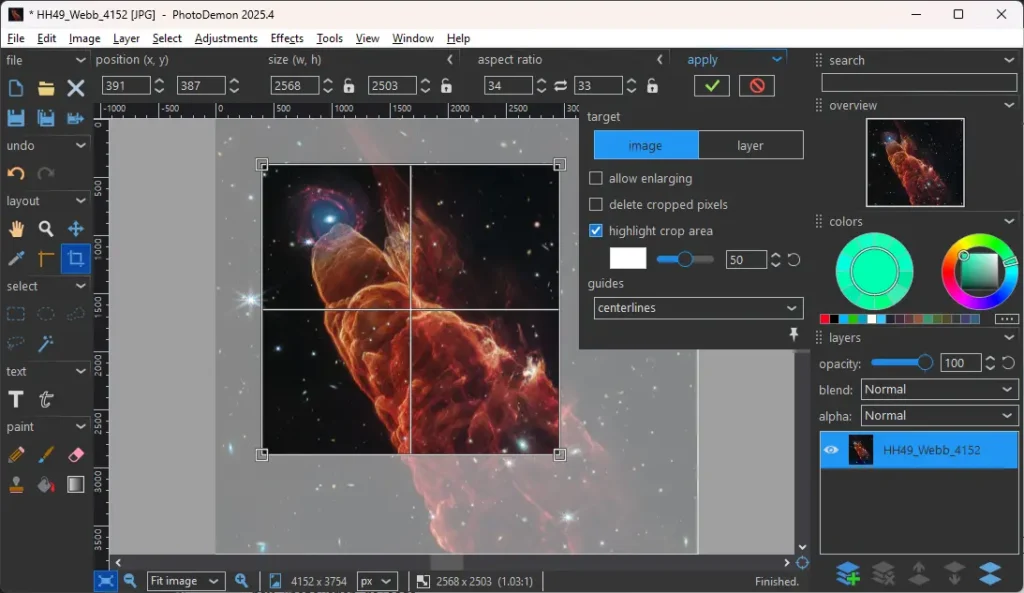
If you use Photo Editors for normal editing like quick touch-ups, adjusting colors, cropping & stuff, then this one is for you. It is lightweight (only 22MB) with dozens of features like advanced multi layer support, digital paintbrushes, clone and pattern brushes, advanced selection tools, file format support, including Adobe Photoshop (PSD), Corel PaintShop Pro (PSP), GIMP (XCF), & other RAW formats.
I use it for everything from quick touch-ups to batch edits. Cropping hundreds of images, adjusting colors, or resizing for the web takes seconds instead of minute
The real magic is how effortless it feels. Tools that usually require deep menus or dozens of clicks are accessible in just a few keystrokes. Even advanced filters and layer adjustments run smoothly without ever feeling overwhelming.
Size: 21.6MB
2. Ditto: Powerful Clipboard History
We’ve all been there, you copy a link, some text, maybe an image, and then…oops. You needed that first thing again, but Windows’ clipboard has already forgotten it. Thats where ClipBoard Managers like Ditto comes into picture.
Ditto doesn’t just store one item, it keeps a history of everything you copy like text, images, HTML for days, weeks, or even months. You can search through past entries instantly with a simple shortcut, and retrieve exactly what you need without looking through emails or notes.
It sits in your system tray, using least resources, and yet is always ready when you need it.
Once you start using Ditto, you wonder how you ever survived without it. It’s one of those tools that quietly transforms daily workflows, saving minutes or even hours every single day.
Size: 5.51MB
3. LocalSend Transfer Files On Any Device
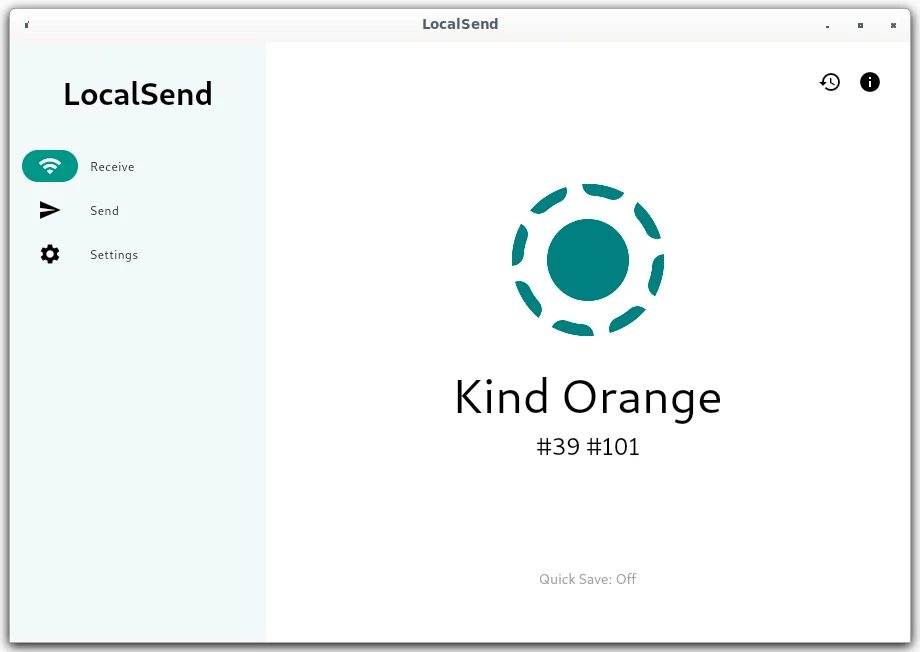
Sending files between devices is usually a headache. Cloud services slow you down, email attachments get lost & Wi-Fi interruptions ruin the flow. LocalSend changes all that. At under 15MB, this tiny app turns file transfers into a simple drag-and-drop experience.
I use it to move photos from my phone to my PC, share documents with colleagues and even transfer project folders across multiple devices. Everything is peer-to-peer, fast, and encrypted. Open the app, select the device, and send, that’s it.
What impresses me most is reliability. Even if your connection flickers or a device briefly goes offline, LocalSend resumes the transfer automatically. It just works, silently handling the busy work so I can focus on actual work. It’s one of those rare apps where you don’t notice it’s running, until you realize you can’t work without it.
Size: 15MB
4. Squoosh (Desktop Fork): Offline Image Compression
Images are everywhere. Screenshots, blog banners, thumbnails, documentation images. And almost every one of them is bigger than it needs to be.
For a long time, my workflow looked like upload an image to some random website, wait for it to process, download it again, then repeat because the file was either too large or the quality dropped too much. It worked, but it never felt right.
That’s where Squoosh changed things.
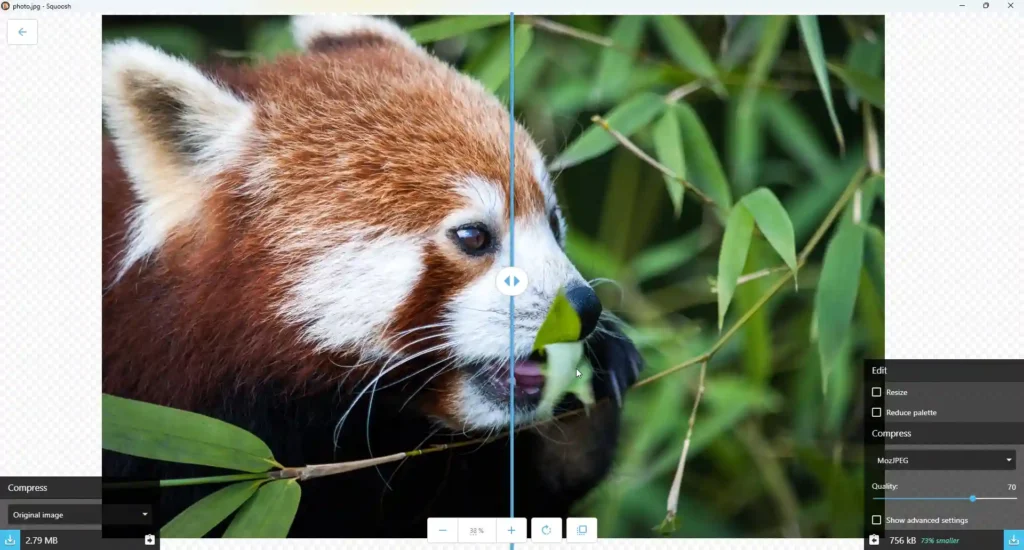
It is best known as a Google-built web app, but there’s a lightweight desktop fork that runs completely offline. You open it, drop an image in, and immediately see what compression actually does to your image in real time.
The split preview is very useful. You can zoom in, compare before and after, tweak formats like WebP, JPG, MozJPEG, or PNG, and stop the moment quality starts to break.
It doesn’t pretend to be AI-powered. It just does one job extremely well and that is compressing images while maintaining quality.
Size: 45MB
5. Greenshot: Take Screenshots Easily
Screenshots sound simple, until you start taking them every day.
You need one for a bug report, another for documentation, a quick crop for a tweet, a blurred section for privacy & suddenly you’re switching between three different tools just to send one image. I went through that phase for years without realizing how much manual efforts it take. Greenshot fixed that quietly.
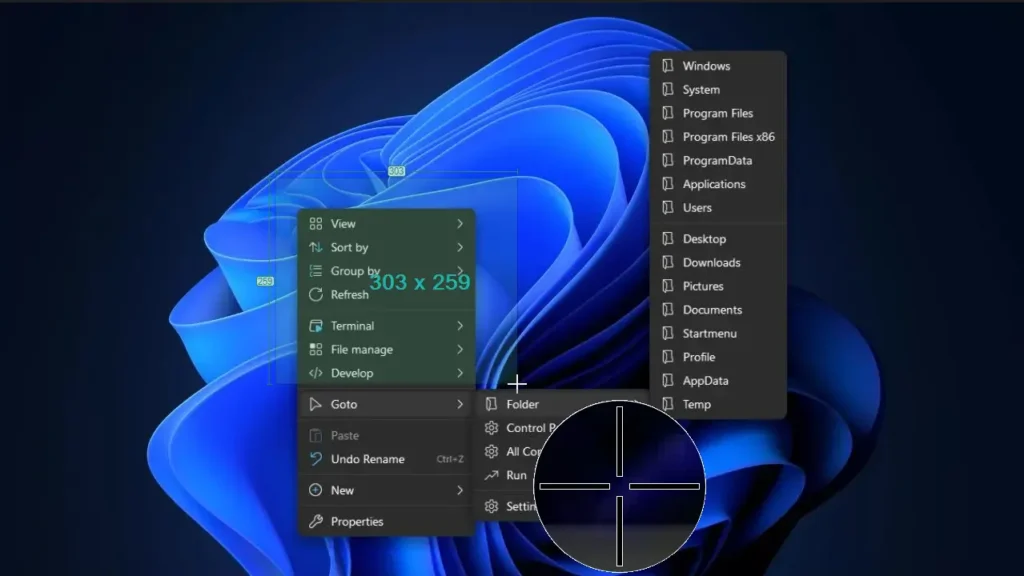
It’s a lightweight Windows screenshot tool that feels like it was designed by someone who actually takes screenshots all day. You hit a shortcut, select a region, window, or full screen, and instead of dumping an image somewhere random, Greenshot gives you control immediately
The editor opens instantly. You can highlight, draw arrows, blur sensitive information, add text, or crop further without launching a heavy image editor.
One feature that surprised me is how flexible Greenshot is after capture. A screenshot doesn’t just get saved to disk. You can copy it to the clipboard, attach it directly to an email, send it to an Office app, or export it in the format you need. It sounds small, but when you repeat this dozens of times a week, the time savings add up fast. Its just 10MB in size yet a very useful tool.
Size: 10MB
Also Read: 12 Free Desktop Apps I Wish I Discovered Sooner: Must-Haves for 2026
6. SumatraPDF: When Opening a PDF Feels Instant
PDF reading should be straight forward. You double-click, you read, you close. That’s it. Somewhere along the way, PDF readers turned into platforms with splash screens, background services & sign-in prompt. I didn’t notice how bad it had gotten until I tried SumatraPDF.
The first thing you feel is speed. A PDF opens almost as fast as a text file.
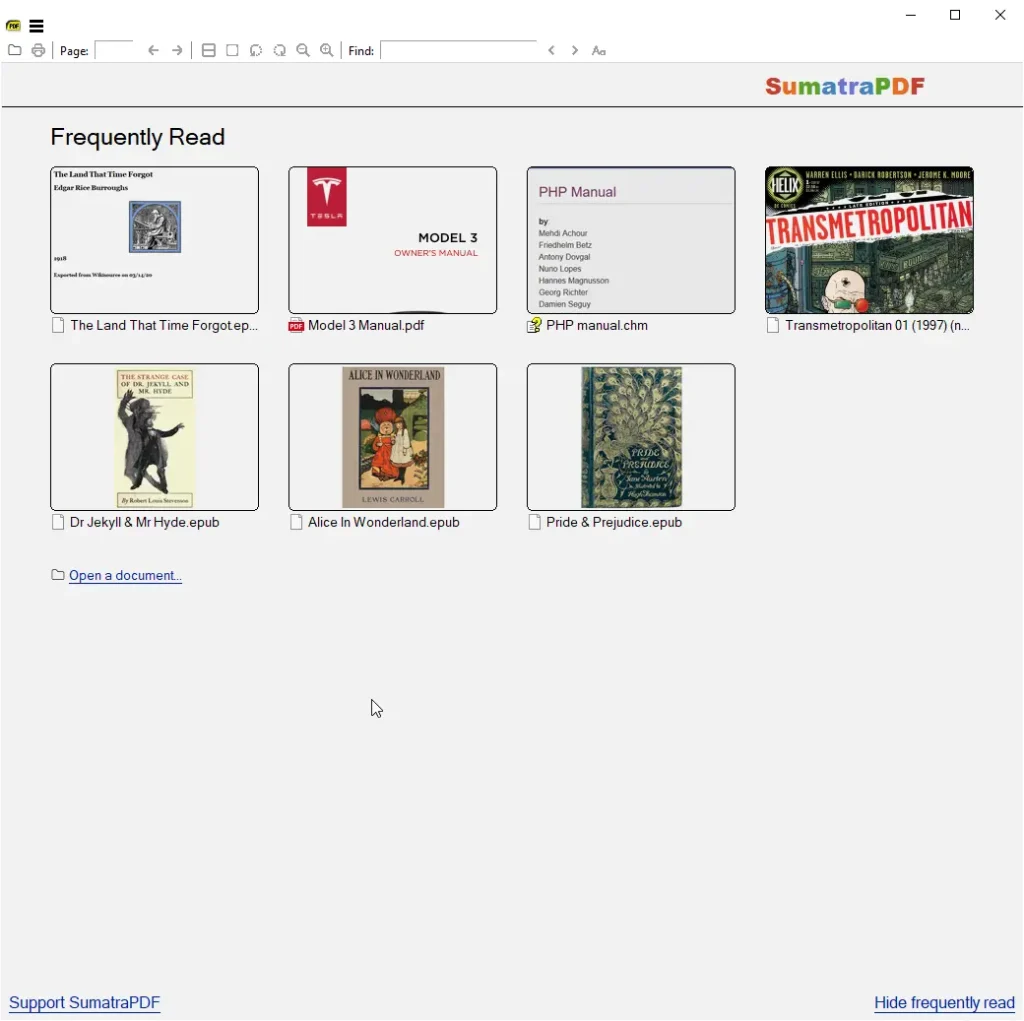
What makes it special is that it isn’t just a PDF reader. It handles eBooks like EPUB and MOBI, comic books in CBZ and CBR formats, DjVu files, XPS, CHM help files, and even basic image viewing.
SumatraPDF reminds you that reading documents can be simple, fast & distraction-free again.
Also Read: 8 Minimalist Apps To Give Your Windows a Sleek, Premium Look
Wrapping Up
None of the tools in this list are flashy. Individually, each app solves a small problem. Together, they remove dozens of tiny delays that slowly drain time & energy throughout the day.
This is the kind of software stack you don’t notice while it’s working & that’s the highest compliment.
If there’s one takeaway, it’s this: productivity doesn’t always come from adding more powerful software. Sometimes it comes from choosing lighter, more focused tools that respect your time and your machine.