



File Information
| Name | LocalSend |
|---|---|
| Version | 1.17.0 |
| File Size | Windows: 11.2 MB (.exe) • macOS: ~15 MB (.dmg) • Linux: 47.3 MB (.AppImage), 11.2 MB (.deb), 15.6 MB (.tar.gz) |
| Platforms | Windows • macOS • Linux |
| License | Open Source (Apache-2.0 license) |
| Official Repository | localsend |
| Official Site | localsend |
Table of contents
Description
LocalSend is a free & open-source file transfer tool that allows you to share files, text, and folders instantly between devices across multiple platforms without needing the internet or third-party servers. It uses your local Wi-Fi network to securely transfer data using end-to-end encryption.
Designed as a privacy-focused AirDrop alternative, LocalSend ensures your files never leave your local network. Whether you’re transferring files between Windows PCs, macOS laptops, or Linux systems, it works seamlessly & requires no complicated setup.
LocalSend’s intuitive interface makes it ideal for individuals, professionals, & developers who value speed, privacy & simplicity. It’s powered by Flutter, making it lightweight, modern, and consistent across all platforms.
From quick photo transfers to large folder sharing, LocalSend handles it all with blazing speed. The app automatically detects nearby devices, supports QR codes for easy pairing, & enables two-way communication for file sharing in real-time.
With cross-platform support, built-in encryption, & zero cloud dependency, LocalSend is becoming one of the most trusted & downloaded file transfer applications worldwide.
Features of LocalSend
| Feature | Description |
|---|---|
| Cross-Platform | Works perfectly on Windows, macOS & Linux devices using a single app interface. |
| Offline & Secure | Transfers files over local Wi-Fi — no internet or external server required. |
| End-to-End Encryption | Ensures all files are shared privately within your local network. |
| Fast File Discovery | Automatically detects nearby devices & enables instant connections. |
| Easy Pairing | Connect devices using QR code or manual IP entry for quick sharing. |
| Text & File Sharing | Send messages, files, or entire folders effortlessly. |
| Lightweight & Fast | Built using Flutter, providing a smooth user experience. |
| Multiple File Support | Transfer photos, videos, documents, music & zipped folders easily. |
| No Sign-up Needed | Works right out of the box — no accounts, no data collection. |
| Open Source | Transparent codebase available publicly for developer contributions. |
Screenshots
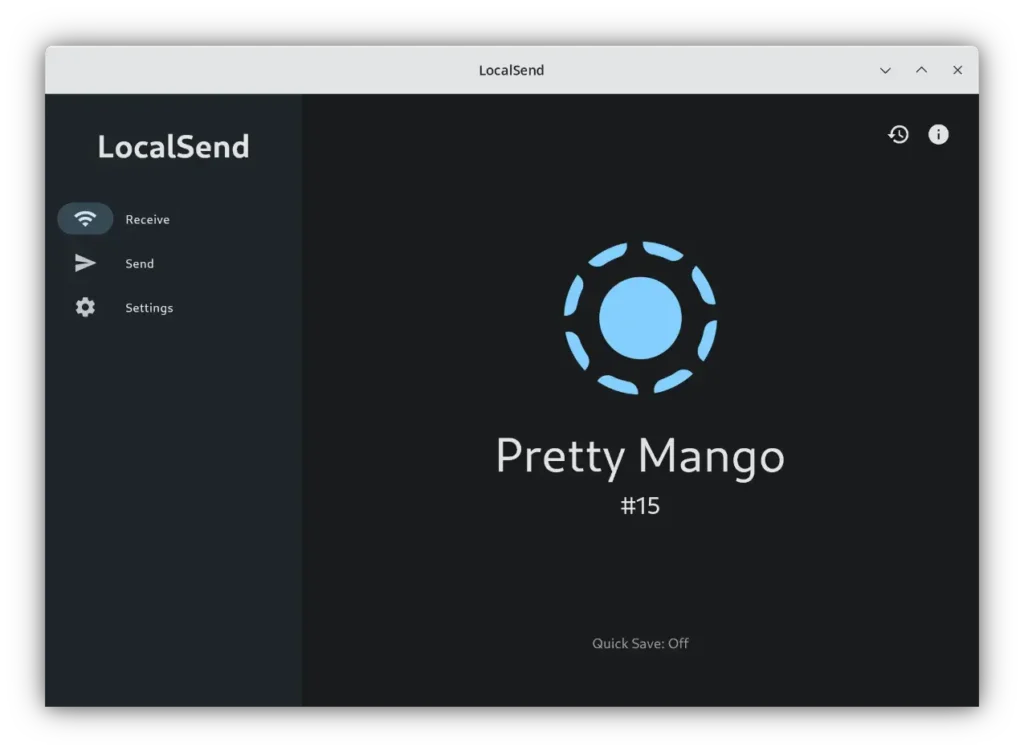
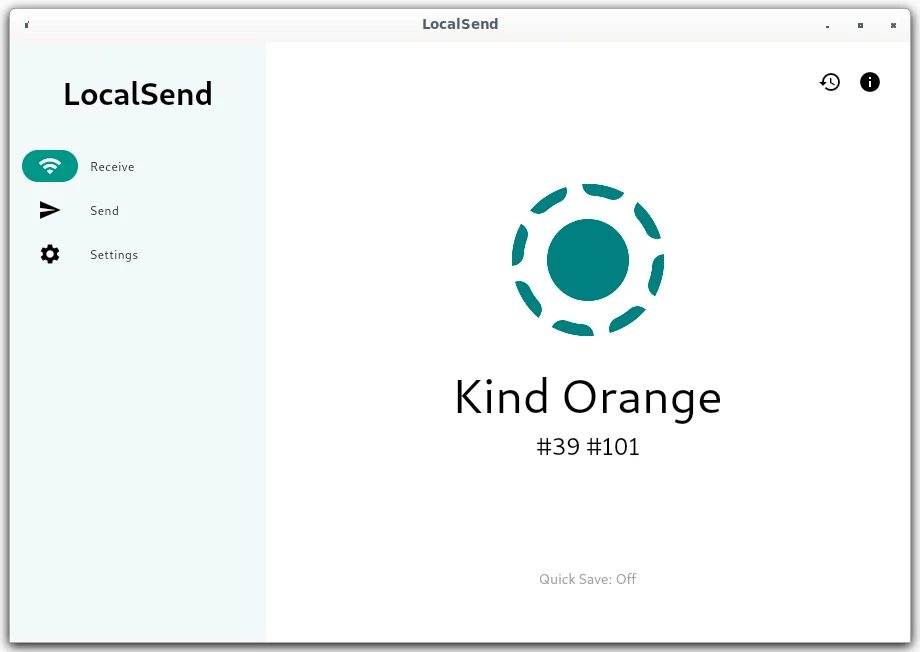
System Requirements
| OS | Minimum Requirements |
|---|---|
| Windows | Windows 10 or later • Minimum 2 GB RAM • Local Wi-Fi Network |
| macOS | macOS Catalina (10.15) or newer • 2 GB RAM • Local Wi-Fi Network |
| Linux | Ubuntu 20.04 / Fedora / Arch • 2 GB RAM • Local Wi-Fi Network • AppImage or tar.gz supported |
How to Install LocalSend??
Before installation, scroll down to the download section & grab the appropriate file for your operating system.
For Windows (.exe)
- Download
LocalSend-1.17.0-windows-x86-64.exe. - Double-click the installer & follow the on-screen steps.
- Once installed, launch LocalSend from your Start menu.
- Ensure both devices are connected to the same Wi-Fi network.
- Start sharing files instantly.
For macOS (.dmg)
- Download
LocalSend-1.17.0.dmgfrom the download section. - Double-click the file to mount it.
- Drag LocalSend into your Applications folder.
- If macOS asks for confirmation (unverified developer), go to System Preferences → Security & Privacy → Open Anyway.
- Launch the app & begin sharing files between your Mac & other devices.
For Linux (.AppImage / .deb / .tar.gz)
Option 1 – Using AppImage:
- Download
LocalSend-1.17.0-linux-x86-64.AppImage. - Right-click → Properties → Permissions → Check “Allow executing file as program.”
- Double-click the AppImage to launch LocalSend.
Option 2 – Using .deb package:
- Download
LocalSend-1.17.0-linux-x86-64.deb. - Open Terminal & run:
sudo apt install ./LocalSend-1.17.0-linux-x86-64.deb
Launch from your applications menu.
Option 3 – Using .tar.gz (Manual Install):
- Download
LocalSend-1.17.0-linux-x86-64.tar.gz. - Extract using:
tar -xvzf LocalSend-1.17.0-linux-x86-64.tar.gz
Open the extracted folder & run the executable file using:
./localsend
Download LocalSend For Windows, macOS & Linux
Advantages of Using LocalSend
- 100% Free & Open Source – No ads, no subscriptions, and complete transparency.
- Privacy First – Your data never leaves your local network.
- Truly Cross-Platform – Works flawlessly across Windows, macOS, and Linux.
- Lightning-Fast Transfers – Optimized for large files with minimal latency.
- No Setup Needed – Just install, connect, and start sharing.
- Actively Maintained – Frequent updates, community support, and new features.
Conclusion
LocalSend stands out as one of the best free, open-source, and privacy-respecting AirDrop alternatives available today. With full support for Windows, macOS, and Linux, it bridges the gap between platforms — allowing effortless, secure, and ultra-fast file transfers without relying on the internet or external servers.
Its end-to-end encryption, cross-device compatibility, and lightweight performance make it a perfect choice for individuals, developers, and professionals who value speed, simplicity, and security.




