


File Information
| Attribute | Details |
|---|---|
| Name | Squoosh – Advanced Image Compression Tool |
| Version | 1.0.0 (Stable Release) |
| File Size | Windows: 45MB (.exe) • macOS: 63MB (.dmg) • Linux: 71.8MB (.AppImage) |
| Platforms | Windows • macOS • Linux |
| License | Open Source (Apache 2.0 License) |
| Official Github Repository | Squoosh Github |
| Desktop App Github Repository | Squoosh-Desktop-App Github |
| Official Site | squoosh |
Table of contents
Description
Squoosh is a revolutionary image compression tool made by the GoogleChromeLabs. It transforms how you optimize and manage digital images, offering professional-grade image size reduction directly on your local machine.
Unlike cloud-based solutions that compromise your privacy, Squoosh performs all compression processes entirely on your device, ensuring your visual assets remain secure and confidential. It is a web based app & The desktop app is a project of Matias Benedetto who provided the open source community with this amazing offline Desktop app.
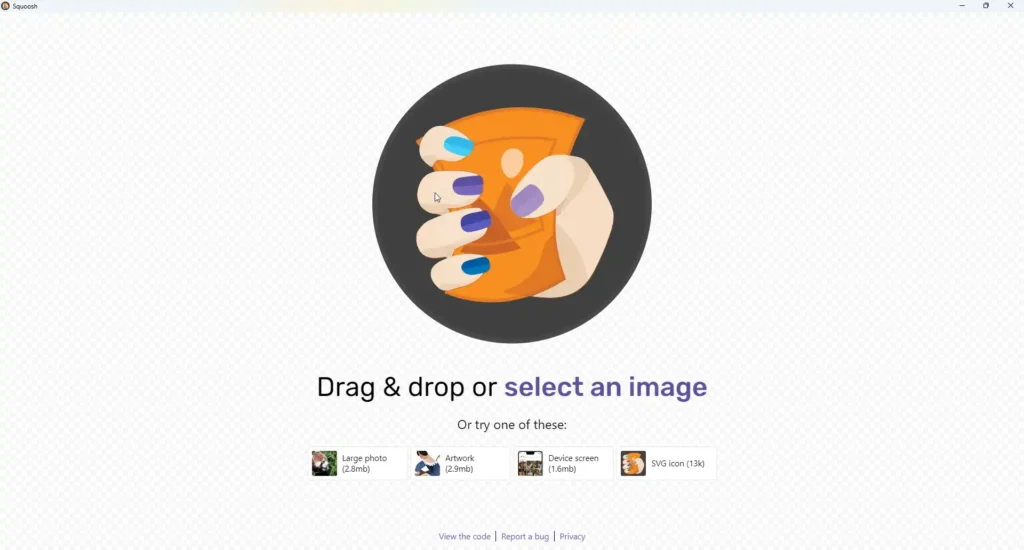
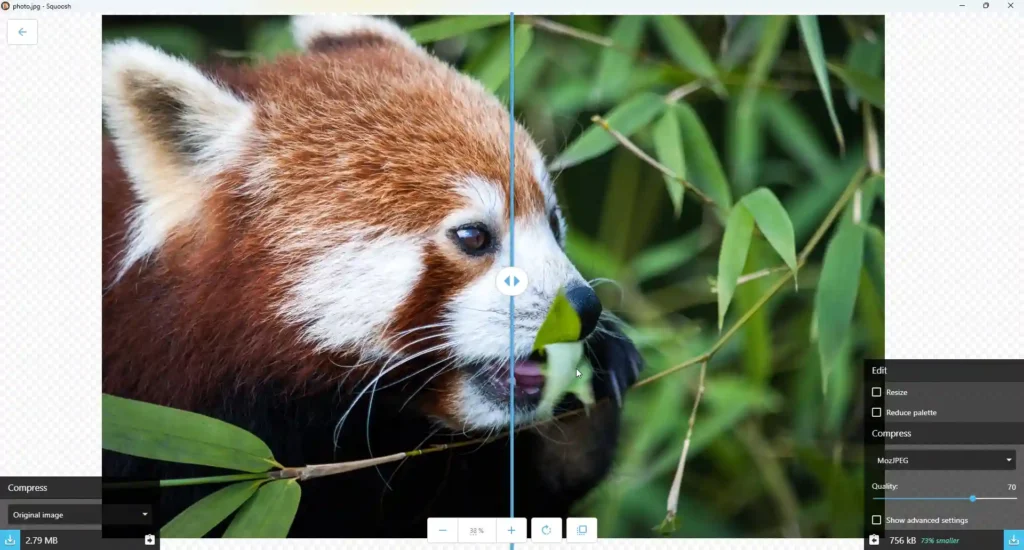
Screenshots
Features of Squoosh App
| Feature | Description |
|---|---|
| Local Compression | 100% offline image processing |
| Multiple Format Support | Compress JPEG, PNG, WebP & more |
| Advanced Compression Algorithms | Cutting-edge image optimization techniques |
| Real-Time Preview | Instant visual comparison before and after compression |
| Cross-Platform Compatibility | Seamless operation across Windows, macOS, Linux |
| Minimal Resource Usage | Low CPU and memory footprint |
| Batch Processing | Compress multiple images simultaneously |
System Requirements
| Platform | Minimum Specifications |
|---|---|
| Windows | Windows 10/11, 4 GB RAM |
| macOS | macOS 10.14+, 4 GB RAM |
| Linux | 64-bit Linux, 4 GB RAM |
How to Install Squoosh App??
Before installation, scroll down to the Download Section and choose the correct installer for your operating system.
Windows (.exe)
- Download the Windows installer (.exe) file.
- Double-click the
.exefile to launch the app - You can now compress images offline.
macOS (.dmg)
- Download the .dmg file.
- Open the
.dmgfile. - Drag the Squoosh app into the Applications folder.
- Open Squoosh from Applications.
- If macOS Gatekeeper blocks the app, right-click the app → Open → Allow.
Linux (.deb)
- Download the Debian package (.deb) file.
- Open a terminal in the download directory.
- Install the package using:
sudo dpkg -i sqoosh_*.deb
If dependencies are missing, fix them with:
sudo apt --fix-broken install
- Launch Squoosh from your application menu.
Linux (.AppImage)
- Download the
.AppImagefile - Double-click it
- If prompted, choose “Run” or “Allow execution”
The AppImage runs without full installation, making it ideal for use across multiple Linux distributions.
How to Use Squoosh (Offline)??
- Open Squoosh and drag & drop an image into the app.
- Choose the output format (WebP, JPEG, PNG, MozJPEG etc.) and adjust quality settings.
- Click Save / Download and manually add the file extension (e.g.,
.webp,.png,.jpg) when naming the file. - Done! your image is now compressed.
Download Squoosh Advanced Image Compression Tool Offline
Compression Capabilities
| Compression Type | Benefits |
|---|---|
| Lossy Compression | Significant file size reduction |
| Lossless Compression | Preserve original image quality |
| Format Conversion | Transform between multiple image formats |
| Resize and Optimize | Adjust image dimensions and quality |
Technical Highlights
- Cutting-edge compression algorithms
- WebAssembly-powered performance
- Minimal system resource consumption
- Intuitive, user-friendly interface
Why Choose Squoosh?
- Uncompromising Privacy
- Professional-Grade Compression
- Zero-Cost Solution
- Cross-Platform Compatibility
Conclusion
Squoosh allows you to compress images offline while maintaining excellent quality, making it ideal for web developers, designers, and SEO-focused content creators. Whether you prefer a full system installation or a portable option like AppImage, Squoosh offers the flexibility to fit your workflow.
In short, if you’re looking for a reliable, offline image optimization solution with modern format support, Squoosh is an excellent choice.




