


File Information
| Name | LibreWolf: Privacy Focused Firefox Based Browser |
|---|---|
| Version | v146.0-2 (Stable) |
| File Size | Windows: 163MB (.exe) • macOS: 114 MB (.dmg) • Linux: 85.2MB (.deb) |
| Platforms | Windows • macOS • Linux |
| License | Open Source (MPL 2.0 License) |
| Official Repository | Codeberg LibreWolf |
| Official Site | librewolf |
Table of contents
Description
LibreWolf is an independent, community driven browser based on Firefox, built with a strong emphasis on privacy, security, & user freedom. Its primary goal is to provide a browsing experience that minimizes tracking, fingerprinting, & unwanted data exposure without relying on third party services or commercial interests.
The browser ships with carefully chosen privacy oriented settings & patches that aim to protect users from modern tracking techniques while maintaining everyday usability.
LibreWolf also avoids features that restrict user freedom, such as DRM, proprietary services, & forced integrations. By staying closely aligned with the latest Firefox stable releases, it ensures timely security updates while delivering a hardened browsing environment across Windows, macOS, & Linux.
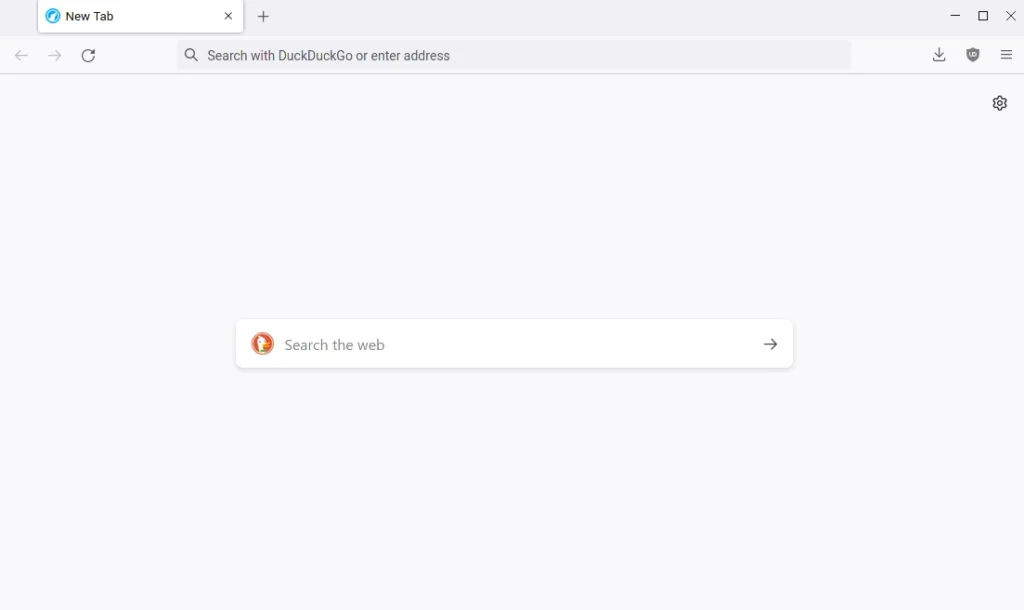
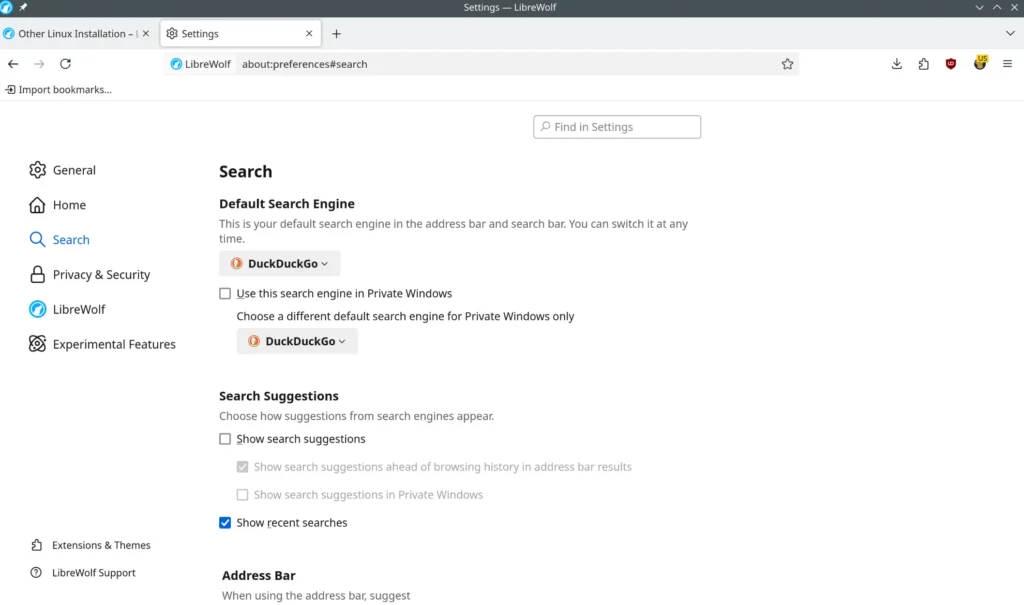
Screenshots
Features of LibreWolf
| Feature | Description |
|---|---|
| No Telemetry | All telemetry, experiments, studies, & data collection mechanisms are fully disabled. |
| Built In Content Blocking | Ships with uBlock Origin preinstalled & configured with privacy focused filter lists. |
| Enhanced Anti Fingerprinting | Hardened settings reduce browser fingerprinting & tracking surface. |
| Privacy Respecting Search | Includes search engines like DuckDuckGo, Searx, Qwant, & others by default. |
| Firefox Stable Base | Always built from the latest Firefox stable source for security & reliability. |
| HTTPS Only Mode | Forces secure connections wherever possible to protect data in transit. |
| Open Source Development | Fully transparent & community maintained with public repositories. |
| Distraction Free Experience | Removes sponsored content, ads, recommendations, & promotional features. |
System Requirements
| Platform | Minimum Specification |
|---|---|
| Windows | Windows 10 or newer, 64 bit processor, 4 GB RAM, 300 MB free disk space |
| macOS | macOS 11 or newer, Intel or Apple Silicon, 4 GB RAM, 300 MB free disk space |
| Linux | Modern Linux distribution, 64 bit processor, 4 GB RAM, 300 MB free disk space |
How to Install LibreWolf??
Before installation, scroll down to the Download Section & select the appropriate installer for your operating system.
Windows (.exe)
- Download the Windows exe installer.
- Double click the file to begin installation.
- Follow the setup instructions to complete installation.
- Launch LibreWolf from the Start Menu.
macOS (.dmg)
- Download the macOS dmg package.
- Open the file & drag LibreWolf into the Applications folder.
- Open LibreWolf from Applications.
- If macOS security prompts appear, right click & allow the app to open.
Linux (.deb)
- Download the deb package for your distribution.
- Install it using your package manager or by double clicking the file.
- Complete the installation process.
- Launch LibreWolf from the application menu.
Download LibreWolf: Open Source Privacy-Hardened Browser
Recommended For You: Zen Browser Desktop: Privacy-Focused Firefox Based Browser
Advantages of Using LibreWolf
- Fully Free & Open Source
No telemetry, no hidden services, & complete transparency. - Strong Privacy Protection
Built in defenses against tracking, fingerprinting, & invasive connections. - Security Focused Defaults
HTTPS only mode, hardened TLS settings, & safer download behavior. - No Browser Annoyances
Removes sponsored content, ads, Pocket integration, Sync prompts, & recommendations. - Community Driven Project
Developed & maintained by contributors across platforms. - Cross Platform Support
Available on Windows, macOS, & Linux with consistent behavior.
Conclusion
LibreWolf is designed for users who want a browser that respects privacy, security, & digital freedom from the first launch. By stripping away telemetry, disabling intrusive features, & applying carefully hardened defaults on top of Firefox’s stable base, LibreWolf offers a calm, trustworthy browsing environment. If privacy matters more to you than convenience shortcuts or tracking driven features, LibreWolf is a great desktop browser worth choosing.




