
File Information
| File | Details |
|---|---|
| Name | LibreCAD |
| Version | v2.2.1.2 |
| File Size | Windows: 24.5MB (.exe) • macOS: 27.4MB (.dmg) • Linux: ~37.6MB (.AppImage) |
| Platforms | Windows • macOS • Linux |
| License | Open Source (GNU GPL v2) |
| Official Repository | GitHub LibreCAD |
| Official Site | LibreCAD |
| Language Support | 30+ languages |
| Framework | Qt (Cross-platform) |
Table of contents
Description
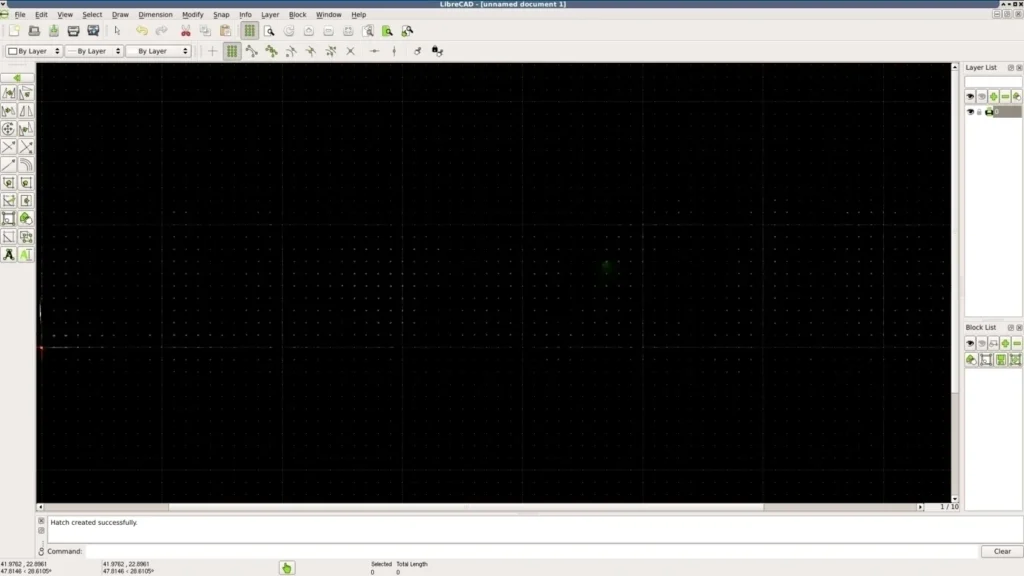
LibreCAD is a free, open-source 2D CAD application designed for technical drawings such as architectural plans, mechanical parts, schematics, and diagrams.
Originally based on the community edition of QCAD, LibreCAD has grown into a fully independent, community-driven CAD tool that runs on Windows, macOS, and Linux.
Built using the Qt cross-platform framework, LibreCAD delivers a consistent experience across operating systems while remaining lightweight, fast, and completely free.
LibreCAD is especially popular among engineers, architects, students, hobbyists, and open-source advocates who need reliable DXF-based drafting without the complexity of full 3D CAD software.
Screenshots
Features of LibreCad
| Feature | Description |
|---|---|
| 2D CAD Drafting | Create precise 2D technical drawings using lines, arcs, splines, dimensions, and layers |
| DXF / DWG Support | Open, edit, and save industry-standard DXF files (DWG via libdxfrw) |
| Cross-Platform | Works on Windows, macOS, and Linux with native binaries |
| Multi-Language UI | Translated into 30+ languages by the community |
| Layer Management | Organize drawings efficiently using layers and blocks |
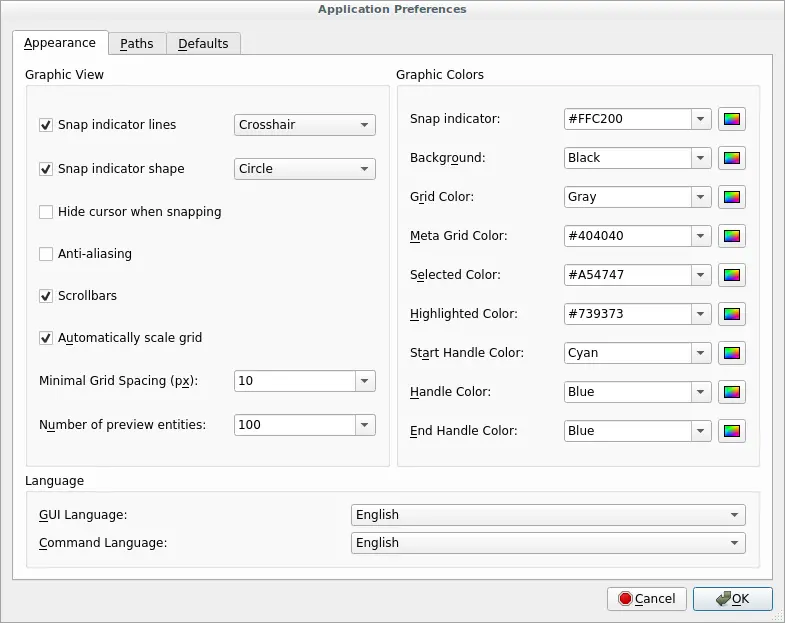
| Snap & Grid Tools | Accurate drafting with snapping, grids, and measurement tools |
| Lightweight & Fast | Low system requirements compared to commercial CAD tools |
| Open Source Freedom | Fully GPL-licensed — modify, redistribute, and study the code |
System Requirements
| Platform | Minimum Requirements |
|---|---|
| Windows | Windows 10 or newer • 64-bit • 2 GB RAM • 200 MB free disk space |
| macOS | macOS 10.15 or newer • Intel or Apple Silicon • 2 GB RAM • 200 MB free disk space |
| Linux | Any modern Linux distro • 64-bit • 2 GB RAM • 200 MB free disk space |
Recommended For You: FreeCAD Open-Source Parametric 3D Modeler for Windows, macOS & Linux
How to Install LibreCad??
Before installing, scroll down to the Download Section and choose the installer that matches your operating system.
Windows (EXE)
- Download the LibreCAD Setup (.exe) file
- Double-click the downloaded file
- Click Next and follow the on-screen instructions
- Once installed, open LibreCAD from the Start Menu
macOS (DMG)
- Download the LibreCAD (.dmg) file
- Open the downloaded DMG file
- Drag LibreCAD into the Applications folder
- Open LibreCAD from Applications
If macOS blocks the app:
- Right-click LibreCAD -> Open
- Click Open again to confirm
Linux (AppImage)
- Download the LibreCAD (.AppImage) file
- Right-click the file → Properties
- Enable “Allow executing file as program”
- Double-click the AppImage to launch LibreCAD
Download LibreCAD Open Source 2D CAD Drawing Tool
Support the LibreCAD Project
LibreCAD is completely free and open-source, maintained by the community.
If you find LibreCAD useful in your work or studies, consider supporting the project by donating through their official website. Even small contributions help sustain development, bug fixes, and long-term maintenance.
Conclusion
LibreCAD proves that professional-quality CAD software doesn’t need to be expensive, With native binaries for all major platforms, strong DXF support, and a mature feature set, LibreCAD remains one of the best open-source 2D CAD tools available today.
If you’re drafting technical drawings, converting DXF files, or learning CAD fundamentals, LibreCAD is a solid, trustworthy choice.