
File Information
| Property | Details |
|---|---|
| Name | FreeCAD |
| Version | (v1.0.2 / latest) |
| License | LGPL v2.1 (Open Source) |
| Platforms | Windows, macOS, Linux |
| File Types | .exe (Windows), .dmg (macOS), .AppImage (Linux) |
| Size | 450MB – 800 MB (May vary by OS) |
| Developer / Project | FreeCAD project / community |
| Official Site / Repository | FreeCAD |
Table of contents
Description
FreeCAD is your all-in-one CAD application that marries parametric design with an extensible toolset. Unlike fixed-function CAD software, FreeCAD lets you go back and edit earlier design parameters, which is key to rapid iteration. It supports many industry standard formats like STEP, IGES, STL, OBJ, DXF, SVG & more.
Because FreeCAD integrates Python scripting, you can automate repetitive tasks, generate custom geometry programmatically, or extend functionality with plugins and modules. It’s not just a GUI app — it’s also a platform for advanced users.
FreeCAD’s modular architecture means you can enable only the workbenches you need (Part Design, Sketch, FEM, Arch, Mesh, etc.). Its community is active, constantly improving performance, adding new modules & ensuring compatibility across platforms.
Using FreeCAD, you can design parts for 3D printing, run finite element simulations, produce architectural models, or prototype machine components — all in a single environment.
Features of FreeCad
| Feature | What It Enables You To Do |
|---|---|
| Parametric Modeling | Change dimensions and relationships and regenerate geometry |
| Modular Workbench System | Enable only the tools you need (Part, Arch, FEM, etc.) |
| Python Scripting API | Automate, customize, extend functionality |
| Multi-Format Support | Import/export STEP, IGES, STL, OBJ, DXF, SVG, IFC & more |
| Sketcher & Constraints | Draw 2D sketches with geometric / dimensional constraints |
| Assembly Tools | Work with assemblies (via add-ons/extensions) |
| Simulation & FEM | Run finite element analysis and stress testing |
| Architectural / BIM Tools | Model buildings, construction elements, parametric structures |
| Mesh & Surface Tools | Repair, sculpt, remesh complex surfaces |
| Cross-Platform | Same experience on Windows, macOS & Linux |
Screenshots
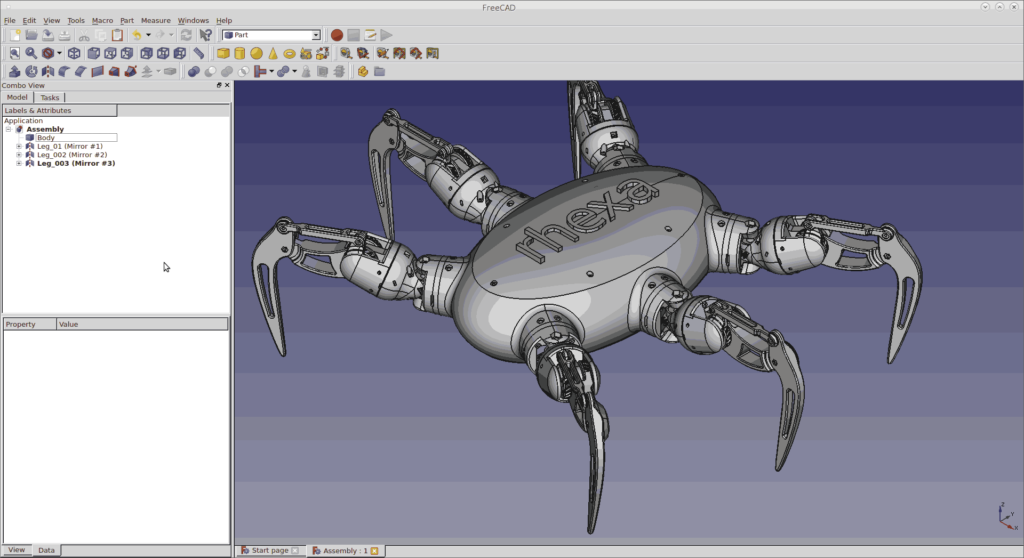
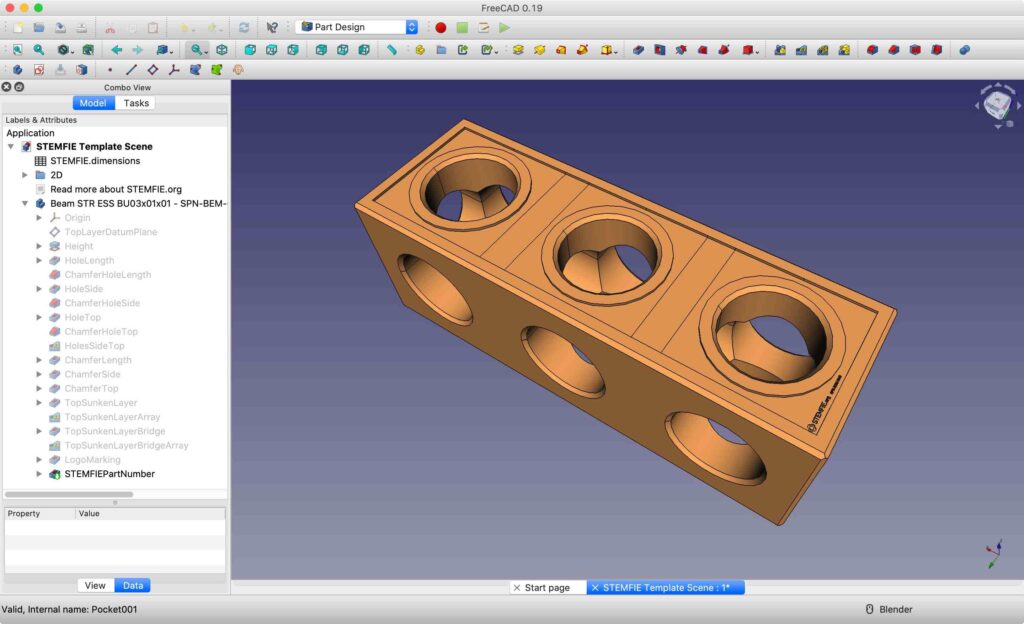
System Requirements
| Platform | Minimum Suggested Specs |
|---|---|
| Windows | Windows 10 / 11, 4 GB RAM, GPU with OpenGL support, 500 MB disk |
| macOS | macOS 10.12 or higher, 4 GB RAM, metal/OpenGL GPU |
| Linux | Modern 64-bit distro, 4 GB RAM, GPU with OpenGL 3+ support |
How to Install FreeCAD??
Windows (.exe)
- Download the FreeCAD
.exeinstaller for your Windows version. - Run the installer and follow the wizard (accept license, choose installation folder).
- After installation, launch FreeCAD from Start Menu or desktop.
- On first start, it may prompt for permission if firewall or anti-virus intervenes.
macOS (.dmg)
- Download the
.dmgfile for macOS. - Open the disk image and drag FreeCAD.app into your Applications folder.
- If macOS warns about an unidentified developer, go to System Settings → Security & Privacy → Allow.
- Launch FreeCAD from Applications or via Spotlight.
Linux (.AppImage)
- Download the correct AppImage for your architecture.
- Make it executable:
- Make it executable:
chmod +x FreeCAD-X.Y.Z.AppImage
Run it:./FreeCAD-X.Y.Z.AppImage - (Optional) For menu integration, you can create a
.desktopfile linking to the AppImage.
Note: AppImages are portable and contain all dependencies, allowing you to run FreeCAD on many distros without installation.
Download FreeCAD: Open-Source Parametric 3D Modeler for Windows, macOS & Linux
Conclusion
FreeCAD stands out as a robust, open-source CAD solution that lets you design parametric models, run simulations, and prototype all within the same tool. Whether you’re an engineer, architect, maker, or student, FreeCAD gives you professional capabilities without cost. Download the version for your OS now & start creating your next 3D design project today.
If you wanna support the team behing this masterpiece then do visit the official page to donate , Thank you for visiting, Enjoy!