

I use AI everyday & I recommend it to others as well. In the right places, it saves me time & genuinely improves how I work.
But I’ve also noticed something else. There’s a lot of hype right now, and it’s pushing AI into apps that never really needed it in the first place. Just because something can have an AI layer doesn’t mean it should.
For some of the most popular apps people use every day, I honestly don’t feel the need for it. The core job those tools do hasn’t changed. Adding AI doesn’t always make them better. Sometimes it just makes them heavier or more expensive.
So instead of rejecting AI entirely, I got selective. I kept it where it helps me. And for everything else, I switched to tools that focus on doing their job well without trying to be smart.
Here are 7 powerful alternatives to some of the most common apps people rely on.
1. Chrome to Zen Browser

I used Chrome for years, most sites are built with it in mind. But over time it started feeling busy with , too many background processes, too much going on behind the scenes.
Also Chrome started adding features like “Help Me Write” and AI-powered history search. Some people love that. I didn’t need it. If I want writing help, I’ll open an AI tool on purpose. If I want to search my history, I’m fine typing a few keywords. I don’t need my browser guessing what I mean.
So I switched to Zen Browser.
It is built on Firefox, which means it’s stable and compatible with modern websites, but the experience feels Calmer & More intentional. The first thing I noticed was how it handles tabs
You can separate your work into spaces. Research in one. Writing in another. that’s way more useful.
There’s also a split view mode, which I use constantly when comparing sources or drafting while referencing notes. No extra extensions needed for that.
And then there’s the privacy angle. No built-in tracking. No quiet data collection. It doesn’t feel like it’s studying me while I browse.
I still use AI tools in the browser when I need them. But I don’t need my browser itself trying to be an AI assistant. I just want it to load pages, manage my work cleanly, and stay out of the way.
Zen does that.
2. Discord To Stoat
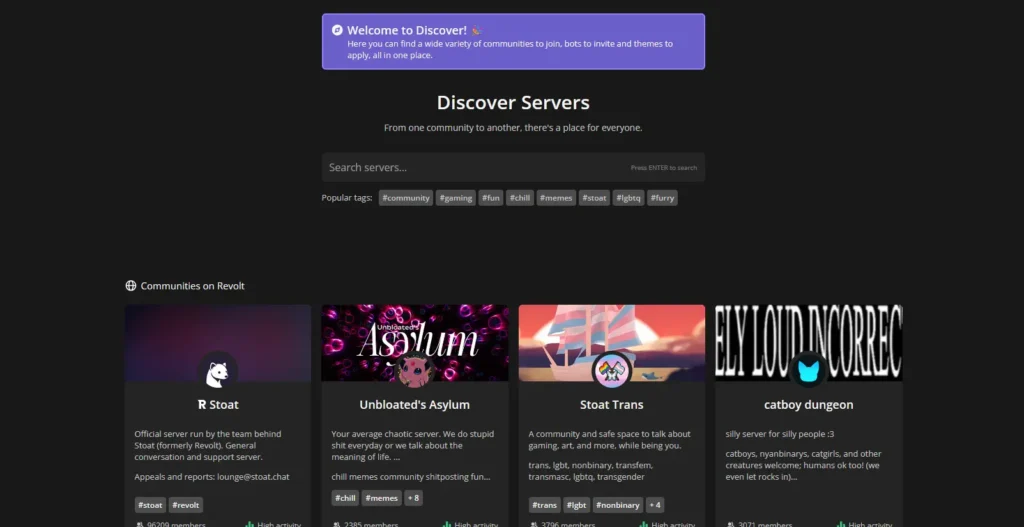
I still use Discord because most communities are there. If you’re into gaming, tech, or creator spaces, it’s hard to avoid.
But for smaller groups I care about, I’ve been moving to Stoat.
Stoat is the rebranded version of Revolt, and it’s open source. It’s built in Rust, which isn’t something most users care about, but it does mean the app feels lightweight and responsive. You can create servers, text channels, voice channels, add bots, set permissions. All the basics are there.
What I like is the tone of the product. It doesn’t feel like it’s constantly pushing Nitro-style upgrades or trying to turn into a social media platform. It feels like a communication tool.
Customization is solid too. You can actually shape how your server looks and behaves instead of accepting whatever design direction the company decided this quarter.
Again, it’s not about rejecting the mainstream option. It’s about control. If I’m building a community, I’d rather build it somewhere that isn’t experimenting on my users in the background.
3. Microsoft Office To LibreOffice
Over the years, Microsoft Office shifted hard toward subscriptions and cloud-first workflows. Signing in, syncing, storing files online by default. That works for a lot of people. I just don’t always need it.
So I moved most of my local document work to LibreOffice.
LibreOffice is free and open source. No subscription or even account required. I install it, open it, and start writing. Writer replaces Word. Calc handles spreadsheets. Impress covers presentations. The basics are all there, and for normal documents, it does the job without drama.
I actually prefer the classic menu layout. It feels straightforward. Everything is where you expect it to be. And for long documents, especially structured writing, LibreOffice’s style system feels solid once you get used to it.
It opens and saves Microsoft formats like .docx and .xlsx, so I can still send files to people who use Office. On very complex files, especially heavy Excel sheets or animated PowerPoints, you might notice small differences. That’s the trade-off.
The biggest gap is real-time collaboration. Microsoft 365 is smoother if you’re co-editing documents with a team all day. LibreOffice is more of a traditional desktop tool. You own the file. It lives on your machine unless you choose otherwise.
I still use Microsoft Office when collaboration demands it.
But for my own writing, spreadsheets, and offline work, LibreOffice feels simpler. And I don’t need AI suggestions inside my document editor to write a report.
4. Canva to PenPot
I still think Canva is great for quick graphics. If you need a poster in five minutes or a social post with templates, it’s hard to beat.
But once you move beyond simple designs, it starts to feel limited. You’re mostly working inside Canva’s system like using their templates, components & limiting to their way of doing things.
That’s where Penpot comes in.
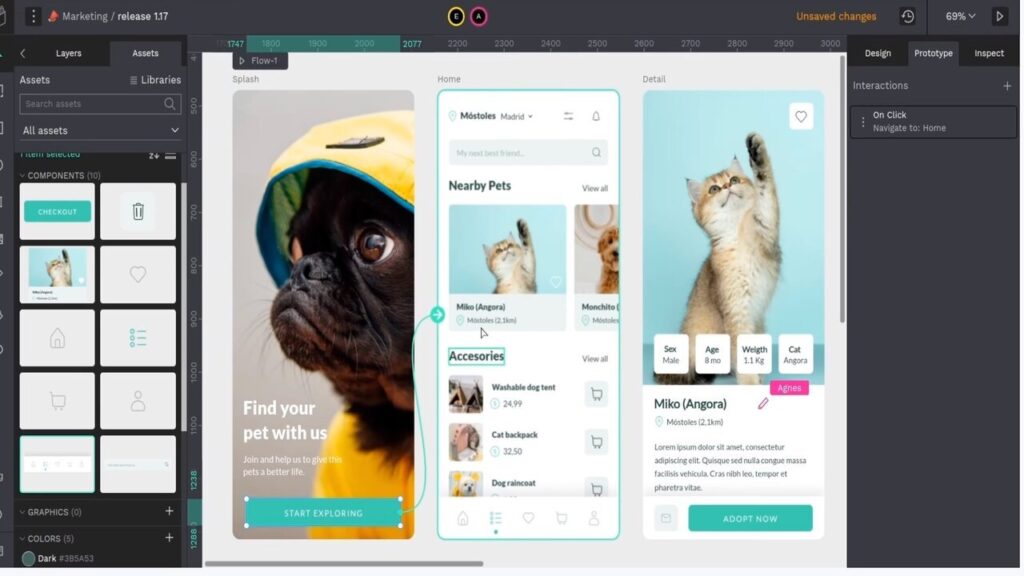
It’s an open source design tool that runs in the browser or on your own server. It works with open standards like SVG, CSS, and HTML. Developers can inspect real code directly from the design file.
It also supports design tokens, components, and a proper system for scaling UI work. If you’re building a product, not just a graphic, that matters.
Now, I won’t pretend switching from Canva is effortless. Canva is polished and beginner-friendly. Penpot feels closer to Figma in mindset.
There’s a learning curve. And if you’re deep into Canva’s ecosystem, you’ll need time to migrate assets and rebuild templates.
But if you care about ownership, collaboration with developers, or even self-hosting your design stack, Penpot gives you control.
If you’re curious about fully replacing Canva with open source tools, here’s how I Replaced Canva With These 9 Open Source Desktop Apps in 2026
5. Google Drive to NextCloud
Cloud storage is one of those things we don’t question. For most people, Google Drive just becomes the default.
But at some point I asked myself a simple question: Where are my files actually living?
With Drive, everything sits inside Google’s ecosystem. Great convenience. But also full dependence.
That’s what pushed me toward Nextcloud.
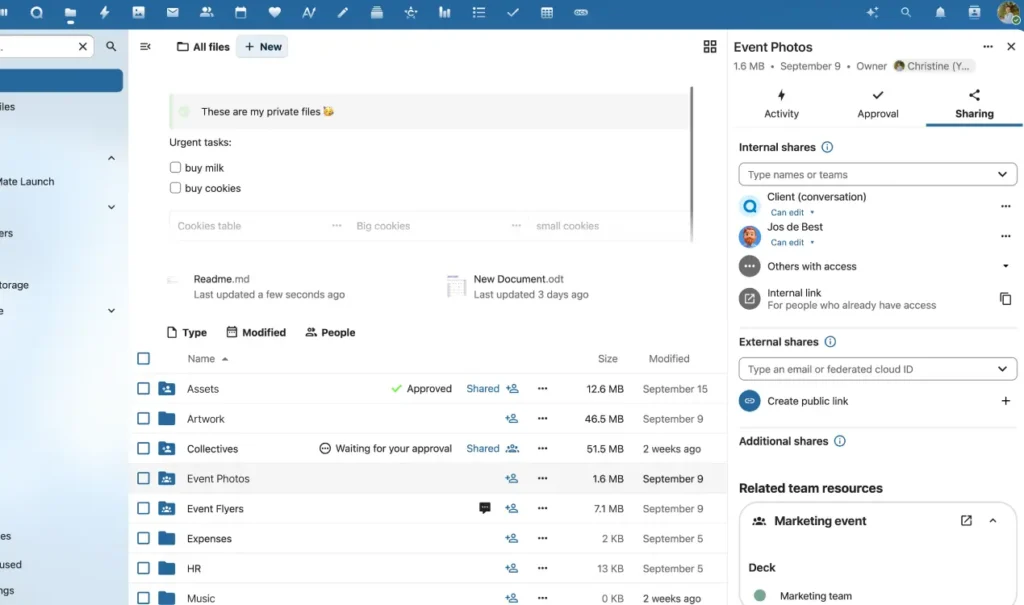
Nextcloud is your own cloud. You can host it yourself, use a provider, or run it on a small home server. Your files, calendars, contacts, even chat — all in one place but under your control.
It still does the important stuff:
- Syncs across devices
- Lets you share files
- Works through the browser and mobile apps
The difference is mindset. It’s storage first. Not storage plus AI suggestions, auto-categorization, or smart summaries.
Do I still use Google Drive? Yes, mostly when collaborating with people who rely on it.
But for my main backups and personal files, I prefer knowing I can move everything, export everything, or even shut it down on my terms.
That shift alone made it worth it.
6. Zoom to Jitsi Meet

Video calls became normal so fast that we stopped questioning the tools.
Zoom works good & everyone knows how to use it. But the 40-minute limit on the free plan always felt strange to me. Not because I don’t wanna pay for Pro but because it turns time itself into a feature.
Upgrade, or your conversation ends & even with the paid plan, the experience doesn’t really change. It’s still a centralized service. You log in, you schedule, you rely on their system.
That’s why I started using Jitsi Meet instead.
Jitsi runs directly in the browser. No account required. No timer counting down in the corner. You create a room, share the link, and you’re in. Meetings can run as long as you want. You can even self-host it if you want full control.
It handles normal calls easily like team meetings, interviews, quick catch-ups. Up to large groups without overcomplicating things.
Zoom now offers AI-powered meeting summaries, smart recordings with highlights, and even live in-meeting querying. Those features sound impressive. But honestly? I’m fine without them.
If I need notes, I take notes. If I need a summary, I can generate one afterward using any AI tool I choose.
For me, a video call just needs to connect people clearly. Jitsi does that!
Also Read: I Stopped Using Perplexity. This Open-Source AI Search Tool Gave Me Real Control
7. Notion to Trillium Notes
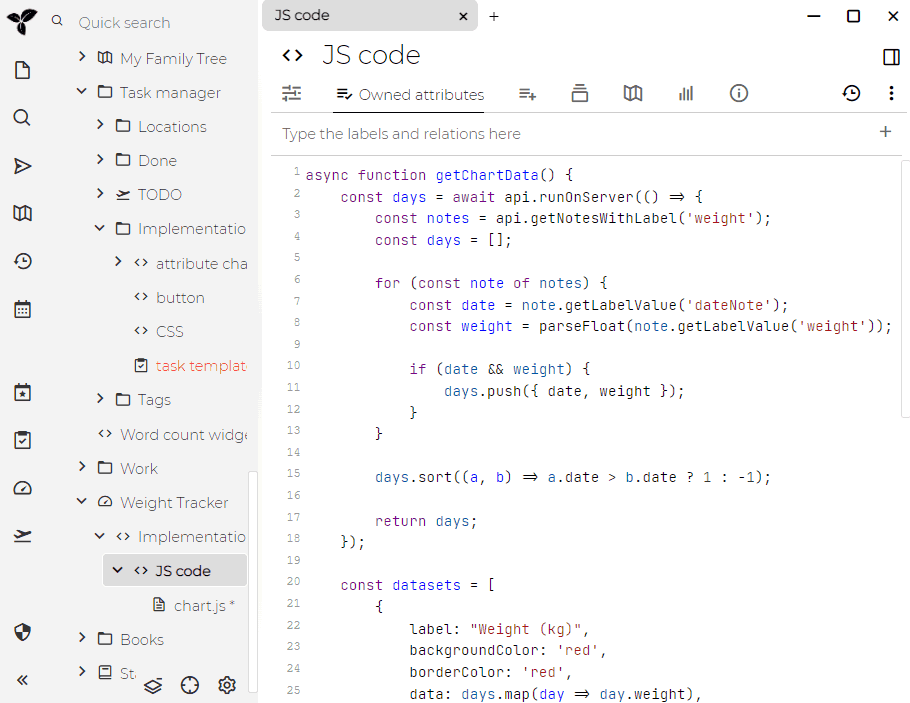
At some point, my notes stopped being “notes” and started becoming a system.
Notion is powerful. Templates, databases, collaboration, AI writing, everything in one place. But over time, I realized I didn’t actually need half of it. I wasn’t building a startup wiki. I just wanted a place to think clearly and organize ideas long term.
That’s when I found Trilium Notes.
Trilium feels different from typical note apps. It’s built around a deep tree structure. You can nest notes inside notes endlessly. Create a topic. Break it into subtopics. Keep drilling down. It scales from a few ideas to a full personal knowledge base without feeling messy.
It’s fast. Fully searchable. Works offline. You can encrypt specific notes if they’re sensitive. You can even self-host and sync across devices if you want more control.
There’s no AI trying to rewrite what you type. No “smart suggestions” popping up. Just you building your own structured knowledge system.
Notion still makes sense for teams and shared workspaces.
But for personal thinking, research, and long-term knowledge, Trilium feels more like a private library than a productivity platform.
Closing Thoughts
As someone who works in tech, I use AI every day & I’ll continue to use it because it genuinely helps me.
The point of this article wasn’t to reject AI. It was to question where we actually need it.
Some tools just need to do one job well. A browser should browse. A notes app should store thoughts. A video call app should connect people.
Somewhere along the way, basic software started turning into “AI platforms.” & while that’s exciting in some cases, it’s also unnecessary in others.