


File Information
| File | Details |
|---|---|
| Name | Xplorer |
| Version | v0.3.1 |
| Formats | .msi • .dmg • .AppImage |
| Size | 7.25MB (msi) • 6.74MB (dmg) • 70.8MB (AppImage) |
| Platforms | Windows • macOS • Linux |
| License | Open Source (Apache-2.0 license) |
| Official Repository | GitHub Xplorer |
| Category | File Explorer • System Utility |
Table of contents
Description
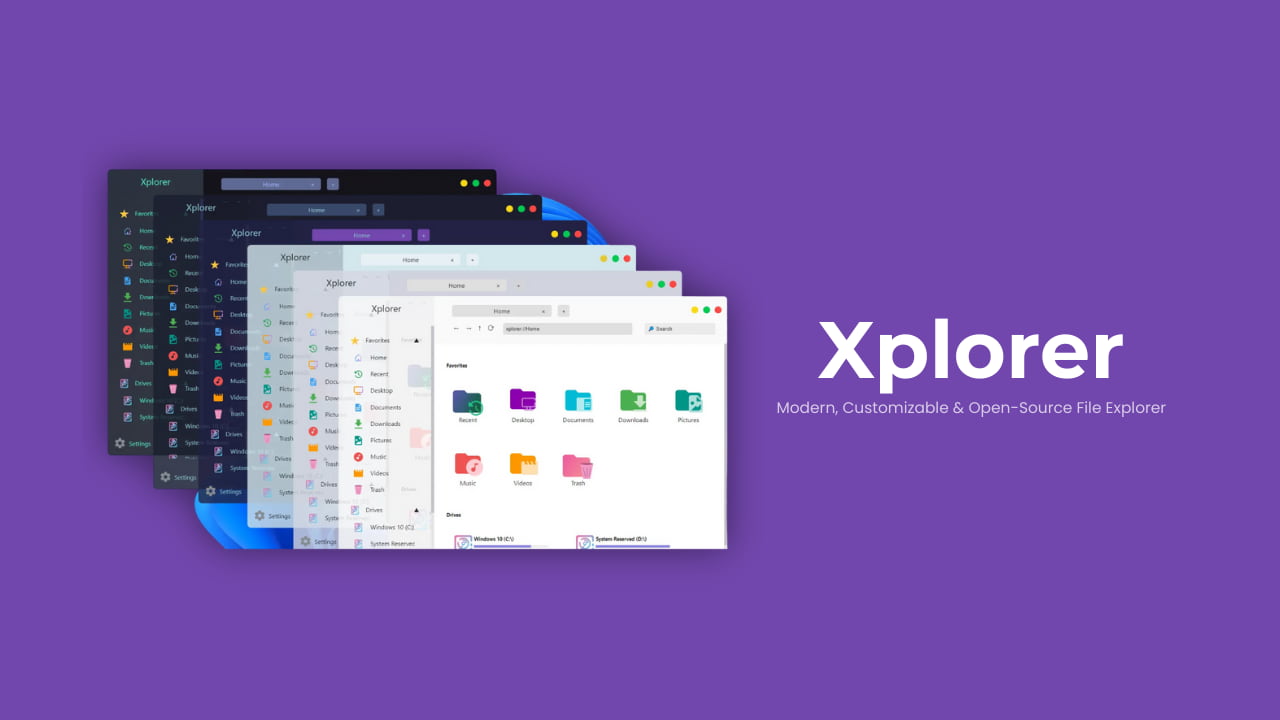
Xplorer is a modern, cross-platform file explorer built from the ground up to meet today’s workflow needs. Unlike traditional file managers that feel outdated or rigid, Xplorer focuses on customization, simplicity, and a clean modern interface.
It runs efficiently on Windows, macOS, and Linux while staying lightweight and fast. It is fully open source, giving users transparency, control, and the freedom to adapt it to their own workflows.
Note: Xplorer is currently in an early / pre-stable stage, so occasional bugs may appear. It’s best suited for users who enjoy modern tools and are comfortable trying evolving software.
Use Cases
- Replace default file managers with a modern alternative
- Browse files with tabs and previews
- Preview images and videos directly inside the explorer
- Customize layout and behavior to match your workflow
- Use one file explorer across Windows, macOS, and Linux
- Support and contribute to an open-source project
Screenshots
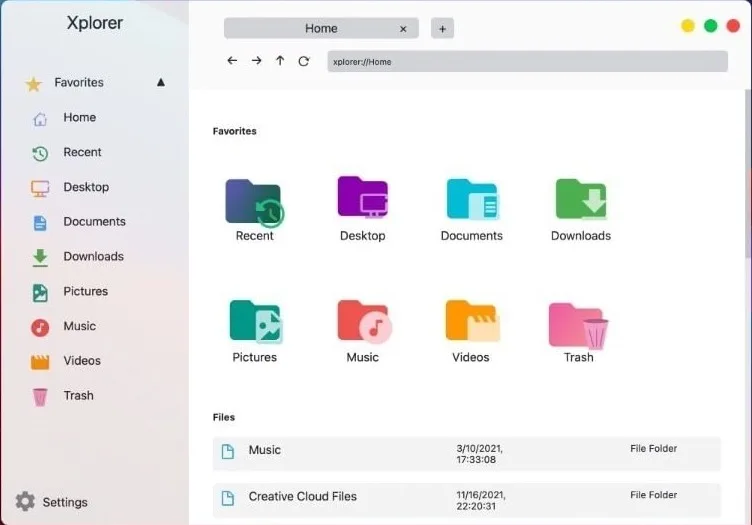
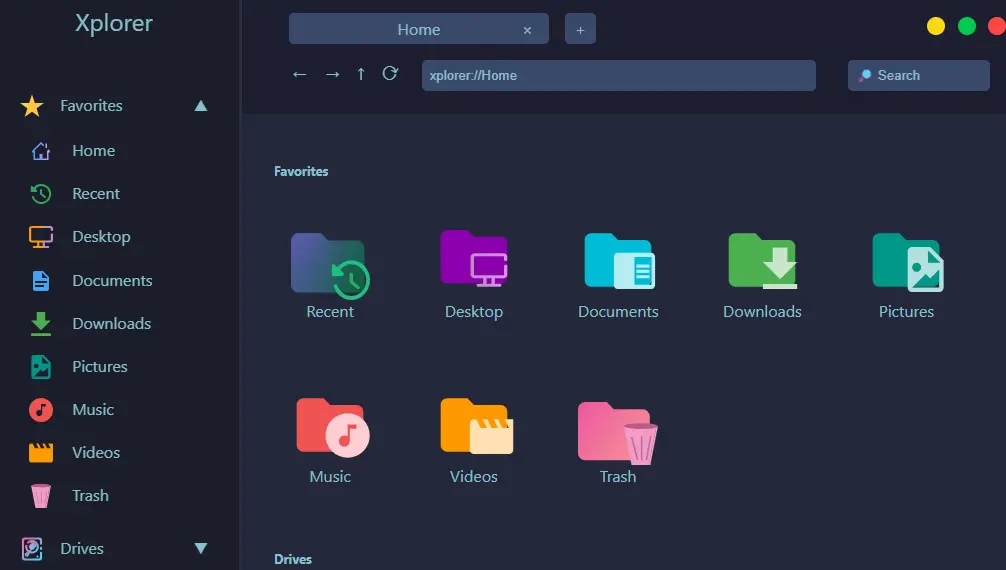
Features of Xplorer
| Feature | Description |
|---|---|
| Modern UI | Clean, up-to-date interface designed for today’s systems |
| Cross-Platform | Works on Windows, macOS, and Linux |
| Multi-Tab Support | Open multiple folders in tabs for faster navigation |
| File Preview | Preview images, documents, and even videos |
| Highly Customizable | Adjust layout and behavior to your preference |
| Easy to Use | Minimal learning curve with familiar file workflows |
| Lightweight | Efficient performance thanks to Tauri |
| Open Source | Transparent, community-driven development |
System Requirements
| Requirement | Details |
|---|---|
| Operating System | Windows • macOS • Linux |
| RAM | 4 GB recommended |
| Disk Space | 100MB |
How to Install Xplorer??
Windows (.msi)
- Download the Xplorer
.msiinstaller - Double-click the file
- Follow the setup wizard
- Launch Xplorer from the Start Menu
macOS (.dmg)
- Download the Xplorer
.dmgfile - Open the DMG
- Drag Xplorer.app into the Applications folder
- Launch from Applications
- If macOS shows a security warning, open System Settings → Privacy & Security → Open Anyway
Linux (.AppImage)
- Download the Xplorer
.AppImage - Right-click the file → Properties
- Enable “Allow executing file as program”
- Double-click to launch
Recommended For You: CopyQ – The Ultimate Advanced Clipboard Manager for Windows, macOS & Linux
Download Xplorer: Modern & Customizable File Explorer For Windows, macOS & Linux
Conclusion
Xplorer is a fresh take on file management, combining a modern look, cross-platform support, and deep customization while staying open source.
While it’s still evolving and not yet fully stable, it already shows strong potential as a next-generation file explorer for users who want more control and a cleaner experience than traditional file managers.




