



File Information
| File | Details |
|---|---|
| Name | WinDirStat – Windows Directory Statistics |
| Version | v2.2.2 |
| File Size | 4.6MB (.7z) |
| Platforms | Windows 7, 8, 8.1, 10, 11, Windows Server 2008 R2 – 2025 |
| License | Open Source (GPL v2 License) |
| Official Repository | GitHub windirstat |
| Official Site | windirstat |
Table of contents
Description
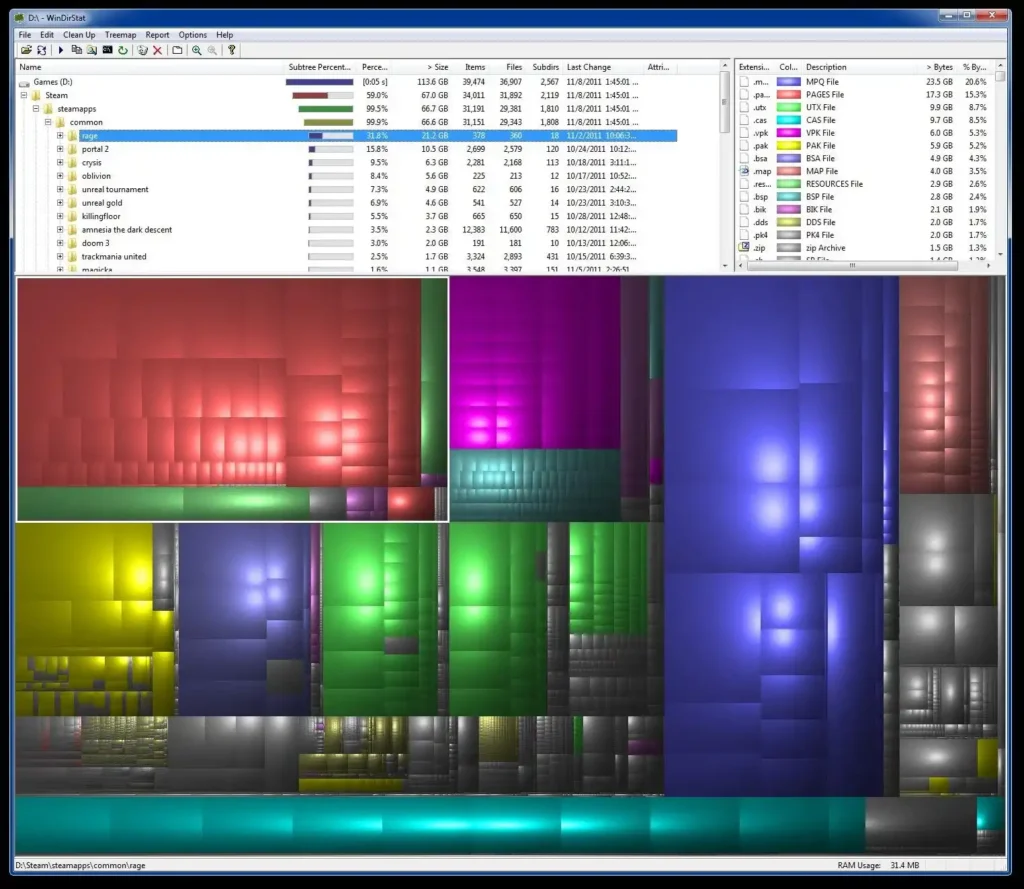
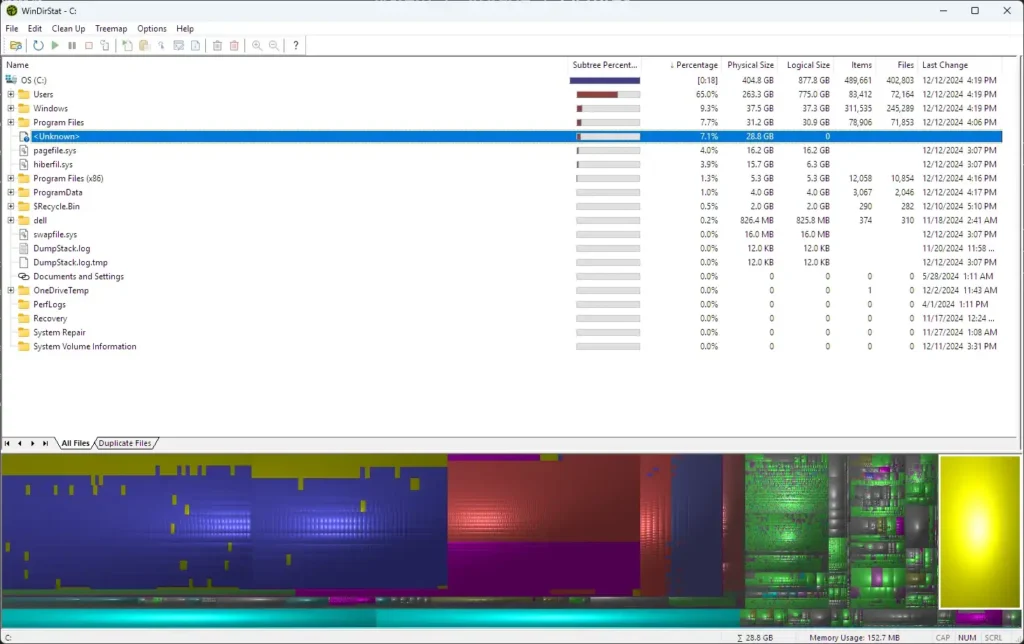
WinDirStat is a disk usage statistics viewer for Windows that helps you quickly identify large files and folders consuming space. It uses a treemap visualization where bigger files and directories occupy larger colored blocks, giving you an instant overview of your storage usage.
A directory tree view is displayed alongside the treemap, making it easy to locate files and take action. This tool is perfect for cleaning up drives and understanding disk usage patterns efficiently.
Screenshots
Features of WinDirStat
| Feature | Description |
|---|---|
| Three Views | Directory Tree, Treemap, and Extension views for multiple perspectives. |
| Duplicate File Detection | Quickly locate and remove duplicate files to free space. |
| Built-in Cleanup Actions | Open, delete, or view properties of files directly from the software. |
| User-Defined Cleanup | Advanced users can define custom command-line cleanup actions. |
| Treemap Visualization | Color-coded visual blocks make it easy to identify large files and folders. |
System Requirements
| Platform | Minimum Specification |
|---|---|
| Windows 7 / 8 / 8.1 / 10 / 11 | 1 GHz CPU, 1–2 GB RAM, 50 MB free disk space |
| Windows Server 2008 R2 – 2025 | 1 GHz CPU, 1–2 GB RAM, 50 MB free disk space |
Lightweight and works on older systems, better performance with faster CPU and more RAM.
How to Install WinDirStat??
- Download the
.7zarchive from the download section below. - Extract the
.7zfile using any archive tool (7-Zip recommended). - Inside the extracted folder, you will see architecture-specific folders:
x86,x64,arm, andarm64.- Choose the folder matching your system architecture.
- Most modern Windows PCs use
x64. - Older systems may require
x86.
- Run the
WinDirStat.exefile in the selected folder. - The software will launch immediately, no installation wizard needed.
Recommended For You: BleachBit: Free & Open Source Alternative to CCleaner
Download WinDirStat – Windows Disk Space Analyzer & Directory Statistics Tool
Open Source Community & Contributors
WinDirStat owes its existence to the collaborative efforts of the open-source community. Developers, maintainers, testers, translators, and volunteers have all played a role in making the software reliable, efficient, and accessible.
Key Contributors
- Bernhard Seifert – Original creator
- Oliver Schneider – Maintainer and ongoing improvements
- Bryan Berns – Core development and updates
Community Efforts
Many developers and volunteers have contributed enhancements, bug fixes, performance optimizations, and translations, ensuring WinDirStat remains a versatile tool for disk analysis.
For the complete list of contributors, visit the official contributors page.
Conclusion
WinDirStat is a powerful and intuitive tool that makes managing disk space effortless. Its treemap visualization, detailed directory statistics, and built-in cleanup actions help you quickly identify and remove space hogs, keeping your system organized and efficient.




