


File Information
| Name | BleachBit – Open Source System Cleaner |
|---|---|
| Version | v5.0.2 |
| File Size | Windows: ~15.7 MB • Linux (.deb): ~0.5MB |
| Platforms | Windows • Linux (Ubuntu/Debian) |
| License | Open Source (GNU General Public License v3.0) |
| Official Repository | GitHub – bleachbit/bleachbit |
| Official Site | bleachbit |
Table of contents
Description
BleachBit is a powerful, privacy-focused, and fully open-source system cleaner that helps you free disk space, remove junk files, and protect your privacy all without ads or proprietary restrictions.
Trusted by millions of users worldwide, BleachBit is a perfect open-source alternative to CCleaner, offering similar cleaning capabilities but with full transparency, no background tracking, and complete community control.
Whether you want to clear browser caches, delete temporary files, or securely shred sensitive data, BleachBit does it all efficiently and safely.
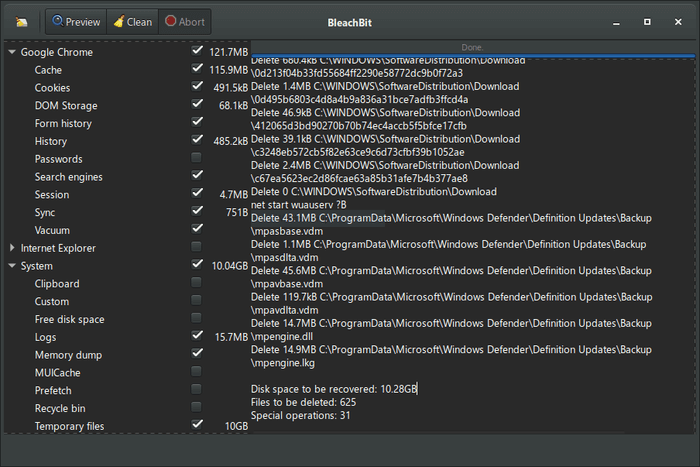
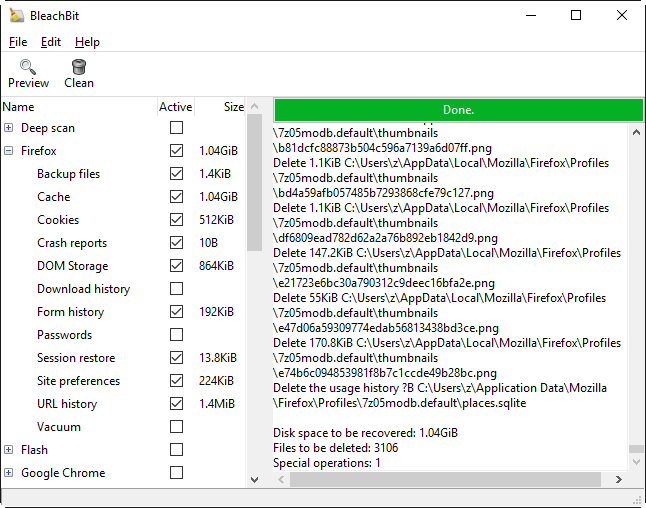
Screenshots
Features of BleachBit
| Category | Highlights |
|---|---|
| Privacy Protection | Deletes cookies, caches, browser history, and temporary files. |
| System Optimization | Frees disk space and boosts performance by removing unnecessary clutter. |
| Secure File Shredding | Permanently deletes files so they cannot be recovered. |
| Deep Cleaning | Supports over 1000 applications including Firefox, Chrome, VLC, and LibreOffice. |
| Open Source | 100% transparent with community-driven updates and security. |
| Automation | Supports command-line cleaning and scripting for advanced users. |
| Cross-Platform | Available for Windows and Linux distributions. |
System Requirements
| Component | Minimum Requirement |
|---|---|
| Operating System | Windows 7, 8, 10, 11 • Ubuntu/Debian (64-bit) |
| Processor | Intel/AMD 1 GHz or higher |
| Memory (RAM) | 1 GB minimum (2 GB recommended) |
| Disk Space | 50MB free space |
| Permissions | Administrator rights for full system cleaning |
How to Install BleachBit??
For Windows (.exe)
- Download the BleachBit .exe installer from the official website.
- Double-click the installer and follow the on-screen setup instructions.
- Once installed, launch BleachBit from the Start Menu.
- (Optional) Right-click and choose Run as Administrator for full cleaning access.
For Linux (Ubuntu/Debian) (.deb)
- Download the .deb package for BleachBit.
- Open Terminal and run the following command:
sudo dpkg -i bleachbit_5.0.2-0_all_ubuntu2504.deb - Once installed, open BleachBit from the applications menu or run:
bleachbit - For system-wide cleaning, use:
sudo bleachbit
Download BleachBit For Windows & Linux
Conclusion
BleachBit is not just another system cleaner, it’s a fully open-source, transparent, and secure alternative to CCleaner. Unlike proprietary tools, BleachBit ensures your privacy with no telemetry or data collection.
Its lightweight architecture means fast performance and minimal system resource usage, making it ideal for both casual users and IT professionals.
From freeing up gigabytes of storage to protecting your personal data, BleachBit combines simplicity, efficiency, and security all in one free package.




