


File Information
| Name | Subtitle Edit – Subtitle Editing Application |
|---|---|
| Version | 4.0.14 |
| File Size | Windows: 10.8MB (.zip) |
| Required | .NET Framework 4.8 |
| Platforms | Windows |
| License | Open Source |
| Official Repository | (GitHub) Subtitle Edit |
| Official Site | nikse SubtitleEdit |
Table of contents
Description
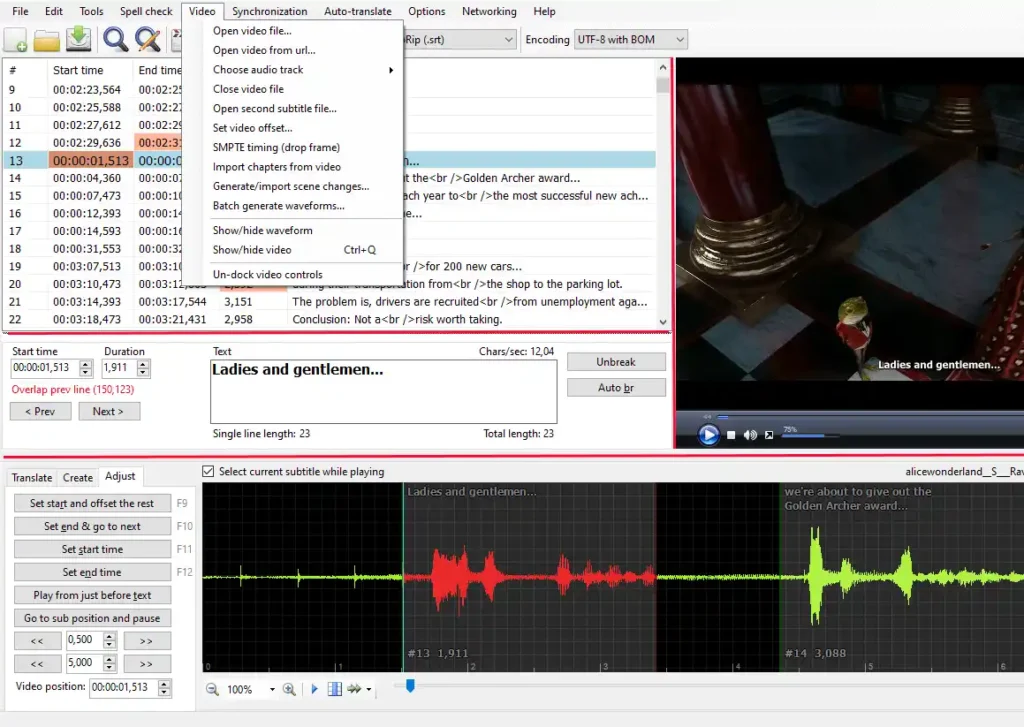
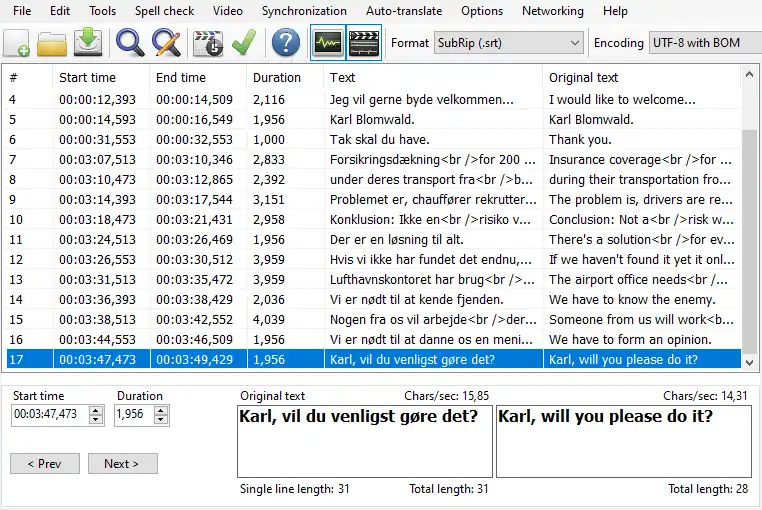
Subtitle Edit is a free open-source editor for video subtitles, designed to make adjustments and creation of subtitles simple and efficient. With Subtitle Edit, users can easily synchronize subtitles with video, create new subtitles from scratch, or translate existing ones. The application provides a range of tools, including audio visualization, to assist in editing processes.
This versatile tool supports over 300 subtitle formats, making it a comprehensive solution for anyone working with subtitles. Subtitle Edit also features an intuitive interface that facilitates easy navigation and editing.
Screenshots
Features of Subtitle Edit
| Feature | Description |
|---|---|
| Create/Adjust/Sync/Translate Subtitles | Easily create, synchronize, and translate subtitle lines with various tools at your disposal. |
| Wide Format Support | Convert between more than 300 subtitle formats including SubRip, ASSA, and many others. |
| Audio Visualizer | Utilize an audio visualizer to synchronize subtitles using waveforms or spectrograms. |
| Multi-Platform Video Player | Supports video playback with mpv, DirectShow, or VLC media player for easy editing. |
| Speech Recognition | Use speech-to-text features to assist in subtitle creation via Whisper. |
| Auto Translation | Integrate auto-translation features using Google Translate, DeepL, or other AI engines. |
| Embed Subtitles | Open and edit subtitles embedded in various video file formats, including MP4 and Blu-ray. |
| Unicode Support | Read and write both UTF-8 and other Unicode files, facilitating multi-language support. |
| Fix Common Errors Wizard | Use built-in tools to quickly fix common subtitle errors. |
| Spell Checking | Leverage dictionaries from LibreOffice for accurate subtitle text. |
| Effects | Add typing and karaoke effects to enhance the viewing experience. |
System Requirements
| Platform | Minimum Specification |
|---|---|
| Windows | Windows 7 or newer, 32-bit or 64-bit, .NET Framework 4.8 required, 1 GB RAM (2 GB recommended), 100 MB free disk space |
Ensure your system meets these requirements to enjoy the full functionality of Subtitle Edit without any issues. Optimize your subtitle editing experience!
How to Install Subtitle Edit??
Follow these steps to install Subtitle Edit on your Windows system:
- Download Subtitle Edit From Download Section Below
- After downloading, locate the
.zipfile and extract its contents to a folder of your choice. (If you don’t have file archiver, you can use 7-Zip or PeaZip) - Ensure that you have the .NET Framework 4.8 installed. If it is not installed, you can download it from the Microsoft website.
- Navigate to the folder where you extracted the files and run the Subtitle Edit executable file (SubtitleEdit.exe) to start the application.
- Begin editing your subtitles, syncing them with videos, or creating new ones.
Download SubtitleEdit Open Source Subtitle Editor
Support This Project
If you like this project then consider supporting Subtitle Edit by contributing or making a donation on the official site of Subtitle Edit. Your support helps maintain and enhance this valuable tool for subtitle editing.
Conclusion
Subtitle Edit is an indispensable application for anyone working with video subtitles. Its wide range of features, extensive format support, and user-centric design make it the go-to solution for editing, creating, and synchronizing subtitles.




