



File Information
| Property | Details |
|---|---|
| Software Name | PeaZip |
| Version | 9.8.0 |
| License | GNU LGPL v3 (Open Source) |
| Platforms Available | Windows, macOS, Linux |
| File Type | EXE (Windows), DMG (macOS), DEB (Linux) |
| File Size | Windows: ~12 MB, macOS: ~25 MB, Linux: ~18 MB |
| macOS Compatibility | macOS 10.13 or higher (Intel & Apple Silicon supported) |
| Developer | Giorgio Tani |
| Official Website | peazip |
| Repository | Peazip Repository |
Table of contents
Description
PeaZip is a free & open source file archiver utility that provides a powerful alternative to tools like WinRAR & 7-Zip. Designed for speed, security & flexibility, PeaZip allows users to compress, extract, encrypt & manage archive files across Windows, macOS & Linux with ease.
Built with an intuitive interface, PeaZip supports over 200 archive formats including ZIP, 7Z, RAR, TAR, GZ, ISO & more. Whether you’re managing backups, transferring compressed data, or securing files with AES encryption, PeaZip ensures seamless performance with complete control over your archives.
This open-source software emphasizes transparency, privacy & performance, making it one of the most trusted file compression tools worldwide.
Features of PeaZip
| Feature | Description |
|---|---|
| Multi-format Support | Compress & extract over 200 formats including ZIP, 7Z, RAR, TAR, ISO & GZ. |
| Strong Encryption | AES-256 encryption with two-factor authentication & password manager. |
| Cross-Platform | Available for Windows, macOS & Linux distributions. |
| Batch Processing | Compress, extract & convert multiple archives simultaneously. |
| File Management | Powerful built-in file explorer with advanced search, bookmarks & hashing. |
| Portable Version | Option to run PeaZip without installation (Windows version). |
| High Compression Ratio | Optimized algorithms for faster compression & smaller file sizes. |
| Split & Join Archives | Split large archives into smaller parts & rejoin them easily. |
| Open Source & Secure | 100% transparent source code ensuring privacy & user trust. |
Screenshots
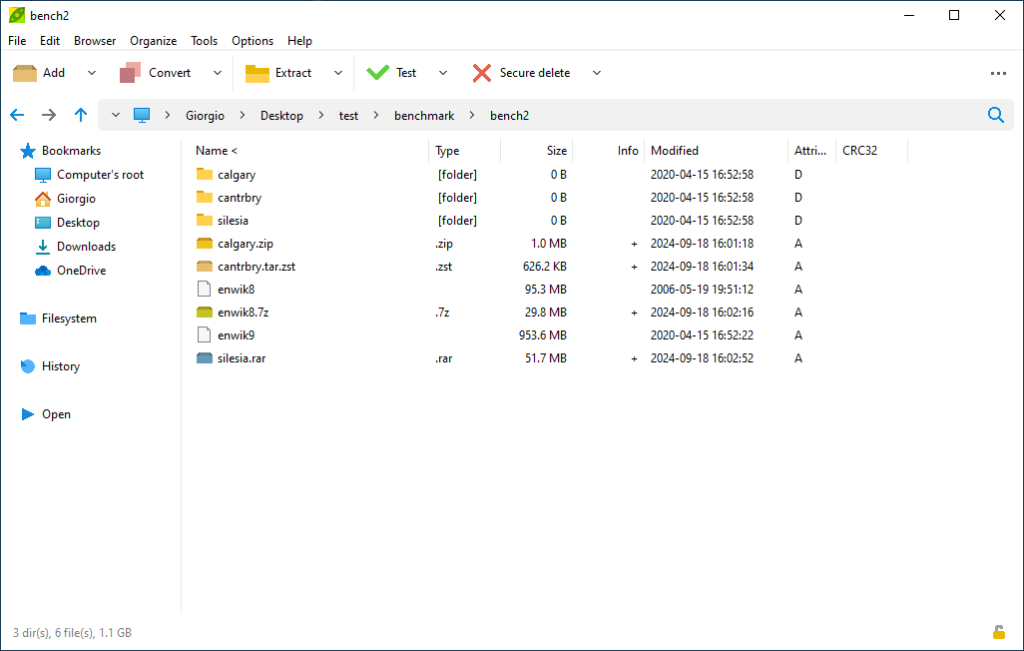
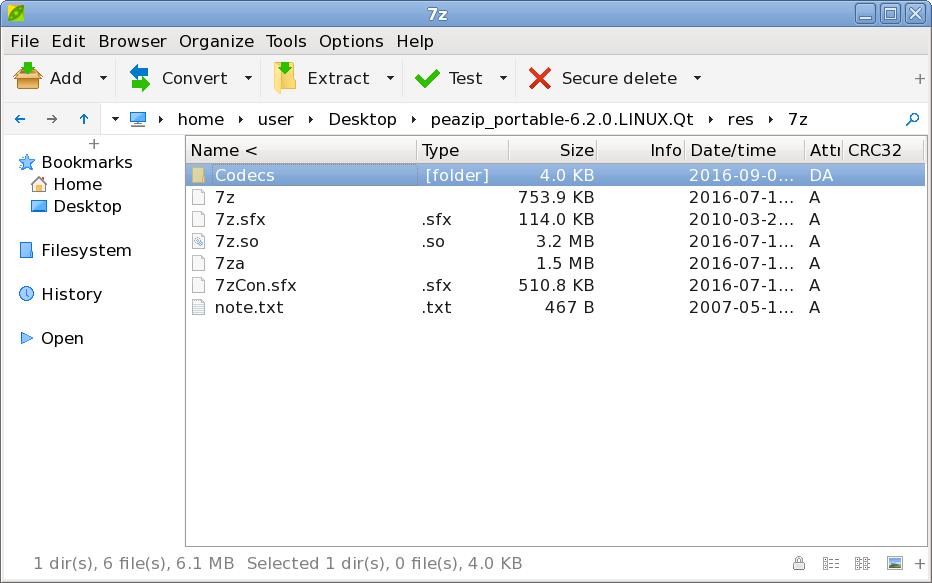
System Requirements
| Platform | Minimum Requirements |
|---|---|
| Windows | Windows 10/11 64-bit, 2 GB RAM, 100 MB free disk space |
| macOS | macOS 10.13 or higher (Intel & Apple Silicon) |
| Linux | Any modern 64-bit distribution with GTK or Qt environment |
How To Install PeaZip??
Windows (.exe)
- Download the PeaZip
.exeinstaller. - Double-click the setup file & follow the installation wizard.
- Once installed, launch PeaZip from the Start menu or desktop.
macOS (.dmg)
- Download the correct
.dmgfile (Intel or Apple Silicon). - Open the
.dmgfile & drag PeaZip to the Applications folder. - Open PeaZip from Applications — macOS may ask for permission for first use.
Linux (.deb)
- Download the
.debpackage for your Linux distribution. - Open a terminal & run:
sudo dpkg -i peazip*.deb - After installation, launch PeaZip from the Applications menu.
Download PeaZip For Windows, macOS and Linux
Support PeaZip Team
The PeaZip team humbly mentions that their project does not require any financial support, as it is developed out of passion and a desire to learn. Instead, they encourage users who wish to contribute to consider donating to charitable organizations that genuinely need and deserve support. PeaZip provides a list of trusted organizations including UNICEF, WWF, UNESCO, and several others — along with official links to their donation pages. By visiting PeaZip’s donation appeal page, you can find ways to make meaningful contributions to humanitarian, environmental, cultural, and open-source causes around the world.




