
File Information
| Attribute | Details |
|---|---|
| Name | Reor – Local AI Note-Taking & Knowledge Management App |
| Version | v0.2.31 |
| File Size | Windows (.exe): 1.05GB • macOS (.dmg): ~392MB • Linux (.AppImage / .zip): 1.88GB |
| Platforms | Windows • macOS • Linux |
| License | AGPL-3.0 License (Open Source) |
| Official Repository | GitHub/reor |
| Official Site | Reorproject |
| Category | AI Note-Taking, Knowledge Management, Personal Knowledge Base (PKM), Local LLM Tools |
Table of contents
Description
Reor is an innovative, AI-driven personal knowledge management app designed specifically for those who prioritize privacy, be they creators, thinkers, students, or professionals.
What sets Reor apart is that everything operates entirely on your device. This means features like vector embeddings, semantic search, RAG-based Q&A, and all of your markdown notes stay secure and local.
Drawing inspiration from popular apps like Obsidian and powered by technologies such as Ollama, Transformers.js, and LanceDB, Reor offers these standout capabilities:
- Connects related notes through vector similarity to enhance your understanding.
- Enables a chat feature with a language model that truly grasps your entire knowledge base.
- Empowers you to find information quickly with its robust semantic search.
- Includes a local writing assistant to help you articulate your thoughts clearly.
- Stores all your data offline, eliminating any reliance on cloud services.
If you appreciate software that is fast, private, and designed for local use, Reor is tailor-made for you.
Screenshots
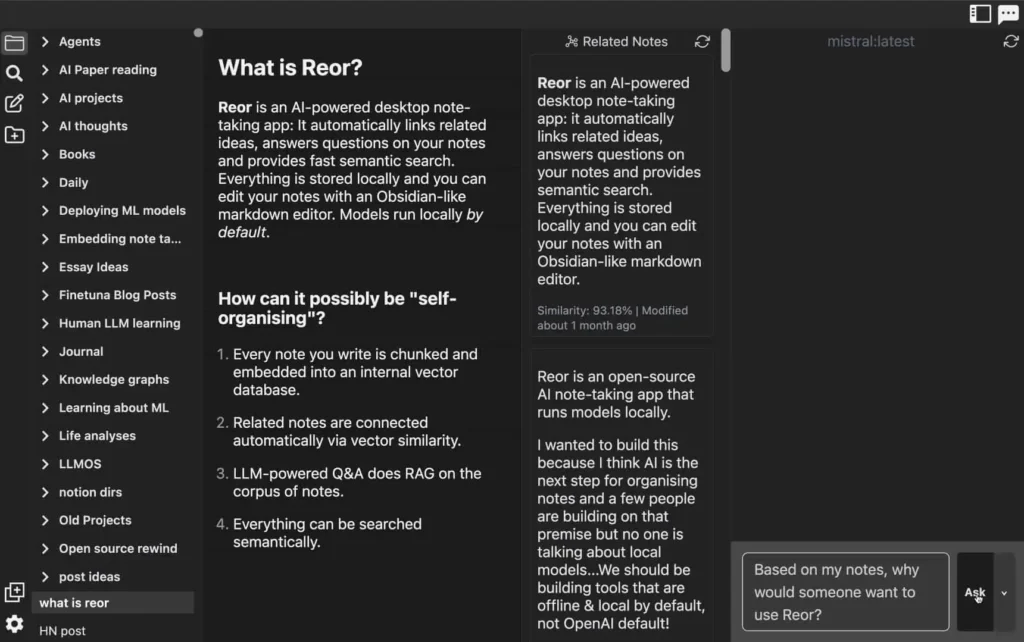
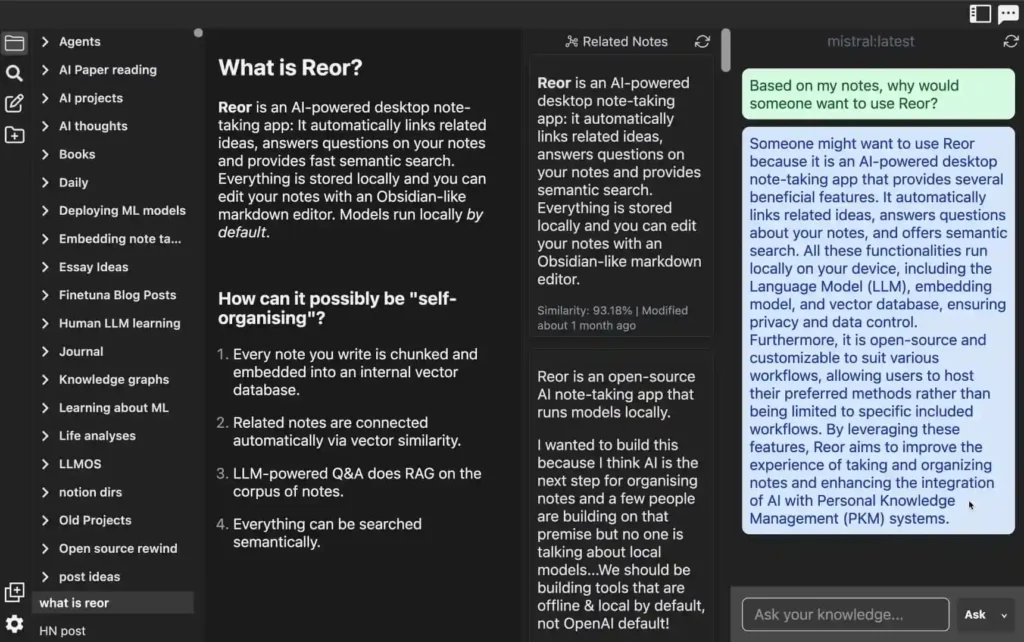
Features of Reor: Local AI Knowledge Management App
| Feature | Description |
|---|---|
| Local AI Models | Works with Ollama to download and run LLMs locally, directly inside the app |
| Automatic Note Linking | Every note is chunked and embedded into an internal vector database |
| AI Q&A (Local RAG) | Ask questions and receive answers using your notes as context |
| Semantic Search | Find concepts even if you don’t remember the exact wording |
| Markdown Editor | Full WYSIWYG markdown editing, Obsidian-style |
| Local Storage | No cloud, no tracking — everything stays offline |
| Writing Assistant | World’s first fully local AI writing helper |
| OpenAI-Compatible APIs | Optionally connect to Ollama, Oobabooga, or OpenAI |
| Instant Ideas Connection | Sidebar automatically reveals related notes as you write |
| Cross-Platform Support | Available for Windows, macOS, and Linux |
| Notion-like Block Editor | Powered by BlockNote — drag blocks, use SideMenuPositioner, FormatToolPositioner & custom nodes |
| Light & Dark Themes | Toggle between modern light and dark modes instantly |
| Image & Video Support | Adds inline image and video embedding directly into your notes |
| Hybrid Search | Intelligent search combining semantic + keyword results |
| Improved Similar Content Bar | Enhanced SimilarSideBarComponent shows relevant notes for faster navigation |
System Requirements
| Platform | Minimum Specifications |
|---|---|
| Windows | Windows 10 or newer, 8 GB RAM |
| macOS | macOS 11.0 Big Sur or newer |
| Linux | Ubuntu 20.04+ or any modern distro with Node & GTK support |
How to Install Reor??
Windows (.exe)
- Download the Reor-Windows.exe file
- Double-click to launch the installer
- Follow the on-screen setup instructions
- Start Reor from the desktop or Start Menu
macOS (.dmg)
- Download the Reor-macOS.dmg
- Open the .dmg file
- Drag Reor.app into the Applications folder
- Open the app (macOS may require “Open Anyway” in System Settings → Privacy)
Linux
If you’re on Linux, the easiest way to run Reor is using the AppImage package. This requires no installation, no dependencies, and works across almost all Linux distributions.
AppImage (v0.2.26)
Size: 1.8GB
Supported: Ubuntu, Debian, Arch, Fedora, Manjaro, Linux Mint & more
1. Download the AppImage
Get the latest package:
Reor_0.2.26.AppImage
2. Make the AppImage executable
Open your terminal and run:
chmod +x Reor_0.2.26.AppImage
3. Run the app
./Reor_0.2.26.AppImage
Ubuntu Zip
- Download ubuntu-latest-app.zip
- Extract the zip
- Open the folder inside your terminal
- Run the binary:
./Reor- Optional: Create a desktop shortcut for easy access
Recommended For You:
Download Reor: AI-powered desktop note-taking app
Conclusion
Reor is not just a note-taking app, it is a private, local-first AI knowledge engine built for power users.
By combining markdown editing, automatic linking, semantic search, and local LLMs, Reor gives you a smarter, faster way to think, write, and organize ideas.
If you want a secure, local, AI-augmented personal knowledge base, Reor is one of the best tools you can install today.