


File Information
| File | Details |
|---|---|
| Name | Parallel Code |
| Version | v0.3.1 |
| Platforms | macOS (.dmg), Linux (.AppImage, .deb) |
| Size | 203MB (dmg), 117MB(AppImage), 90MB (deb) |
| Supported agents | Claude Code, Codex CLI, Gemini CLI |
| License | MIT License (Open Source) |
| Github Repository | Github/parallel-code |
Table of contents
Description
Running multiple AI coding agents is powerful. It is also messy.
Put them on the same branch and they overwrite each other. Split them across terminals and you forget which one is doing what. You can manually create feature branches and worktrees, but after the third task you start feeling like a part-time git administrator.
Parallel Code handles that part for you.
Create a task and the app:
- Creates a new branch from main
- Sets up a separate git worktree
- Symlinks node_modules and other ignored directories
- Launches the selected AI agent inside that worktree
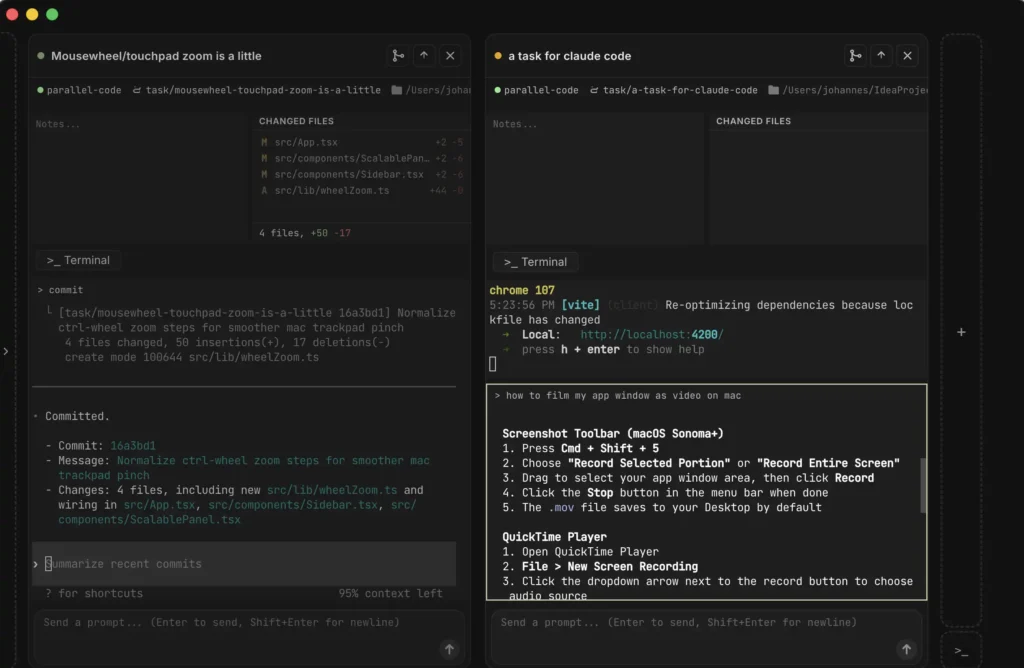
Each task lives in its own isolated environment. Five agents can work on five features in the same repo at the same time. When you are satisfied, merge from the sidebar and move on.
Screenshots
Features of Parallel-Code
| Feature | What it does |
|---|---|
| Multi-agent support | Run Claude Code, Codex CLI, and Gemini CLI from one interface. Choose one per task or run several at the same time. |
| Automatic git isolation | Each task gets its own branch and git worktree, created automatically from main. |
| Worktree-based execution | Agents run in separate directories, preventing file conflicts between tasks. |
| Built-in diff viewer | Review changed files and diffs per task before merging. |
| Merge to main from sidebar | Merge completed work back to main without leaving the app. |
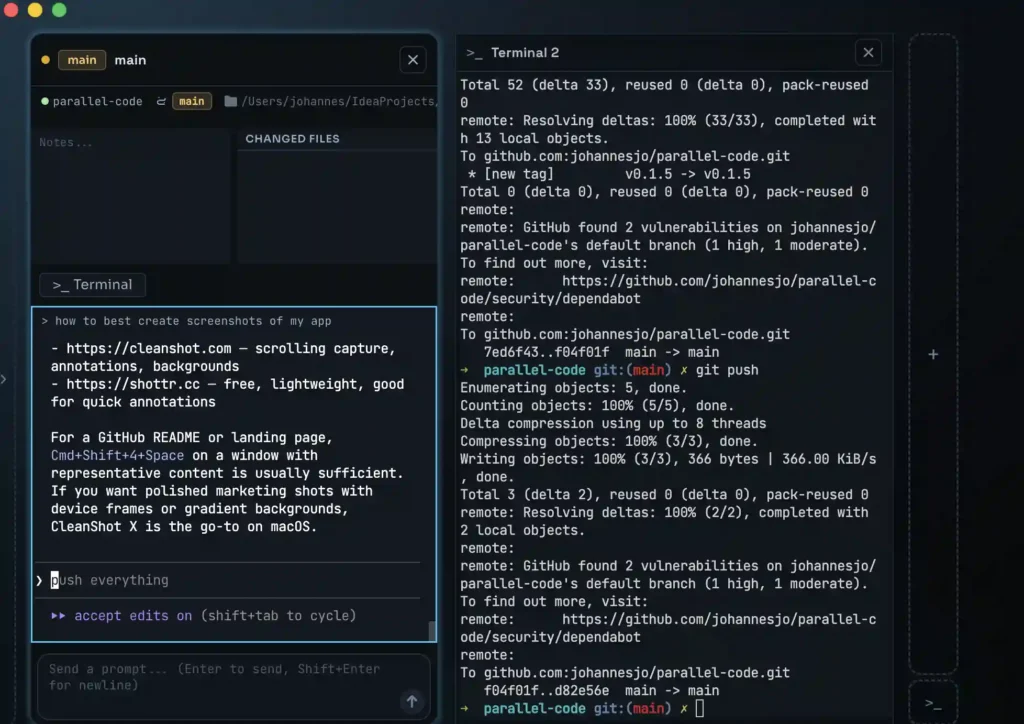
| Per-task terminals | Each task includes its own scoped shell session tied to its worktree. |
| Direct mode | Work directly on the main branch when isolation is not needed. |
| Keyboard-first workflow | Create tasks, send prompts, merge branches, and navigate panels using shortcuts. |
| Tiled panel layout | Drag and reorder task panels to organize your workspace. |
| Mobile monitoring | Scan a QR code to monitor running agent sessions from your phone over Wi-Fi or Tailscale. |
| Theme support | Six built-in themes: Minimal, Graphite, Classic, Indigo, Ember, Glacier. |
| Persistent state | Tasks and layout restore after restarting the app. |
System Requirements
| Component | Minimum requirement |
|---|---|
| Operating system | macOS (Apple Silicon or Intel), or modern 64-bit Linux distribution |
| RAM | 4 GB recommended |
| Disk space | 300 MB+ free space |
| Git | Git installed and available in PATH |
| AI CLI | At least one of: Claude Code, Codex CLI, or Gemini CLI installed |
| Network | Internet required for AI agent APIs (unless using a local setup) |
Recommended For You: Pinokio: One-Click Launcher for Open-Source AI Models, Local Apps & Scripts (Windows, macOS, Linux)
How to Install Parallel-Code??
macOS (.dmg)
- Download the latest .dmg file.
- Double-click the downloaded
.dmgfile to open it. - Drag Parallel Code into the Applications folder.
- Open Applications and launch Parallel Code.
- If prompted, click Open to confirm (macOS security check).
You’re ready to connect a repository and start creating tasks.
Linux (.AppImage) Recommended
- Download the latest .AppImage file.
- Right-click the file → Properties.
- Enable “Allow executing file as program.”
- Double-click the file to launch Parallel Code.
Linux (.deb) – Debian / Ubuntu
- Download the
.debpackage. - Double-click the file to open it in your Software Installer.
- Click Install and enter your password if prompted.
- Launch Parallel Code from the Applications menu.
Download Parallel Code: Run multiple AI coding agents
How to Use Parallel Code (Step-by-Step)
1. Open Your Repository
- Launch Parallel Code.
- Click Open Repository and select a local Git project.
- Make sure your default branch (usually
main) is clean and up to date.
2. Create a New Task
- Press Ctrl + N (Cmd + N on macOS) or click New Task.
- Enter a short description of what you want the agent to do (e.g., “Refactor auth module” or “Add dark mode support”).
- Choose the AI agent: Claude Code, Codex CLI, or Gemini CLI.
Parallel Code will automatically:
- Create a new branch from
main - Set up a Git worktree
- Launch the selected agent inside that isolated environment
3. Let the Agent Work
- The agent runs inside its own panel with a dedicated terminal.
- Watch changes in the built-in diff viewer.
- Monitor modified files in real time.
You can create multiple tasks and run several agents in parallel.
4. Review Changes
- Click on changed files to inspect diffs.
5. Merge When Ready
- If everything looks good, press Ctrl + Shift + M (Merge).
- The branch merges back into
main.
If the result isn’t what you expected, simply close the task — your main branch stays untouched.
6. Repeat or Run Multiple Tasks
- Spin up additional tasks for different features or experiments.
- Rearrange panels to organize your workflow.
- Use keyboard shortcuts to switch between tasks quickly.
Each task remains isolated until you decide to merge.
Conclusion
Parallel Code removes the friction of running multiple AI coding agents. It automates Git isolation, keeps tasks separated, and lets you review and merge safely.
Instead of managing branches and worktrees manually, you focus on building, while the app handles the stuff behind the scenes.




