

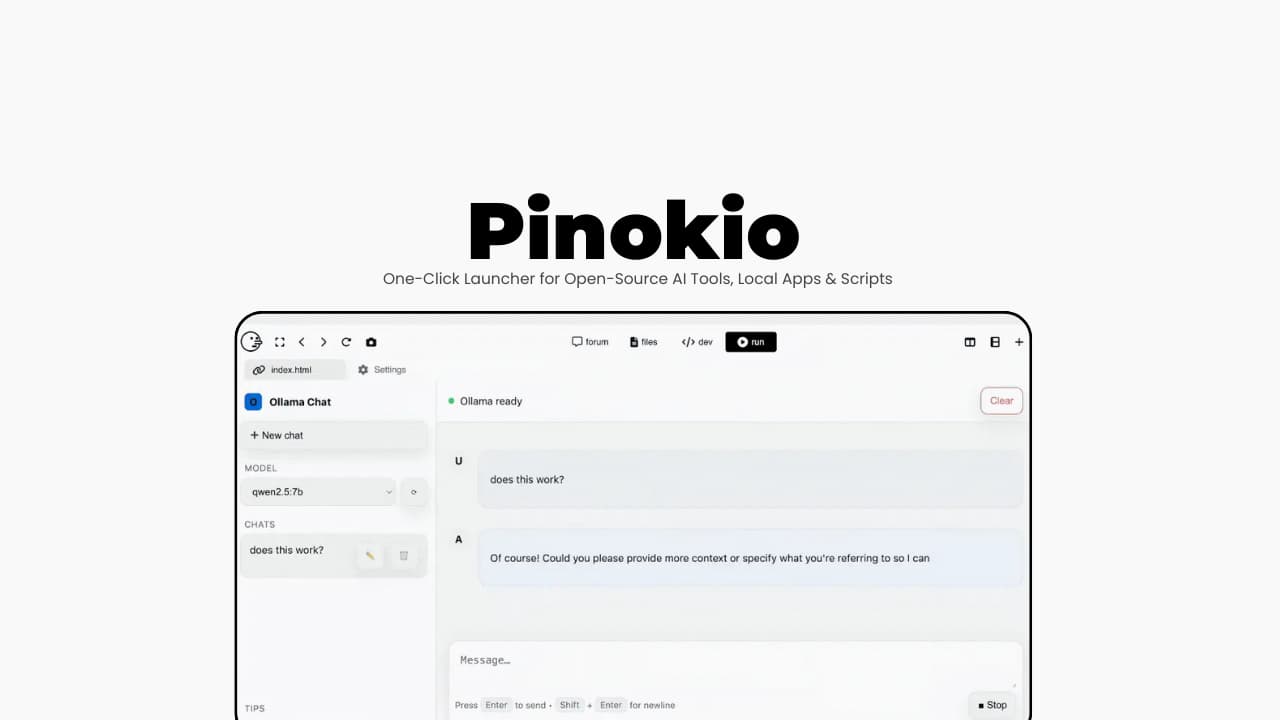

File Information
| File | Details |
|---|---|
| Name | Pinokio |
| Version | v6.0.10 |
| File Formats Provided | .exe • .dmg • .AppImage |
| Platforms | Windows • macOS • Linux |
| Size | 121MB (exe) • 142MB (dmg) • 140MB (AppImage) |
| Category | App Launcher • Local AI • Dev Tools |
| License | Open Source (MIT License) |
| Github Repository | Github/Pinokio |
| Official Site | Pinokio |
| Primary Use | Launch & manage open-source apps with one click |
Table of contents
Description
Installing open-source projects shouldn’t feel like a lengthy process. Previously we use to:
- Clone repo.
- Create virtualenv.
- Install dependencies.
- Fix errors.
- Repeat.
Pinokio exists to ease that entire process.
It is a user-friendly terminal with a UI. It lets you install, run, and manage open-source projects using scripts but without asking users to touch the command line unless they want to.
Think of it as a 1-click launcher for local apps, AI tools, and developer projects where everything runs on your own machine, not in the cloud.
Use Cases
- Install and run open-source AI tools locally
- Launch complex GitHub projects without setup pain
- Manage multiple local apps from one interface
- Avoid cloud-based AI tools for privacy reasons
- Safely explore experimental or early-stage projects
- Replace long README setup instructions with one click
Screenshots
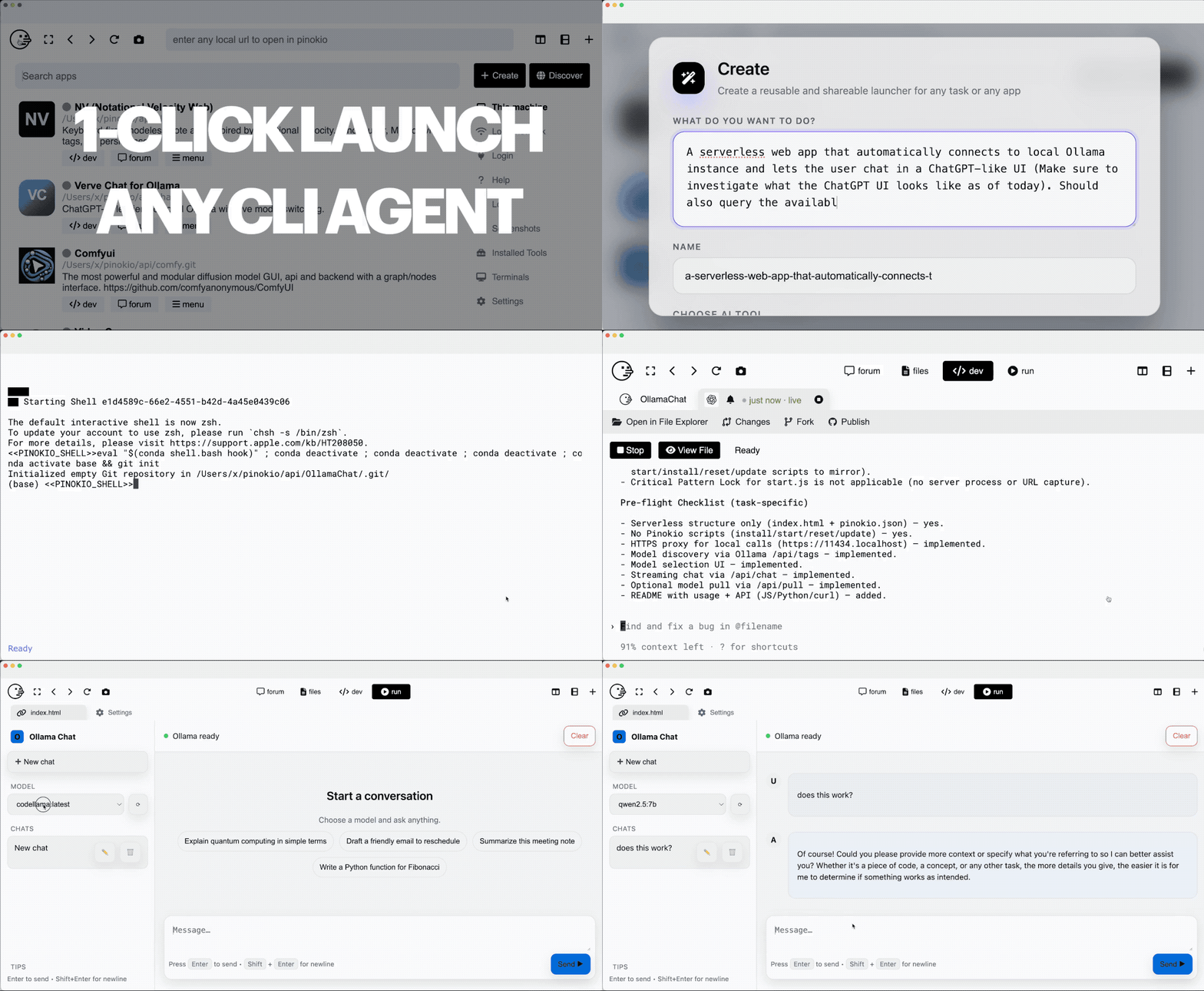
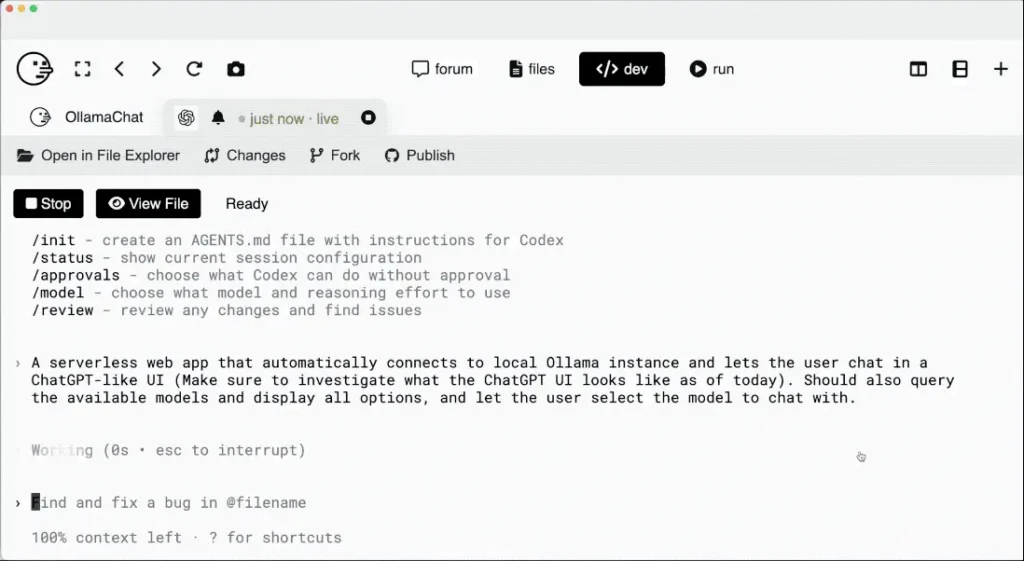
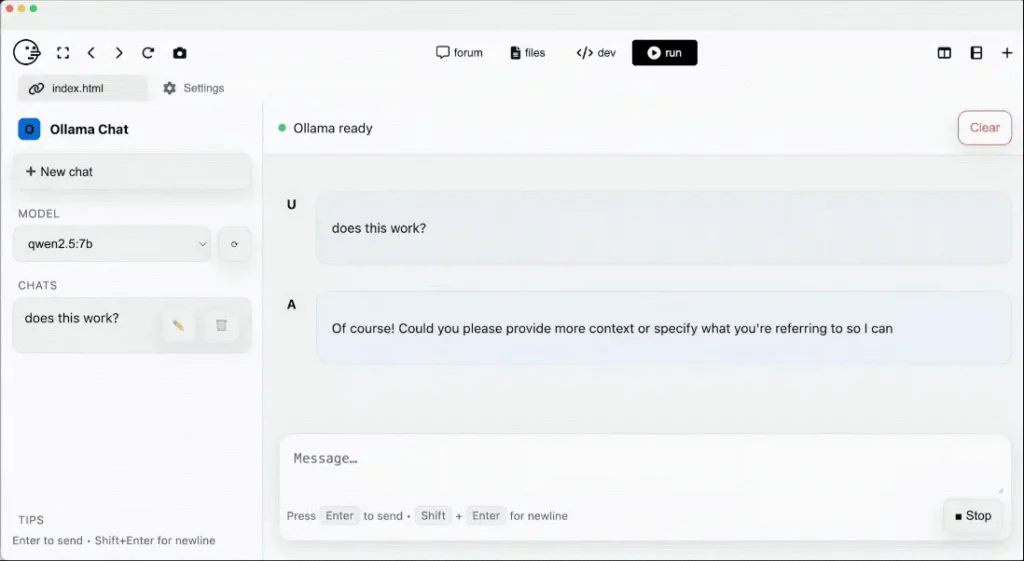
Features of Pinokio AI Browser
| Feature | Description |
|---|---|
| One-Click App Launching | Install and run projects without manual setup |
| Script-Driven | Everything is defined by readable, auditable scripts |
| Local-First Execution | Apps run entirely on your own machine |
| Isolated Environment | Each app runs inside its own sandbox |
| Verified Script System | Featured scripts are manually reviewed for safety |
| Cross-Platform | Works on Windows, macOS, and Linux |
| Developer-Friendly | Write your own scripts just like shell scripts |
How Pinokio Scripts Work (In Simple Terms)
Pinokio scripts are JSON-based instructions that tell Pinokio how to:
- Download files
- Install dependencies
- Run commands
- Launch apps
They’re human-readable and machine-readable, so you can always inspect what’s happening.
Example (installing Python dependencies):
{
  "method": "shell.run",
  "params": {
    "message": "uv pip install -r requirements.txt",
    "path": "server",
    "venv": "venv"
  }
}
What this means:
- The command runs inside the app’s folder
- Dependencies are installed into a local virtual environment
- Nothing leaks into your system Python
- Everything stays isolated
System Requirements
| Requirement | Details |
|---|---|
| Operating System | Windows • macOS • Linux |
| RAM | 8 GB recommended |
| Disk Space | ~500 MB + space for installed apps |
| CPU | Modern multi-core processor |
| Internet | Required for downloading scripts/models |
Recommended For You: 10 Pro-Level Offline AI Tools to Reclaim Your Privacy and Productivity in 2026
How to install Pinokio??
Windows Installation
Supported: Windows 10 / 11 (64-bit)
- Go to the official Pinokio download page
- Download the Windows
.exeinstaller - Double-click the
.exefile - Follow the installer steps
- Launch Pinokio from the Start Menu
On First Launch
- Pinokio will create its local workspace inside:
C:\Users\<your-username>\pinokio\
No system Python, Node, or Conda is modified
Everything runs isolated by default
macOS Installation
Supported: macOS (Intel & Apple Silicon)
- Download the
.dmgfile for macOS - Open the
.dmg - Drag Pinokio into the Applications folder
- Open Applications -> Pinokio
Linux Installation
- Download the Pinokio
.AppImagefile - Right-click the downloaded file
- Select Properties
- Go to the Permissions tab
- Enable “Allow executing file as program”
- Close the Properties window
- Double-click the AppImage to launch Pinokio
Download Pinokio: One-Click Launcher for Open-Source AI Tools, Local Apps & Scripts
Conclusion
Pinokio doesn’t try to hide complexity, it organizes it.
It takes the power of the terminal, wraps it in a clean UI, and adds a trust layer that most launchers completely ignore. The result is a tool that feels safe enough for beginners, yet honest enough for developers.
If you like running things locally, exploring open source, or launching AI tools without sacrificing control, Pinokio is one of the most thoughtfully designed launchers out there.




