
File Information
| Property | Details |
|---|---|
| Name | OpenCode |
| Version | 1.0.134 (Stable) |
| File Size | ~48MB (varies by platform) |
| Operating System | Windows, macOS, Linux |
| Architecture | x64, ARM64 |
| Category | Code Editor / Developer Tools |
| License | Open Source (MIT License) |
| Developer | OpenCode Community Project |
| Github Repository | Github/OpenCode |
| Website | OpenCode |
Table of contents
Description
Get ready for an AI coding buddy that’s not locked into one specific AI provider. Seriously, whether you’re into OpenAI, Claude, Google’s models, or even want to use local AI models, OpenCode has got your back. It’s like the Switzerland of coding assistants, totally neutral and flexible.
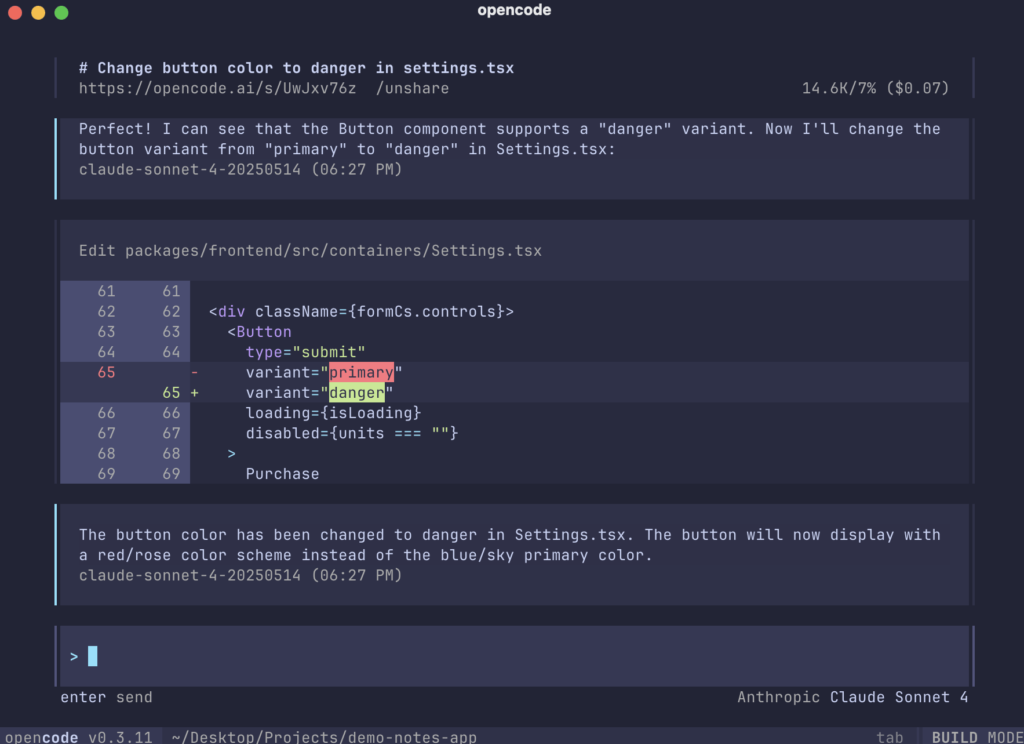
The coolest part? It’s completely open-source and designed to work right inside your terminal. No fancy IDEs, no complicated setups – just pure, intelligent coding assistance that adapts to how you work. We’re talking smart code generation, instant analysis, refactoring help, and LSP (Language Server Protocol) support that feels like it’s reading your mind.
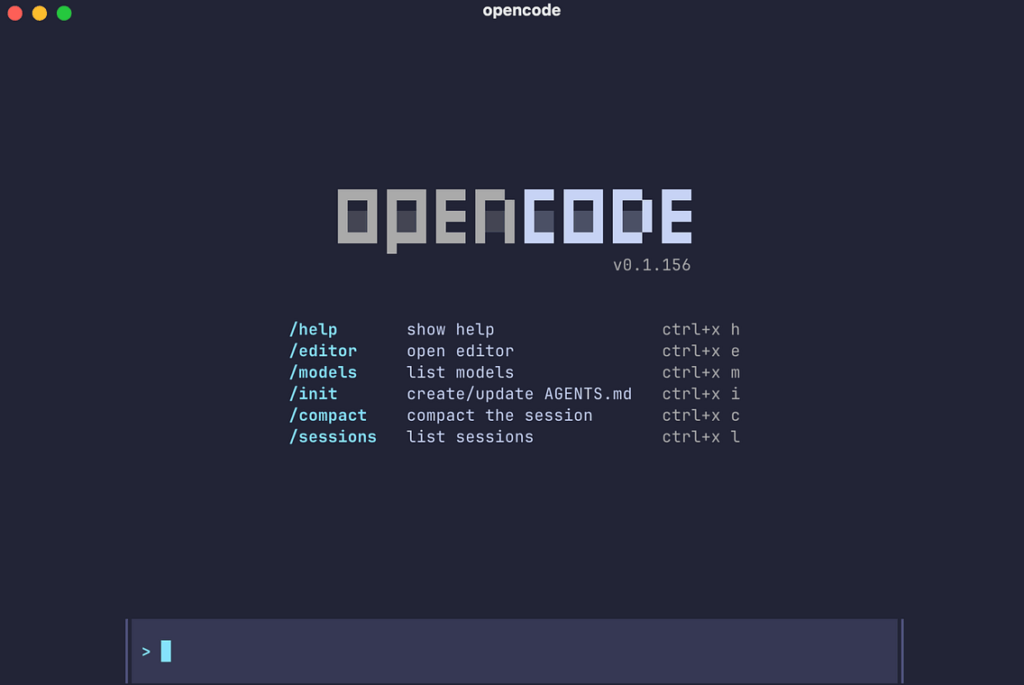
What makes OpenCode really stand out is its Terminal UI (TUI) and this slick multi-agent system. It’s not just another plugin – it’s a full-blown AI development environment that lives in the command line. For developers who want powerful AI assistance without getting locked into a single ecosystem, OpenCode is basically your dream come true. Open-source, provider-agnostic, and built to make your coding life smoother.
Screenshots
Features of OpenCode
| Feature | Description |
|---|---|
| 100% Open Source | Completely open and transparent, no vendor lock-in. |
| Provider-Agnostic | Works with OpenAI, Claude, Gemini, Groq, local LLMs, and OpenCode Zen. |
| Terminal UI (TUI) | Built for Neovim and terminal-first developers with a fast, intuitive interface. |
| Multiple AI Agents | Includes build and plan agents, plus a general multi-step subagent. |
| LSP Support | Ships with Language Server Protocol support out of the box. |
| Client–Server Architecture | Run the backend locally and connect from any client, even mobile. |
| Safe Read-Only Mode | The plan agent analyzes codebases without writing or executing commands. |
| Cross-Platform | Available for Windows, macOS, and Linux. |
| Smart Automation | Generates code, explains logic, navigates projects, and refactors intelligently. |
System Requirements
| Component | Minimum Requirement |
|---|---|
| OS | Windows 10 / macOS 11+ / Linux (x64/ARM64) |
| CPU | 64-bit processor |
| RAM | 4 GB minimum (8 GB recommended) |
| Terminal | Bash, Zsh, PowerShell, or any modern shell |
| Network | Required for cloud AI providers (optional for local models) |
How to Install OpenCode AI Coding Agent??
Before moving to the installation part, you’ll need a zip file extractor , you can use any but if you don’t have any? then you can try 7Zip or PeaZip, these are free & open source tools.
Windows (ZIP)
- Download opencode-windows-x64.zip.
- Extract the ZIP file to any folder.
- Install the Application & follow the setup instructions.
- Run:
opencode - Start using the terminal-based AI agent.
macOS (Apple Silicon & Intel)
Works for both M1/M2/M3 (arm64) and Intel (x64)
- Download the ZIP file for macOS.
- Extract the ZIP — you will find a
.dmginstaller inside. - Double-click the
.dmgfile to open the installer. - Drag the OpenCode.app icon into your Applications folder.
- Open Launchpad or Finder → Applications and run OpenCode.
- If macOS shows a security prompt, go to:
System Settings → Privacy & Security → Allow Anyway
and open the app again.
Linux (tar.gz)
- Download the correct TAR.GZ:
- x64 → opencode-linux-x64.tar.gz
- ARM64 → opencode-linux-arm64.tar.gz
- Extract:
tar -xvf opencode-linux-x64.tar.gz - Move the binary to:
~/.local/bin/or/usr/local/bin/ - Make it executable:
chmod +x opencode - Run:
opencode
Download OpenCode: AI Coding Agent Built for the Terminal
Conclusion
OpenCode is one of the most impressive open-source AI coding agents available today. It’s extremely flexible, works in any terminal, supports multiple AI providers, and avoids the limitations of closed-ecosystem tools. Whether you’re a backend developer, a DevOps engineer, a Neovim user, or someone who lives in the terminal, OpenCode instantly boosts your productivity.
Its multi-agent system, read-only analysis mode, LSP integration, remote capability, and open-source nature make it a perfect alternative to tools like Claude Code, Cursor, and windsurf, while staying lightweight and developer-friendly.
If you want a fast, privacy-respecting, fully customizable coding assistant that integrates directly with your command line, OpenCode is absolutely worth trying.