

Most creators stick to what they know. Adobe, Canva & the usual subscriptions. But there is a smaller group quietly using tools that run entirely on their own machine & even doesn’t require to connect to any online server.
Some of these tools are genuinely underrated, yet powerful enough to be used by many creators including me.
You Put them together and your PC becomes a full creator studio. AI video generation, voice cloning, lossless video trimming, file conversion, image upscaling, motion graphics. The whole stack, completely free and open source.
You might already be using one of them. If not, you will probably find at least one worth adding to your workflow.
Table of contents
1. LTX-Desktop
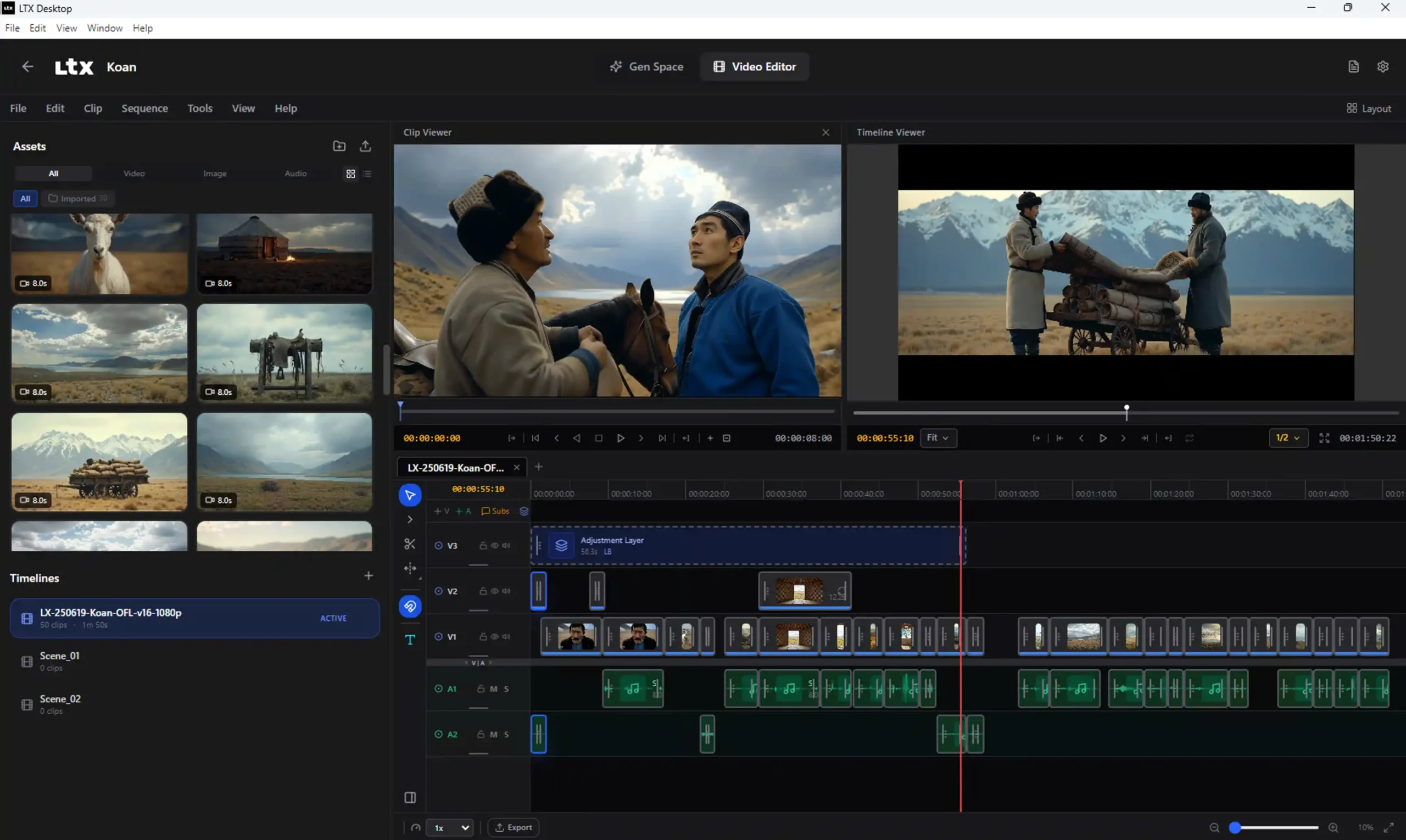
If you have ever wanted to generate AI videos without uploading your footage to someone else’s server this is the one to start with. Drop a text prompt, an image, or even an audio file and it generates a video clip directly on your machine. There is a built in timeline editor too so you can trim, retake specific segments without regenerating the whole clip, and manage multiple projects without leaving the app.
The retake feature is what I find most useful. Most AI video tools make you regenerate everything if one section looks off. LTX Desktop lets you target just that segment. That alone saves a lot of time.
It runs on Windows and Linux with NVIDIA GPUs. macOS users and anyone without a supported GPU can still use it through the LTX API which handles generation in the cloud instead.
Supported Platforms: Windows & macOS (via API mode)
VRAM requirements 12GB gets you comfortable 720p clips. 16GB is good for daily 1080p work. 24GB covers most non-professional use cases without issues. The community has also adapted the model to run on 8-12GB cards using quantized versions so even mid range GPUs are worth trying.
Best for
- Creators who want local AI video generation with no subscription
- Anyone who needs to edit and retake specific video segments without starting over
2. Voicebox
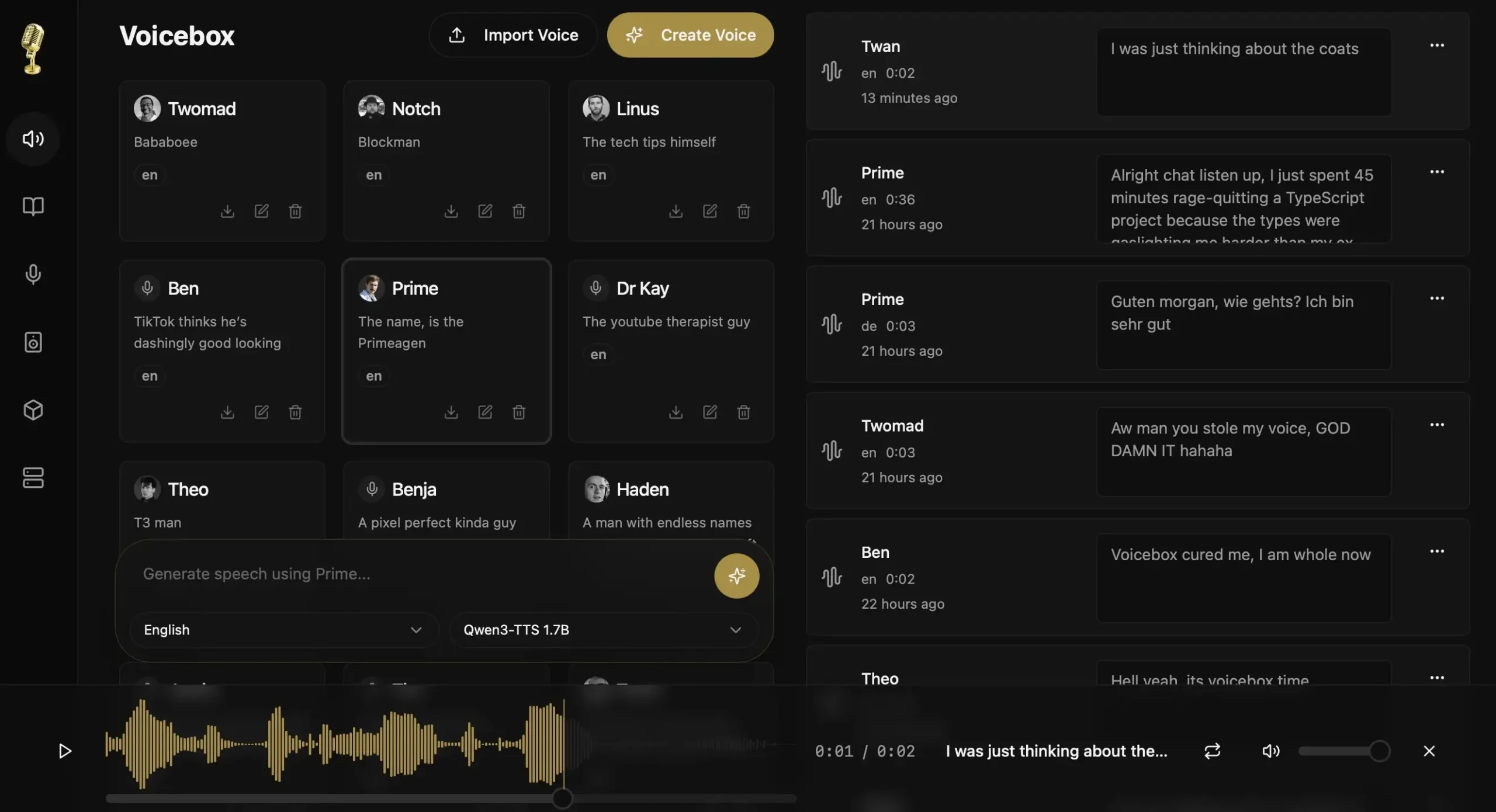
If you create videos, shorts, reels or any content that needs a voiceover and you are tired of hitting monthly limits or paying per character, this one is for you.
Voicebox is a local voice cloning studio that runs completely offline. Install the app, download the voice model once, and it saves everything on your device. After that you can generate as much audio as you want with no limits & no internet connection needed.
The quality is actually good. It runs on Qwen3-TTS which is one of the stronger open source voice models available right now. Clone any voice from a few seconds of audio, generate speech in multiple languages, and compose multi-voice conversations using the built in Stories Editor, a timeline based editor where you can arrange multiple voice tracks, trim clips, and preview everything synchronized. Think of it as a lightweight DAW for voice content.
Apple Silicon users get an extra advantage. The MLX backend uses Metal acceleration for 4-5x faster generation, works on macOS and Windows right now.
For developers there is a full REST API built in so you can integrate voice generation directly into your own projects.
Supported Platforms: Windows & macOS
VRAM requirements Modest. Runs on consumer hardware. Apple Silicon gets the best performance through the MLX backend.
Best for
- Creators who want unlimited offline voiceovers for videos, reels and shorts
- Developers who need a local voice synthesis API without cloud costs
3. Upscayl
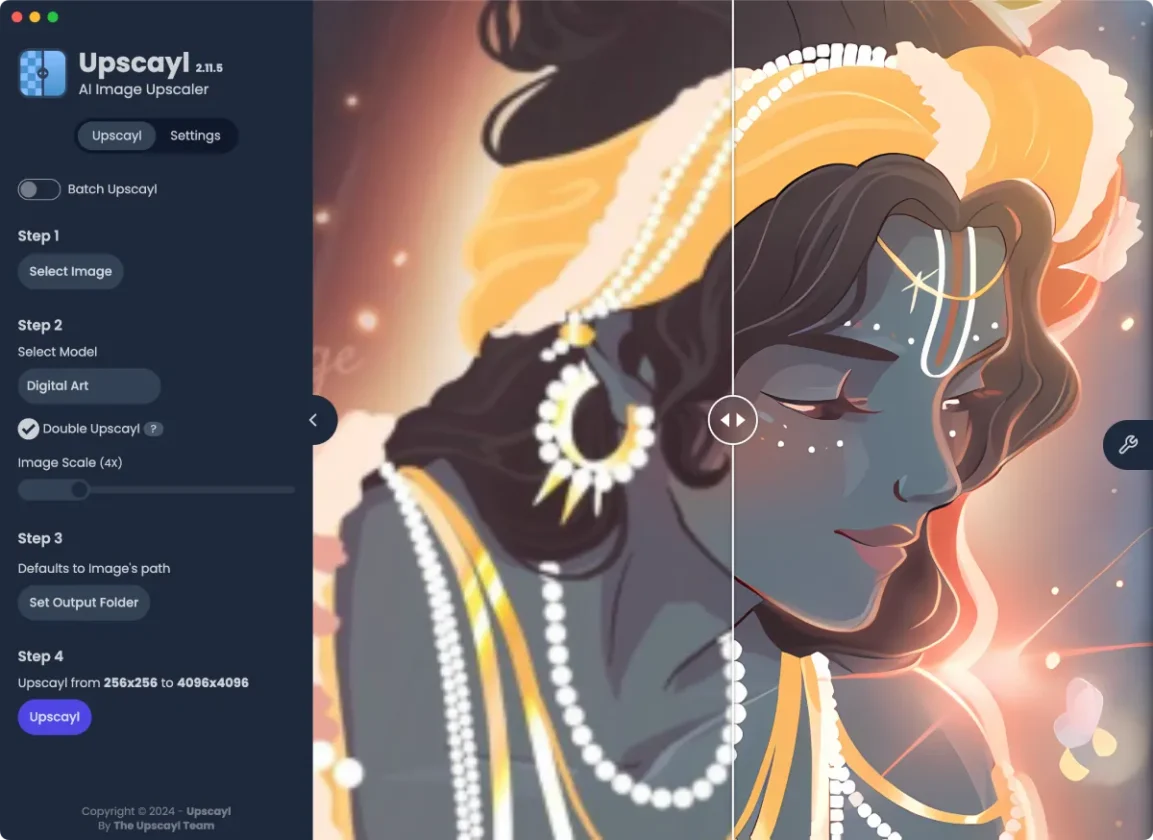
You probably already know this one. But it earns its spot here because it is genuinely useful and a lot of creators use it.
The idea is simple. Take a low resolution or blurry image and upscale it using AI without losing quality. That thumbnail you exported too small, the graphic that looks pixelated at full size, Upscayl fixes all of that locally on your machine.
Just install the app, drop your image, and it handles the rest.
Supported Platforms: Windows, macOS & Linux
VRAM requirements Low. Works on most dedicated GPUs including mid range cards.
Best for
- Creators who need to upscale thumbnails, graphics or project assets quickly
- Anyone working with low resolution source images who needs print or high resolution output
4. Friction
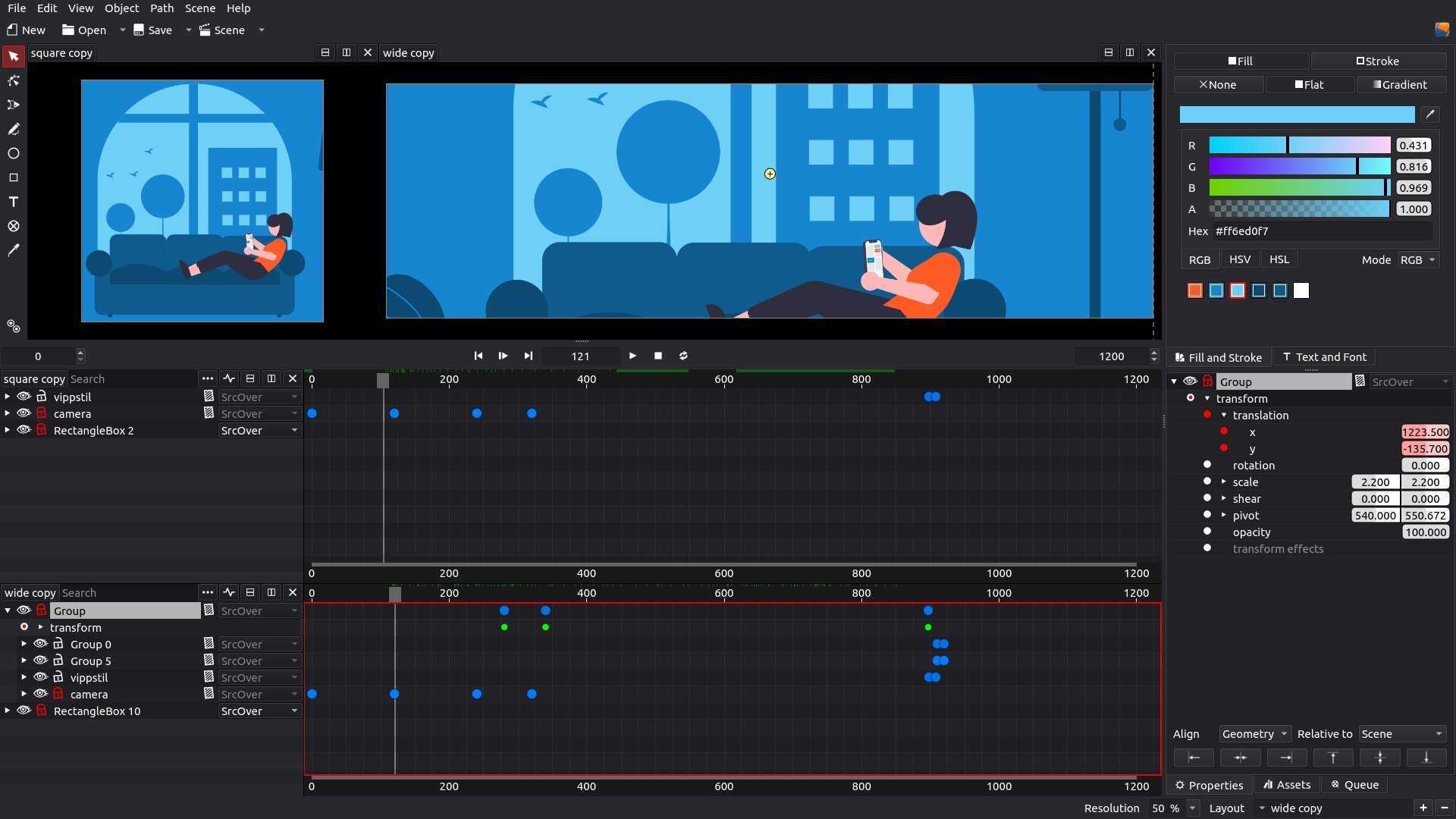
This one is for those who wants a decent open source tool for motion graphics.
Friction is a motion graphics tool that covers the kind of work most creators associate with After Effects like animated text, SVG animations for web, visual effects, shader effects, the whole thing. It runs on Windows, macOS and Linux and the rendering is GPU accelerated so it actually feels fast even on complex projects.
The expression editor is the part that separates it from simpler animation tools. You can write actual ECMAScript based animation logic with autocomplete and syntax highlighting. That sounds technical but it basically means you can create animations that respond to values, timing, and conditions rather than just keyframing everything manually.
It also supports multiple timelines and scenes simultaneously which matters when you are working on anything more complex than a simple logo animation.
Newer than most tools on this list and the community is still growing. Fewer tutorials exist compared to something like After Effects but the core functionality is genuinely solid for motion graphics work.
Supported Platforms: Windows, macOS & Linux
System requirements GPU accelerated but not demanding. Runs on most modern GPUs including integrated graphics for lighter projects.
Best for
- Creators who need motion graphics and animated SVGs without a subscription
- Anyone building web animations or video title sequences on a budget
Related: The Best Open-Source Alternatives to Adobe Products for Creators
5. LosslessCut
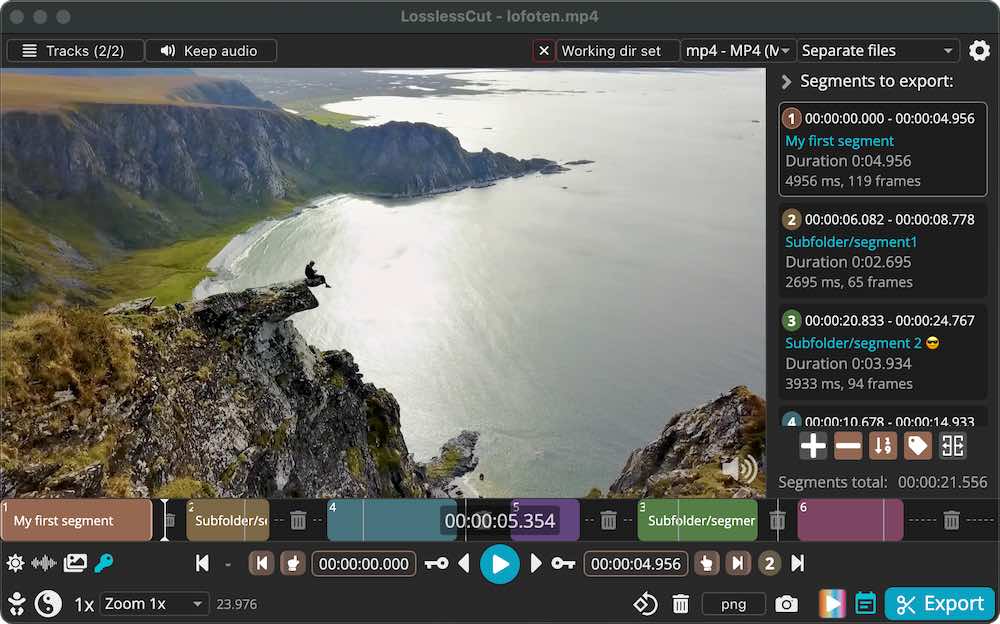
Every creator has been there. You have a 10 minute clip and you need 45 seconds of it. Normal editors make you re-encode the whole file just to trim it which takes forever and slightly degrades quality every single time.
LosslessCut skips all of that. It cuts, trims, and splits video and audio files without re-encoding anything. The file goes in, the cut comes out, and the quality is identical to the original. On large files the difference in speed is not even close.
It does more than just cutting though. You can remove audio tracks, add music to a video, extract subtitles, merge multiple clips, convert between formats like MKV to MP4, and even cut out silent parts automatically. All without touching the actual video data.
GoPro footage, drone recordings, screen captures, anything that comes off a camera and needs a rough cut before proper editing belongs in LosslessCut first.
Supported Platforms: Windows, macOS, Linux
System requirements Runs entirely on CPU.
Best for
- Creators who need to quickly trim or split large video files without quality loss
- Anyone who converts between video formats regularly
6. Frame
FFmpeg is one of the most powerful media tools ever built. It is also the kind of thing that makes most people immediately Google “how to use FFmpeg” and give up after reading the first command.
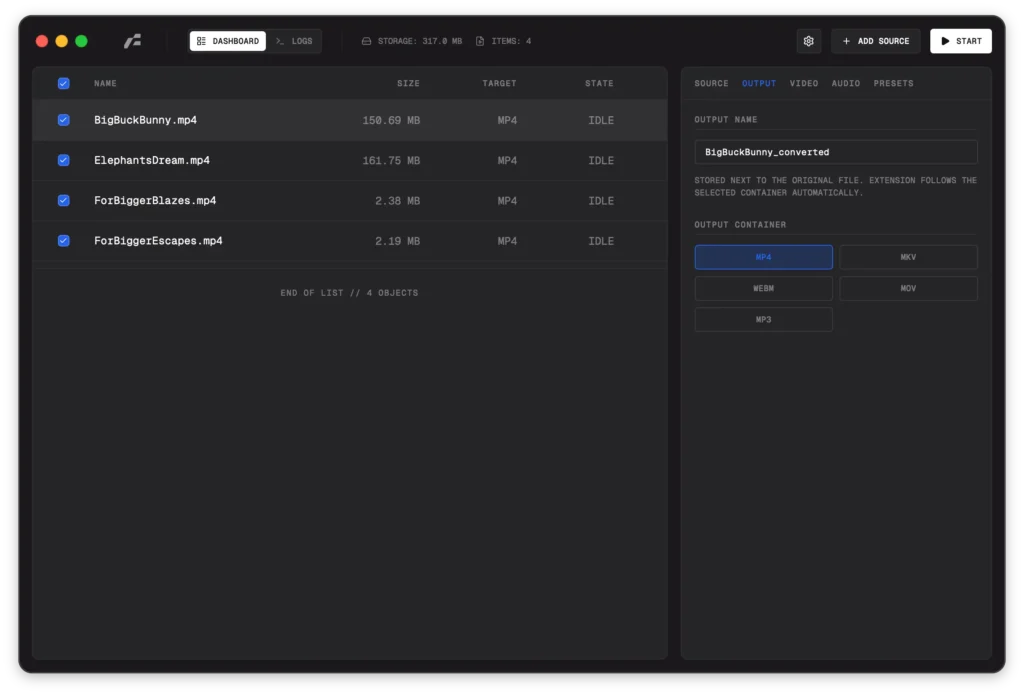
Frame solves that. It is a clean desktop app built on top of FFmpeg that lets you convert video and audio files without touching the command line. Drop your file, pick your output format, set your quality and it handles everything else.
The format support is solid. MP4, MKV, WebM, MOV, MP3 on the container side. H.264, H.265, VP9, AV1, ProRes on the video encoder side. Hardware acceleration works through Apple VideoToolbox on Mac and NVIDIA NVENC on Windows which means conversions are fast on supported hardware.
It runs entirely on your machine & Everything is local and private.
Supported Platforms: Windows, macOS, Linux
System requirements: Hardware acceleration uses your GPU if available but falls back to CPU smoothly.
Best for
- Creators who convert video formats regularly and want a clean interface instead of command line
- Anyone who needs reliable format conversion without cloud tools or subscriptions
Bonus: Squoosh Desktop
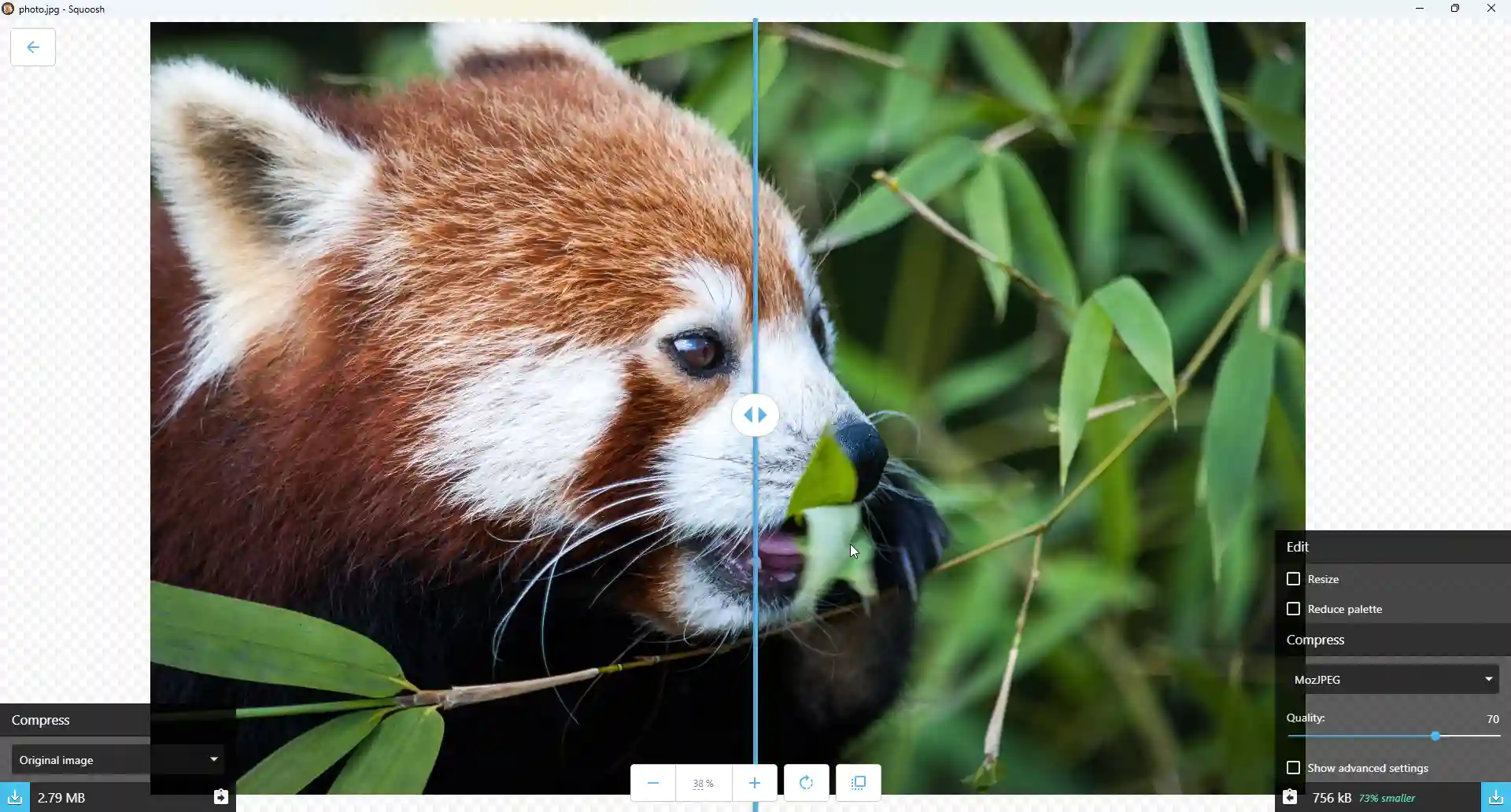
Originally a web app by Google Chrome Labs, Squoosh got a desktop version thanks to an open source community contributor and it is genuinely useful for any creator who deals with images regularly.
The idea is simple. Drop an image, compress it, see the before and after in real time, and export. JPEG, PNG, WebP and more, all processed locally on your machine.
The real time preview is what makes it practical. You can see exactly how much quality you are losing before you commit to a compression level. Most online tools just compress and hand you the result.
This one is more efficient and worth it if you want to compress images locally.
Supported platforms: Windows, macOS, Linux
Best for
- Creators who need to compress thumbnails, blog images or project assets quickly
- Anyone who wants to reduce file sizes without sacrificing visible quality
Your PC was always capable of this
Most of these tools have been around for a while. Some are newer. All of them are free, open source, and run entirely on your machine.
You do not need a subscription to generate AI videos, clone voices, cut footage, convert files, upscale images or create motion graphics anymore. The tools exist. They work. And they cost nothing.
Pick the ones that fit your workflow and start there.