
File Information
| File | Details |
|---|---|
| Name | Frame |
| Version | v0.4.0 |
| File Formats Provided | .exe • .dmg • .app • .AppImage • .deb |
| Platforms | Windows • macOS • Linux |
| Size | 87MB (exe) • 65.8MB (dmg) • 120MB (AppImage) • 67MB(deb) |
| Supported OS | Windows 10/11 • macOS (Intel & Apple Silicon) • Major Linux distros |
| License | Open Source (GPL-3.0 license) |
| Github Repository | GitHub Frame |
| Official Site | getFrame |
| Category | Media Converter • FFmpeg GUI |
Table of contents
Description
Frame is a fast, native, and privacy-friendly media conversion application built on top of FFmpeg, designed for users who want full control over video and audio encoding without touching the command line.
It uses a Rust-powered backend for high-performance task execution and a modern Svelte 5 interface for clean configuration, progress tracking, and preset management.
It runs entirely on your system, performs conversions locally, and provides a smooth desktop experience across Windows, macOS, and Linux.
Use Cases
- Convert videos and audio files without learning FFmpeg commands
- Encode media using modern codecs like H.265, AV1, VP9, or ProRes
- Batch-convert files with controlled quality and bitrate
- Use hardware acceleration where available
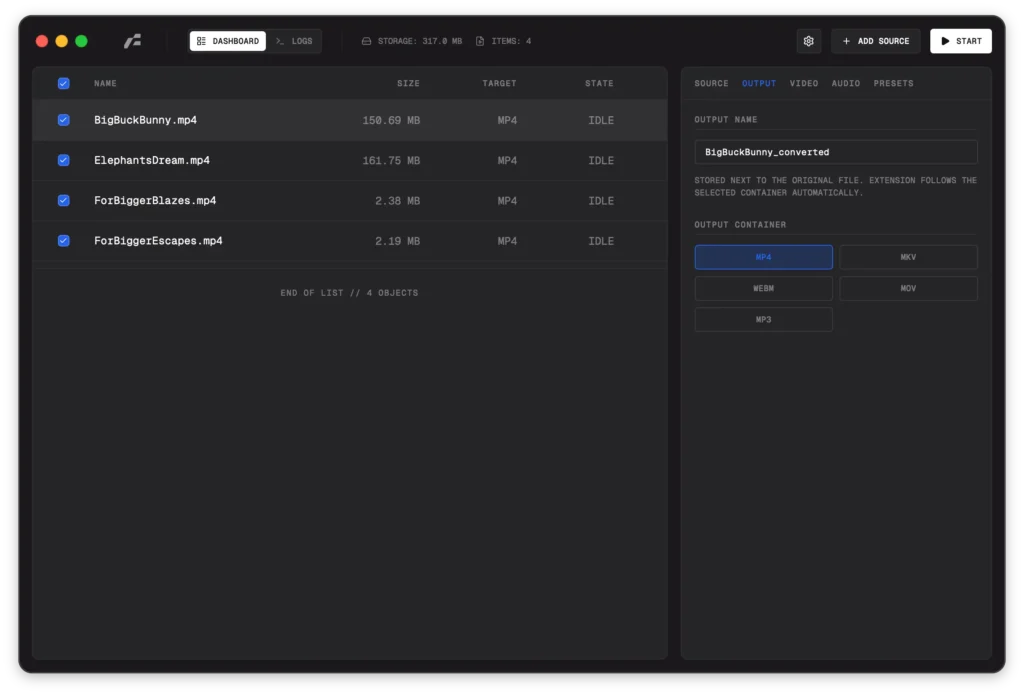
- Monitor progress and logs in real time
- Create reusable presets for repeated workflows
Screenshots
Features of Frame
| Feature | Description |
|---|---|
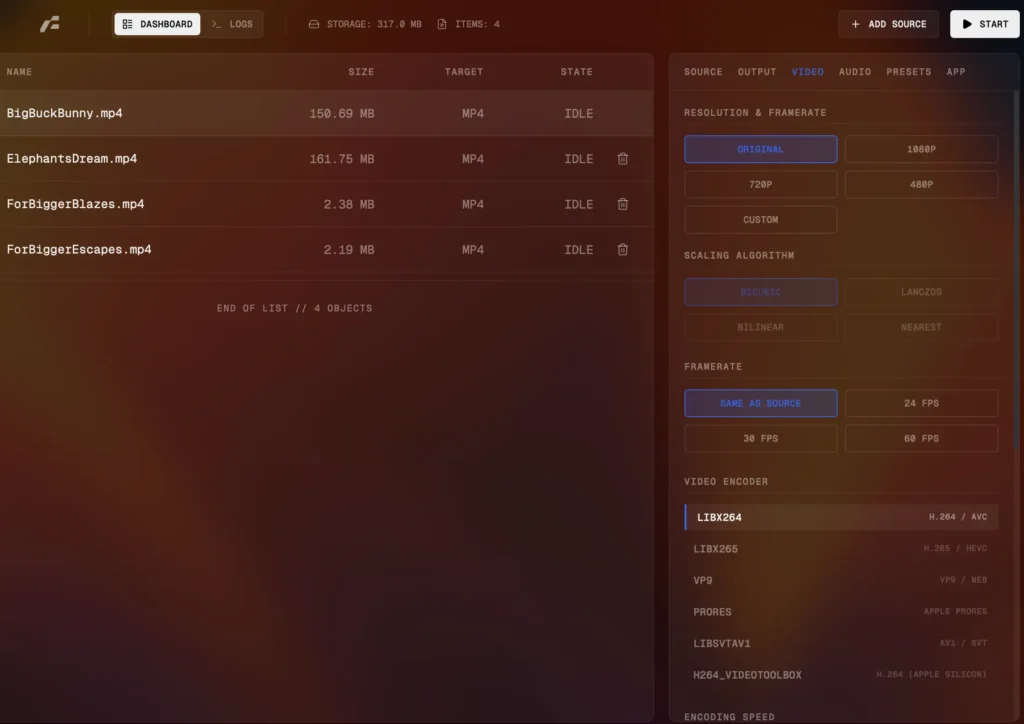
| Container Support | MP4 • MKV • WebM • MOV • MP3 |
| Video Encoders | H.264 (x264) • H.265 (x265) • VP9 • AV1 (SVT-AV1) • ProRes |
| Hardware Acceleration | Apple VideoToolbox • NVIDIA NVENC |
| Audio Encoders | AAC • AC3 (Dolby Digital) • Opus • MP3 |
| Bitrate Control | CRF-based quality or fixed target bitrate |
| Scaling Algorithms | Bicubic • Lanczos • Bilinear • Nearest Neighbor |
| Metadata Detection | Automatic stream analysis using FFprobe |
System Requirements
| Requirement | Details |
|---|---|
| Processor | Modern x64 or ARM64 CPU |
| RAM | 4 GB recommended |
| Disk Space | ~200 MB |
| Internet | Only for downloading the app |
| FFmpeg Knowledge | Not required |
How to Install Frame: A Fast FFmpeg GUI??
Windows (.exe)
- Download the Frame
.exeinstaller - Double-click the file
- If Windows shows a warning:
- Click More info
- Click Run anyway
- Follow the installer steps
- Launch Frame from the Start Menu
macOS (.dmg)
- Download the Frame
.dmg - Open the
.dmgfile - Drag Frame.app into the Applications folder
- Open Applications → Frame
If macOS blocks the app:
- Go to System Settings → Privacy & Security
- Click Open Anyway
Linux (AppImage)
- Download the Frame
.AppImage - Right-click the file → Properties
- Enable “Allow executing as program”
- Double-click to run
Linux (Debian / Ubuntu .deb)
- Download the Frame
.debfile - Double-click it
- Open with your system’s software installer
- Click Install
- Launch Frame from the applications menu
FFmpeg Included: No Setup Needed
Frame ships with bundled FFmpeg and FFprobe binaries, meaning:
- You do not need FFmpeg installed system-wide
- No PATH configuration
- No external dependencies
- Everything runs locally
Recommended For You: HandBrake – Convert Any Video to MP4, MOV, MKV & More | Free Open-Source Video Transcoder
Download Frame: Fast & Modern FFmpeg GUI for Windows, macOS & Linux
Conclusion
Frame is a modern, fast, and user-friendly FFmpeg GUI that delivers professional-grade media conversion without complexity.
If you want:
- Native performance
- Cross-platform support
- Full FFmpeg power
- Zero command-line usage
Frame is built for you.