



You’ve spent an hour recording a video. Now comes the part nobody enjoys, finding the best moments, cutting them into clips, adding subtitles and preparing everything for social media.
Someone else might have a different problem. Their research is scattered across dozens of documents. A developer might be juggling several coding tasks and someone who just wants to use AI privately might be tired of sending everything to another cloud service.
There are open source AI tools being built for all of these jobs and some of them can do considerably more than answer questions.
You probably won’t need all these, but one of them might solve a problem you’ve been putting up with for a while.
Table of Contents
1. AutoClip
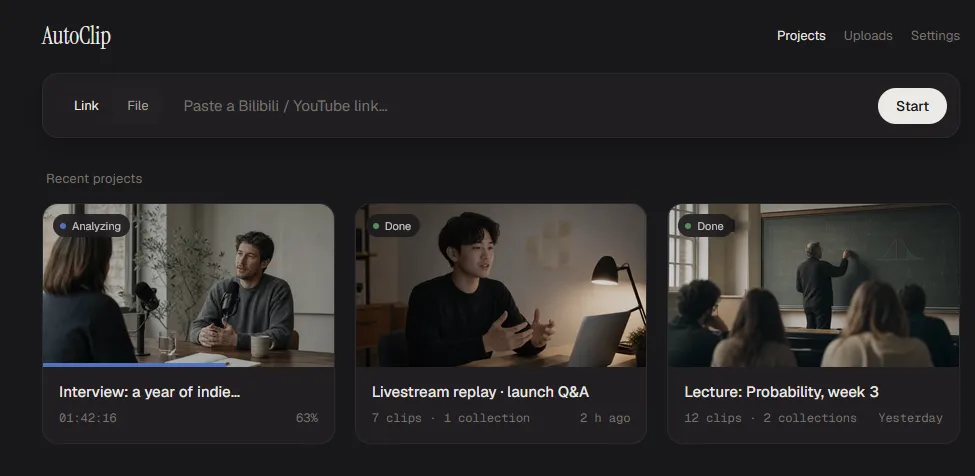
If you regularly upload podcasts, interviews or long videos, you know how much time goes into turning one recording into several social media clips. You have to find the interesting moments, cut them out, add subtitles and resize everything for different platforms.
AutoClip handles much of that work for you.
Give it a video or a supported video link, choose where you want to publish, and it analyses the content to find suitable moments. It can then create short clips with subtitles, along with covers, titles, descriptions and hashtags. It also adjusts the format for platforms such as TikTok, Instagram Reels and YouTube Shorts.
You don’t have to accept everything it generates, either. You can preview the clips, adjust them in its built-in editor and generate alternatives if the first selection misses the mark.
The software is free and MIT licensed, but some AI features rely on model providers. You can use local models through Ollama or LM Studio, or configure cloud services with your own API keys. The actual editing and rendering happen on your computer, though cloud analysis or transcription may still incur usage charges.
Think of it as a first editor, not a finished production team. It can save you the tedious work of finding moments and preparing clips, but it won’t always pick the exact moments you’d choose, or style them exactly how you want. You’ll probably still want to review the cuts, fix captions and make a few adjustments before publishing. Even so, if you regularly repurpose long videos, it can take a sizeable chunk of repetitive work off your plate.
Platforms Supported: Windows and macOS (Apple silicon)
2. OpenMausBot
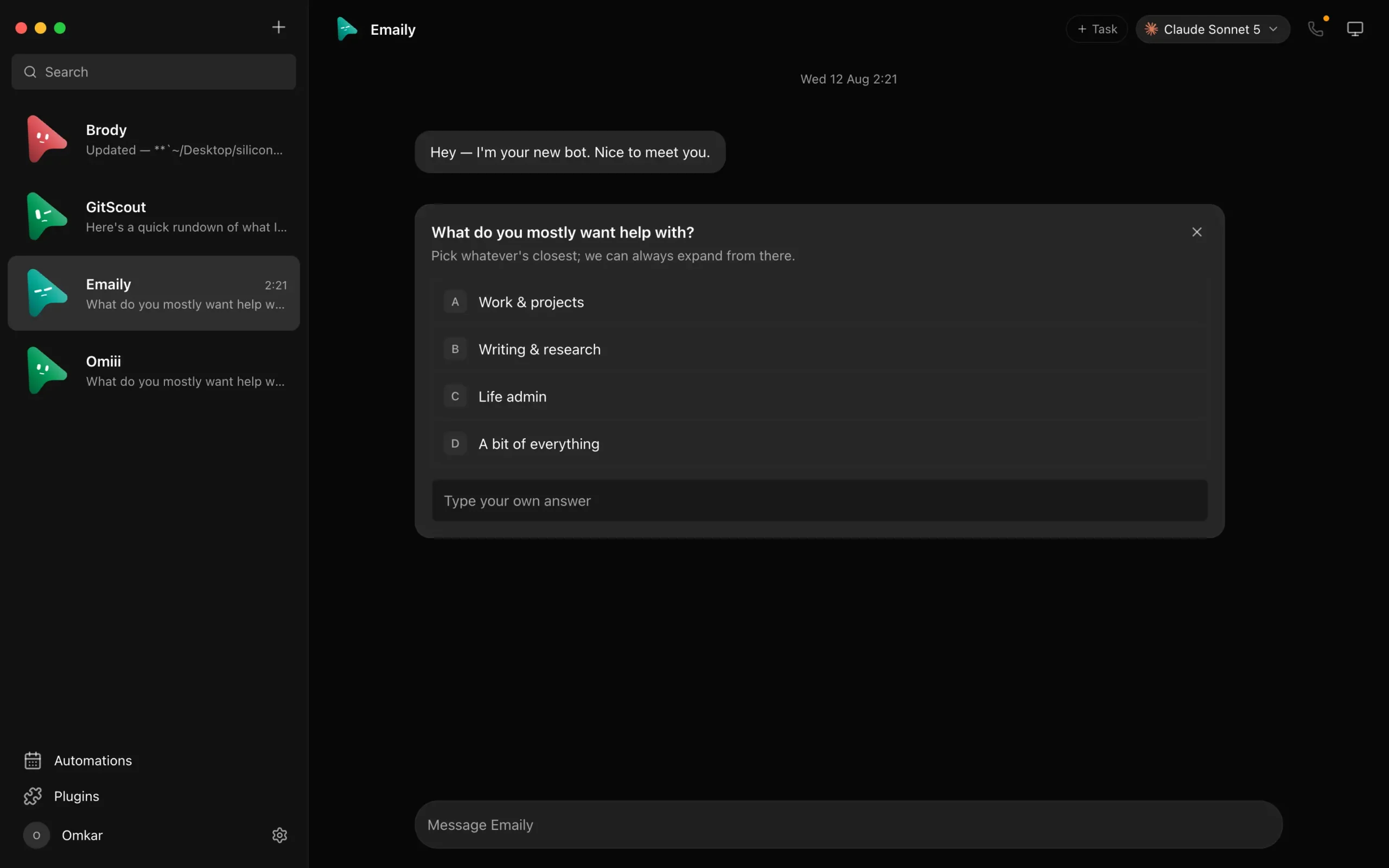
If you’ve ever wished you could hand different jobs to different AI assistants and keep track of what each one is doing, OpenMausBot is built exactly for that.
It’s an open source project inspired by Grok Bot, but it’s an independent app and isn’t affiliated with xAI. The interface looks more like a messaging app, each bot appears as a separate contact, with its own conversation and instructions.
You could have one bot researching a topic, another reviewing code, and a third handling tasks in connected apps such as Gmail, GitHub or Notion. They can use files, terminals, browsers and even their own computer environments to carry out work. You can also put multiple bots in a room so they can collaborate, while approval prompts let you review certain actions before they happen.
The interesting part is that OpenMausBot uses agent tools you already have, including Claude Code, Codex and Grok CLI. You install and sign in to at least one supported agent, then connect it to the app. Your conversations and settings are stored locally on your system.
There are a few things to keep in mind before installing it. You’ll need a supported agent CLI and its login or API access, so the app doesn’t mean unlimited free AI usage. Some features, such as cloud computers and connected apps, also rely on third-party services and may involve additional costs.
Platforms Supported: Windows, macOS, Ubuntu Linux
3. ThinkRail
If you’re a developer, you’ve probably tried handing a coding task to an AI agent, only to spend the next few minutes checking what it changed, fixing unexpected edits and making sure it hasn’t messed with something else in your project.
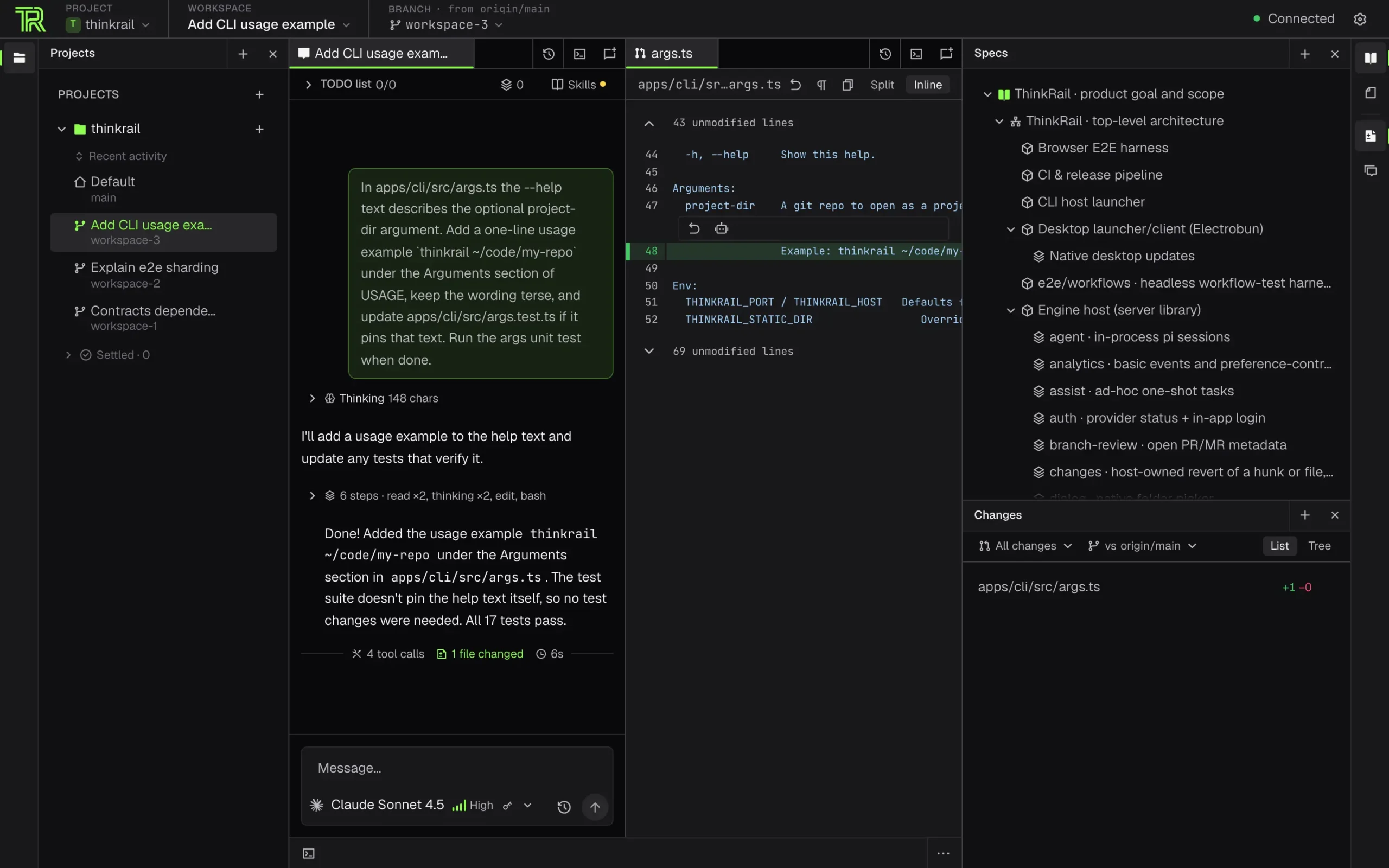
ThinkRail is an open source project from JetBrains, the company behind IntelliJ IDEA and other popular developer tools. It’s built around the Pi coding agent and gives developers a visual IDE for managing AI-assisted coding tasks.
You get a proper workspace with a code editor, terminals, Git changes and AI chats, all in one place. Its most useful feature is how it handles parallel work, each coding task can run in its own Git worktree, with a separate branch and working directory. So you can ask one agent to fix a bug and another to build a feature without having them interfere with the same files.
It also gives agents access to project specifications that explain how your codebase is organised and how it should work. Those specs can be maintained as the project evolves, helping the agent retain important context between sessions.
I tried this while fixing a bug in one of my project’s components. ThinkRail kept the agent’s work in a separate workspace, so my main project remained untouched while I reviewed the fix. I could focus on what the agent had changed without worrying that it was mixing those edits into the work I was already doing.
You’ll still need to review the changes, and you’ll need Git and an authenticated Pi model provider to get started. It may also feel like more setup than a simple AI coding extension. But if you regularly use coding agents, having their work isolated and visible in one IDE can make the process easier to manage.
Platforms Supported: Windows, macOS, Linux
4. LLM Wiki
Think about all the information you collect over time. PDFs you download, articles you save, research papers, notes and documents you keep meaning to revisit. Finding something useful in that pile can become a project of its own.
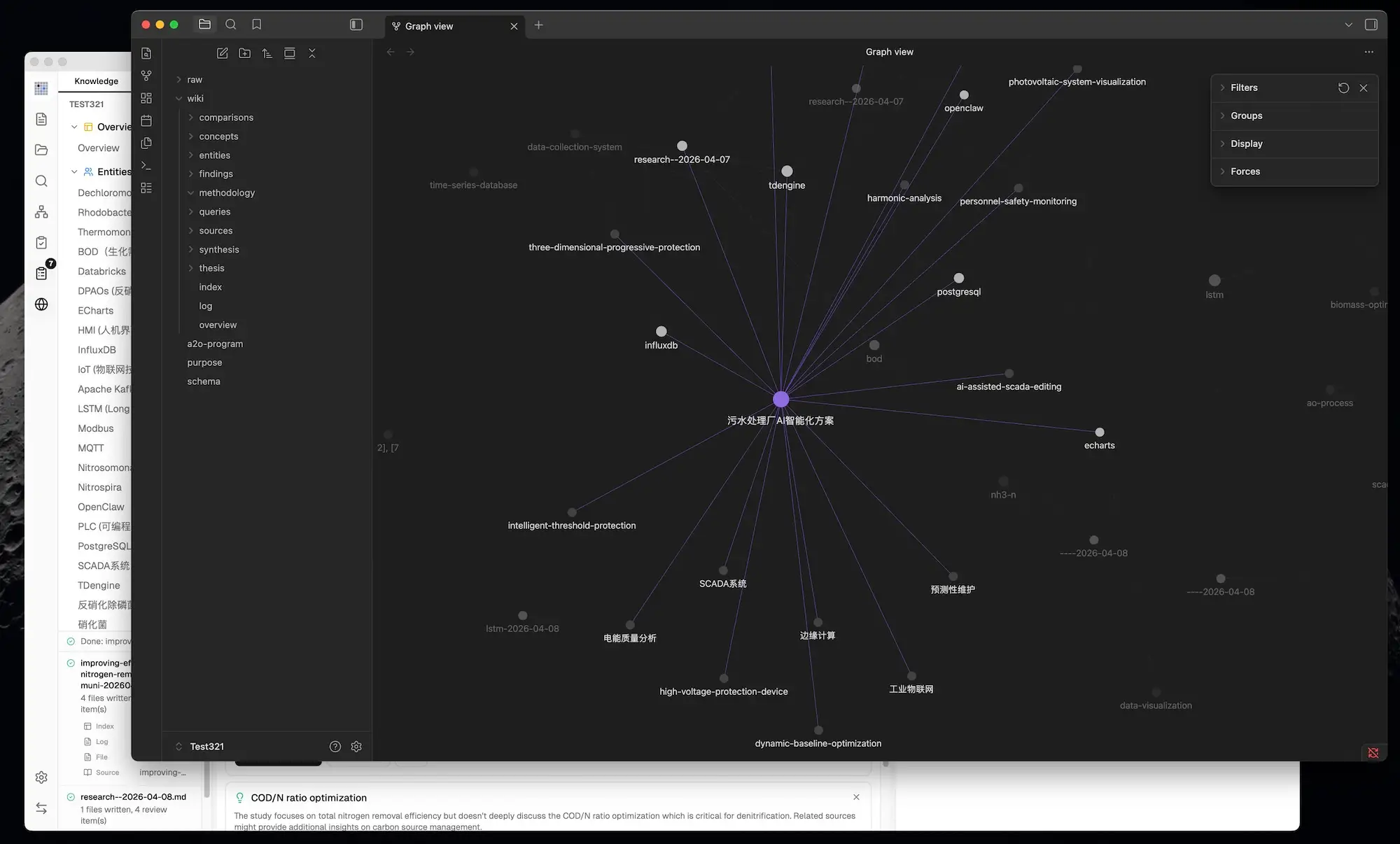
LLM Wiki works differently. Instead of making you search through those documents every time you have a question, it uses an LLM to turn them into a structured, interconnected wiki that it can keep updating.
Import your documents, and the app analyses their contents before creating pages for important people, concepts and topics. It links related pages together and keeps track of which original sources contributed to each one. Add more material later, and it can update existing pages and create new connections.
There’s also a visual knowledge graph that lets you explore how different topics relate to one another. It can surface unexpected connections and areas where your knowledge base is missing information. Its Deep Research feature can then search the web for relevant material and add the findings back into the wiki.
One detail that makes this particularly useful is that the resulting wiki isn’t locked inside a chat window. Its files use Markdown and are compatible with Obsidian, so you can browse and edit the pages yourself. You can also connect the local app to tools such as Claude Code and Codex through its API and MCP server.
You’ll need to configure an AI model provider before using it. LLM Wiki supports services such as OpenAI and Anthropic, as well as local models through Ollama, so the cost and privacy implications depend partly on the setup you choose. Some research and document-processing features may need additional services or API keys.
If your documents are scattered across folders and you keep asking AI to find the same information again, LLM Wiki offers another way to organise that knowledge, build the structure once, then keep adding to it.
Platforms Supported: Windows, macOS and Linux
You May Like: Open-Source AI Tools You Probably Haven’t Tried Yet
5. Conduit
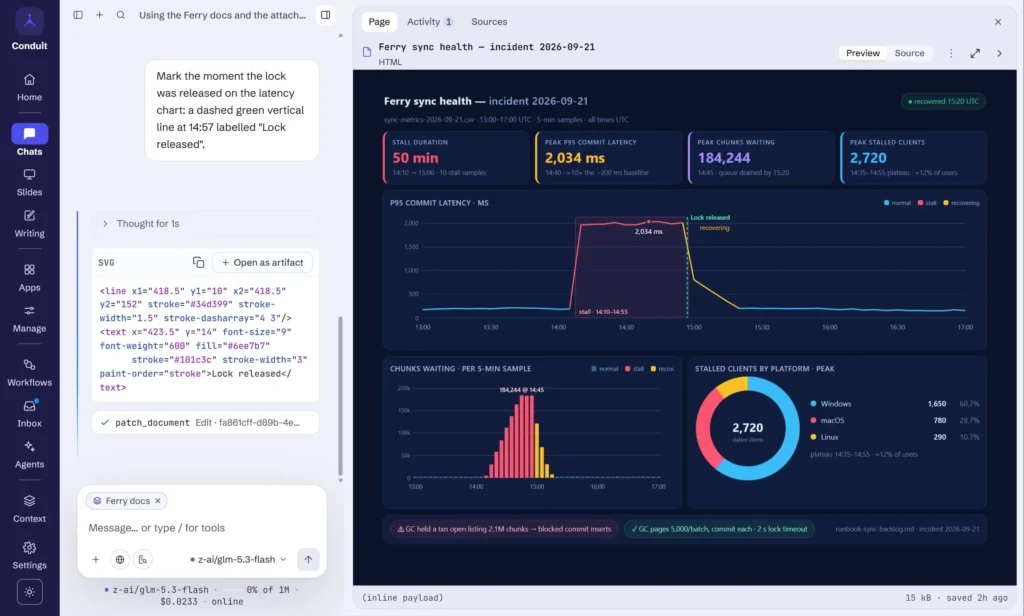
Usually AI chats end when you get an answer. Conduit lets you turn that conversation into something you can actually use again.
It’s an open source desktop AI workspace where you can build personal apps, create and edit slide decks, write research reports with cited sources, and set up workflows that run on a schedule or when something new arrives.
For example, you could ask it to build a dashboard using live data, create a presentation and then revise individual slides through chat. You can save the dashboard as an app or turn a sequence of tasks into a workflow, rather than rebuilding everything from scratch.
Conduit supports 17 AI providers, and you can also connect local models through Ollama or LM Studio. Your chats, documents and projects stay on your computer, while you bring your own API keys. Just remember that using a cloud provider can still send prompts and other selected content to that provider and incur API charges.
If you want an AI workspace that goes beyond answering questions and helps you create things you can keep using, Conduit is worth exploring.
Platforms Supported: Windows, macOS and Linux
6. GenOffice
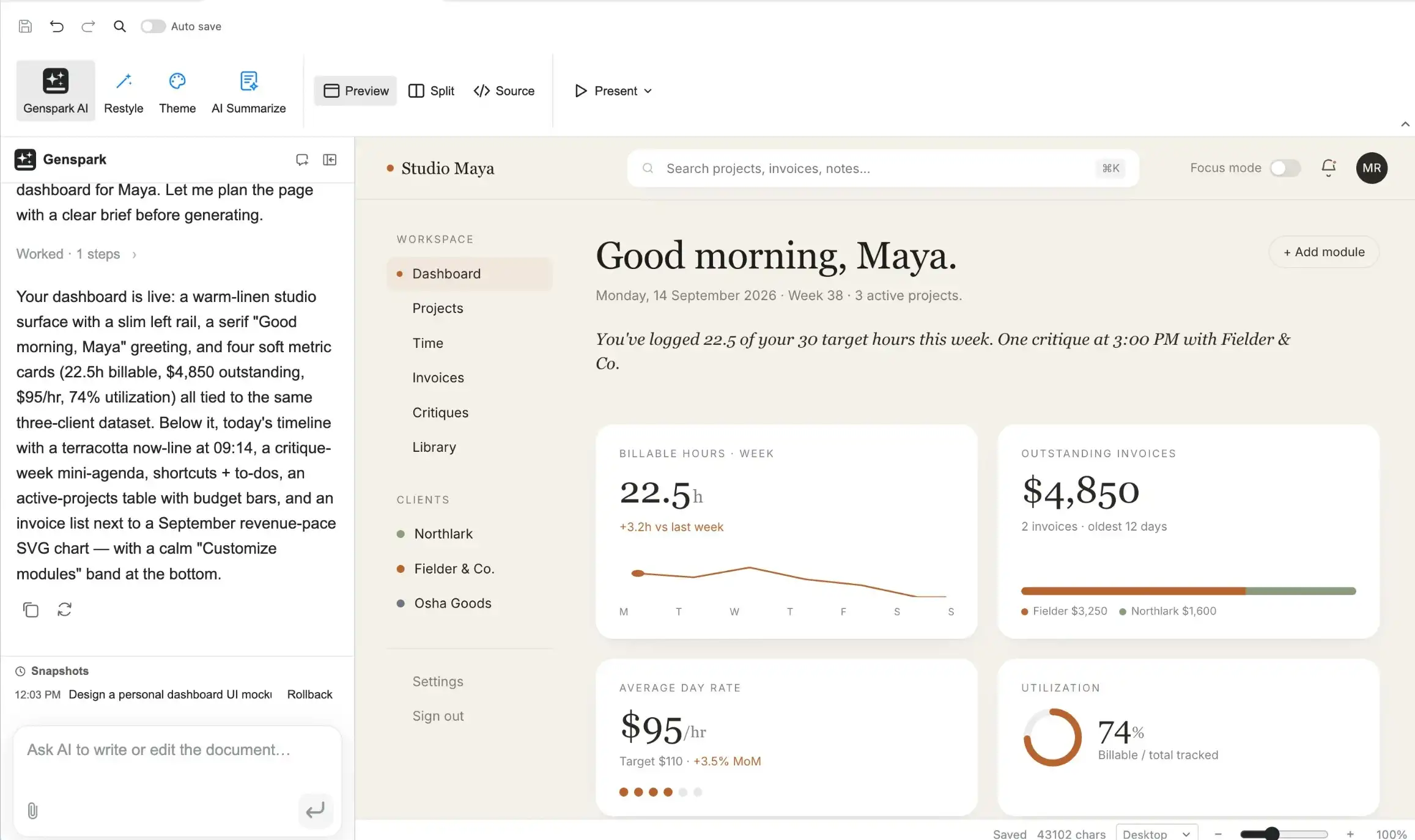
You probably use AI to write documents, summarise spreadsheets or create presentations. But what happens when you want it to make changes directly to the files you’re already working with?
That’s what GenOffice is built for.
It’s a free, open-source Office suite for Windows, macOS and Linux, with separate editors for Word, Excel, PowerPoint and PDF files. The difference is that each editor has an AI agent built into it, so you can ask it to rewrite sections of a document, build a spreadsheet with working formulas or create an editable PowerPoint presentation.
You can also review what the AI changes. In Docs, edits can appear as tracked changes, while Sheets can generate live formulas and charts instead of simply pasting numbers into cells. You can undo changes or roll them back if something doesn’t look right.
It also handles PDF editing and conversion locally, and lets you use your own API key or connect a local model through a compatible endpoint. Your documents stay on your computer during normal editing and file conversion, but AI requests sent to a cloud provider will still share the relevant content with that provider.
There’s even a CLI and MCP server, allowing tools such as Claude Code and Codex to create and edit real Office files without opening the desktop app.
If you work with documents, spreadsheets or presentations regularly, GenOffice gives you a way to bring AI into that workflow without giving up the files and formats you already use.
Platforms Supported: Windows, macOS and Linux
Beyond the Chat Window
The real appeal of these tools is that they don’t all try to do the same thing. Some take repetitive work off your hands, others give you more control over how AI works with your files, code and research.
And because they’re open source, you can explore how they’re built, adapt them to your needs or even run parts of the workflow locally. Just remember that open source doesn’t automatically mean every feature is free or fully private. Some still rely on paid AI providers or external services.
If one of these solves a problem you keep running into, it’s worth giving it a try. You might find that the most useful AI tool isn’t another chatbot, but something that quietly takes an entire task off your plate.