


File Information
| Name | LightBulb – Application for Reducing Eyestrain from Computer Screens |
|---|---|
| Version | v2.6.3 (Stable Release) |
| File Size | Windows: ~16MB |
| Platforms | Windows |
| License | Open Source (MIT License) |
| Official Repository | GitHub / LightBulb |
Table of contents
Description
LightBulb is an innovative application designed to reduce eyestrain caused by prolonged exposure to computer screens, especially during late-night work sessions. By continuously adjusting gamma levels, LightBulb transitions the display color temperature from cool blue tones during the day to warm yellow hues at night. Its primary goal is to harmonize your screen’s color with your surrounding light sources, bright sunlight during the day and artificial lighting at night.
With minimal impact on system performance and a wide range of customization options, LightBulb helps ensure a more comfortable viewing experience while you work, allowing you to focus without discomfort.
Screenshots
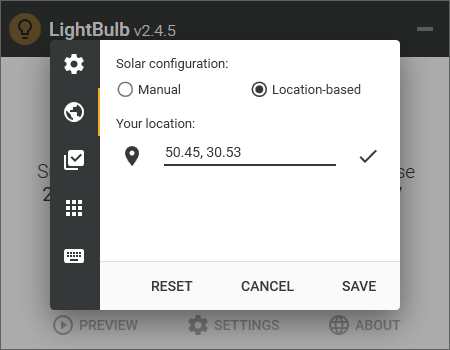
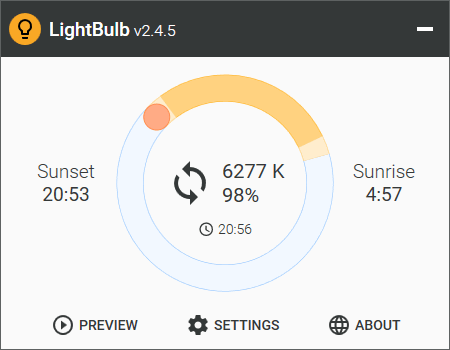
Features of LightBulb
| Feature | Description |
|---|---|
| Extensive Customization Options | Adjust color settings based on your personal preferences and work environment. |
| Location-Based Sunrise/Sunset Times | Automatically adjusts display settings based on your geographical location’s sunrise and sunset times. |
| Manual Sunrise/Sunset Times | Set specific sunrise and sunset times according to your working schedule. |
| Whitelist for Color-Sensitive Applications | Create exceptions for applications that require accurate color display. |
| Global Hotkeys | Use keyboard shortcuts for quick adjustments of display settings on the fly. |
| Smooth Gamma Transitions | Enables gradual changes in color temperature for a more natural experience. |
| Minimal Performance Impact | Designed to operate efficiently without consuming significant system resources. |
| Offline Functionality | Functions without an internet connection, ensuring uninterrupted use. |
System Requirements
| Platform | Minimum Specification |
|---|---|
| Windows | Windows 10 or newer, 2 GB RAM (4 GB recommended), 100 MB free disk space |
How to Install LightBulb??
Before installation, scroll down to the Download Section and select the correct installer for your system.
Windows (.exe)
- Download the Windows installer
.exe. - Double-click to run the installer.
- Follow the prompts in the installation wizard to complete the setup.
- Launch LightBulb from the Start Menu.
Download LightBulb: Best Solution for Reducing Eyestrain While Working Late
Terms of Use
By using this project or its source code, you implicitly agree to certain terms. For a comprehensive understanding of the terms of use, please refer to the official GitHub repository.
Conclusion
LightBulb stands out as a practical and effective solution for managing eye strain associated with extended screen time. With its customizable settings and minimal performance impact, it provides a comfortable viewing experience tailored to individual needs. Whether you work late hours or simply want to ease the strain of daily computer use, LightBulb is your go-to application for screen comfort. Download it today and protect your vision!




