


File Information
| File | Details |
|---|---|
| Name | Auto Dark Mode – Automatic Light & Dark Theme Switcher |
| Version | 11.0.0.54 |
| File Format Provided | .exe |
| Size | 102MB (x64 & x86) , 94MB (arm64) |
| Platforms | Windows 10 • Windows 11 |
| Architecture | x64 • x86 • ARM64 |
| License | Open Source (GPL v3.0 License) |
| Official Repository | GitHub AutoDarkMode |
| Category | Windows Utility • Productivity • Customization |
Table of contents
Description
Auto Dark Mode is an open-source Windows utility that automatically switches your system between light mode and dark mode based on time, sunrise, or sunset.
Platforms like Android, iOS & macOS already adapt their appearance throughout the day, Auto Dark Mode brings this experience to Windows, and does it with far more control & aflexibility than the built-in options.
Once set up, It works silently in the background. When the sun goes down, it switches Windows to dark mode to reduce eye strain. When daylight returns, it brings back light mode, no manual toggling required.
It can also change wallpapers, accent colors, mouse cursors, and even run custom scripts which makes it one of the most powerful Windows appearance automation tools available.
Use Cases
- Automatically switch between light and dark themes
- Reduce eye strain during night-time usage
- Match Windows appearance with day/night cycles
- Customize wallpapers and accent colors by time
- Maintain focus without manual theme changes
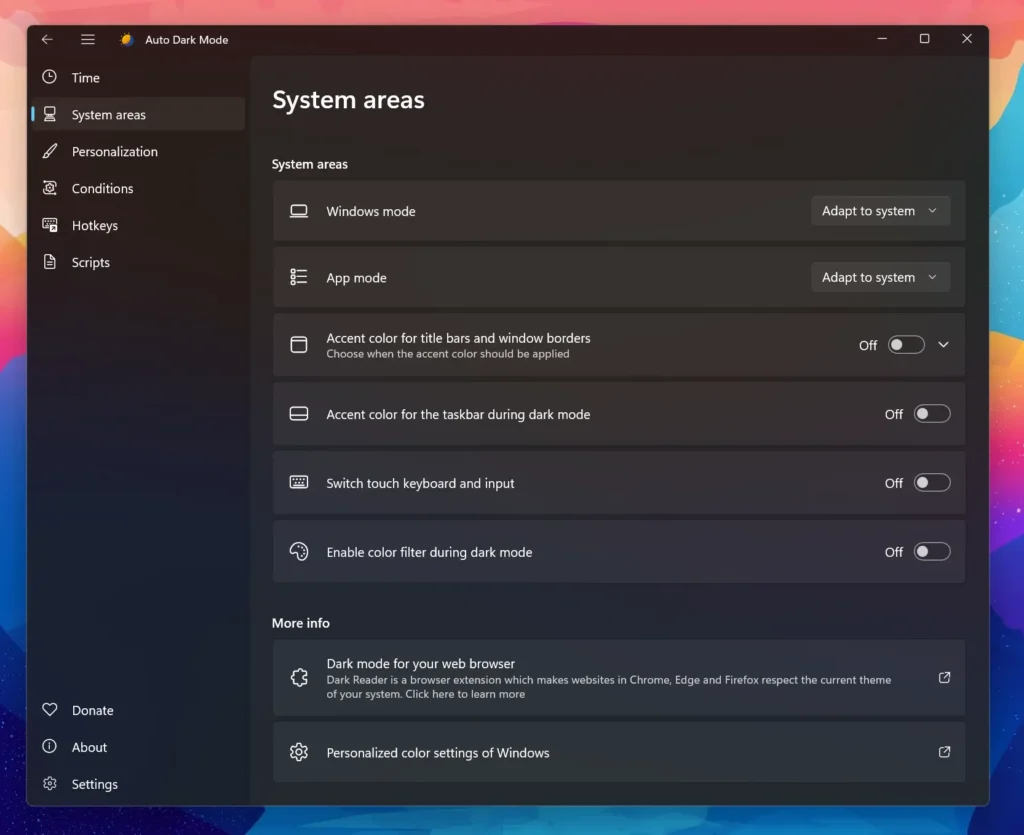
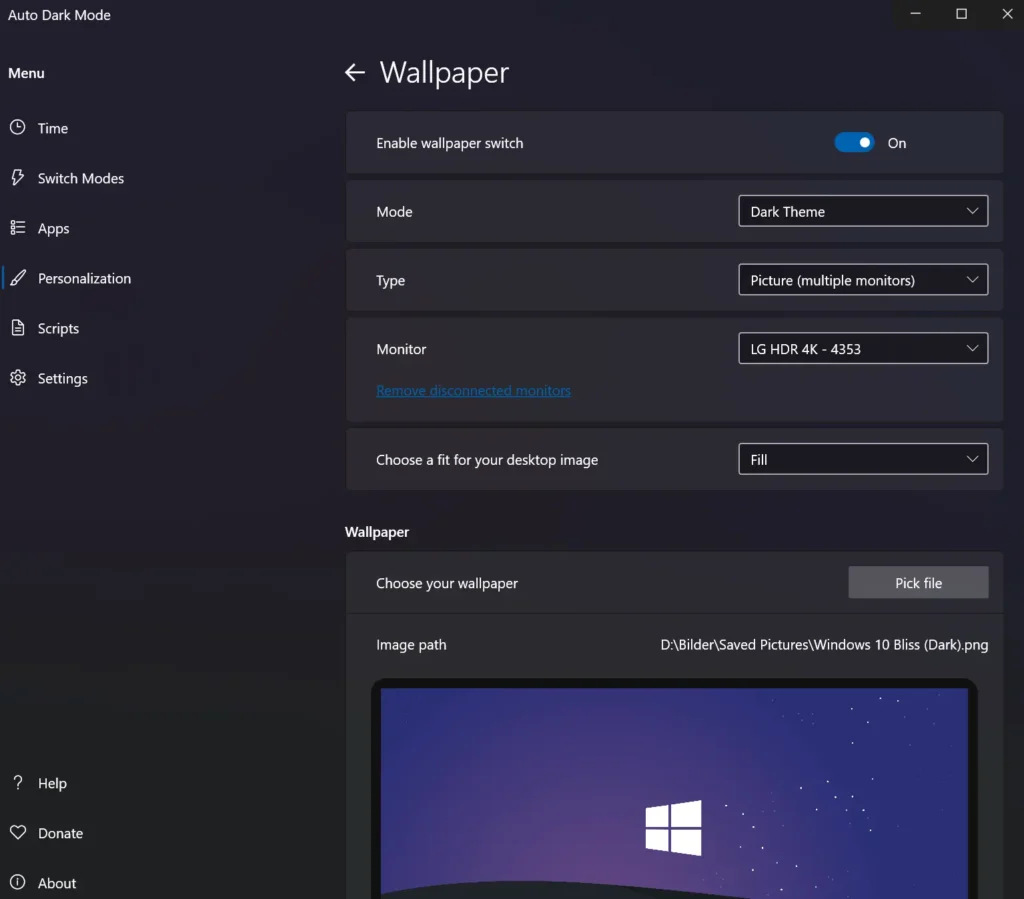
Screenshots
Features of Auto Dark Mode
| Feature | Description |
|---|---|
| Automatic Theme Switching | Switches between light and dark mode based on time or sunrise/sunset |
| Windows 10 & 11 Support | Fully compatible with modern Windows versions |
| Wallpaper Switching | Change desktop wallpaper automatically with themes |
| Accent Color Control | Toggle accent colors for taskbar, title bars, and UI |
| Mouse Cursor Switching | Automatically switch cursor themes |
| Game Detection | Prevents switching while gaming to avoid stuttering |
| Battery-Aware Mode | Enable dark mode automatically on battery-powered devices |
| Custom Scripts | Run scripts during theme changes |
| Keyboard Shortcuts | Quick manual override with hotkeys |
| Lightweight & Clean | No admin rights required, clean uninstall |
| Auto Updates | Keeps itself up to date automatically |
System Requirements
| Requirement | Details |
|---|---|
| OS | Windows 10 (22H2 or newer), Windows 11 |
| Architecture | x64 • x86 • ARM64 |
| RAM | 2 GB minimum |
| Disk Space | ~50 MB |
How to Install Auto Dark Mode??
- Download the installer matching your system architecture
- Double-click the
.exefile - Follow the setup instructions
- Launch Auto Dark Mode from the Start Menu
- Configure your preferred schedule and settings
Auto Dark Mode will now run in the background and manage theme switching automatically.
Recommended For You: QuickLook: macOS-Style Instant File Preview for Windows
Download Auto Dark Mode For Windows
Conclusion
Auto Dark Mode is one of those tools that installs once and earns its place forever. Ita protects your eyes, and gives you automated features for light & dark mode.
If you want your system to just feel right throughout the day, without thinking about it, Auto Dark Mode is an essential Windows utility.




