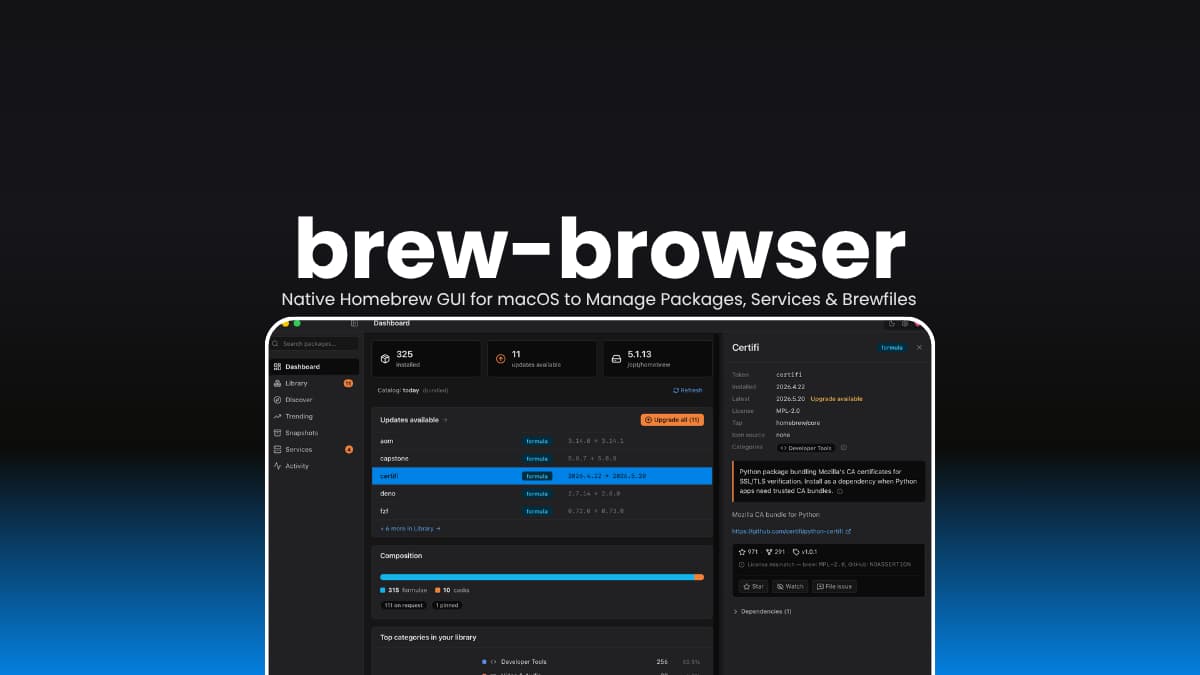

File info
| File | Details |
|---|---|
| Name | brew-browser |
| Version | v0.5.0 |
| Type | Homebrew GUI for macOS |
| Developer | Michał Sitarzewski |
| License | MIT License |
| Platform | macOS |
| GitHub Repository | msitarzewski/brew-browser |
Table of Contents
Description
brew-browser doesn’t replace Homebrew. It simply gives it a proper macOS interface.
You can see what’s installed, search thousands of packages, upgrade software, manage services, and create Brewfile snapshots without memorizing commands or keeping multiple terminal windows open. Everything still runs through the real brew CLI, so you’re not learning a new package manager or dealing with a compatibility layer.
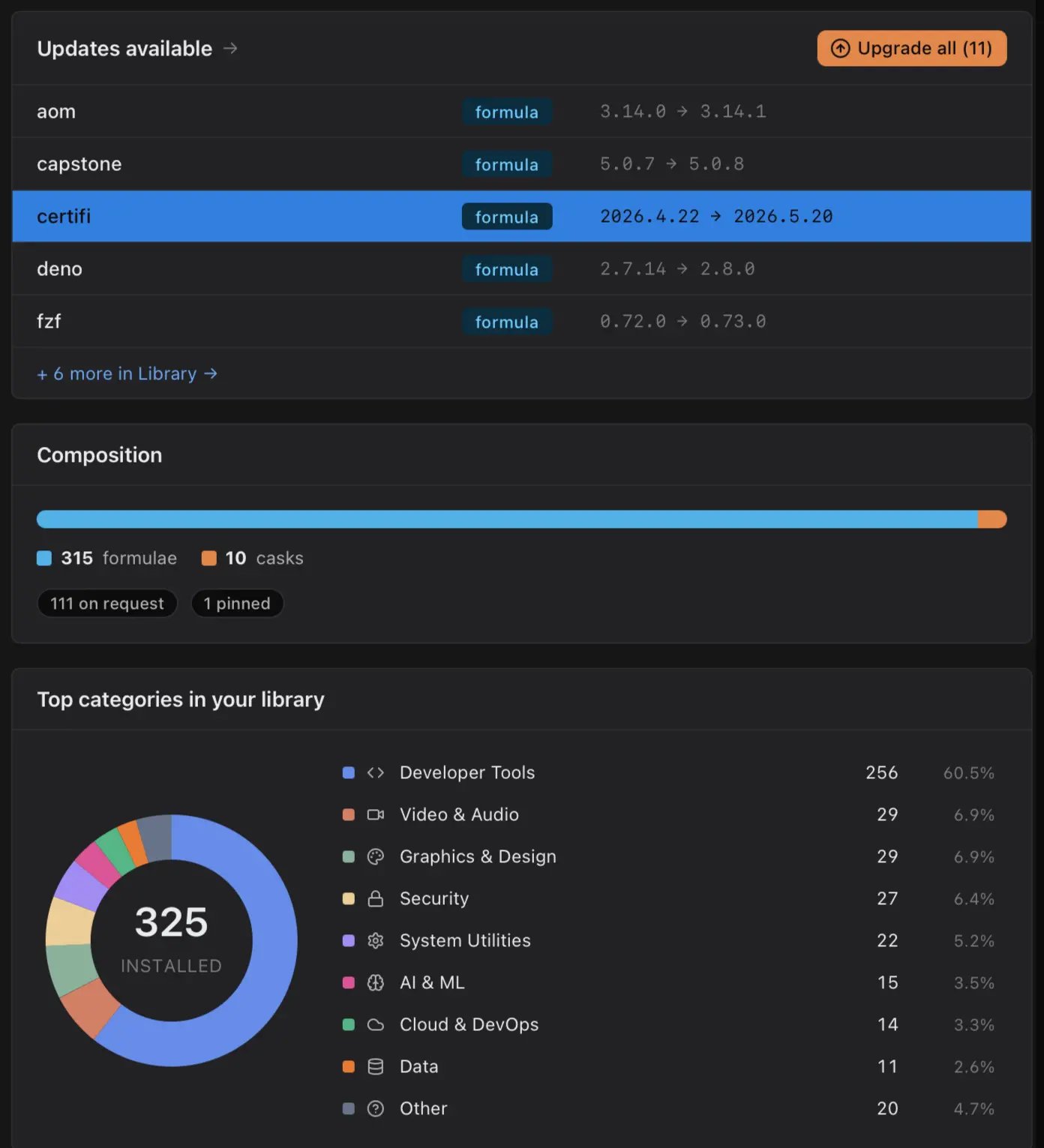
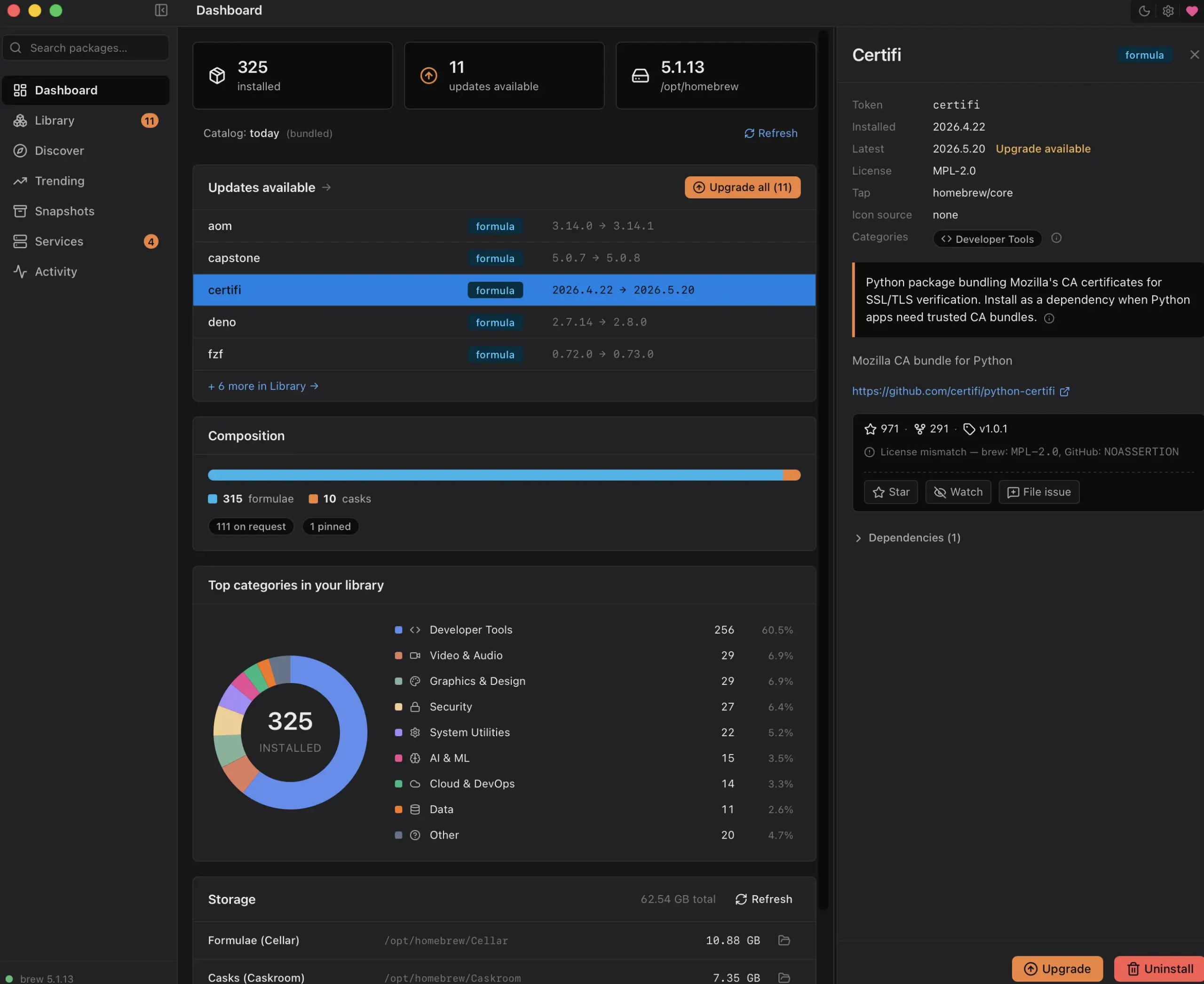
It can pull information into one place. Installed packages, available updates, storage usage, trending Homebrew packages, services, snapshots, and even optional vulnerability scanning all live inside a native desktop app that feels at home on macOS.
Use Cases
- Manage installed Homebrew packages without memorizing Terminal commands.
- Search thousands of formulae and casks from a native macOS interface.
- Create Brewfile snapshots and restore your setup on a new Mac.
- Start, stop, and monitor Homebrew services like PostgreSQL, Redis, or Nginx.
- Check for available updates, security issues, and package activity from one place.
Screenshots
Features of brew-browser
| Feature | Description |
|---|---|
| Dashboard | Overview of installed packages, updates, storage usage, and Homebrew status |
| Library | Browse all installed formulae and casks with filtering and sorting |
| Discover | Search thousands of Homebrew packages by name or category |
| Trending | View popular packages using Homebrew analytics data |
| Snapshots | Save and restore Brewfiles for migration and backups |
| Services | Start, stop, restart, and monitor Homebrew services |
| Security Scanning | Optional vulnerability checks using brew vulns |
| Activity Log | Live output from Homebrew commands with history |
| Package Details | View versions, descriptions, categories, and metadata |
| GitHub Integration | Optional repository stats, issues, and watch/star actions |
| Offline Mode | Disable all outbound network activity |
You May Like: AionUi: The Open Source AI Cowork App With Built-In Agents & Multi-Agent Automation
Command Palette & Shortcuts
| Shortcut | Action |
|---|---|
| Cmd + K | Open command palette |
| Cmd + 0 | Dashboard |
| Cmd + 1 | Library |
| Cmd + 2 | Discover |
| Cmd + 3 | Trending |
| Cmd + 4 | Snapshots |
| Cmd + 5 | Services |
| Cmd + 6 | Activity |
| Cmd + , | Open Settings |
System Requirements
| Component | Requirement |
|---|---|
| Operating System | macOS 13 Ventura or newer |
| Processor | Apple Silicon (M1, M2, M3, M4) |
| Architecture | ARM64 |
| Package Manager | Homebrew installed |
| RAM | 4 GB minimum |
| Disk Space | 200 MB+ recommended |
How to Install brew-browser on macOS
- Download the latest DMG release.
- Open the DMG file.
- Drag brew-browser into the Applications folder.
- Launch the application.
- Grant any permissions requested by macOS.
- brew-browser will automatically detect your Homebrew installation.
Download brew-browser
Why brew-browser Is Useful
Terminal users will probably continue using brew install and brew upgrade.
The advantage of brew-browser appears when you need visibility.
Seeing which packages are outdated, how much storage Homebrew is consuming, what services are running, or which packages have known vulnerabilities is often easier from a dashboard than from several terminal commands.
It’s particularly useful for developers who manage large Homebrew installations or regularly move between Macs using Brewfiles.