


File Information
| File | Details |
|---|---|
| Name | Goose |
| Version | v1.25.1 |
| Platforms | Windows , macOS & Linux |
| Size | 215MB (Windows) , 179MB (macOS) , 144MB (Linux) |
| License | Apache-2.0 License (Open Source) |
| Category | AI Development Agent |
| Github Repository | Github/Goose |
| Official Site | goose |
Table of contents
Description
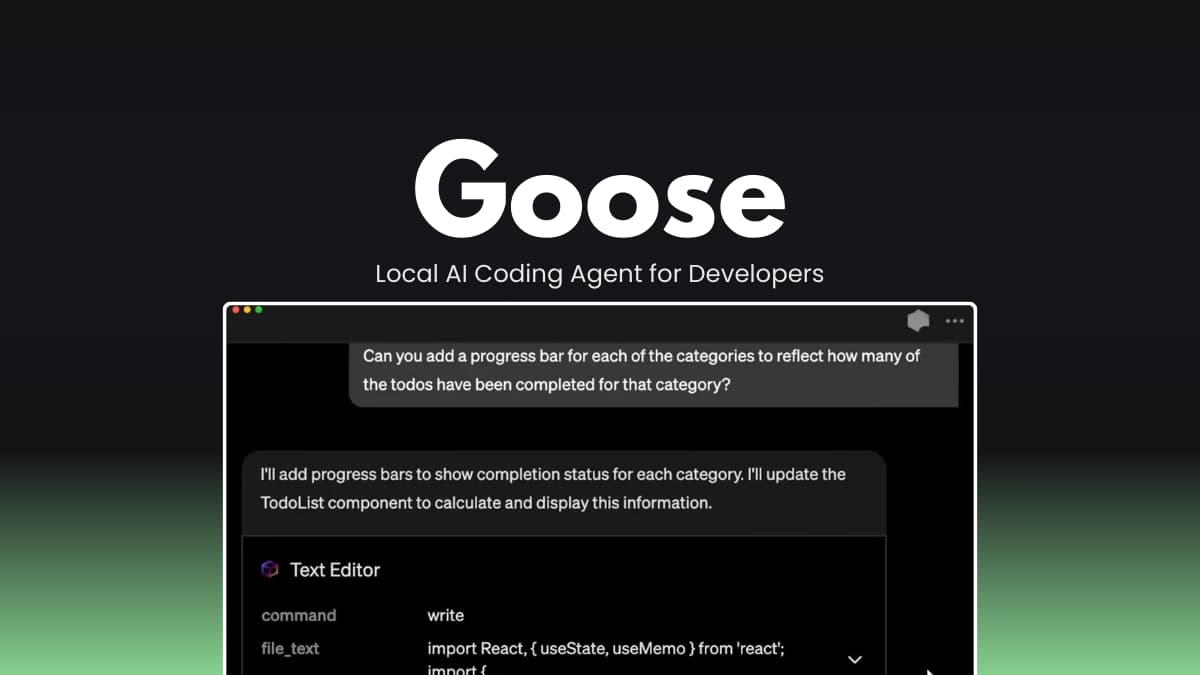
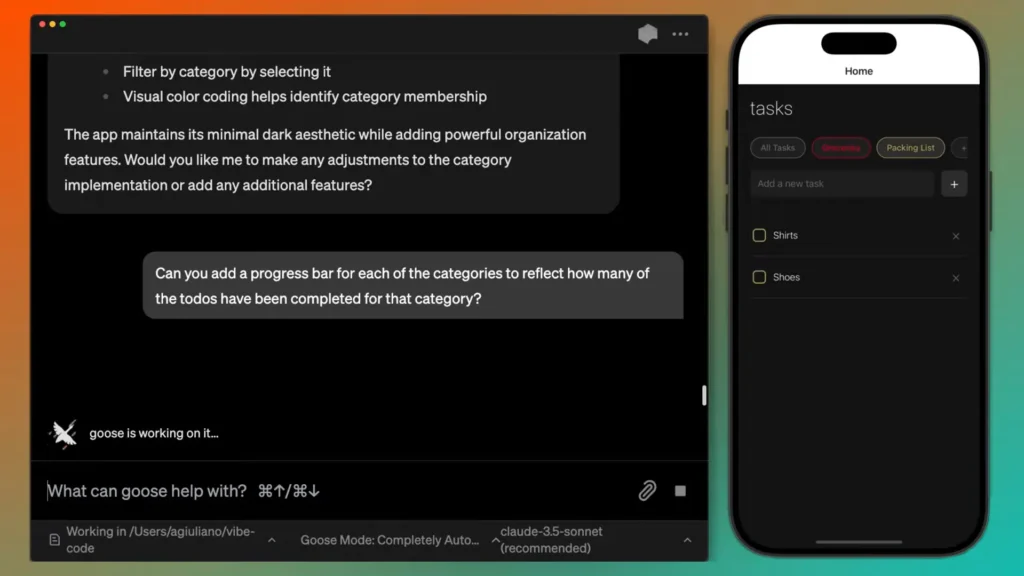
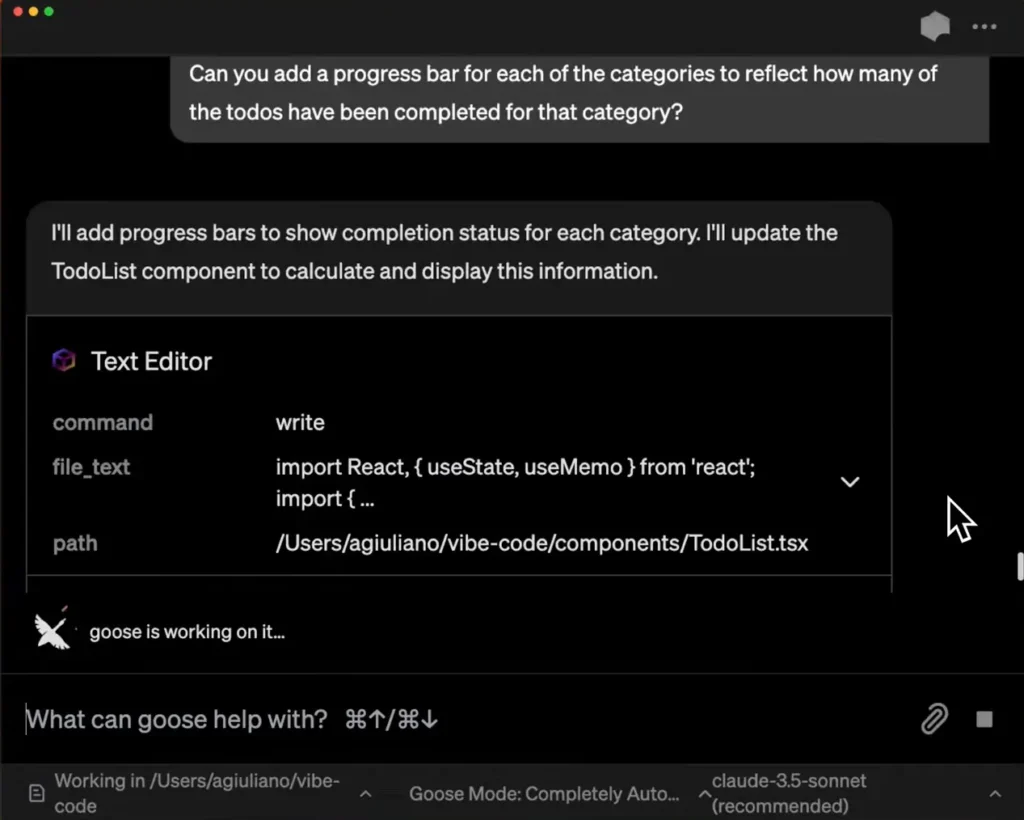
Goose is basically an AI agent that runs on your own machine. Instead of giving you snippets and waiting for the next prompt, it can create files, edit code, run commands, refactor modules, and handle multi-step tasks in one flow. You describe what you want, and it starts working through it step by step.
You can use Goose in two ways. There’s a desktop app if you like a visual interface, and there’s a CLI version if you prefer staying in the terminal. Both work similarly — it just depends on how you like to work.
What makes it flexible is model support. You’re not locked into a single provider. Goose can connect to OpenAI, Anthropic, Gemini, Groq, or even local models using Ollama. If you already have subscriptions to certain AI tools, you can route through their CLI instead of paying per API call.
It also supports extensions, which means it can do more than just edit code. It can interact with the filesystem, open a browser, cache data, and connect to external services depending on your setup.
Since Goose runs locally, your code stays on your machine. However, if you’re connecting to cloud-based AI providers, you’ll still need internet access. If privacy is important, you can configure it to work with fully local models instead.
Screenshots
Features of Goose
| Feature Area | What it Does |
|---|---|
| Local AI Agent | Runs on your machine and performs development tasks autonomously. |
| Full Project Creation | Can generate complete working apps, not just code snippets. |
| Code Execution | Writes and executes code directly within your environment. |
| Debugging Support | Identifies and fixes issues during development sessions. |
| Multi-Model Support | Works with multiple LLM providers (cloud or local). |
| Supported providers | Connects to OpenAI, Anthropic, Gemini, Groq, and local models via Ollama. Allows flexible configuration based on your preferred AI provider. |
| Desktop + CLI | Use graphical interface or command-line workflow. |
| Extension System | Add capabilities like browser control, automation, and integrations. |
| Local Model Support | Works with Ollama and other local model runners. |
| Session-Based Workflow | Maintains structured conversations for long-running development tasks. |
| Flexible Configuration | Switch providers and models anytime from settings. |
System Requirements
| Component | Minimum Requirement |
|---|---|
| Operating System | Windows 10+ (64-bit), macOS 11+, or modern Linux distribution |
| RAM | 8 GB recommended (4 GB minimum for small tasks) |
| Internet | Required for cloud LLM providers |
| Local Model Support | Requires Ollama or compatible local model runner |
How to Install Goose??
Windows (.zip)
- Download the Windows .zip package.
- Extract the archive.
- Run the executable file to launch Goose Desktop.
macOS (.zip)
- Download the macOS .zip file.
- Extract it.
- Move the application to Applications
- Launch the app.
Linux (.deb)
- Download the
.debfile. - Open your Downloads folder.
- Double-click the
.debfile. - Your system’s Software Installer will open.
- Click Install.
- Once installation is complete, open the app from your Applications menu.
Linux (.rpm)
- Download the
.rpmfile. - Open your Downloads folder.
- Double-click the
.rpmfile. - Your Software Manager will open.
- Click Install.
- Launch the app from your Applications menu once installed.
Related: OpenCode Desktop: The Free Open Source AI Coding Editor
Download Goose Local AI Coding Agent
Conclusion
Goose isn’t just another coding assistant that throws out suggestions and waits for your next prompt. It’s designed to actually move work forward. Whether you’re building something from scratch, cleaning up an existing codebase, or automating repetitive development tasks, it acts more like an active helper than a passive tool.
It works well for developers building real applications, engineers who want to streamline parts of their workflow, and even power users experimenting with local AI setups. At the same time, it’s approachable enough for beginners. You can start with simple prompts and small projects, then gradually explore more advanced configurations as you get comfortable.
If you need deeper control, enterprise deployment options, or advanced integrations, the official Goose documentation explains those areas in more detail. Overall, Goose gives you a practical way to bring AI-driven automation into your development process without losing flexibility or control.




