


File Information
| Name | OpenCode Desktop – Free Open Source AI Coding Editor |
|---|---|
| Version | v1.18.23 |
| File Size | 100-150MB (May vary By OS) |
| Platforms | Windows • macOS • Linux |
| License | Open Source (MIT License) |
| Official Repository | GitHub OpenCode |
| Official Site | opencode |
Table of Contents
Description
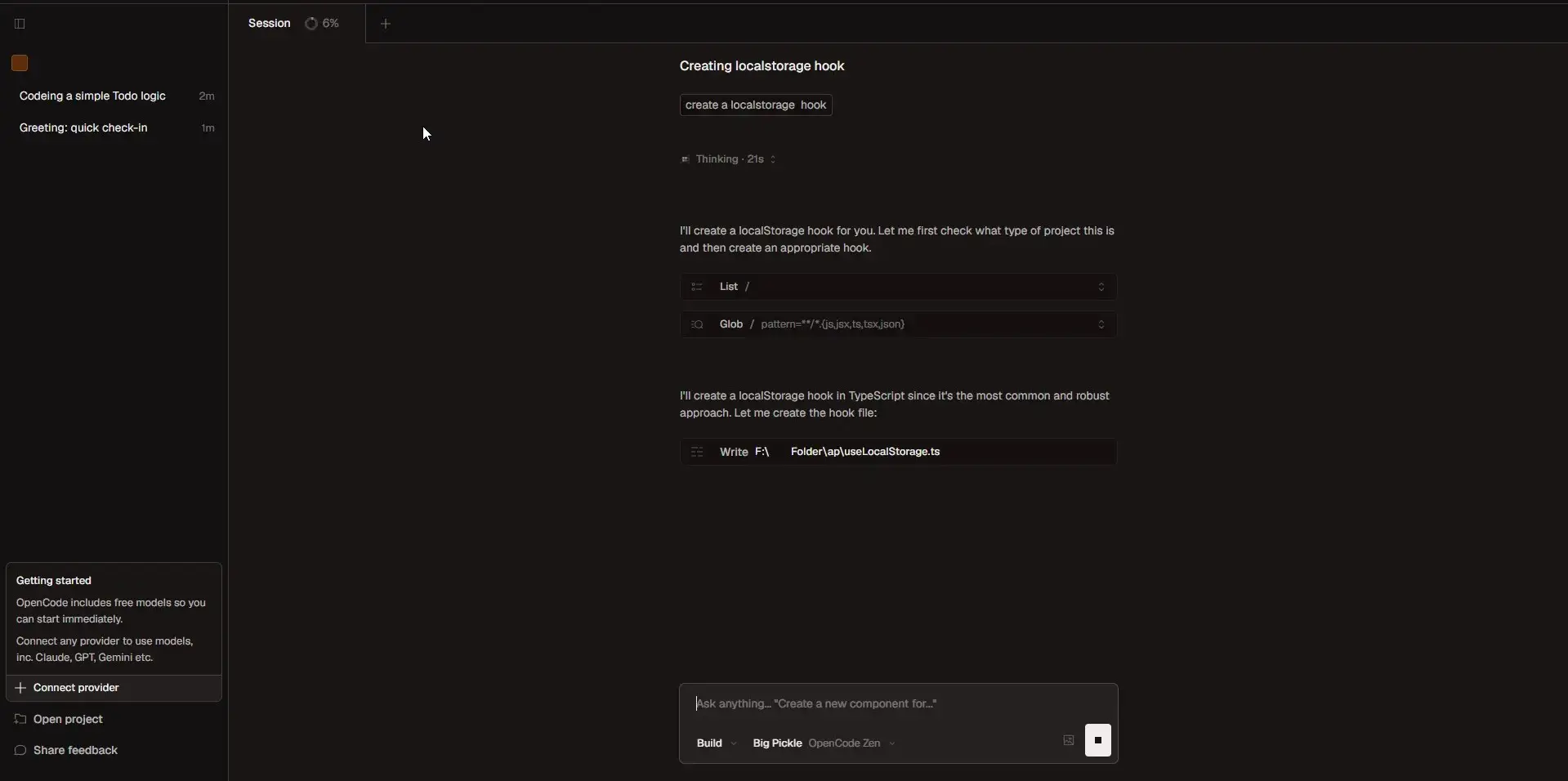
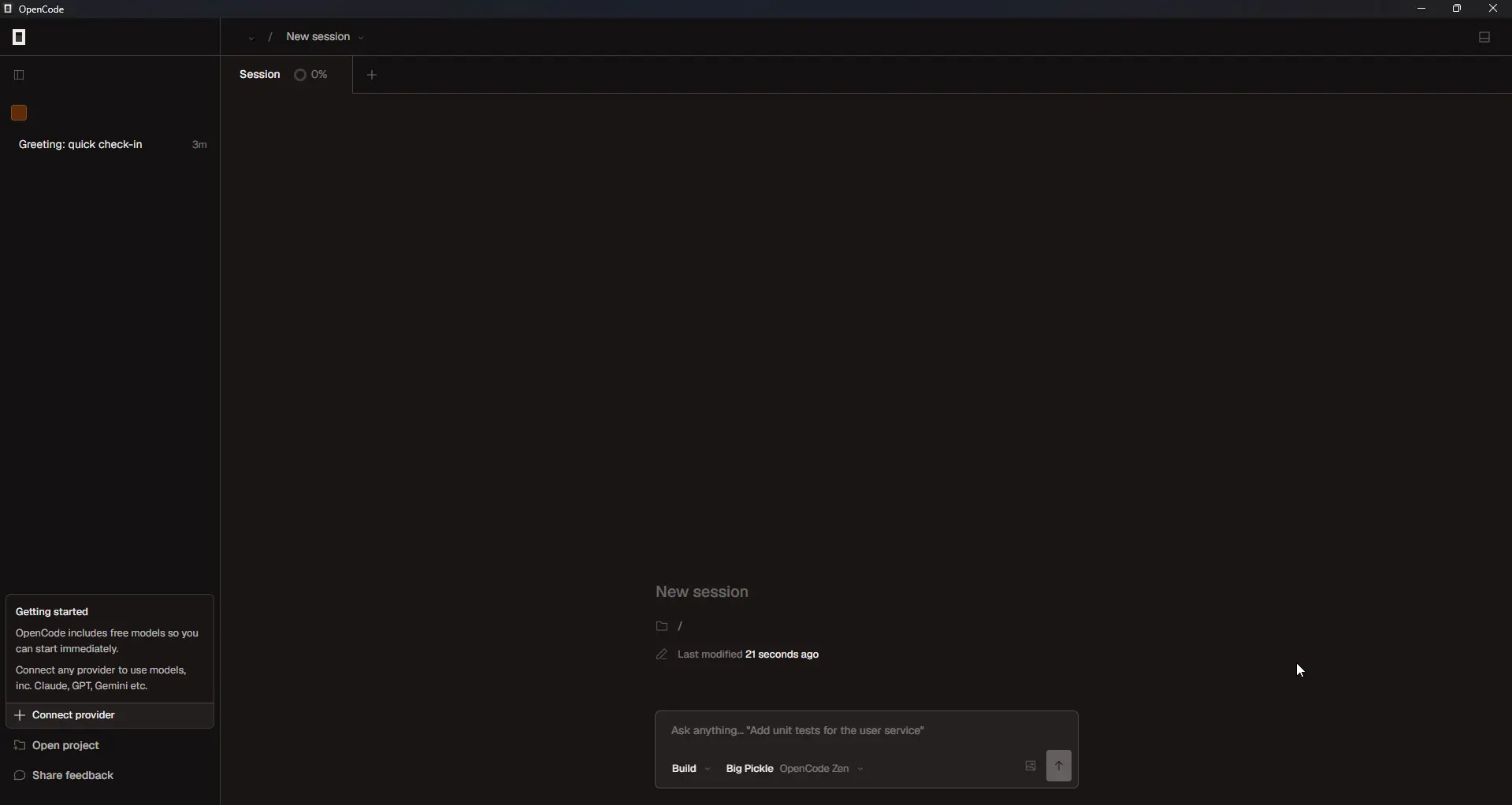
OpenCode Desktop is a powerful, open-source AI coding agent designed to help developers write, debug, and refactor code efficiently. With its GUI desktop version, OpenCode works like a full-featured code editor while integrating AI-powered coding assistance.
It supports multiple programming languages and offers multi-session support, real-time code suggestions, and integration with over 75 AI model providers, including Claude, GPT, Gemini, and many more. You can also use the free models included or connect your preferred model for enhanced coding productivity.
OpenCode Desktop preserves your privacy, it does not store any code or session data, making it safe for sensitive environments. Trusted by over 400,000 developers each month, and with 400 contributors, it’s a well-supported, community-driven project.
Screenshots
Features of OpenCode Desktop
| Feature | Description |
|---|---|
| AI-Assisted Coding | Get real-time code suggestions, completions, and fixes powered by AI models. |
| Free Models Included | Use the free models included with OpenCode or connect any model from 75+ LLM providers via Models.dev. |
| Multi-Provider AI Support | Connect models from Claude, GPT, Gemini, or your own hosted LLM. |
| LSP Enabled | Automatically loads the correct Language Server Protocols for your selected AI model. |
| Multi-Session | Start multiple agents in parallel on the same project. |
| Share Links | Share a link to any session for collaboration, debugging, or reference. |
| Cross-Platform | Native support for Windows, macOS, and Linux. |
| Any Editor | Available as a terminal interface, desktop app, and IDE extension. |
| Project & File Management | Organize multi-file projects easily within the GUI. |
| Syntax Highlighting & Themes | Multiple editor themes and syntax highlighting for better readability. |
| Integrated Terminal | Run commands and scripts directly inside the editor. |
| Plugin & Extension Support | Extend functionality with plugins or custom AI integrations. |
| Privacy-First | OpenCode does not store your code or session data. Safe for sensitive projects. |
| Community Support | Join over 400 contributors and thousands of monthly developers. |
System Requirements
| Platform | Minimum Specification |
|---|---|
| Windows | Windows 10 or newer, Intel/AMD 64-bit, 8 GB RAM (16 GB recommended), OpenGL-compatible GPU, 500 MB free disk space |
| macOS | macOS 11 or newer, Intel or Apple Silicon, 8 GB RAM, 500 MB free disk space |
| Linux | Modern Linux distribution (Ubuntu/Fedora/Arch), 64-bit processor, 8 GB RAM (16 GB recommended), OpenGL-compatible GPU, 500 MB free disk space |
How to Install OpenCode Desktop??
Windows (.exe)
- Download the Windows installer
.exe. - Double-click to run the installer.
- Follow the installation wizard prompts to complete setup.
- Launch OpenCode Desktop from the Start Menu and start coding.
macOS (.dmg)
- Download the macOS package
.dmg. - Open the package and drag OpenCode Desktop into your Applications folder.
- Open OpenCode Desktop from Applications.
- If macOS Gatekeeper alerts you, right-click to allow it to open.
Linux Installation (.deb / .rpm)
For Debian / Ubuntu (.deb)
- Download the .deb package from the download section below
- Open terminal and navigate to the download directory:
cd ~/Downloads
- Install the package using
dpkg:
sudo dpkg -i OpenCode-Desktop-1.x.x.deb
- Fix any dependency issues (if needed):
sudo apt-get install -f
- Launch OpenCode Desktop:
- From the application menu: search for OpenCode Desktop
- Or via terminal:
opencode-desktop
For Fedora / openSUSE / RPM-based distributions (.rpm)
- Download the .rpm package from the download section.
- Open terminal and navigate to the download directory:
cd ~/Downloads
- Install the package using
rpm(Fedora / openSUSE):
sudo rpm -i OpenCode-Desktop-1.x.x.rpm
- Alternatively, use
dnffor Fedora to handle dependencies automatically:
sudo dnf install OpenCode-Desktop-1.x.x.rpm
- Launch OpenCode Desktop:
- From the application menu: search for OpenCode Desktop
- Or via terminal:
opencode-desktop
Related: Goose: Open Source Local AI Coding Agent for Developers
Download OpenCode Desktop: Free & Open Source AI Coding Editor
You can visit the official OpenCode Documentation to know more about setting it up with different model providers and find more releases here
Advantages of Using OpenCode Desktop
- Fully Free & Open Source: MIT-licensed software with no costs or subscription fees.
- AI-Powered Coding: Accelerate development with real-time AI suggestions, error detection, and refactoring.
- Multi-Provider Model Support: Use free models or connect Claude, GPT, Gemini, and other AI models.
- Cross-Platform: Works seamlessly across Windows, macOS, and Linux.
- Professional Code Editor: Combines modern IDE features with AI assistance.
- Privacy-First: Does not store your code or session data.
- Community Support: Engage with over 400 contributors and a global developer community.
OpenCode Desktop empowers developers to write smarter, debug faster, and collaborate efficiently, bringing AI directly into your coding environment. Download today and experience the future of AI-assisted development!
Conclusion
OpenCode Desktop is a powerful, privacy-first, and fully open-source AI coding editor that brings advanced AI assistance directly into your development workflow. Whether you are a beginner learning to code, a professional developer managing complex projects, or someone exploring AI-powered development, OpenCode Desktop makes coding faster, smarter, and more efficient.