


File Information
| Name | Ditto – Advanced Windows Clipboard Manager |
|---|---|
| Version | v3.25.113.0 |
| File Size | 5.51 MB |
| Platforms | Windows |
| License | Open Source (GPL-3.0 license) |
| Official Repository | GitHub Ditto |
Table of contents
Description
Ditto is a powerful, lightweight, and open-source clipboard manager for Windows that dramatically enhances the standard Windows clipboard experience. Unlike the default clipboard, which only stores one item at a time, Ditto remembers everything you copy, allowing you to quickly access, search, and reuse previous clipboard entries whenever you need them.
If you’re a developer, writer, designer, student, or power user, Ditto helps you work faster by saving text, images, HTML content, and custom clipboard formats seamlessly in the background. Once installed, Ditto runs quietly in the system tray, capturing clipboard history without affecting system performance.
With an intuitive interface and blazing-fast search, Ditto makes it effortless to retrieve copied content even from days or weeks ago. It’s the perfect productivity tool for anyone who frequently copies and pastes information throughout the day.
Screenshots
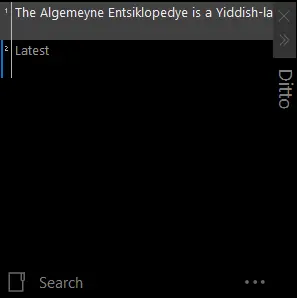
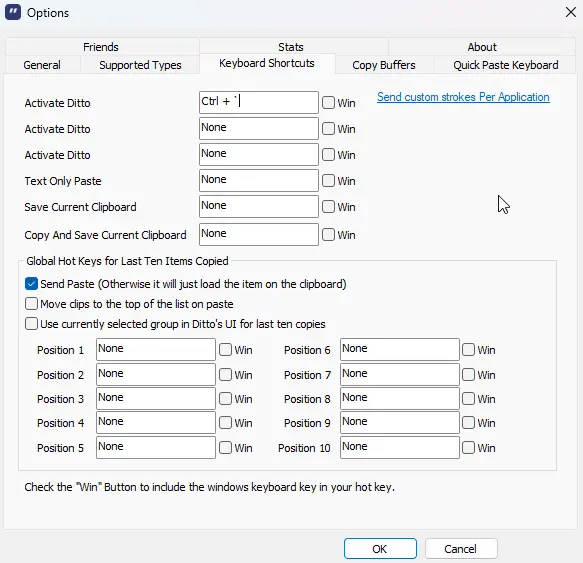
Features of Ditto Clipboard Manager
| Feature | Description |
|---|---|
| Clipboard History | Automatically saves every item copied to your clipboard for later use. |
| Supports Multiple Data Types | Store text, images, HTML, rich text, and custom clipboard formats. |
| Quick Access Hotkey | Open Ditto instantly using Ctrl + ` (customizable). |
| Fast Search | Quickly find past clipboard items using keyword search. |
| Lightweight & Fast | Minimal memory usage with excellent performance on all systems. |
| Open Source & Free | Fully free to use with transparent, community-driven development. |
System Requirements
| Platform | Minimum Specification |
|---|---|
| Windows | Windows 7 or newer, 64-bit processor, 2GB RAM (4GB recommended), minimal disk space |
How to Install Ditto Clipboard Manager??
efore installation, scroll down to the Download Section and choose the method that best suits your workflow.
- Download the Ditto installer.
- Run the
.exefile. - Follow the setup instructions.
- Launch Ditto, it will appear in the system tray.
Download Ditto Clipboard Manager For Windows
Basic Usage
- Run Ditto after installation.
- Copy any content using Ctrl + C.
- Open Ditto by:
- Clicking its system tray icon, or
- Pressing Ctrl + ` (default hotkey).
- Double-click or press Enter on any saved item to paste it into your active window.
Ditto remembers everything, so you never lose copied content again.
Recommended For You: CopyQ – The Ultimate Advanced Clipboard Manager for Windows, macOS & Linux
Advantages of Using Ditto
- Extends the Windows Clipboard: Overcomes the one-item clipboard limitation.
- 100% Free & Open Source: No ads, subscriptions, or hidden costs.
- Perfect for Power Users: Ideal for coding, writing, research, and multitasking.
- Fast & Reliable: Designed to work silently without slowing down your system.
- Multiple Installation Options: Installer, portable, package managers, and Store support.
Conclusion
Ditto is one of those rare tools that becomes indispensable once you start using it. By transforming the Windows clipboard into a powerful history-based system, it saves time, reduces frustration, and boosts productivity across all types of workflows.
If you copy and paste more than a few times a day, Ditto isn’t just helpful, it’s essential.