
File Information
| File | Details |
|---|---|
| Model | Z-Image Turbo |
| Text Encoder | Qwen Text Encoder |
| VAE Model | AE VAE Model |
| Z-Image Turbo Workflow | .json |
| License | Open Source (Apache Version 2.0) |
| Github Repository | Github/Z-Image |
Table of content
Description
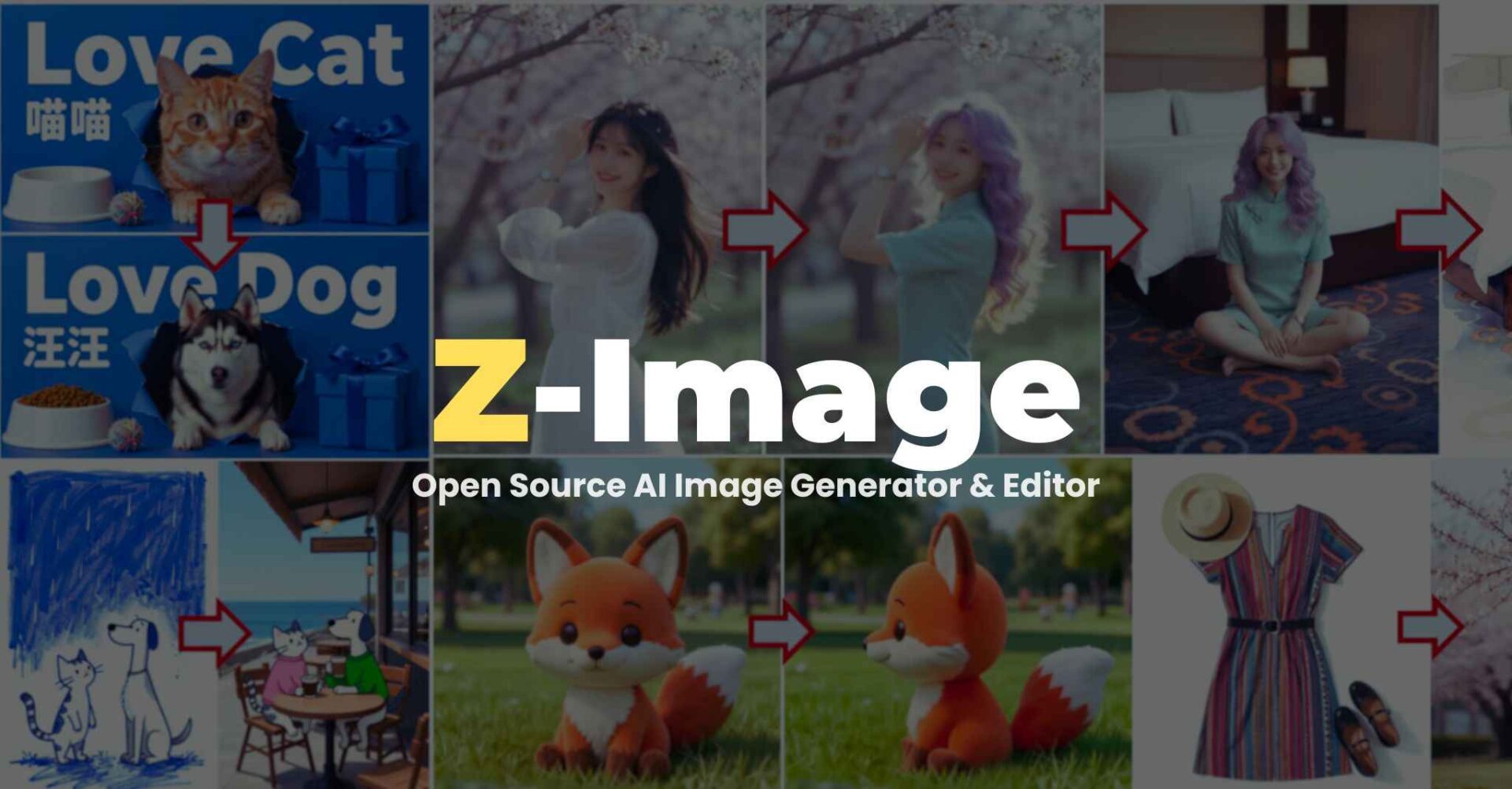
Z-Image is an efficient 6B-parameter image generation foundation model built by Alibaba Tongyi Lab. It is designed for fast inference, bilingual text rendering, photorealistic generation, and high-quality editing.
It uses an advanced Scalable Single-Stream DiT (S3-DiT) architecture, which merges text + semantic tokens + VAE tokens into one unified stream for maximum efficiency.
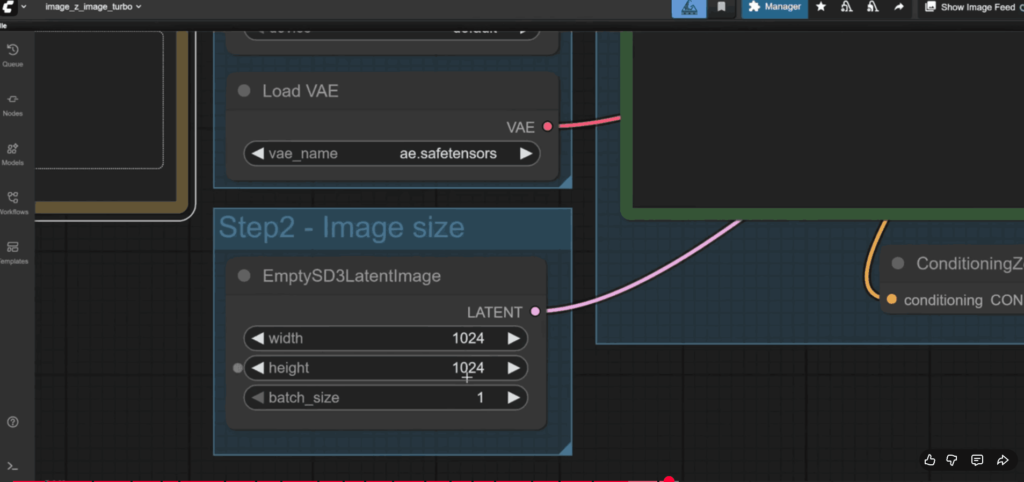
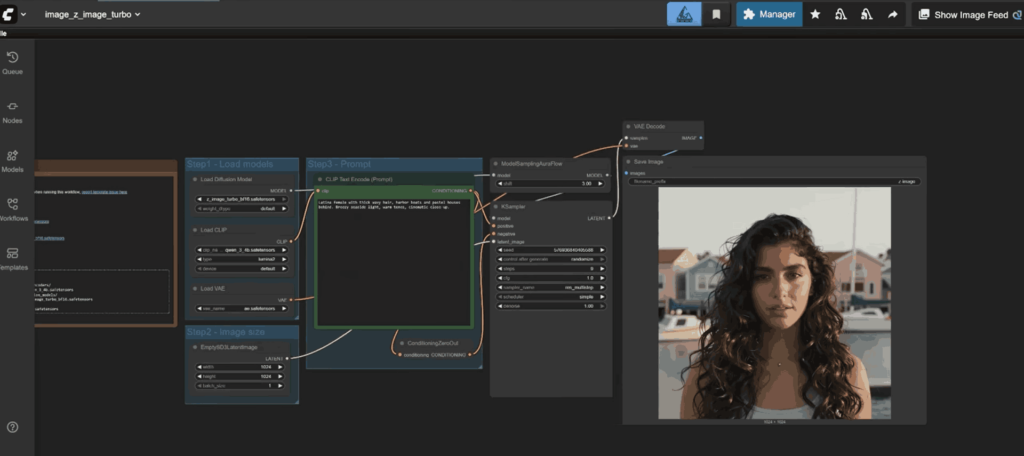
Screenshots
Features of Z-Image-Turbo + ComfyUI
| Feature Category | Details |
|---|---|
| Model Architecture | 6B-parameter Single-Stream Diffusion Transformer |
| Speed | Sub-second inference on H800 GPUs; 8-step generation |
| Variants | Z-Image-Turbo, Z-Image-Base, Z-Image-Edit |
| Text Rendering | Highly accurate bilingual (English + Chinese) text rendering |
| Photorealism | Strong aesthetics and realism in portraits, products & landscapes |
| Prompt Enhancer | Integrated reasoning assistance for better prompt alignment |
| Editing Power | Edit mode supports image-to-image, instruction-guided edits |
| Compatibility | Fully compatible with ComfyUI Nightly builds |
| Plugin Support | Works with custom ComfyUI nodes & extensions |
| Low VRAM Friendly | Runs on 16GB GPUs and even 4GB using stable-diffusion.cpp |
System Requirements
| Component | Minimum | Recommended |
|---|---|---|
| GPU | 8GB VRAM GPU | 16GB VRAM (RTX 4070/4080 / H800) |
| CPU | Any modern quad core | Ryzen 5 / Intel i5 or higher |
| RAM | 8GB | 16GB+ |
| Storage | 10GB free space | 20GB+ for models + workflows |
| OS | Windows 10+, macOS 12+, Linux (Ubuntu/Fedora/Arch) | Latest OS version |
| ComfyUI Version | Latest Nightly build | Must update through Manager → Update ComfyUI |
| Python (if using standalone) | 3.10+ | 3.10.6 (best compatibility) |
How to Install Z-Image-Turbo in ComfyUI??
1. Model Files You Need (for ComfyUI)
Text Encoder
Diffusion Model
VAE
2. Place Files in Correct Folder Structure (IMPORTANT)
Place the files like this:
📂 ComfyUI/
├── 📂 models/
│   ├── 📂 text_encoders/
│   │      └── qwen_3_4b.safetensors
│   ├── 📂 diffusion_models/
│   │      └── z_image_turbo_bf16.safetensors
│   └── 📂 vae/
│          └── ae.safetensors
If you put them in the wrong place then workflow won’t load.
3. Before You Start: Update Your ComfyUI
Z-Image requires latest ComfyUI version by following steps below:
- Open ComfyUI
- Go to Manager
- Click Update ComfyUI
- Restart ComfyUI
If you skip this step, you may get missing nodes, import errors, or workflow not loading.
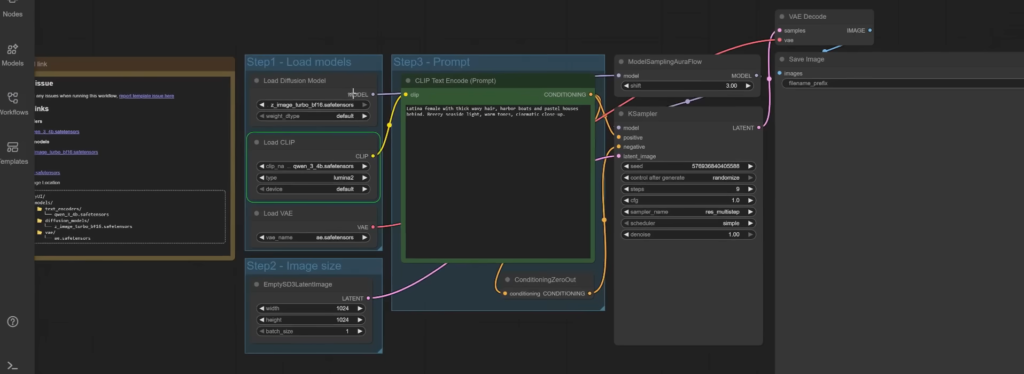
4. Load Workflow
- Download the Z-image Workflow From the Download Section
- Drag The Workflow File in your ComfyUI App
- Load the text encoder, diffusion model and vae in the Node
- Your Workflow should look like the below image
5.Write Your Prompt in the Prompt Node & Adjust the settings as per your requirements, click Run to Start generating images locally
Z image ComfyUI workflow For LowVRAM Devices
if your device has low vRam then you still can use Z-image , just use GGUF version of the original model , all you need to do is to Download the LowVRAM Workflow for your app and follow the instructions given in the workflow, like downloading quantized model, vae etc.
Download Z-Image-Turbo ComfyUI Workflow
Conclusion
Z-Image Turbo stands out as one of the most efficient and high-quality open-source image generation models available today. With its powerful 6B-parameter Single-Stream DiT architecture, bilingual text rendering, sub-second inference speed, and exceptional photorealistic output, it delivers performance that not only rivals but often exceeds many popular models like Stable Diffusion XL, Flux, and Stable Cascade, all while using significantly fewer computation steps.
When combined with ComfyUI, the entire workflow becomes plug-and-play: easy model placement, drag-and-drop workflows, fast GPU acceleration, and broad community support. Whether you’re a creator, researcher, or someone experimenting with AI art, Z-Image Turbo gives you professional-grade output without the complexity or heavy hardware requirements.