


File Information
| Property | Details |
|---|---|
| Name | Oracle VirtualBox: Open Source Virtualization Software |
| Version | 7.1 (Latest Stable Release) |
| File Size | Windows: ~168 MB (.exe) • macOS: ~152 MB (.dmg) • Linux: ~127 MB (.run) |
| Platforms | Windows • macOS • Linux • Solaris |
| License | GNU General Public License (GPL v3) |
| Official Repository | VirtualBox GitHub |
| Official Site | virtualbox |
Table of contents
Description
Oracle VirtualBox is one of the most powerful and reliable open source virtualization platforms designed for modern systems. It allows users to run multiple operating systems on a single computer with ease — making it a favorite tool for developers, testers, IT professionals & anyone who needs cross-platform flexibility.
Developed by Oracle Corporation, VirtualBox delivers a complete virtual environment for creating & managing virtual machines (VMs). It supports popular guest systems including Windows, Linux, macOS, Solaris, BSD, and many more. Whether you’re testing software, running older OS versions, or creating isolated environments for security, VirtualBox does it all.
The platform’s intuitive graphical interface, seamless hardware integration & advanced networking capabilities make it a go-to solution for both beginners and professionals. You can even simulate multiple operating systems side-by-side — all without rebooting your computer.
With VirtualBox, performance meets freedom, it’s completely free and open source, under the GNU General Public License (GPL), offering enterprise-grade features without any licensing costs.
Features of VirtualBox
| Feature | Description |
|---|---|
| Cross-Platform Virtualization | Run multiple OS environments simultaneously — Windows, Linux, macOS, Solaris & BSD. |
| User-Friendly Interface | Intuitive GUI designed for easy VM setup & configuration. |
| Seamless Integration | Shared folders, clipboard & drag-drop support between host & guest systems. |
| Flexible Networking | Supports NAT, Bridged, Host-Only & Internal networking modes for complex testing. |
| Snapshots & Cloning | Save system states instantly or clone VMs for rapid replication. |
| Hardware Virtualization | Leverages Intel VT-x & AMD-V for near-native performance. |
| Guest Additions | Optimize virtual machine performance with advanced graphics & input features. |
| Command-Line Management | Offers full control through VBoxManage for automation & scripting. |
| USB & Peripheral Support | Connect USB devices & external hardware directly to guest OS. |
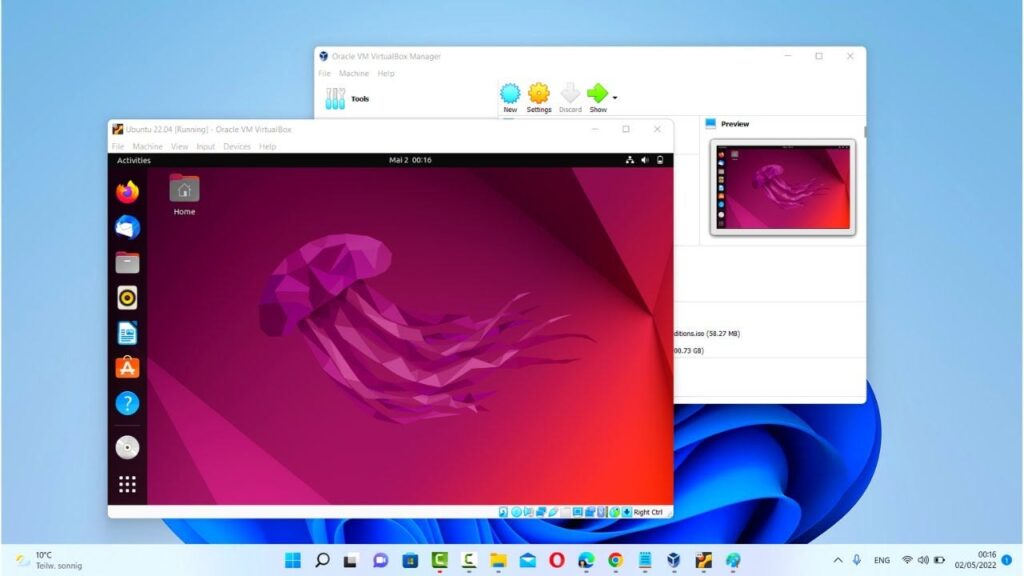
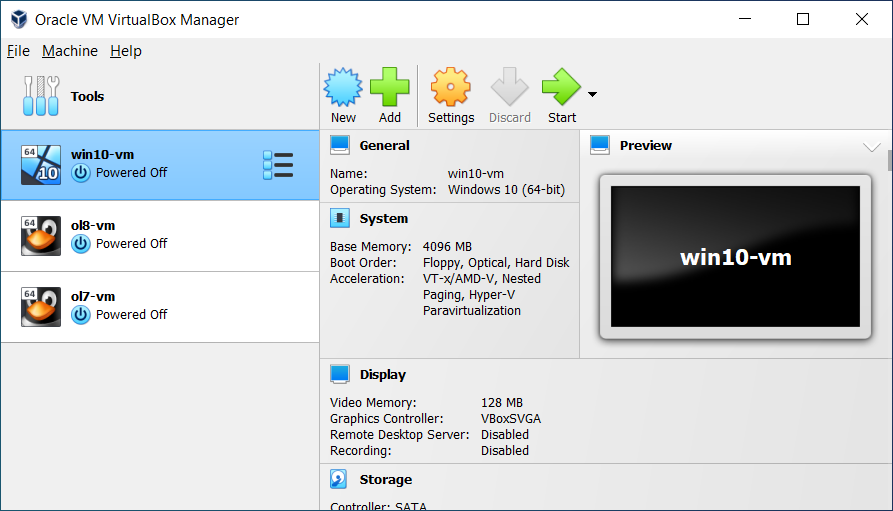
Screenshots
System Requirements
| Component | Minimum Requirement |
|---|---|
| CPU | 64-bit processor (Intel or AMD) with hardware virtualization (VT-x/AMD-V) |
| RAM | 4 GB minimum (8 GB recommended) |
| Storage | At least 200 MB for installation + space for virtual machines |
| GPU | Any modern GPU with OpenGL 2.1 or higher |
| Operating System | Windows 10/11 • macOS (Intel/ARM) • Linux (major distros) |
| Virtualization Support | BIOS/UEFI must have hardware virtualization enabled |
How to Install VirtualBox??
Before installation, download the required setup file by scrolling to the download section below. Choose your platform and get started.
Windows (.exe)
- Download the VirtualBox Windows Installer (.exe).
- Double-click the file to launch the setup wizard.
- Follow the on-screen steps & choose the installation directory.
- Complete the installation & launch VirtualBox from the Start Menu.
macOS (.dmg)
- Download the VirtualBox macOS package (.dmg).
- Open the file and drag VirtualBox.app to the Applications folder.
- If macOS restricts the app, go to System Preferences → Security & Privacy → Allow Oracle America, Inc.
- Start VirtualBox from Launchpad or Finder.
Linux (.run)
- Download the VirtualBox Linux Installer (.run).
- Open the terminal in the directory where the file is saved.
- Grant execution permission using:
chmod +x VirtualBox-7.1.run - Run the installer:
sudo ./VirtualBox-7.1.run - Launch VirtualBox using the application menu or
virtualboxcommand.
Why Choose VirtualBox?
- 100% free & open-source
- Cross-platform compatibility across major OS
- Perfect for developers, software testers, and learners
- Run legacy or experimental systems safely inside a VM
- Lightweight & highly configurable with professional-grade features
Download VirtualBox: Free Virtualization Software for Windows, macOS & Linux
Conclusion
Oracle VirtualBox remains the #1 open source virtualization software for Windows, macOS & Linux users. It’s fast, flexible & feature-packed — empowering you to create, test, and run multiple operating systems effortlessly. Whether you’re a developer, researcher, or student, VirtualBox delivers the perfect balance of stability, control & freedom.
Download VirtualBox today and experience the future of open-source virtualization technology!




