


File Information
| Name | VibeVoice with ComfyUI Integration |
|---|---|
| Version | Latest Release |
| License | MIT License (Free & Open Source) |
| Platforms | Windows, macOS, Linux |
| File Types | Source code, Python dependencies |
| Category | Text-to-Speech & Conversational AI |
Table of contents
Description
VibeVoice, developed by Microsoft, is a cutting-edge open source framework for generating expressive, multi-speaker conversational audio. By integrating it into ComfyUI’s modular workflow, you can now build natural, podcast-like dialogue with up to 4 speakers in one audio file. Whether you want to produce lifelike conversations, narrations, or long-form content, VibeVoice excels at delivering clarity, consistency & realism.
Unlike traditional TTS systems, VibeVoice allows zero-shot voice cloning – simply provide a short audio sample in .wav or .mp3 format, and it instantly recreates that speaker’s timbre. With advanced attention mechanisms like eager, sdpa, flash_attention_2 & the new high-performance SageAttention, developers have complete control over speed, memory usage & compatibility.
ComfyUI manages the heavy lifting by automatically downloading & optimizing models, so you don’t need to worry about manual setup. With optional 4-bit quantization, even GPUs with limited VRAM can run large VibeVoice models efficiently.
This combination makes VibeVoice with ComfyUI one of the best free alternatives to commercial AI speech tools, giving you the power to create professional-grade audio locally on your own machine, with full privacy & no vendor lock-in. You can also try the demo of large model here on HuggingFace Space
Scroll down, follow the installation steps, & start creating expressive multi-speaker dialogues today.
Features of VibeVoice by Microsoft
| Feature | Description | Benefit |
|---|---|---|
| Multi-Speaker TTS | Generate conversations with up to 4 unique voices in one audio output. | Perfect for podcasts, dialogues & storytelling. |
| Zero-Shot Voice Cloning | Clone any voice instantly from a .wav or .mp3 file. | No training required, highly natural results. |
| Advanced Attention Modes | Choose from eager, sdpa, flash_attention_2, or sage for optimized performance. | Flexibility between speed, memory efficiency & stability. |
| 4-Bit Quantization | Run large models in 4-bit mode with optimized configurations. | Save VRAM, run large models on mid-range GPUs. |
| Automatic Model Management | ComfyUI handles model download & VRAM management automatically. | Hassle-free setup, faster experimentation. |
| Fine-Grained Control | Adjust CFG scale, temperature, top_k, top_p & inference steps. | Customize speech style & performance easily. |
| Robust Compatibility | Works across eager, sdpa, & SageAttention with smart fallbacks. | Stable performance across different hardware. |
| Emergent Creativity | May generate music, spontaneous sounds, or expressive tones. | Adds natural, human-like spontaneity to generated audio. |
Screenshots
System Requirements
| Component | Minimum Requirement | Recommended Requirement |
|---|---|---|
| Operating System | Windows 10 or later, macOS 11+, Linux (64-bit) | Latest Windows 11, macOS Ventura, Ubuntu 22.04 |
| Processor | Intel i5 / AMD Ryzen 5 | Intel i7 / Ryzen 7 or higher |
| RAM | 8 GB | 16 GB or more |
| Storage | 4 GB free space | SSD for faster processing |
| GPU | 6 GB VRAM (NVIDIA recommended) | 12 GB+ VRAM for large models |
| Python | Version 3.10+ | Latest stable Python |
How to Download & Install VibeVoice with ComfyUI??
Before installation Download the supported version of ComfyUI from here
1. Install via ComfyUI Manager
- Open ComfyUI Manager.
- Search for ComfyUI-VibeVoice.
- Click Install.
- Restart ComfyUI & find the new VibeVoice TTS node under
audio/tts.
2. Manual Installation
- Navigate to your
ComfyUI/custom_nodes/directory. - Open a terminal & clone the repository:
git clone https://github.com/wildminder/ComfyUI-VibeVoice.git - Navigate into the folder:
cd ComfyUI-VibeVoice - Install dependencies:
pip install -r requirements.txt - (Optional) Install SageAttention for advanced performance:
pip install sageattention - Restart ComfyUI. The VibeVoice TTS node will now be available.
3. First Use
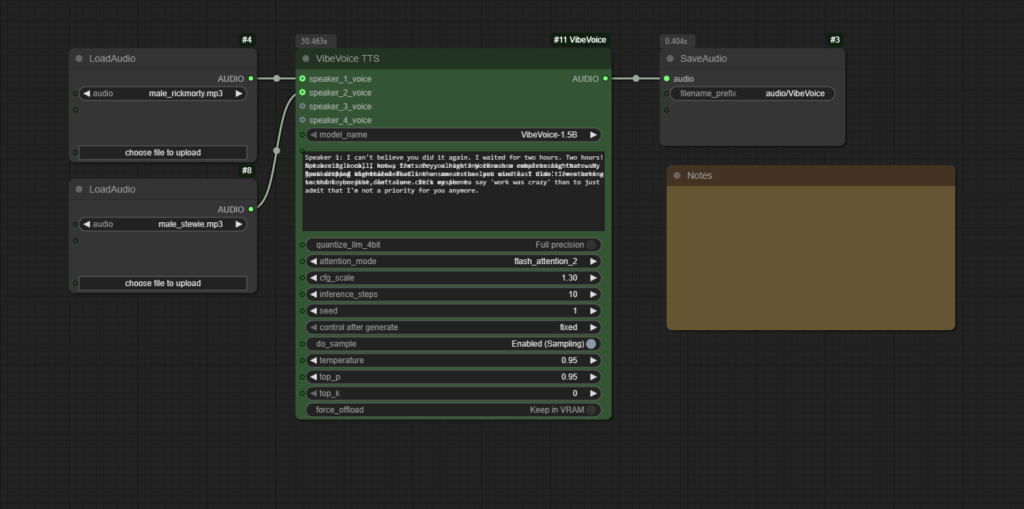
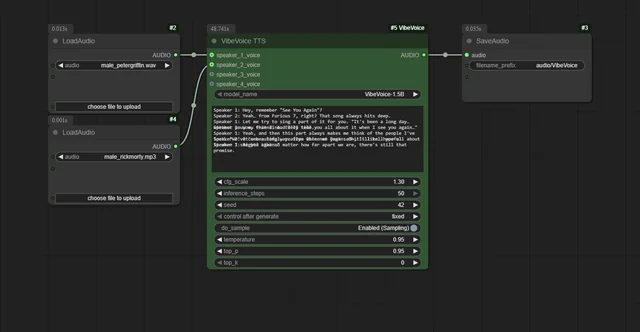
- Load reference audio files with ComfyUI’s Load Audio node.
- Connect them to the speaker inputs on the VibeVoice TTS node.
- Write your dialogue script in the text field (
Speaker 1: Hello,Speaker 2: Hi). - Queue the workflow to generate your conversation.
IF you like Open Source AI tools then you might definitely like our Open Source AI tool Collection




