



File Information
| Name | Tor Browser |
|---|---|
| Version | v12.5.1 (Stable) |
| License | Free & Open Source |
| Platforms | Windows, macOS, Linux |
| File Types | .exe for Windows, .dmg for macOS, .tar.gz for Linux |
| Category | Privacy & Security Browser |
Table of contents
Description
Tor Browser is one of the most trusted & secure open source browsers designed for users who value privacy & freedom online. Built on Mozilla Firefox, it integrates the powerful Tor network that helps protect your identity, hide your IP address & give you unrestricted access to the internet. Unlike regular browsers, Tor Browser routes your traffic through multiple volunteer-run servers, ensuring that your browsing remains anonymous & protected against surveillance.
This makes Tor Browser the best free browser for people who want to keep their digital activities private, bypass censorship & access content securely. Whether you are researching sensitive topics, avoiding tracking cookies, or simply want an ad-free & safe browsing experience, Tor Browser is a reliable choice trusted by millions worldwide.
Many users also search for alternatives to Google Chrome & Microsoft Edge that do not track their behavior, & Tor Browser stands out as the most powerful open source alternative. It is lightweight, easy to use, and provides automatic security configurations without needing extra plugins or add-ons.
With continuous updates, a strong open source community & support for multiple operating systems, Tor Browser is a must-have tool for anyone who takes privacy seriously. Download it today for Windows, macOS & Linux to experience fast, secure & private browsing.
Features of Tor Browser
| Feature | Details |
|---|---|
| Privacy First | Blocks trackers & hides your IP address automatically. |
| Access Everywhere | Unblock restricted websites & bypass censorship. |
| Multi-Layer Encryption | Uses Tor network to secure your traffic. |
| Open Source | Free to use with no vendor lock-in. |
| Cross-Platform | Works smoothly on Windows, macOS & Linux. |
| Built-in Security | Prevents fingerprinting & provides automatic HTTPS. |
Screenshots
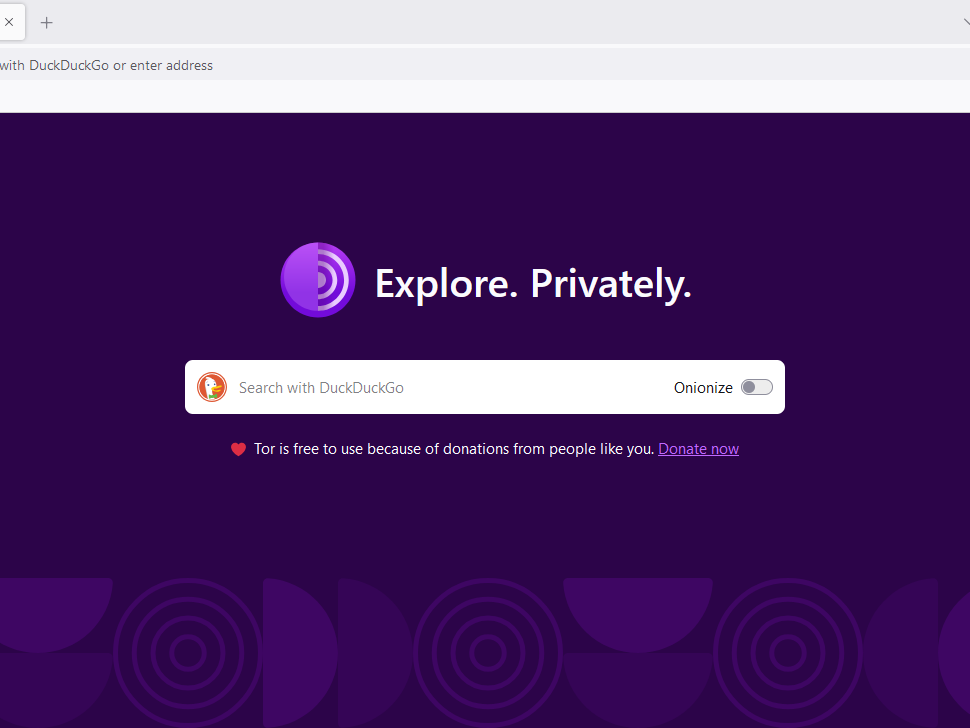
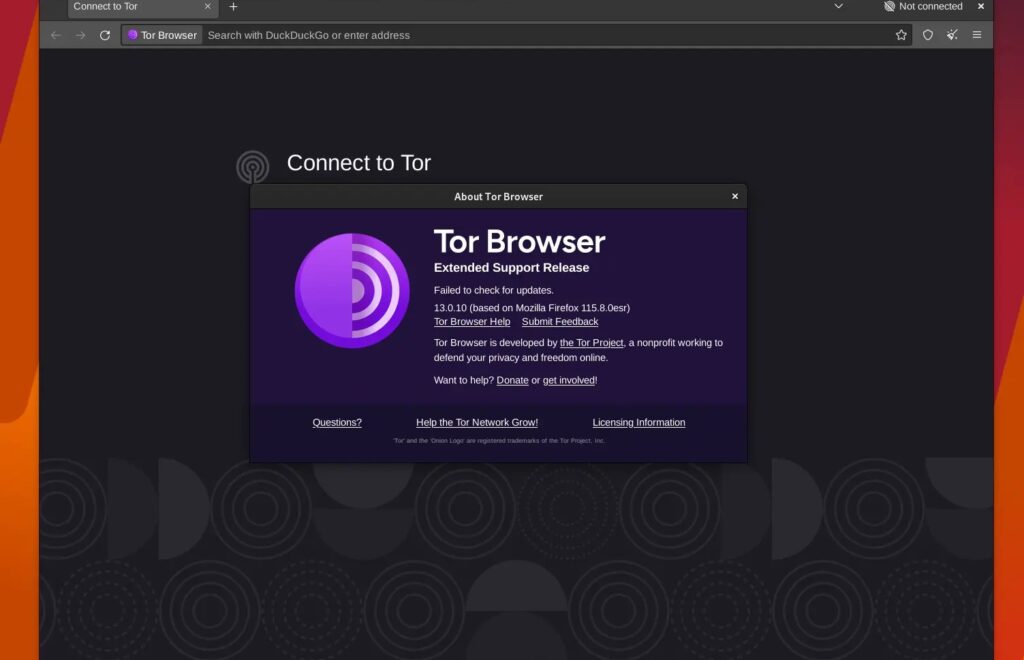
System Requirements
| OS | Minimum Requirement |
|---|---|
| Windows | Windows 7 or later, 2 GB RAM, 200 MB free storage |
| macOS | macOS 10.13 or later, 2 GB RAM, 200 MB free storage |
| Linux | Any modern distribution, 2 GB RAM, 200 MB free storage |
How to Install Tor Browser??
Before installation, Scroll down to the download section & download the file for your operating system.
Windows (.exe):
- Download the
.exefile. - Double-click it to launch the installer.
- Follow the setup wizard & choose your installation folder.
- Once installed, launch Tor Browser & connect to the Tor network.
macOS (.dmg):
- Download the
.dmgfile. - Open it & drag the Tor Browser icon to the Applications folder.
- Open Tor Browser from Applications.
- If macOS asks for confirmation, click “Open.”
Linux (.tar.gz):
- Download the
.tar.gzfile. - Extract it using your file manager or terminal.
- Open the extracted folder & run the
start-tor-browserscript. - Connect to the Tor network & begin browsing securely.
Tor Browser Free Download 2025 – Secure & Anonymous Browser
Support the Tor Project
Tor Browser is completely free & open source, developed by the non-profit Tor Project to protect online privacy & freedom of expression. If you find Tor Browser useful for secure browsing, anonymous communication & bypassing censorship, consider making a small donation. Your contribution helps the developers maintain servers, improve security updates & keep Tor free for everyone around the world. Visit the official Tor Project Donation Page




