


File Information
| File | Details |
|---|---|
| Name | Open Screen |
| Version | v1.3.0 |
| File Formats Provided | .exe • .dmg • .AppImage |
| Platforms | Windows • macOS • Linux |
| Size | 174MB (exe) • 202MB (dmg) • 207 (AppImage) |
| License | Open Source (MIT License) |
| Official Repository | GitHub Open Screen |
| Official Site | Open Screen |
| Category | Screen Recording • Product Demos • Walkthroughs |
Table of contents
Description
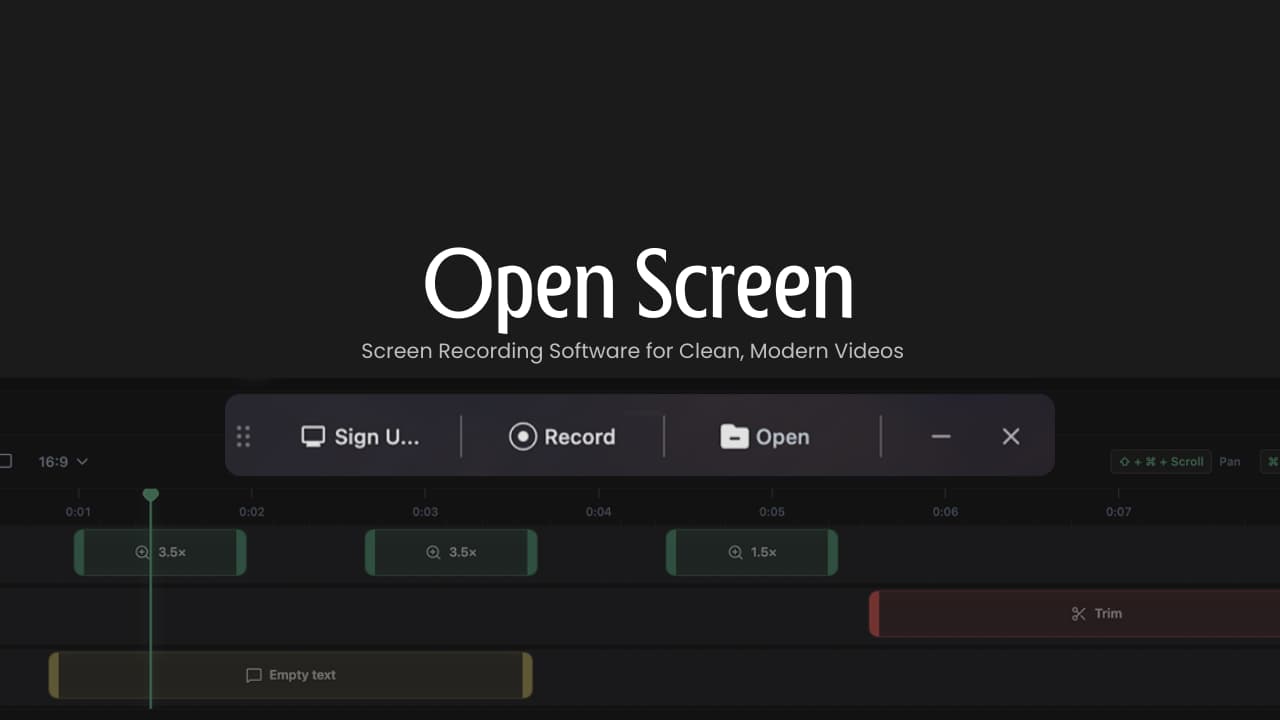
OpenScreen is a free and open-source screen recording application built for creating clean, modern product demos, walkthroughs, and tutorial videos without subscriptions or usage limits.
It focuses on the core features most creators actually need like screen recording, smooth zooms, annotations, trimming, and flexible exports. The goal is simplicity, control & zero lock-in.
It delivers a lightweight experience that’s ideal for developers, founders, educators & indie creators who want professional-looking recordings.
Use Cases
- Record product demos and feature walkthroughs
- Create startup explainer videos
- Capture tutorials and onboarding flows
- Make polished screen recordings with zoom focus
- Export videos for social media or documentation
Screenshots
Features of Open Screen
| Feature | Description |
|---|---|
| Screen & App Recording | Capture your entire screen or individual applications |
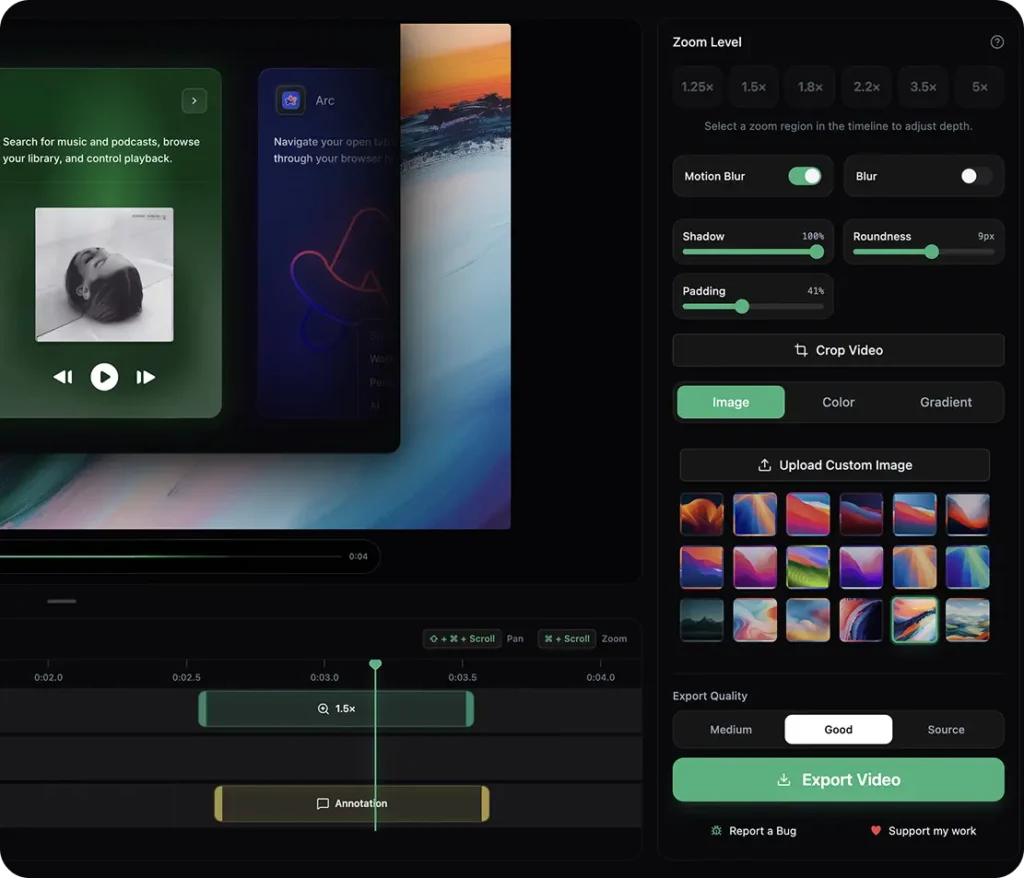
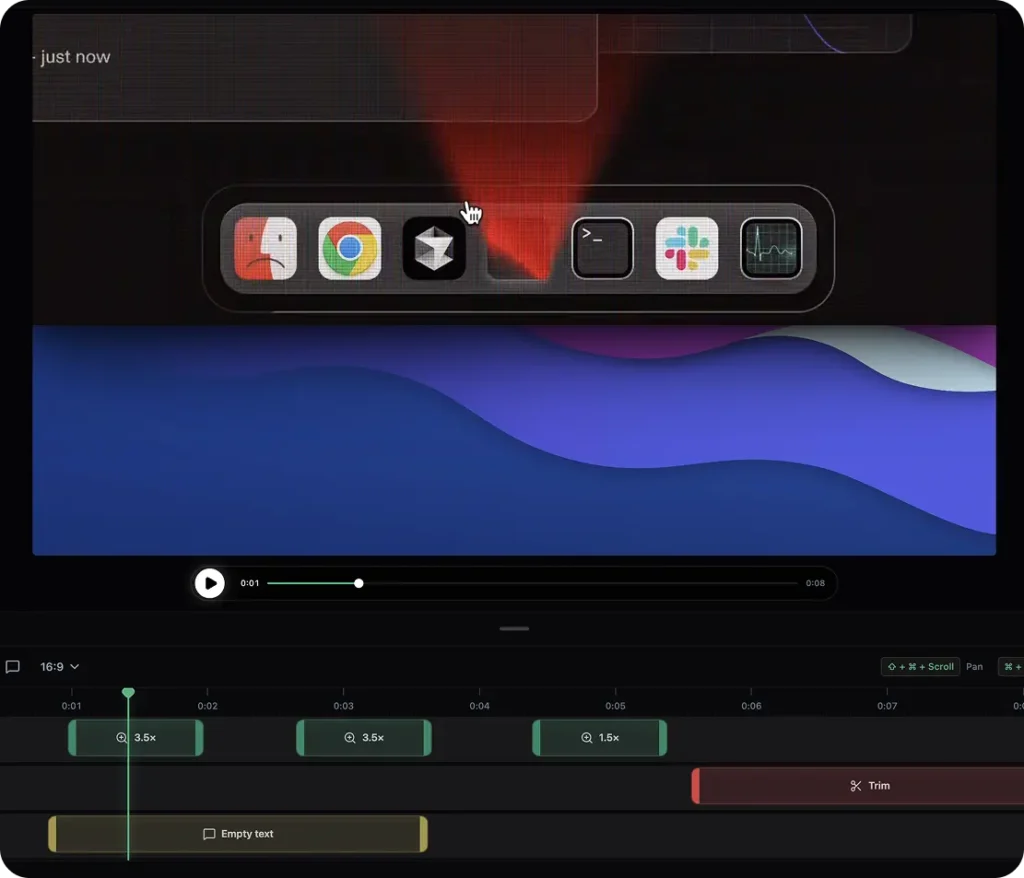
| Manual Zooms | Add smooth, customizable zooms with adjustable depth |
| Timeline Editing | Trim, crop, and fine-tune recorded segments |
| Background Control | Use wallpapers, gradients, solid colors, or custom images |
| Motion Effects | Motion blur and easing for smooth pan & zoom |
| Annotations | Add text, arrows, and images directly to recordings |
| Aspect Ratio Export | Export in 16:9, 9:16, 1:1, 4:5, 4:3 |
| Resolution Options | Multiple export resolutions per format |
| Border & Padding | Customize border radius and video spacing |
| GIF Export | Export recordings as animated GIFs |
| Lightweight | Fast startup and near-instant AppImage boot |
| Open Source | Fully transparent, modifiable, and community-driven |
System Requirements
| Requirement | Details |
|---|---|
| Operating System | Windows 10/11 • macOS • Linux |
| RAM | 6 GB recommended |
| Disk Space | ~200 MB |
| Permissions | Screen Recording (OS-level) |
Recommended For You: OBS Studio – Best Open Source Screen Recorder & Live Streaming Software
How to Install Open Screen Screen Recorder??
Windows (.exe)
- Download the
.exeinstaller - Double-click the file
- Follow the setup wizard
- Launch OpenScreen from Start Menu
- Grant screen recording permission if prompted
macOS (.dmg)
- Download the
.dmgfile - Open it and drag OpenScreen.app to Applications
- On first launch, macOS may show a security warning
- Open System Settings → Privacy & Security and allow the app
- Grant Screen Recording and Accessibility permissions
Since the app isn’t signed yet, macOS may block it initially. Once permissions are granted, it runs normally.
Linux (.AppImage)
- Download the
.AppImagefile - Right-click → Properties → Allow executing as program
- Double-click to run (no installation required)
- Grant screen recording permissions if your desktop asks
Download Open Screen: Screen Recording Software for Clean, Modern Videos
Open Source & Development
OpenScreen is built using modern web and graphics technologies:
- Electron for cross-platform desktop support
- React & TypeScript for UI logic
- Vite for fast builds
- PixiJS for smooth rendering and animations
Recent improvements include:
- Faster AppImage startup
- Improved export UI/UX
- Better wallpaper and source selection
- GIF export support
- Timeline trimming guidance
- Dynamic tray behavior
Conclusion
OpenScreen is a simple, free, and open screen recording tool that focuses on what matters most: recording, zooming, annotating, and exporting clean videos without friction.
If you want a no-cost, open-source solution for creating professional-looking demos and walkthroughs & you’re okay with a focused feature set, Its a solid and honest choice.




