


File Information
| Attribute | Details |
|---|---|
| Name | Notepads Text Editor |
| Version | v1.5.6.0 (Stable) |
| File Size | Windows: ~31MB (.msix) |
| Platforms | Windows 10/11 |
| License | Open Source (MIT License) |
| Official Repository | GitHub / Notepads |
Table of contents
Description
Windows’ default Notepad has been stuck in the digital stone age for far too long. Traditional text editors are often clunky, overcomplicated, or slow. Enter Notepads: the text editor that finally brings Windows into the modern era.
Notepads breaks free from the limitations of standard notepad applications, offering a lightning-fast, beautifully designed solution for everyone from casual note-takers to professional developers. Whether you’re quickly jotting down ideas, editing configuration files, or working on complex markdown documents, Notepads delivers a smooth, intuitive experience.
Notepads is designed to be exactly what you need, a powerful, lightweight text editor that gets out of your way and lets you focus on your work. With features that professional and casual users alike will appreciate, it’s more than just a text editor, it’s a productivity tool that makes writing and editing a breeze.
Screenshots
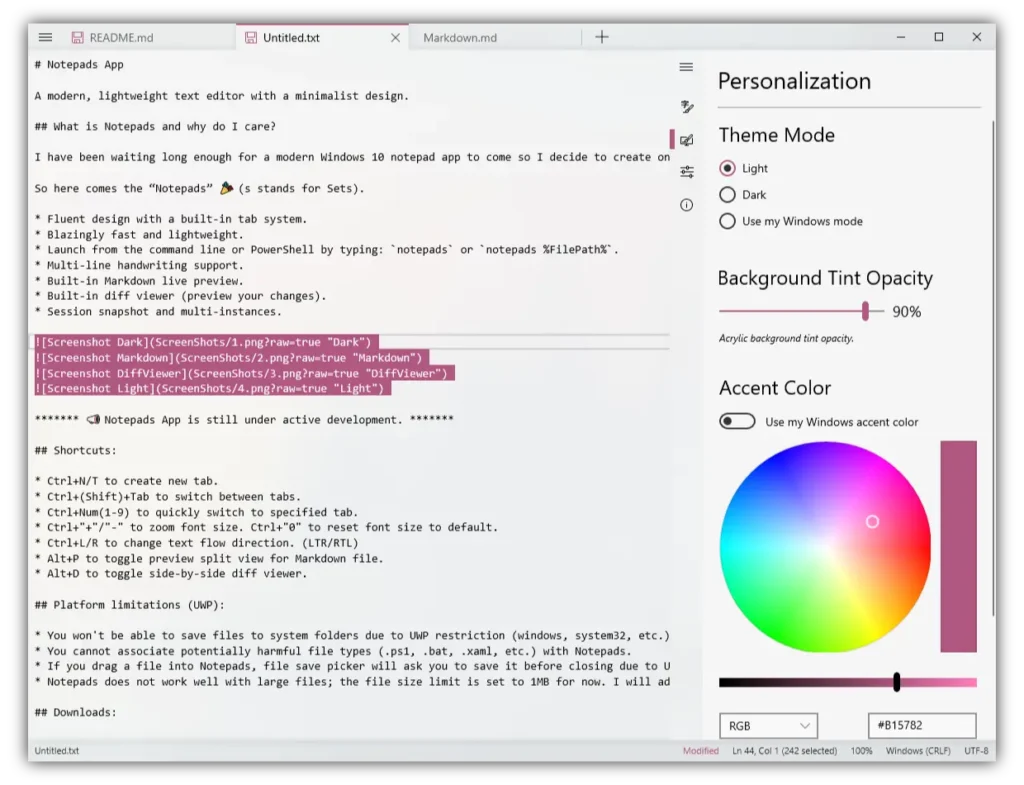
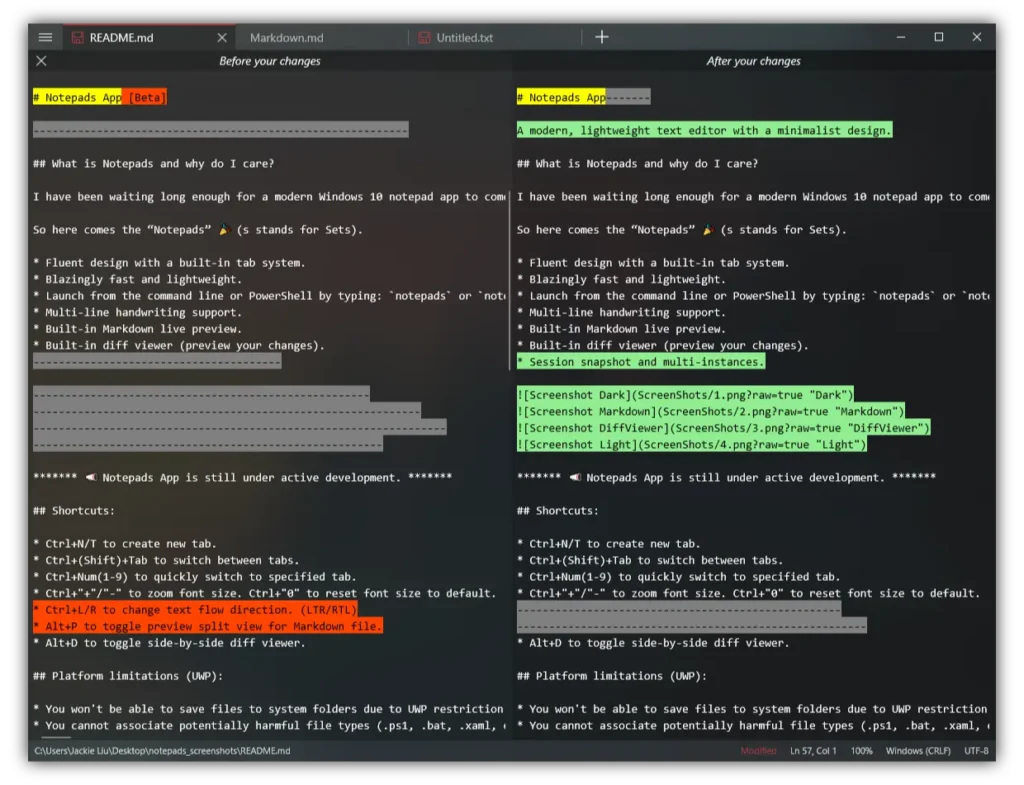
Features of Notepads
| Feature | Description |
|---|---|
| Modern Design | Sleek, fluent interface with built-in tab system |
| Performance | Blazingly fast and incredibly lightweight |
| Markdown Support | Live preview for markdown files |
| Diff Viewer | Built-in changes preview |
| Multi-Language | Supports left-to-right and right-to-left text flow |
| Command Line Launch | Easy integration with PowerShell and command prompt |
System Requirements
| Specification | Minimum Requirements |
|---|---|
| Operating System | Windows 10 or Windows 11 |
| Architecture | 64-bit |
| Storage | 50 MB free disk space |
| RAM | 2 GB |
Recommended For You: Notepad++ for Windows: Free & Powerful Source Code Editor
How to Install Notepads??
Before jumping to the installations steps, download the app from the download section below
- Simply run the
.msixbundlefile. - Windows will automatically open the App Installer window.
- Follow the instructions and install the app
- Open Start Menu → search “Notepads” → Open
- Enjoy!
Download Notepads: The Best Modern & Lightweight Notepad Alternative
Keyboard Shortcuts
- Create new tab: Ctrl+N or Ctrl+T
- Switch between tabs: Ctrl+(Shift)+Tab
- Quick tab switching: Ctrl+Number (1-9)
- Zoom in/out: Ctrl+”+” or Ctrl+”-“
- Reset zoom: Ctrl+”0″
- Toggle markdown preview: Alt+P
- Toggle diff viewer: Alt+D
Conclusion
Use Notepads today and discover a whole new way of working with text. It’s free, it’s open-source, and it’s ready to become your new favorite text editor. Whether you’re writing code, taking notes, or editing documents, Notepads is here to make your life easier.




